

Add New Members to Mailchimp When New Leads are Captured from Facebook Lead Ads
Add every person who fills in your Facebook Lead Ads form to a Mailchimp audience as a new member, so your next campaign reaches them without a CSV import.
 Facebook Lead Ads
 Mailchimp
2 steps 1 downloads Setup ~5 min Used on 3.0k sites Free to import
What this workflow does
Running Facebook lead ads and emailing from Mailchimp leaves a gap between the two. Leads collect on Facebook, and someone has to export and import them before the first email goes out. This workflow closes that gap by adding each lead to Mailchimp as it arrives.
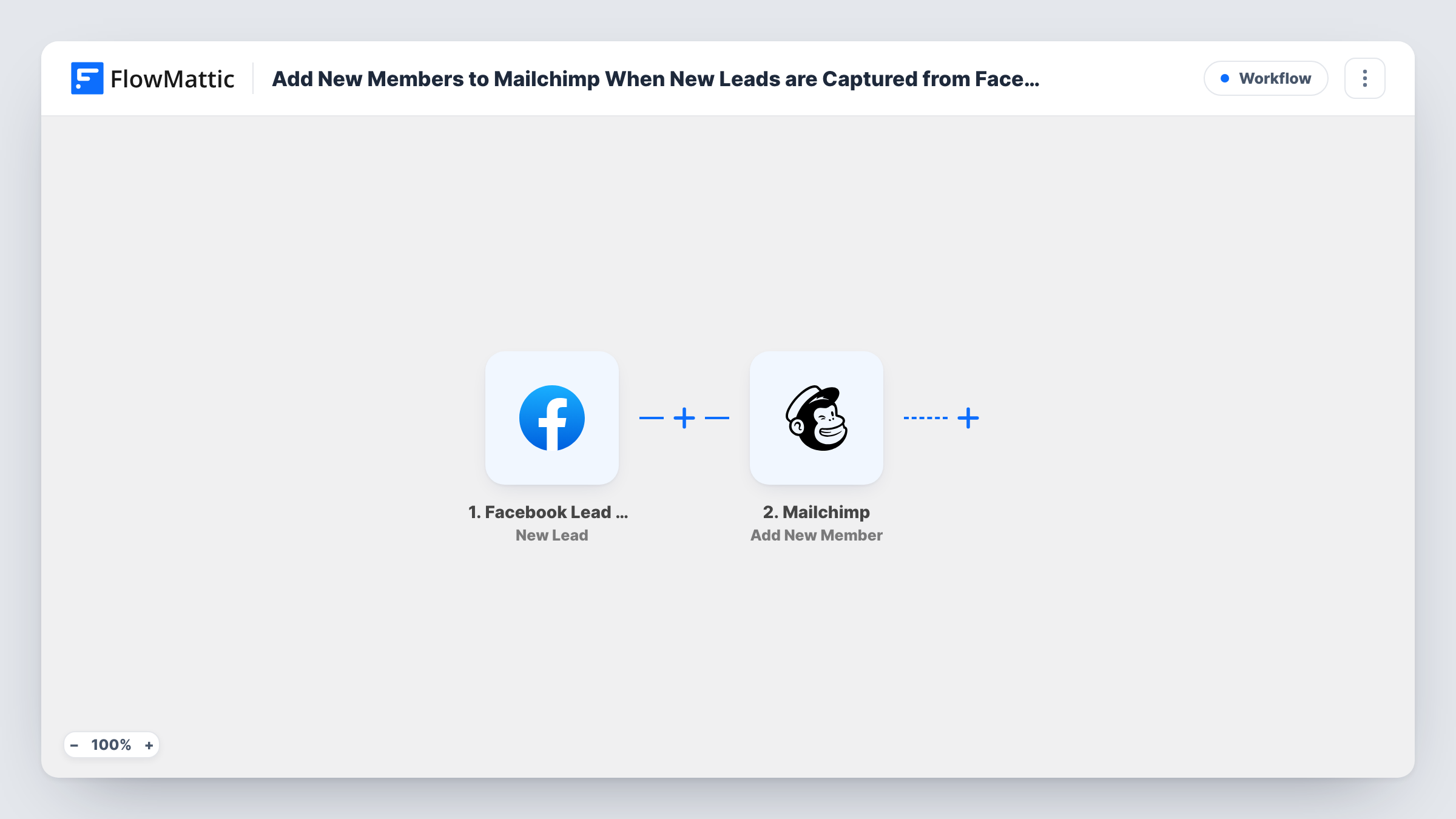
Every new submission to your ad form fires the Facebook Lead Ads trigger, and the answers become fields in FlowMattic. The Mailchimp Add New Member step then adds the person to a Mailchimp audience, built from the lead data you map into it.
From there, Mailchimp treats the lead like any other member of that audience. Campaigns you send to that audience reach them as well. Each run is listed in Task History, which shows what was sent to Mailchimp and helps when a lead did not appear.
Webinar sign-ups from an ad
People who register through your lead form become Mailchimp members, so reminder emails for the webinar reach them from your usual account.
Discount offer for new customers
An online store collects emails with a lead ad promising a discount, then sends the code in its next Mailchimp campaign to that audience, new leads included.
Growing a newsletter audience
A blogger runs a small lead ad for their newsletter. New sign-ups are in the audience before the next issue goes out.
How this workflow runs
What happens at each step once the workflow is on, and what you need before you import it.
 Facebook Lead Ads New Lead
Fires when someone submits your Facebook Lead Ads form. Connect your Facebook account, and the lead's answers can be mapped in the Mailchimp step.
- Mailchimp Add New Member
Adds the lead to a Mailchimp audience as a new member. Connect your Mailchimp account, map the lead's details into the step, and check the new member in Mailchimp after a test lead.
What you need
- FlowMatticCore
- Facebook Lead Ads AccountAccount
- Mailchimp AccountAccount
After importing, map your own data. To keep the template universal, not every step is pre-filled. Open each step in the builder and connect your accounts and fields (channels, lists, sheets, recipients) before you switch the workflow on.
Make it yours
Changes worth making after you import it.
- Put a Filter in front of Mailchimp that checks a consent question in your lead form, so only leads who agreed to emails become members.
- Use a Router after the trigger to send leads from different form answers to different Mailchimp audiences, each with its own Add New Member step.
- After the Mailchimp step, add a Google Sheets step if you also want a plain record of every lead outside Mailchimp.
Questions about this workflow
Which Mailchimp audience do leads go to?
The one the Add New Member step is set up for. To use a second audience, add another Mailchimp step or import the template again.
What if the email is already in my Mailchimp audience?
Add New Member updates a Facebook lead who is already in the audience instead of creating a second entry. The details you map from the lead form replace what Mailchimp held for that address.
Do I need both a Mailchimp and a Facebook account connected?
Yes. Connect a Mailchimp account with the audience you want to fill, and a Facebook account with access to the page that runs your lead ads.
More Email Marketing & Onboarding workflows
Other ready-to-import templates from the same category.







Import this workflow into your WordPress site
Download the JSON, import it from the Workflows screen and connect your accounts. Every run stays on your server, with no per-task fees.
30-day money-back guarantee Unlimited workflows and runs Self-hosted