

An AI chatbot for WordPress that runs your workflows
FlowMattic AI Assistants put a chat widget on your site that answers from your own pages, files and tables, and can start a workflow from the conversation: a booking, a status lookup, a refund request. Each assistant has its own identity, AI connection and model, on a key you hold.
Unlimited assistants11 AI providers, your keyWorkflows triggered from chatShortcode, embed or floating widget

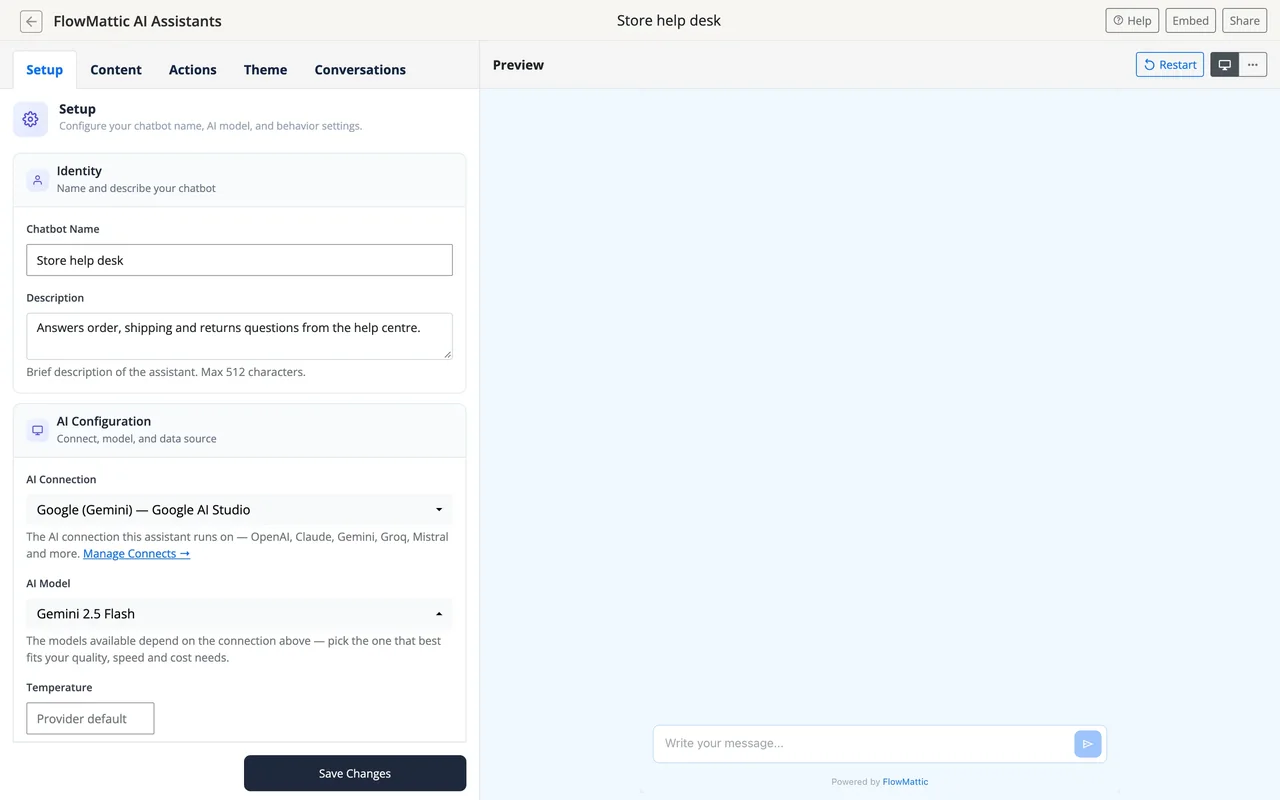
From your content to a widget that helps
Three steps, all in the assistant editor.
-
Content
Add what it should know
Upload text-based files, crawl web pages, sync WordPress post types, sync a FlowMattic table of FAQs, or connect Google Docs and Notion. Sources sync in the background and can be refreshed.
-
Setup
Give it an identity and a model
Name, avatar, instructions, welcome message and placeholder text, then the AI connection and model it runs on. A per-assistant Temperature setting, left blank, keeps the provider default.
-
Embed
Place it and go live
A shortcode for any WordPress post or page, an HTML embed code for any website page, or a footer script for a floating chat widget. Pick a theme preset and position, then test in the preview.
A workflow starts from the conversation
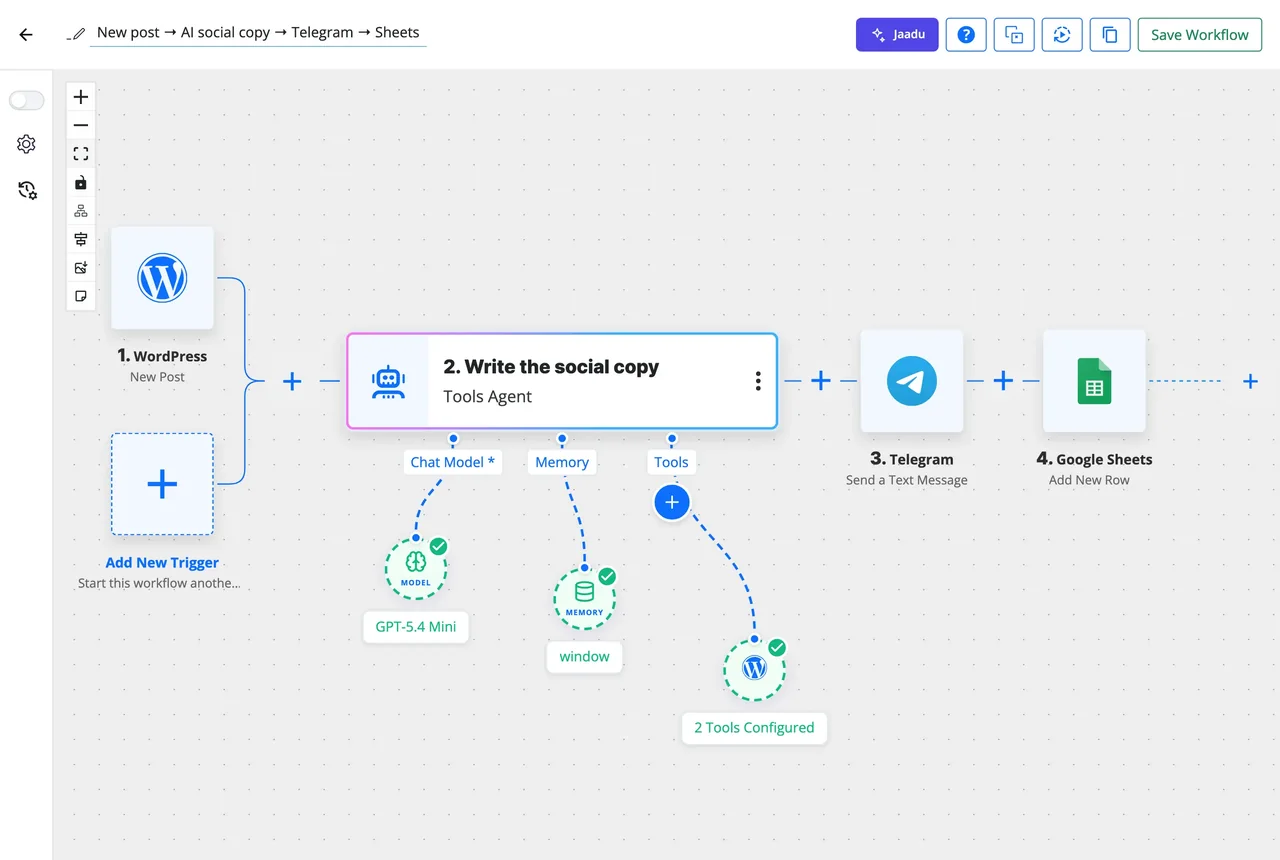
Add a Trigger Workflow action to an assistant and choose the workflow. When the assistant generates a response, the Chatbot Response Generated event fires with the conversation data, and the rest is a normal FlowMattic workflow: look up an order, create a booking, open a refund request, add the lead to your CRM, notify the team.
- Trigger Workflow on Chatbot Response Generated
- Collect Leads gathers a visitor's name and details mid-conversation
- Schedule Meeting with your Calendly, Cal.com or Google Calendar booking link
- Suggestions and a Link Button steer the visitor to the next step
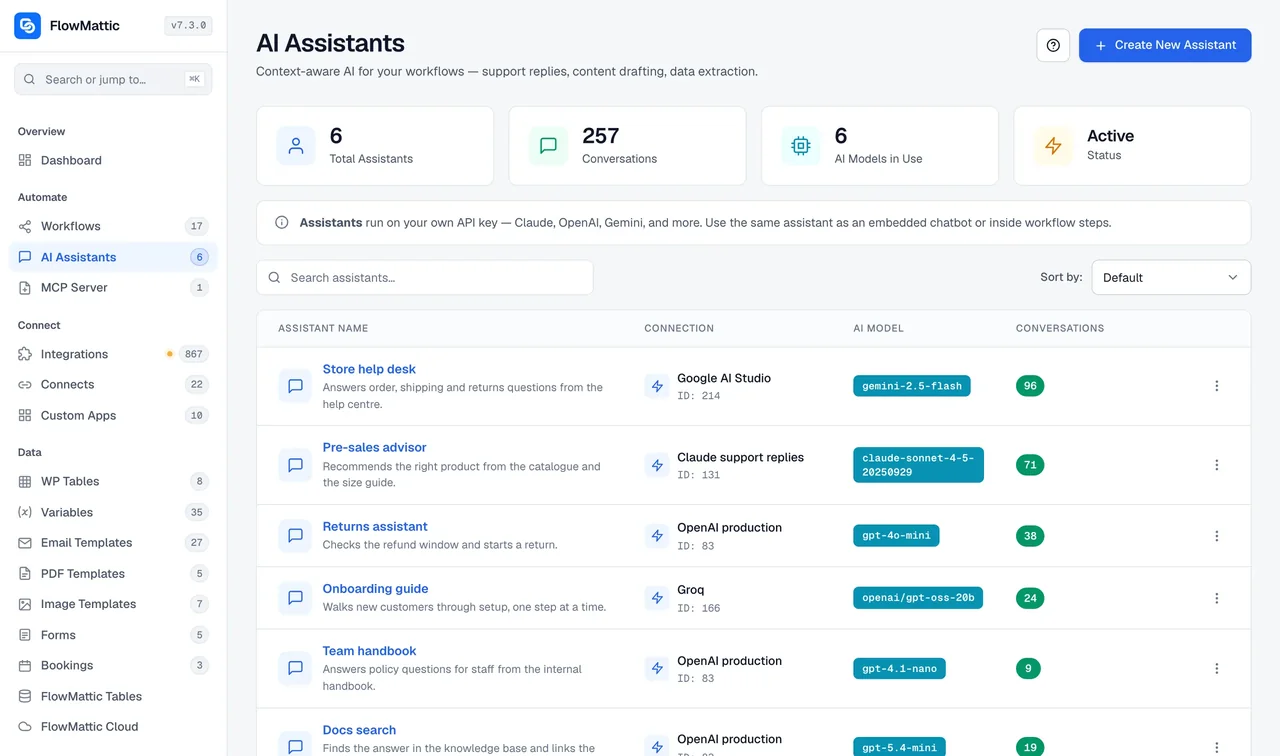
Every assistant has its own identity, connection and model
A support assistant on Claude, a pre-sales assistant on Gemini and an internal one on a local OpenAI-compatible model can all run on the same site, each with its own instructions, sources and theme. The connection comes from Connects, so a key is saved once and chosen by name.
- OpenAI, Anthropic Claude, Google Gemini, Groq, Mistral, xAI Grok, Perplexity, DeepSeek, OpenRouter, Straico and AWS Bedrock
- Temperature per assistant; a model that takes none is asked again without it
- Theme presets, colours, position and launcher icon per assistant
- Streamed replies, with bold, lists and links rendered
Answers come from your content, kept on your server
Sources are chunked and embedded into a knowledge base. An OpenAI-connected assistant uses an OpenAI vector store; every other provider uses an embeddings index stored in your uploads directory, built with an OpenAI, Google, Mistral or Voyage AI embeddings connection. At chat time the question is embedded, the closest chunks are found and handed to the model as context.
- Files up to 10 MB, including Markdown; crawled pages; post types; a table of up to 10,000 rows
- The crawler refuses private and link-local hosts and verifies TLS
- Conversations stored in your WordPress database
What is in the assistant editor
Everything on one screen, with a preview chat that uses the real settings.
Content sources
Uploads, crawled web pages, WordPress post types, a FlowMattic table, Google Docs and Notion, each synced on its own.
Identity
Name, avatar, instructions up to 32,768 characters, welcome message and input placeholder.
AI connection and model
Any saved connection, the model list it offers, and a Temperature that defaults to the provider's own.
Actions
Trigger Workflow, Collect Leads, Schedule Meeting, Suggestions and a Link Button, switched on per assistant.
Theme and placement
Theme presets, primary colour, page background, position, icon and launcher button, previewed as you change them.
Refusals reported
A rejected request ends the turn with a message; the provider's reason shows only to logged-in managers, and a filter can retry once after a rate limit.
Conversations that end in something done
Each pairs an assistant with a workflow from the library or one you build.
Order status without a ticket
The visitor gives an order number; the triggered workflow looks it up in WooCommerce and the assistant replies with the status and tracking link.
Booking from the chat
Schedule Meeting shows your booking link at the right moment, and a Bookings trigger confirms by email and adds the slot to the calendar.
Refund request logged and routed
The workflow writes the request to a WP Tables row, waits on a Human in the Loop approval and tells the customer the outcome.
Lead captured, CRM updated
Collect Leads gathers the name and email; the workflow creates the FluentCRM contact, tags the source and alerts sales in Slack.
Questions about the AI chatbot
Which AI providers can an assistant run on?
OpenAI, Anthropic Claude, Google Gemini, Groq, Mistral, xAI Grok, Perplexity, DeepSeek, OpenRouter, Straico and AWS Bedrock, each through a connection you save once in Connects. Every assistant picks its own connection and model, so a support bot and a sales bot can run on different providers.
Does it need an OpenAI account?
Not for chat. For the knowledge base, an OpenAI-connected assistant uses an OpenAI vector store, and every other provider uses an embeddings index stored on your own server, built with an OpenAI, Google, Mistral or Voyage AI embeddings connection.
How does a conversation start a workflow?
Add a Trigger Workflow action to the assistant and choose the workflow. When the assistant generates a response, the Chatbot Response Generated event fires with the conversation data, and the workflow takes it from there: a lookup, a booking, a refund request, a lead in your CRM.
What happens when the provider refuses a request?
The turn ends with a message instead of leaving the widget waiting. Visitors see a generic line; the provider's own message, such as a rate limit or an invalid key, is logged and shown only to a logged-in user who can manage assistants. A filter can wait and retry once on a rate limit.
Where are conversations stored?
In your own WordPress database, on your server. The only data that leaves is the request to the AI provider you chose, sent with your key. Public chat endpoints are rate-limited and every reply is sanitised before it is shown.
Can I put the assistant on a site that is not WordPress?
Yes. Besides the shortcode for WordPress posts and pages, each assistant gives you an HTML embed code for any web page and a script for a floating chat widget, both served from your WordPress site.
How many assistants can I create?
As many as you need. Every FlowMattic plan includes unlimited assistants, each with its own name, avatar, instructions, content sources, theme and placement.
Did not find your answer? You can browse the help center or ask us directly.
Put an assistant on your site this week
Connect a provider, add your content, and embed the widget with a shortcode. The docs cover sources, actions and every provider's setup.
Unlimited assistants 918+ integrations in workflows Running on 12,887+ sites