

Add new Facebook Lead Ads contacts to a HubSpot CRM list automatically
Each new Facebook Lead Ads lead is created as a contact in HubSpot CRM and then added to the static HubSpot list you choose, so a campaign’s leads are grouped for follow-up.
 Facebook Lead Ads
 HubSpot CRM
3 steps 3 downloads Setup ~5 min Used on 1.5k sites Growth Free to import
What this workflow does
When a Facebook ad brings in leads, your sales and marketing teams want them in HubSpot, grouped by campaign. This workflow creates the HubSpot contact from each lead and adds it to a list, so you can email that group, assign it or report on it without exporting files from Meta.
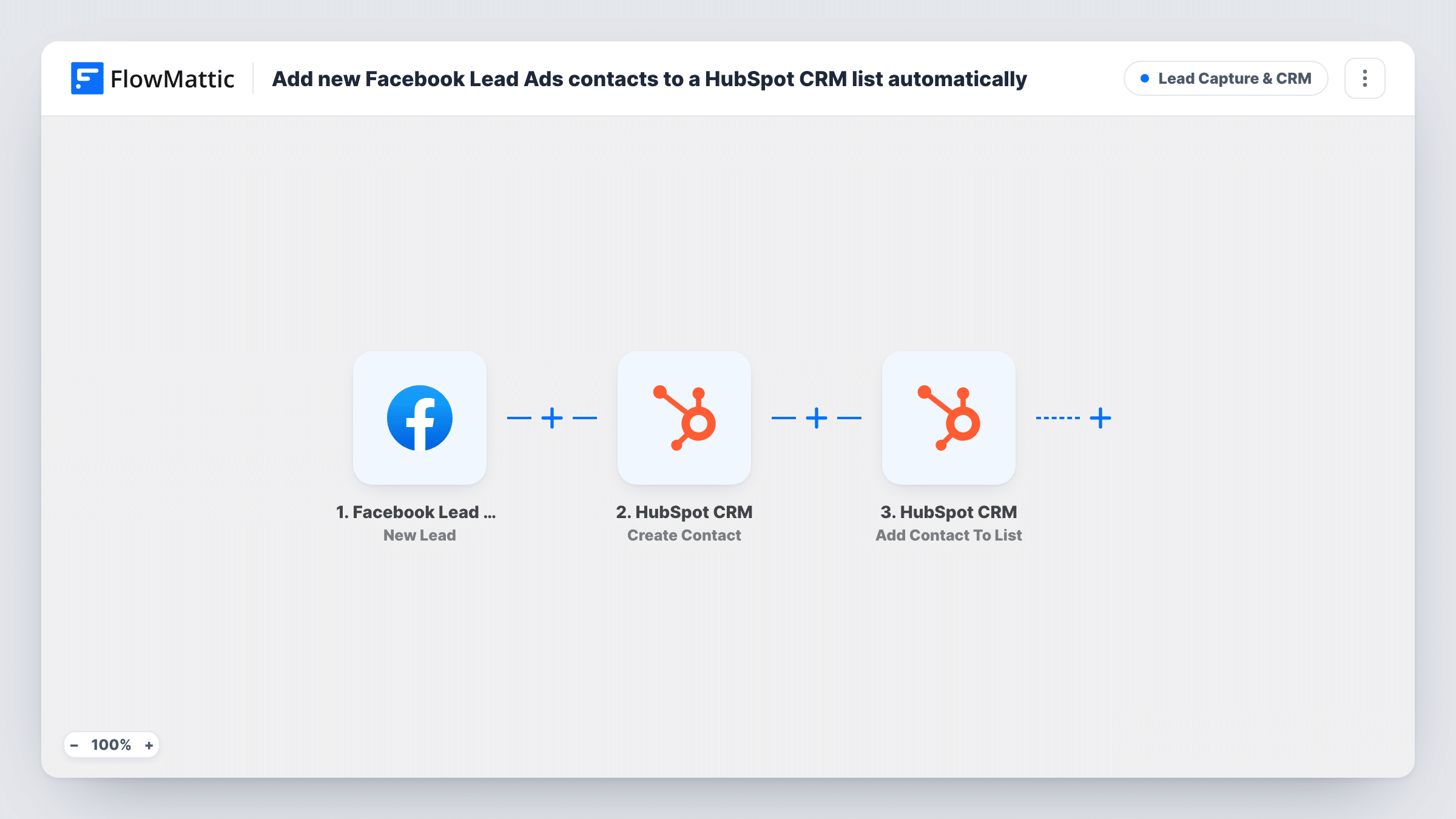
The Facebook Lead Ads trigger runs each time a new lead is submitted on the form you connect. The first HubSpot CRM step creates a contact from the lead's answers. The second HubSpot step adds that contact to a static list.
The order is deliberate: a HubSpot static list only holds contacts that exist, so the contact is created before the list step runs. Both HubSpot steps ship unmapped. After import, map the lead's email, name and phone into Create Contact, then pick the list and map the contact from step 2 into Add Contact To List. Use a static list here, not an active one, since active lists fill themselves from their own filters.
HubSpot treats this step as a new record every time. If the lead's email already belongs to a HubSpot contact, HubSpot may refuse the request. Run a test with a known email and check Task History to see what HubSpot returned at each step.
Campaign list for a product launch
A gadget brand collects pre-launch interest through a Lead Ads form and adds every lead to a HubSpot launch list that gets the release email.
Hand ad leads to the sales team
A B2B software company puts demo requests from Facebook on a HubSpot list that its sales reps work through each morning.
Measure leads per campaign
A charity runs separate ad forms for volunteers and donors, and each form's leads go to their own list so the team can count them in HubSpot.
How this workflow runs
What happens at each step once the workflow is on, and what you need before you import it.
 Facebook Lead Ads New Lead
Starts each time a new lead is submitted on your connected Facebook Lead Ads form. The lead's answers, such as name, email and phone, are passed to HubSpot.
- HubSpot CRM Create Contact
Turns the lead into a new HubSpot CRM contact. The step ships unmapped: map at least the lead's email address, plus the name and any other answers you want saved.
- HubSpot CRM Add Contact To List
Adds the contact from step 2 to a static HubSpot list. Ships unmapped: choose the list and map the contact from the previous step, then test with a sample lead.
What you need
- FlowMatticCore
- Facebook Lead Ads AccountAccount
- HubSpot CRM AccountAccount
After importing, map your own data. To keep the template universal, not every step is pre-filled. Open each step in the builder and connect your accounts and fields (channels, lists, sheets, recipients) before you switch the workflow on.
Make it yours
Changes worth making after you import it.
- Create a separate static list in HubSpot for each ad campaign before you import, and pick it in the list step, so each form's leads stay together.
- Send a sample lead with Facebook's lead testing tool after import, then check the new contact and its list membership in HubSpot.
- Build a HubSpot workflow or email that targets the list, so contacts added by this workflow get your follow-up from inside HubSpot.
Questions about this workflow
What happens if the lead is already a contact in HubSpot?
Create Contact is a create-only action, so HubSpot may refuse a duplicate email. Task History shows HubSpot's response for that run, so test with an email you already have in HubSpot to see what happens.
Can I use an active HubSpot list instead of a static one?
The Add Contact To List action adds a contact to a static list. Active lists in HubSpot update from their own filters, so pick a static list in the step.
Which contact details reach HubSpot from Facebook?
Only what you map in the Create Contact step. The template leaves it empty, so match the lead form's email, name and other answers to HubSpot contact properties after import.
Are leads from before I import this added to HubSpot?
No. Only leads submitted after the workflow is turned on start a run. Older leads need a separate import into HubSpot.
More Lead Capture & CRM workflows
Other ready-to-import templates from the same category.







Import this workflow into your WordPress site
Download the JSON, import it from the Workflows screen and connect your accounts. Every run stays on your server, with no per-task fees.
30-day money-back guarantee Unlimited workflows and runs Self-hosted