

Automate Contact Creation in HubSpot CRM from New Facebook Lead Ads Trigger
Every new lead from your Facebook Lead Ads forms becomes a contact in HubSpot CRM, so your sales team can see and follow up on ad leads in the CRM without exporting and importing files.
 Facebook Lead Ads
 HubSpot CRM
2 steps 5 downloads Setup ~5 min Used on 3.0k sites Free to import
What this workflow does
Leads from Facebook ads are most likely to answer when you reach them soon after they fill in the form. Downloading lead files from Facebook and importing them into HubSpot adds a delay and a manual job that's easy to forget. This two-step workflow sends each lead to HubSpot as it arrives.
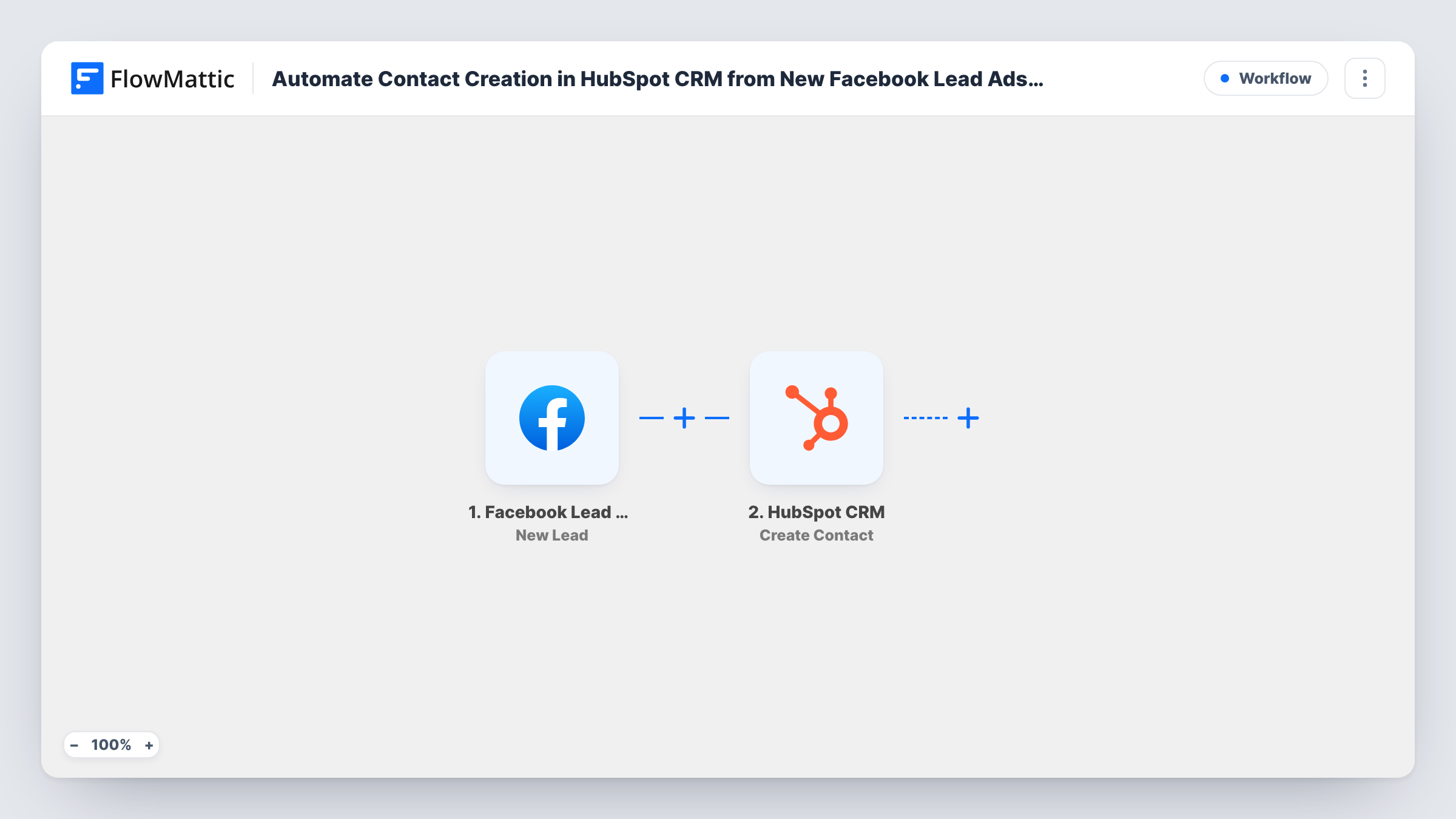
The Facebook Lead Ads trigger runs whenever someone submits one of your lead forms on Facebook. The answers to the form's questions, such as name, email and phone, become fields you can map. FlowMattic then calls Create Contact in HubSpot CRM and fills the contact properties with those answers.
Once the contact exists, the rest of HubSpot takes over: owners, sequences, lists and reports all work on it like any other contact. Each run is saved in Task History, so you can open a lead and see exactly which values were sent to HubSpot.
Local service businesses running lead campaigns
A plumber or cleaner running Facebook lead ads gets each enquiry into HubSpot as a contact, ready for a call back from whoever is on duty.
Real estate agents collecting buyer interest
People who ask about a listing through a Facebook lead form appear in HubSpot as contacts, where the agent tracks every viewing and follow-up.
B2B teams testing ad audiences
Leads from several ad sets land in one HubSpot contact database, so you can compare how each audience converts later in the funnel.
How this workflow runs
What happens at each step once the workflow is on, and what you need before you import it.
 Facebook Lead Ads New Lead
Runs when a person submits a Facebook Lead Ads form. Their answers, such as name, email address and phone number, are passed to HubSpot as fields to map.
- HubSpot CRM Create Contact
Creates a contact in HubSpot CRM from the lead. Connect your HubSpot account and map the lead's email and other answers into the contact. Send a test lead to confirm each value lands where you expect.
What you need
- FlowMatticCore
- Facebook Lead Ads AccountAccount
- HubSpot CRM AccountAccount
After importing, map your own data. To keep the template universal, not every step is pre-filled. Open each step in the builder and connect your accounts and fields (channels, lists, sheets, recipients) before you switch the workflow on.
Make it yours
Changes worth making after you import it.
- Add a custom question to your lead form, such as the service someone wants, then send a test lead to see whether that answer can be mapped into the HubSpot contact.
- Put a Filter after the trigger if you only want leads from certain forms or answers in HubSpot, for example people who chose a budget above your minimum.
- Add HubSpot CRM's Add Contact To List step after Create Contact if you want ad leads grouped on a list for follow-up emails.
Questions about this workflow
What if the lead is already a contact in HubSpot?
HubSpot treats the email address as a contact's unique key, so a second contact with the same email is not created. Test with an address that already exists to see how the run reports it in Task History.
Will leads collected before I import the workflow be sent?
No. The trigger picks up new leads only, so earlier submissions stay in Facebook. Download those from Facebook and import them into HubSpot separately if you need them.
What accounts do I need?
A Facebook account with access to the Page that runs your lead ads, and a HubSpot account where you can create contacts. Both are connected inside FlowMattic.
Can I also create a deal for each lead?
Yes. Add a Create Deal step from HubSpot CRM after the contact step and map the lead details you want on the deal.
More Lead Capture & CRM workflows
Other ready-to-import templates from the same category.




Import this workflow into your WordPress site
Download the JSON, import it from the Workflows screen and connect your accounts. Every run stays on your server, with no per-task fees.
30-day money-back guarantee Unlimited workflows and runs Self-hosted