

Automatically Update Slack Channel Topic with New Alerts from Tradingview
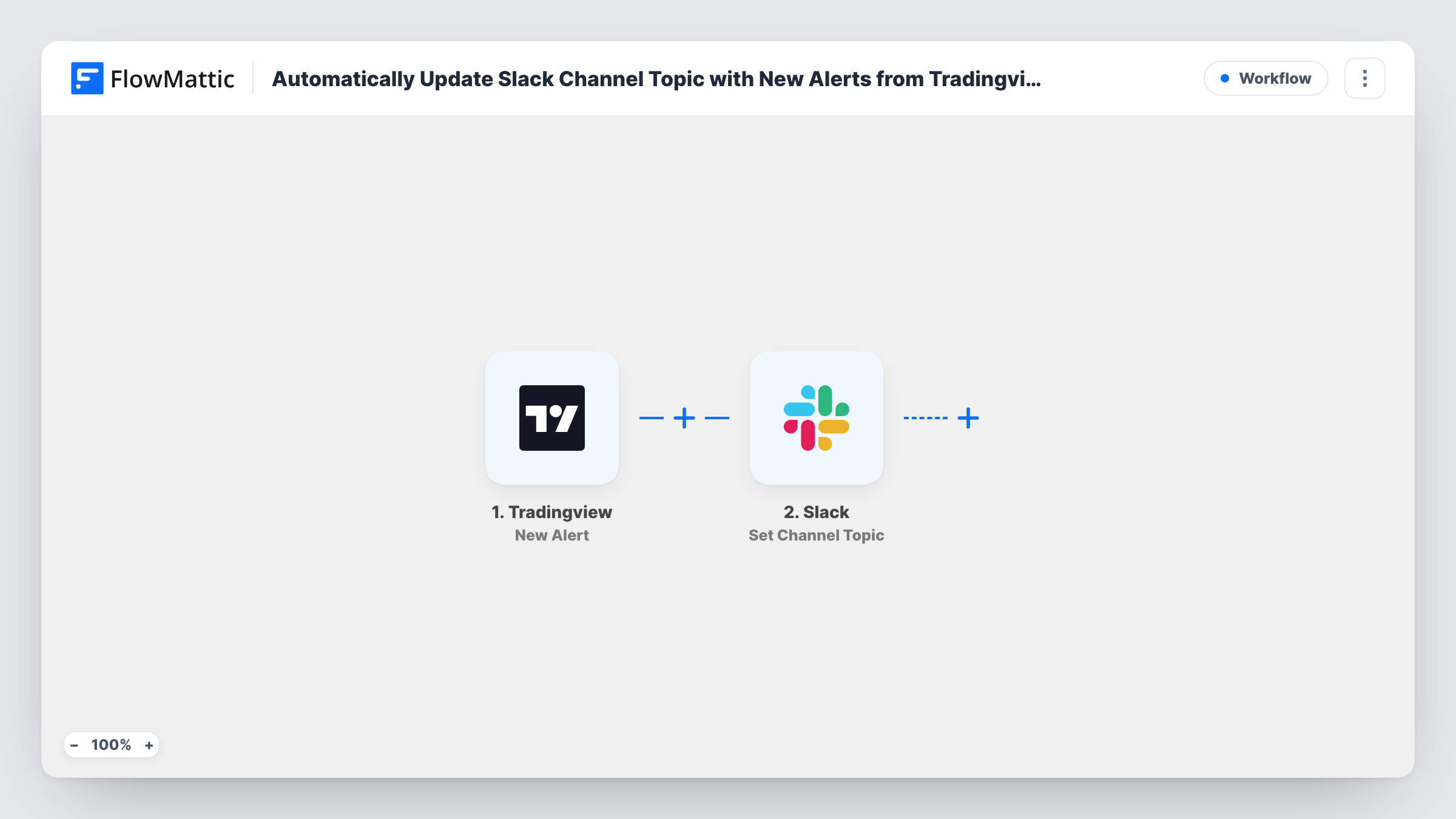
Keep the latest TradingView alert in a Slack channel’s topic. Every new alert replaces the topic, so the header always shows the most recent signal without anyone scrolling.
 Tradingview
 Slack
2 steps Setup ~5 min Used on 1.0k sites Free to import
What this workflow does
Messages in a busy channel scroll away fast. The channel topic stays put at the top, so it is a good place for one piece of information everyone should see: the latest signal. This workflow writes each new TradingView alert into the topic of a Slack channel.
The TradingView trigger gives you a webhook URL for your alerts. Add it to an alert's webhook field, and each time that alert fires, its message is sent to FlowMattic. Keep the message short and structured, for example the symbol, direction and price, so each part can be mapped.
The Slack step uses Set Channel Topic on the channel you pick. You compose the topic from the alert's fields, such as "Last alert: ETHUSD long at 3,150". Each new alert overwrites the previous topic, so the header always reflects the most recent one. Earlier topics are not kept by the workflow, so pair it with a log if you need history.
Status line for a signals channel
The topic of #signals shows the latest alert, so anyone joining the conversation knows the current call before reading the thread.
Current bias for a strategy
A strategy alerts on trend changes. The topic always says whether it is currently long or short, updated the moment the alert fires.
One channel per market
Separate channels for crypto, forex and stocks each carry the latest alert for that market in their topic.
How this workflow runs
What happens at each step once the workflow is on, and what you need before you import it.
 Tradingview New Alert
Starts the run when TradingView posts an alert to the workflow's webhook URL. Add the URL to your alert's webhook setting so the alert's message is passed along.
- Slack Set Channel Topic
Sets the topic of the Slack channel you select. Connect your workspace and build the topic text from the alert's fields, keeping it short enough to read in the channel header.
What you need
- FlowMatticCore
- TradingView AccountAccount
- Slack AccountAccount
After importing, map your own data. To keep the template universal, not every step is pre-filled. Open each step in the builder and connect your accounts and fields (channels, lists, sheets, recipients) before you switch the workflow on.
Make it yours
Changes worth making after you import it.
- Add a Slack Send Channel Message step after this one if the team should also get a message, since a topic change alone is easy to overlook.
- Add a Google Sheets step to keep a history, because each new topic replaces the previous one.
- Use a Router to set the topic of a different channel for each market, routing on the symbol in the alert message.
Questions about this workflow
Does this post a message in the channel?
The workflow only sets the topic. To post a message with the alert as well, add a Slack Send Channel Message step.
What happens to the old topic?
It is replaced. The topic always shows the text from the latest alert, and the workflow does not keep earlier ones.
Can I use it with several alerts?
Yes. Put the same webhook URL on each alert. Whichever fired most recently sets the topic.
What does the Slack account need?
Connect a Slack workspace where the account can change the topic of the channel you pick.
More Team Notifications workflows
Other ready-to-import templates from the same category.



Import this workflow into your WordPress site
Download the JSON, import it from the Workflows screen and connect your accounts. Every run stays on your server, with no per-task fees.
30-day money-back guarantee Unlimited workflows and runs Self-hosted