

Create a New Company in HubSpot CRM for Each Lead from Facebook Lead Ads
When a Facebook Lead Ads form brings in a new lead, this workflow creates a company record in HubSpot CRM from the details they gave, which suits B2B campaigns that ask for a business name.
 Facebook Lead Ads
 HubSpot CRM
2 steps 3 downloads Setup ~5 min Used on 2.6k sites Free to import
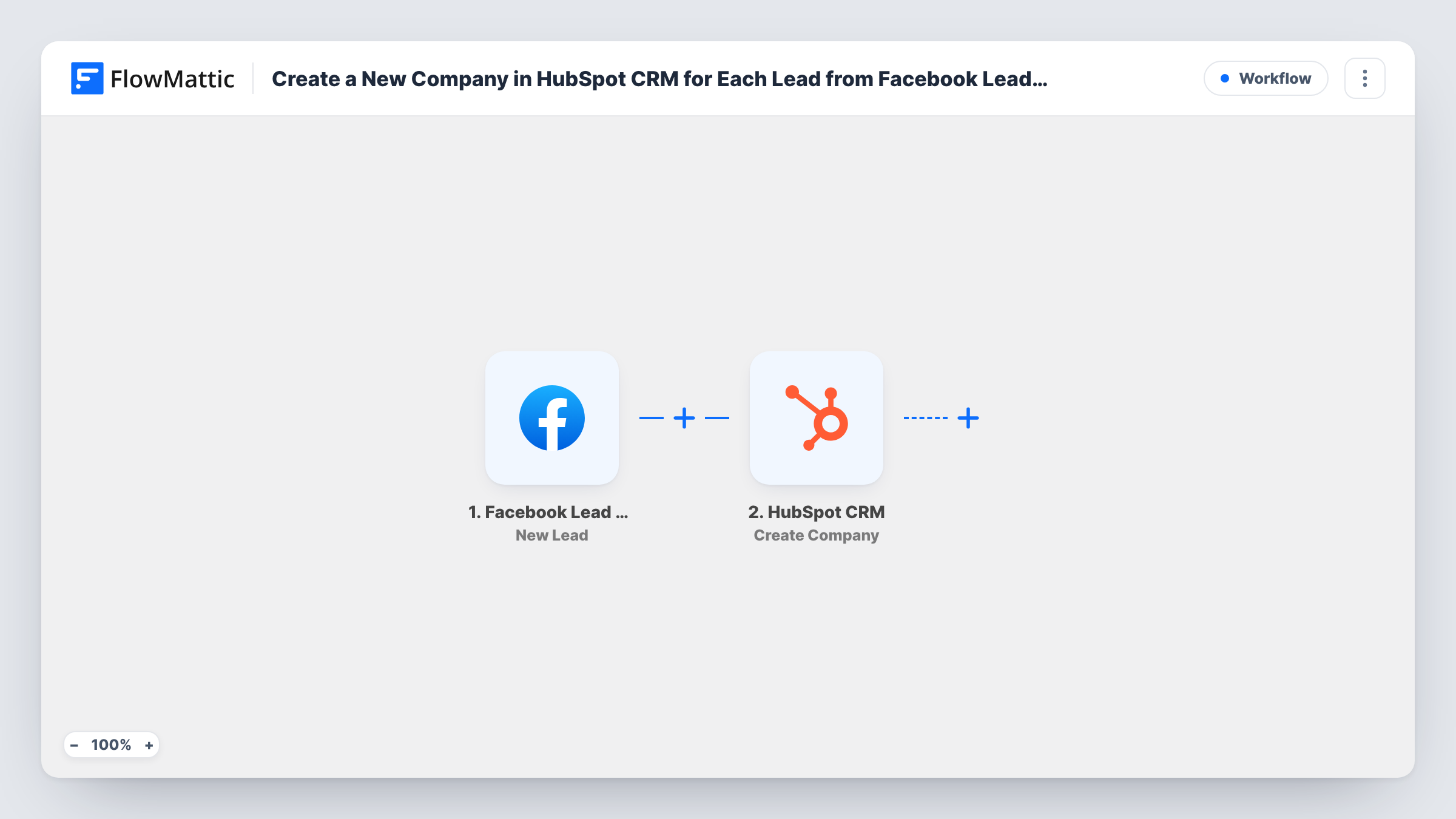
What this workflow does
Business-to-business ads usually ask for a company name, a website or a team size. In HubSpot those details belong on a company record, not only on a person. This workflow creates that company record for every lead your Facebook ad forms collect.
The trigger is a new lead in Facebook Lead Ads. Each answer on the form, including any business questions you added, is captured for mapping. The next step runs Create Company in HubSpot CRM. Map the company name answer into the new company, along with the website or other business answers, and check the result with a test lead.
Bear in mind that the template makes a company only. The person who filled in the form is not added as a contact, and the step doesn't look for an existing company with the same name. If several people from one business respond to your ads, you will get one company record per lead unless you add a check yourself.
Software firms advertising a demo
A demo request form asks for the company name and website, and each response opens a HubSpot company record your account team can research before the call.
Wholesale suppliers looking for stockists
Shops answering an ad to become resellers are recorded as HubSpot companies, giving you an account list of prospective stockists.
Event organisers selling exhibitor space
Businesses that enquire about a stand through a Facebook lead form appear as companies in HubSpot, ready for your sponsorship pipeline.
How this workflow runs
What happens at each step once the workflow is on, and what you need before you import it.
 Facebook Lead Ads New Lead
Starts when a new lead comes in from a Facebook Lead Ads form. Business answers such as company name, website and size can be mapped into the company record.
- HubSpot CRM Create Company
Creates a company in HubSpot CRM. Connect your HubSpot account and map the company name answer, plus any other business answers, into the record. Confirm with a test lead that each value arrives.
What you need
- FlowMatticCore
- Facebook Lead Ads AccountAccount
- HubSpot CRM AccountAccount
After importing, map your own data. To keep the template universal, not every step is pre-filled. Open each step in the builder and connect your accounts and fields (channels, lists, sheets, recipients) before you switch the workflow on.
Make it yours
Changes worth making after you import it.
- Add a company name question to your Facebook lead form before you turn this on. Without it, the HubSpot step has no business name to map.
- Insert HubSpot CRM's Create Contact step after Create Company if you also want the person who replied saved as a contact.
- Put a Filter after the trigger that continues only when the company name answer is not empty, so personal sign-ups don't create blank company records.
Questions about this workflow
Does this create a contact too?
No. Only a company record is made. Add a contact step to the workflow if you want the lead stored as a person in HubSpot as well.
What happens if the company is already in HubSpot?
The step creates a new company each time and does not check for an existing one first, so a repeat business can end up as two records. Watch for duplicates or merge them in HubSpot.
What if my lead form doesn't ask for a company name?
Then there is nothing natural to name the company with. Add that question to the form, or map another field such as the lead's full name if that suits how you work.
Which apps do I connect?
Your Facebook account for the lead form trigger and your HubSpot account for the company step, both connected from inside FlowMattic after import.
More Lead Capture & CRM workflows
Other ready-to-import templates from the same category.






Import this workflow into your WordPress site
Download the JSON, import it from the Workflows screen and connect your accounts. Every run stays on your server, with no per-task fees.
30-day money-back guarantee Unlimited workflows and runs Self-hosted