

Invite User to Slack Channel When a New Alert Triggers in Tradingview
When a TradingView alert fires, this workflow invites a chosen user into a Slack channel, so the right person is pulled into the conversation about that market move without anyone adding them by hand.
 Tradingview
 Slack
Slack2 steps 1 downloads Setup ~5 min Used on 2.1k sites Free to import
What this workflow does
Some alerts call for more than a message. A price breaking a level you care about might mean you want a particular trader, analyst or partner brought into a dedicated Slack channel to discuss it. This workflow does that one job: each new TradingView alert invites a user into a channel.
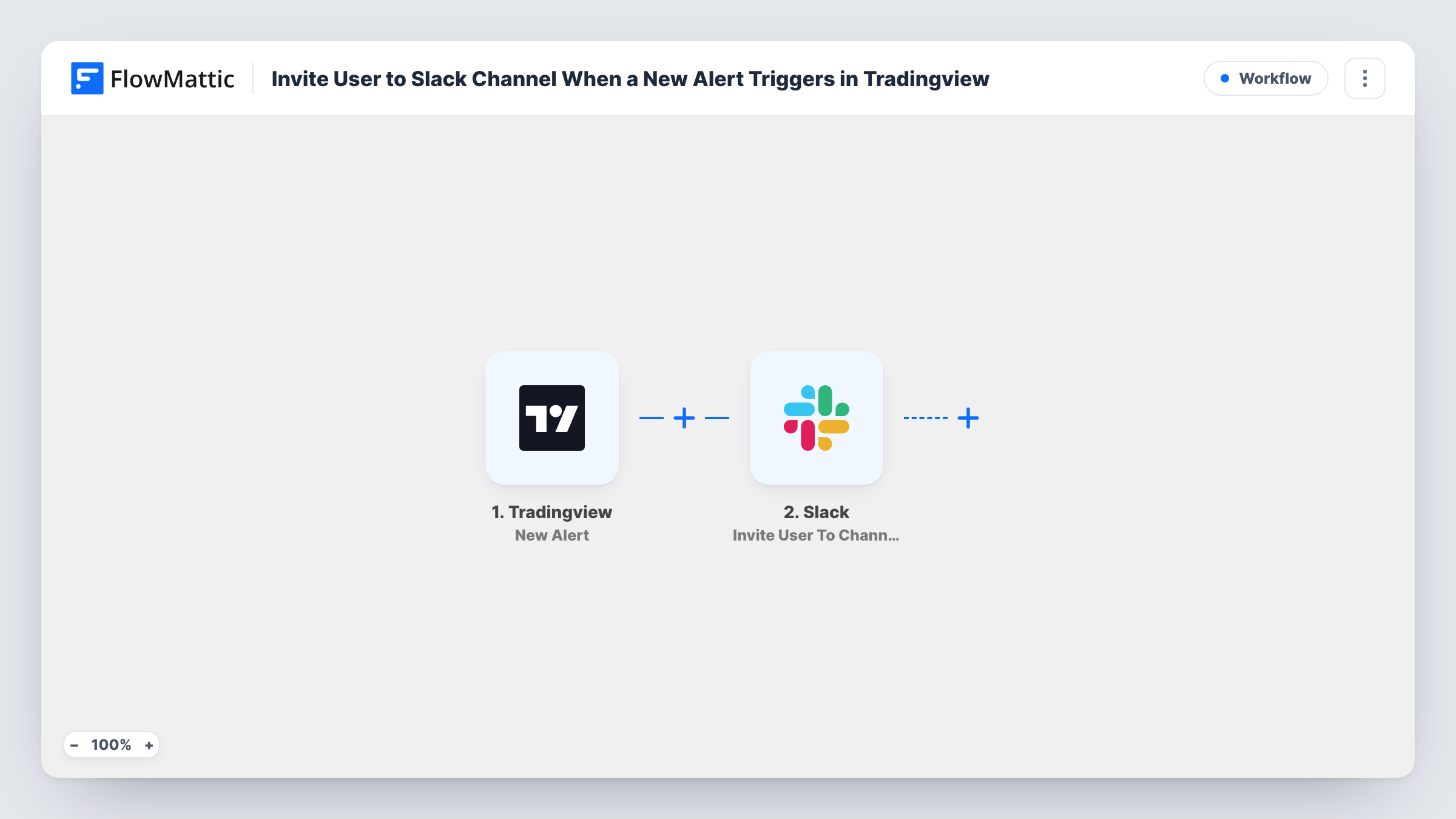
The TradingView trigger receives your alert through a webhook URL that you add to the alert's notification settings in TradingView. Whatever the alert sends, such as the message text you wrote for it, arrives in FlowMattic as data. The second step runs Invite User To Channel in Slack, which adds a Slack user to a channel. A test alert after import confirms the right person is added to the right one.
Note that the invite is all this template does. It doesn't post the alert's content into the channel. If you want the person to see what triggered the invite, add a Slack message step after it. Every run is logged in Task History, which shows what TradingView sent and how Slack responded.
Escalating a big move to a senior trader
An alert on a sharp drop in a key index brings the senior trader into the desk's discussion channel, where the team is already talking it through.
Opening a channel for a strategy review
When a strategy alert fires, the analyst who owns that strategy is invited to the review channel so they can explain the signal.
Bringing a mentor into a student group
A trading educator gets invited to a study group's channel whenever the group's watch-list alert triggers, ready to comment on the setup.
How this workflow runs
What happens at each step once the workflow is on, and what you need before you import it.
 Tradingview New Alert
Receives a TradingView alert through the webhook URL you set on the alert. The alert's message and any values you put in it become data the workflow can use.
- Slack Invite User To Channel
Invites a Slack user to a channel. Connect your Slack workspace and set up who is invited and where, then fire a test alert to check the result.
What you need
- FlowMatticCore
- TradingView AccountAccount
- Slack AccountAccount
After importing, map your own data. To keep the template universal, not every step is pre-filled. Open each step in the builder and connect your accounts and fields (channels, lists, sheets, recipients) before you switch the workflow on.
Make it yours
Changes worth making after you import it.
- Add a Slack send message step after the invite that posts the alert's text, so the invited person knows why they were brought in.
- Use a Filter after the trigger to act only on alerts whose message contains a keyword, such as the ticker or the word urgent, if you route several alerts to this webhook.
- Write the TradingView alert message so it names the symbol and condition. That text is what you can map into later steps.
Questions about this workflow
What happens if the user is already in the channel?
Slack won't add them twice. The run may report an error from Slack in Task History, but nothing changes in the channel.
Does this send the alert text to Slack?
No. As imported, it only invites a user. Add a message step after the invite if you want the alert posted too.
How does TradingView reach FlowMattic?
Through a webhook. FlowMattic gives the trigger a URL, and you paste that URL into the webhook option of the TradingView alert.
Can I invite more than one person?
Add another Invite User To Channel step for each extra person you want brought in.
More Team Notifications workflows
Other ready-to-import templates from the same category.






Import this workflow into your WordPress site
Download the JSON, import it from the Workflows screen and connect your accounts. Every run stays on your server, with no per-task fees.
30-day money-back guarantee Unlimited workflows and runs Self-hosted