

Send Slack Channel Message When a New Tradingview Alert is Triggered
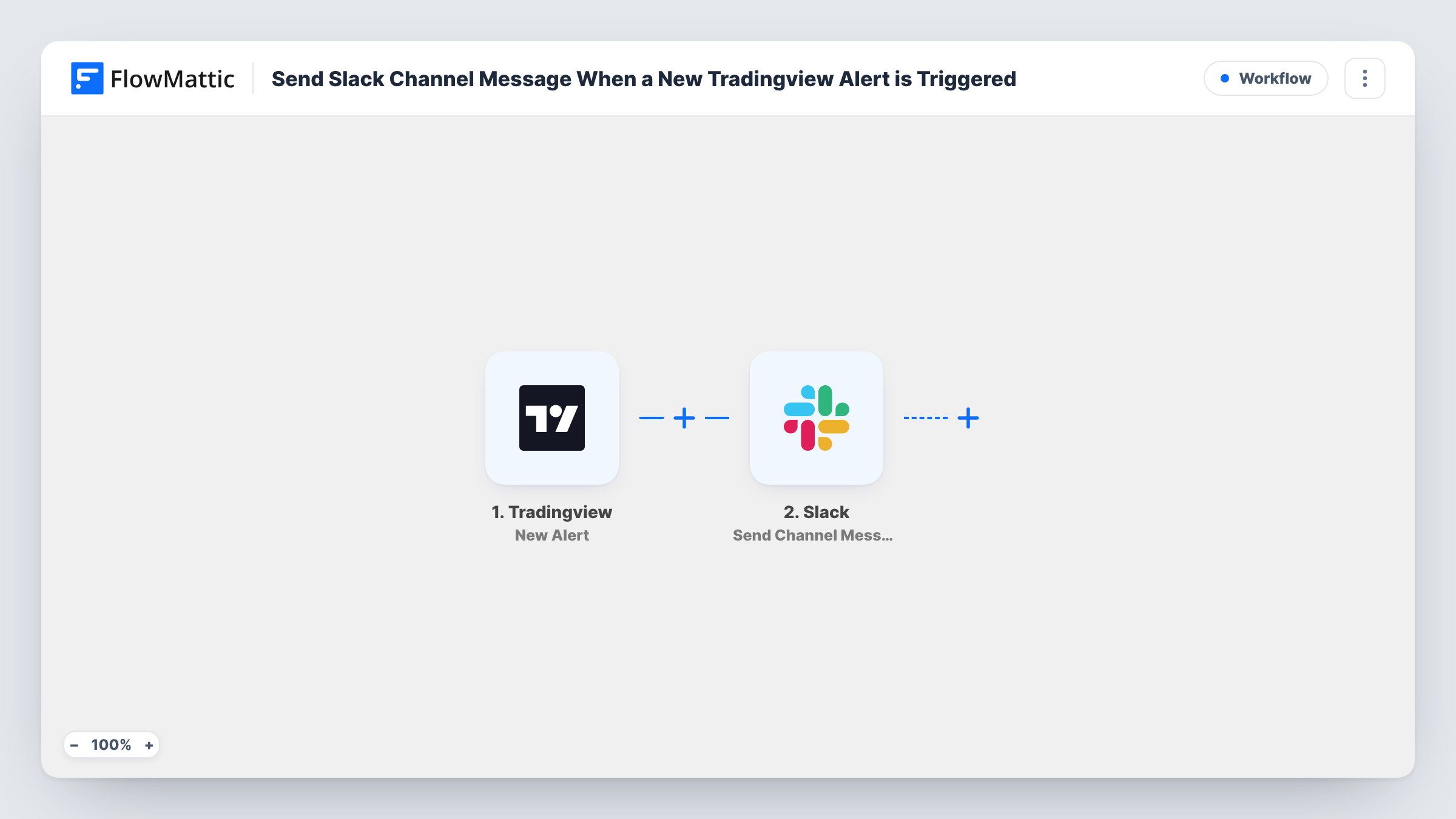
Post TradingView alerts to a Slack channel as they fire, so you and your team see each signal in the workspace you already have open, with the ticker and price in the message.
 Tradingview
 Slack
2 steps Setup ~5 min Used on 3.4k sites Free to import
What this workflow does
An alert that only pops up in the TradingView app or your inbox is easy to miss when you are working in other tools all day. If your team already talks in Slack, that is where the signal should show up. This workflow posts each TradingView alert to the Slack channel you pick.
The TradingView trigger provides a webhook URL. Add it to an alert's webhook setting, and each time the alert fires, its message reaches FlowMattic. If you format the message as JSON, values such as the symbol, the price and your note come through as separate fields.
The Slack step sends a message to the channel you choose. Build the text from those fields, for example "BTCUSD crossed 60,000: check the 4h chart", so the post reads well at a glance. Everyone in the channel sees it, and you can discuss the signal in a thread under the message.
Trading desk channel
A small trading group keeps a #signals channel. Every alert from the shared strategies posts there, and members reply in threads with their take.
Price levels for a crypto team
A project tracks its token's price. Alerts on key levels post to the team channel so nobody has to keep a chart open.
Quiet personal alerts
Send alerts to a private channel only you are in, and let Slack's own notification settings decide how loudly it tells you.
How this workflow runs
What happens at each step once the workflow is on, and what you need before you import it.
 Tradingview New Alert
Catches the alert TradingView sends to this workflow's webhook URL when the alert condition is met. The alert message, and any JSON keys in it, become fields to map.
- Slack Send Channel Message
Sends a message to the Slack channel you select. Connect your Slack workspace and write the message text, placing the alert's fields where they read naturally.
What you need
- FlowMatticCore
- TradingView AccountAccount
- Slack AccountAccount
After importing, map your own data. To keep the template universal, not every step is pre-filled. Open each step in the builder and connect your accounts and fields (channels, lists, sheets, recipients) before you switch the workflow on.
Make it yours
Changes worth making after you import it.
- Use a Router to send alerts for different symbols to different Slack channels, with one Send Channel Message step on each route.
- Include the timeframe and the alert's name in the TradingView message so the Slack post makes sense without opening the chart.
- Add a second action, such as a Google Sheets row, if you also want a record of every alert that was posted.
Questions about this workflow
Which Slack channel does the message go to?
The one you choose in the Slack step after connecting your workspace. You can change it later without touching the TradingView alert.
Can the message include the price?
Yes, if the price is in the alert message TradingView sends. Put it there with TradingView's placeholders, then map it into the Slack text.
Do I need to set anything up in TradingView?
Yes. Paste the workflow's webhook URL into the webhook setting of each alert you want posted to Slack.
Will it post alerts that fired earlier?
No. Only alerts that fire after the webhook URL is added are sent to Slack.
More Team Notifications workflows
Other ready-to-import templates from the same category.




Import this workflow into your WordPress site
Download the JSON, import it from the Workflows screen and connect your accounts. Every run stays on your server, with no per-task fees.
30-day money-back guarantee Unlimited workflows and runs Self-hosted