

Add Tags to Contact in FluentCRM when a New Lead is Captured from Facebook Lead Ads
Every Facebook Lead Ads lead becomes a FluentCRM contact, matched by email so returning people are updated, and then gets the tags you pick, so ad leads are easy to segment.
 Facebook Lead Ads
 FluentCRM
3 steps 6 downloads Setup ~5 min Used on 3.3k sites Growth Free to import
What this workflow does
Tags are how most FluentCRM users mark where someone came from and what they asked about. When leads arrive from Facebook ads, tagging them by hand is slow and easy to forget. This workflow brings each lead into FluentCRM and tags the contact at once, so segments and tag-based automations pick them up straight away.
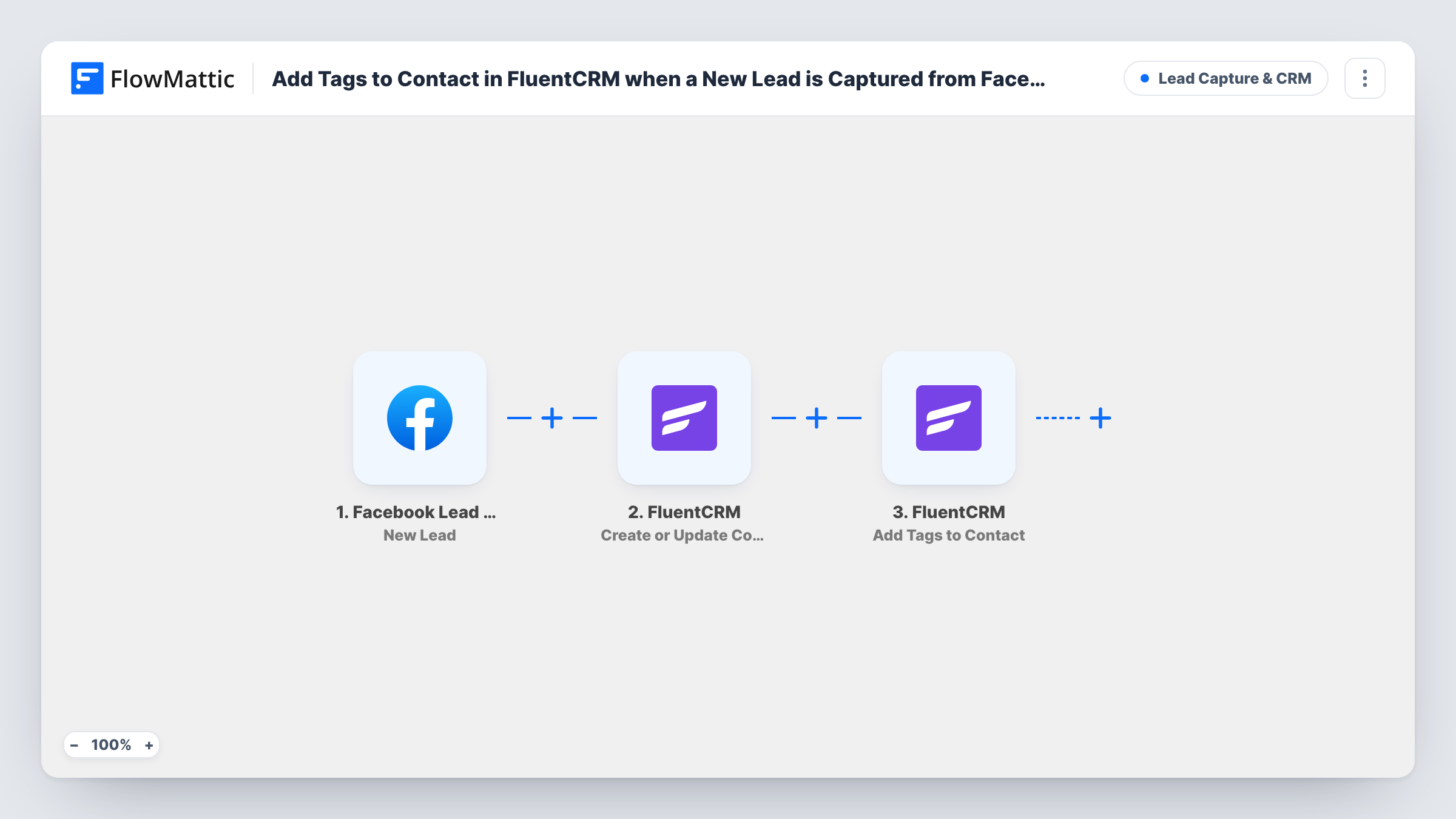
A run begins when the Facebook Lead Ads trigger receives a new lead from your form. In FluentCRM, the Create or Update Contact step looks at the email address: a new address becomes a new contact, and a known one updates that contact. The Add Tags to Contact step then applies one or more tags to the contact.
The tag action only works on a contact that already exists, which is why the contact step comes first. Neither FluentCRM step is mapped in the template. After import, map the lead's email, name and other form answers into the contact step, then choose your tags and point the tag step at the contact from step 2.
Each lead from the connected form gets the same tags. Tags such as the ad name or offer work well here, because FluentCRM can start an automation or filter a campaign by tag. Open Task History after a test lead to see what FluentCRM returned.
Mark the source of every ad lead
A dental clinic tags each lead from its whitening offer form with that offer's name, so the front desk can filter FluentCRM by tag before calling them back.
Start a tag-based email sequence
An online course creator tags Facebook leads as interested in the beginner course, and a FluentCRM automation that watches that tag sends the first lesson.
Spot people who answer more than one ad
A wedding planner who runs several ad forms sees contacts carrying two or three campaign tags, since repeat leads are updated by email instead of duplicated.
How this workflow runs
What happens at each step once the workflow is on, and what you need before you import it.
 Facebook Lead Ads New Lead
Starts the workflow when a new lead is submitted on the connected Facebook Lead Ads form, and passes the person's form answers to FluentCRM.
- FluentCRM Create or Update Contact
Creates a new FluentCRM contact, or updates the one that already uses the lead's email address. Ships unmapped, so map the email, name and any form answers you want kept.
- FluentCRM Add Tags to Contact
Applies one or more tags to the contact from step 2. Ships unmapped: pick the tags after import and map the contact from the previous step, then confirm with a test lead.
What you need
- FlowMatticCore
- Facebook Lead Ads AccountAccount
- FluentCRM PluginPlugin
After importing, map your own data. To keep the template universal, not every step is pre-filled. Open each step in the builder and connect your accounts and fields (channels, lists, sheets, recipients) before you switch the workflow on.
Make it yours
Changes worth making after you import it.
- Name tags after the ad or offer, such as the campaign name, so you can compare in FluentCRM how many contacts each campaign brought in.
- Copy the workflow for each Lead Ads form and give each copy its own tag, so leads from different ads stay apart.
- Set up a FluentCRM automation that starts when the tag is applied, so the welcome email or follow-up task begins without another workflow step.
Questions about this workflow
Does the lead need to exist in FluentCRM before it gets tagged?
The tag step needs an existing contact, and step 2 creates it when the email is new. So a first-time lead is created first, then tagged in the same run.
What if the same person fills in my Facebook form twice?
FluentCRM finds the contact by email address and updates it, so there is no duplicate. The tags from step 3 are applied again, and FluentCRM keeps one copy of each tag on the contact.
Can different Facebook forms get different FluentCRM tags?
Yes. Import the workflow once per form, connect a different form to each trigger and choose that form's tags in the Add Tags to Contact step.
Are older Facebook leads tagged when I activate it?
No. The trigger only picks up leads submitted while the workflow is on. Bring earlier leads into FluentCRM with its own import tool.
More Lead Capture & CRM workflows
Other ready-to-import templates from the same category.





Import this workflow into your WordPress site
Download the JSON, import it from the Workflows screen and connect your accounts. Every run stays on your server, with no per-task fees.
30-day money-back guarantee Unlimited workflows and runs Self-hosted