

Automatically Add Tags to New Facebook Lead Ads Contacts in Funnelkit
Tag every new Facebook Lead Ads contact in FunnelKit Automations, for example with the campaign or offer they responded to, so you can segment leads and start tag-based automations on your WordPress site.
 Facebook Lead Ads
 Autonami
2 steps 2 downloads Setup ~5 min Used on 2.3k sites Free to import
What this workflow does
Tags tell you why someone is in your CRM. A lead who asked about pricing and one who downloaded a checklist need different emails, and without a tag they look the same in FunnelKit. Tagging each Facebook lead by hand after an export is slow and easy to skip. This workflow applies the tags as each lead arrives.
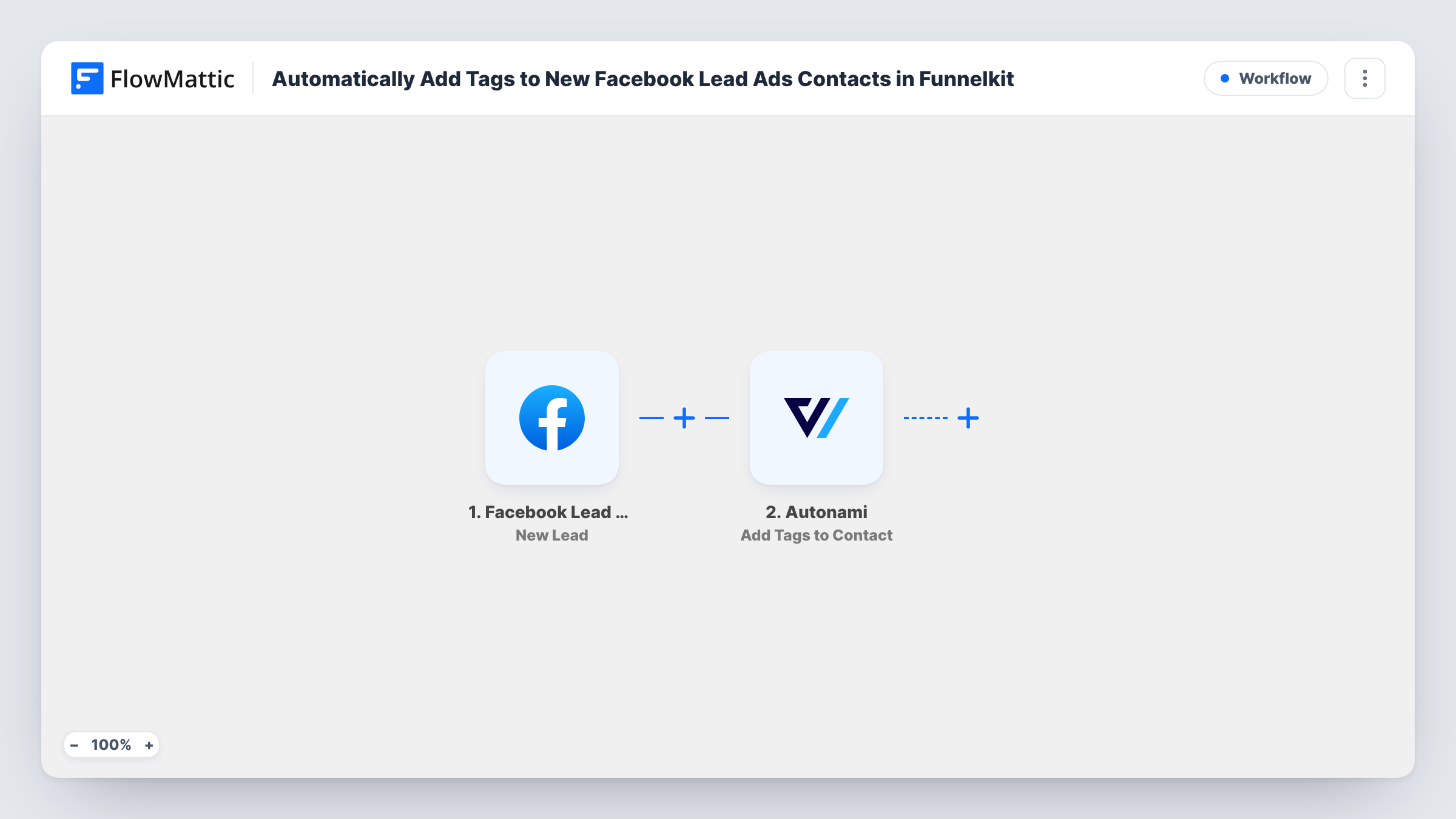
When a person submits one of your lead forms, the Facebook Lead Ads trigger gives FlowMattic their answers. The Autonami step, part of FunnelKit Automations, then runs Add Tags to Contact. You map the lead's details into the step, and a test run shows which contact gets tagged and with what.
With the tags in place you can filter contacts, build audiences for broadcasts, or start a FunnelKit automation when a tag is added. The contact record lives in your WordPress database, not in a third-party CRM. You can follow each run, and the answers it used, in Task History.
Tag by lead magnet
One ad offers a free checklist and another a discount code. Each lead is tagged with the offer they chose, so your follow-up emails match what they asked for.
Starting a welcome automation
Set a FunnelKit automation to begin when the FB Lead tag is added. Every new Facebook lead then enters your welcome emails without anyone touching the CRM.
Measuring which ads produce buyers
Leads are tagged with the campaign name. When some of them later buy from your WooCommerce store, the tag shows which campaign they came from.
How this workflow runs
What happens at each step once the workflow is on, and what you need before you import it.
 Facebook Lead Ads New Lead
Fires on each new Facebook lead ad submission. The lead's answers, with the email address, are passed to FunnelKit for matching and tagging.
- Autonami Add Tags to Contact
Adds tags to the lead's contact in FunnelKit Automations, such as the campaign, offer or source. Map the lead's details into the step and confirm the result with a test lead.
What you need
- FlowMatticCore
- Facebook Lead Ads AccountAccount
- FunnelKit Automations ( Autonami ) PluginPlugin
After importing, map your own data. To keep the template universal, not every step is pre-filled. Open each step in the builder and connect your accounts and fields (channels, lists, sheets, recipients) before you switch the workflow on.
Make it yours
Changes worth making after you import it.
- Create the tags in FunnelKit before import, with names that include the campaign and month, so they are easy to report on later.
- Use a Router after the trigger to give leads different tags depending on an answer, for example a Hot tag when the budget question shows a large project.
- Add an Autonami Add Lists to Contact step after tagging if your newsletters are sent by list rather than by tag.
Questions about this workflow
What does a tag do once it is added?
On its own, nothing visible to the lead. It marks the contact in FunnelKit so you can filter, segment or start an automation that listens for that tag.
What if the lead is not in FunnelKit yet?
Test with an address that is new to FunnelKit, then look at your contacts and Task History to see how your setup handles a lead who is not a contact yet.
Can I use different tags for different ads?
As imported, every lead gets the same tags. Add a Router with separate Autonami steps if each ad or answer should get its own tag.
Which plugins does this need?
FlowMattic and FunnelKit Automations on the same WordPress site. You also connect the Facebook account that manages your lead ads.
More Lead Capture & CRM workflows
Other ready-to-import templates from the same category.





Import this workflow into your WordPress site
Download the JSON, import it from the Workflows screen and connect your accounts. Every run stays on your server, with no per-task fees.
30-day money-back guarantee Unlimited workflows and runs Self-hosted