

Create a Sub Task in ClickUp when a New Lead comes from Facebook Lead Ads
Collect new Facebook Lead Ads submissions as ClickUp subtasks under a parent task, such as one task per campaign, so each lead is tracked and checked off inside the work it belongs to.
 Facebook Lead Ads
 ClickUp
2 steps 3 downloads Setup ~5 min Used on 2.5k sites Free to import
What this workflow does
Teams often track a campaign as a single task in ClickUp, with the leads it produces as the items to work through. Typing each Facebook lead in as a subtask is slow, and it falls behind when a campaign is busy. This workflow adds the subtask for you as each lead arrives.
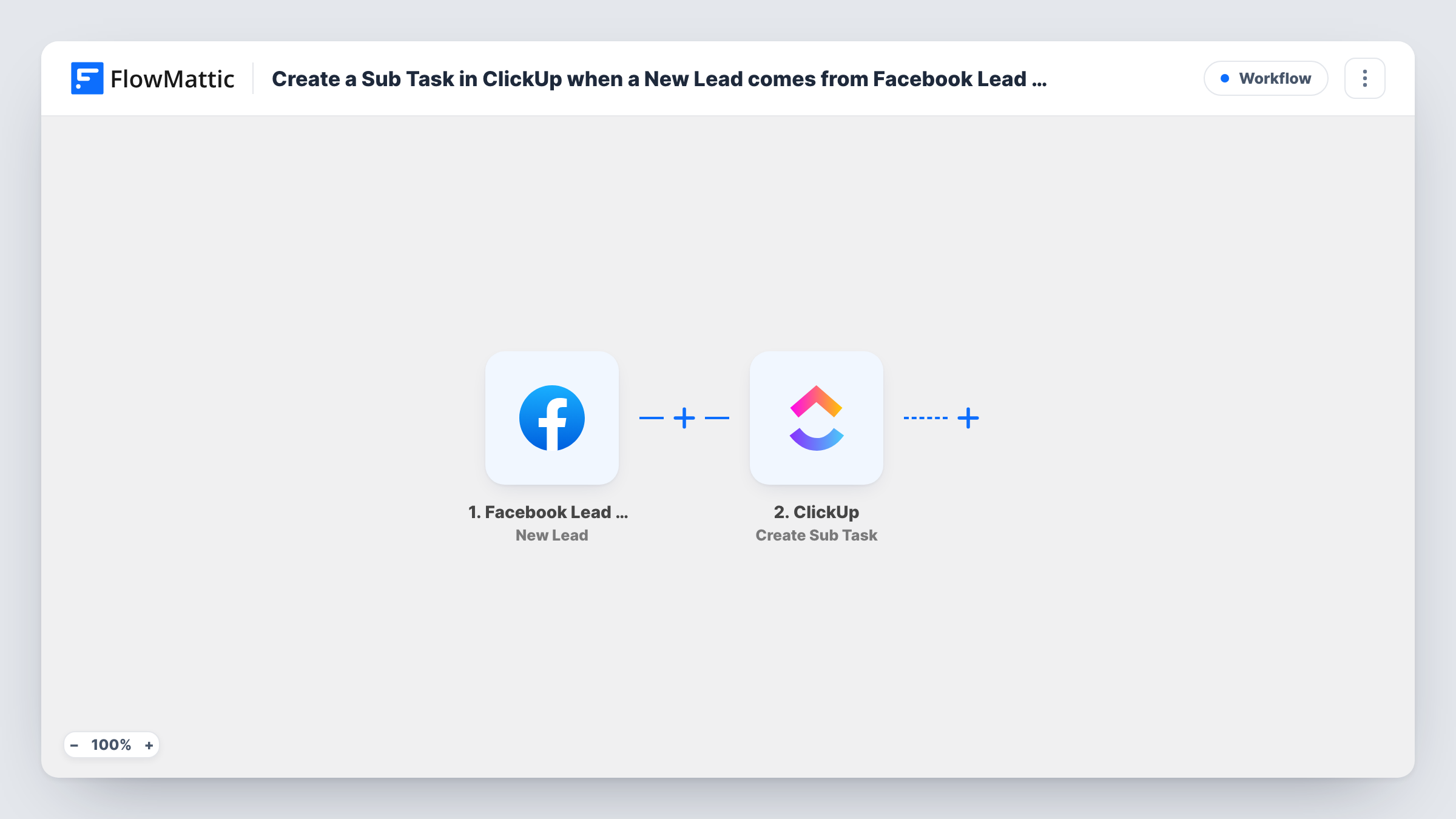
When a person submits one of your Facebook lead forms, the Facebook Lead Ads trigger passes their answers to FlowMattic. The ClickUp Create Sub Task step then adds a subtask for the lead under a parent task. You map the lead's answers into that step.
Since a subtask always hangs off a parent, you need that parent task in ClickUp before you turn the workflow on. As imported, every lead goes under the same parent, so the parent's subtask list becomes the lead list for that campaign. When a campaign ends, change the step so new leads go under the next campaign's task, and test it. Each run, along with the lead data behind it, is listed in Task History.
One parent task per ad campaign
Create a task called Spring Promo Leads and set the workflow up to use it as the parent. Every lead from that promotion then appears beneath it as a subtask your team ticks off after contact.
Open day or webinar sign-ups
A school or training company keeps one task for each open day. Each Facebook sign-up is added under it, so the event owner sees the attendee list inside the event task.
Client-run lead campaigns at an agency
An agency managing ads for a client adds the leads under that client's campaign task, so the account manager reports on progress from one place.
How this workflow runs
What happens at each step once the workflow is on, and what you need before you import it.
 Facebook Lead Ads New Lead
Picks up each new lead submitted on your Facebook lead ad forms. The answers given are passed along for use in the ClickUp subtask.
- ClickUp Create Sub Task
Adds a subtask under a ClickUp parent task. Connect your ClickUp account, map lead answers such as name and email into the step, and send a test lead to confirm which task it lands under.
What you need
- FlowMatticCore
- Facebook Lead Ads AccountAccount
- ClickUp AccountAccount
After importing, map your own data. To keep the template universal, not every step is pre-filled. Open each step in the builder and connect your accounts and fields (channels, lists, sheets, recipients) before you switch the workflow on.
Make it yours
Changes worth making after you import it.
- Create the parent task in ClickUp first and give it a clear name, such as the campaign and month, so it is easy to spot when you test the Create Sub Task step.
- Run two lead campaigns at once by adding a Router after the trigger, with a Create Sub Task step on each route for that campaign's own parent task.
- Use a Filter to send only qualified leads to ClickUp, based on an answer in your lead form, so the parent task lists just the people worth a call.
Questions about this workflow
Do I need a parent task already?
Yes. A subtask in ClickUp sits under an existing task, so create the parent first, then run a test lead to confirm the subtask appears under it.
Can each lead go under a different parent task?
Not as imported. There is one Create Sub Task step, so every lead goes under the same parent. To split them, add a Router with its own ClickUp step for each parent.
Will a repeat submission create a second subtask?
Yes. Each lead submission is its own run, and the workflow does not look for a matching subtask before adding one.
Which accounts do I connect?
The Facebook account that has access to your lead ads Page, and a ClickUp account that can edit the list holding the parent task.
More Project Management workflows
Other ready-to-import templates from the same category.




Import this workflow into your WordPress site
Download the JSON, import it from the Workflows screen and connect your accounts. Every run stays on your server, with no per-task fees.
30-day money-back guarantee Unlimited workflows and runs Self-hosted