

Create a Subitem in Monday.com for Every New Lead from Facebook Lead Ads
Log each new Facebook Lead Ads submission as a subitem beneath a Monday.com item, for example a campaign or event item, so the leads it brings in sit right under the work that produced them.
 Facebook Lead Ads
 Monday.com
2 steps Setup ~5 min Used on 3.0k sites Free to import
What this workflow does
Some teams keep one Monday.com item for each campaign, offer or event, with its status, budget and owner. The people who respond to that campaign belong underneath it. Adding them as subitems by hand means switching between Facebook and Monday.com all day. This workflow adds each new lead as a subitem automatically.
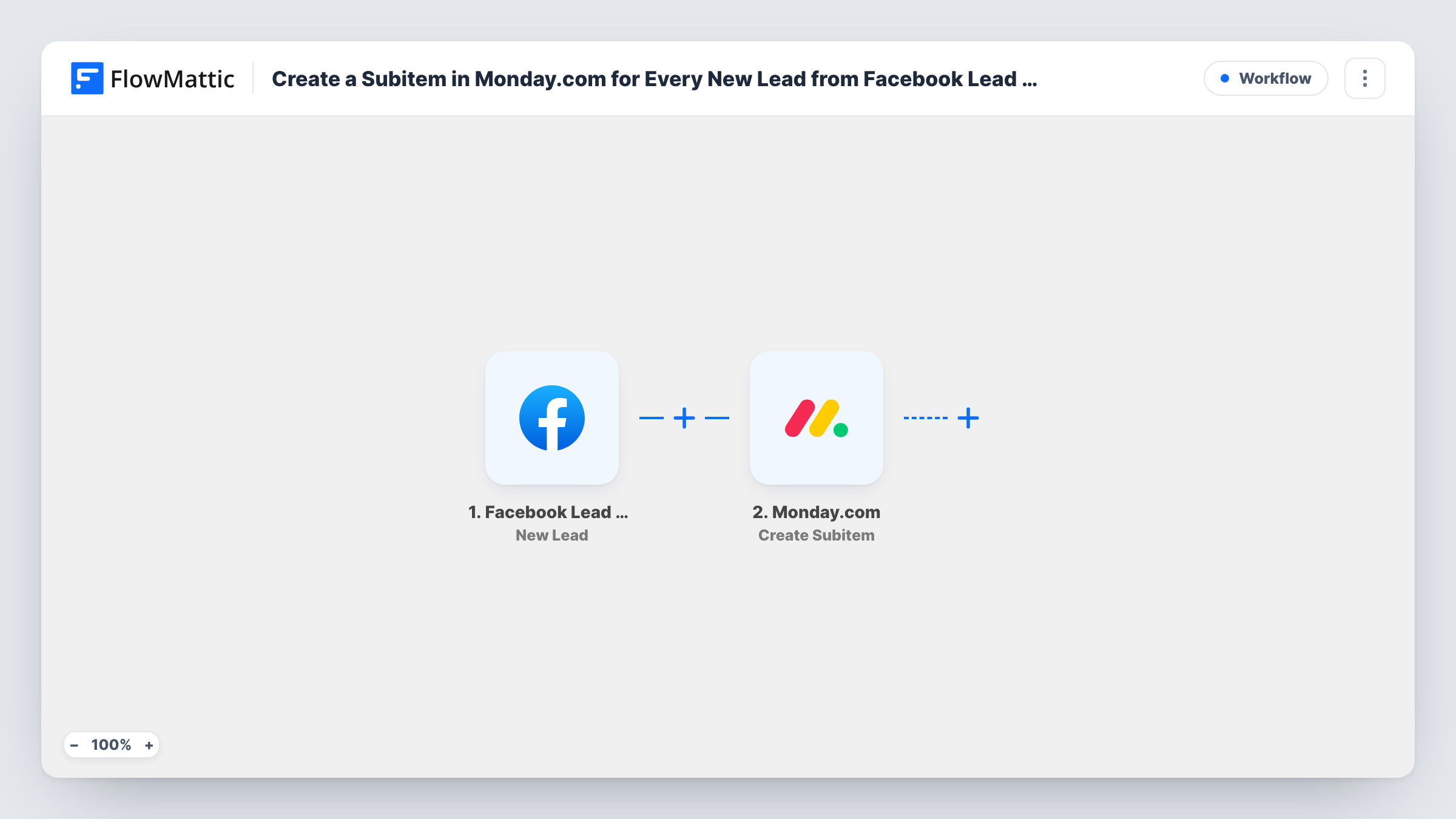
The flow begins with the Facebook Lead Ads trigger, which fires on each new form submission and gives FlowMattic the answers. The Monday.com Create Subitem step then adds a subitem for the lead beneath a parent item, using the answers you map into the step.
Subitems in Monday.com always belong to a parent item, so create that item on your board before you activate the workflow. With one Create Subitem step, all leads go under the same parent, which turns the parent's subitems into a lead list for that campaign. For the next campaign, change the step to use that campaign's item and confirm it with a test lead. Each run, and the answers it carried, is recorded in Task History.
Tracking leads under each campaign item
Your Campaigns board has an item for the autumn offer. Every person who answers that lead ad appears as a subitem beneath it, so results sit next to spend and status.
Registrations for a workshop
An item for next month's workshop collects each Facebook sign-up as a subitem, giving the host an attendee list inside the workshop item.
Product launch waitlists
People who join a launch waitlist through a lead form are added under the launch item, where the team marks who has been sent early access.
How this workflow runs
What happens at each step once the workflow is on, and what you need before you import it.
 Facebook Lead Ads New Lead
Fires on each new lead from your Facebook lead ad forms and passes the submitted answers to the Monday.com step.
- Monday.com Create Subitem
Adds a subitem beneath a Monday.com parent item. Connect your Monday.com account, map lead answers such as full name into the step, and run a test lead to confirm which item it lands under.
What you need
- FlowMatticCore
- Facebook Lead Ads AccountAccount
- Monday.com AccountAccount
After importing, map your own data. To keep the template universal, not every step is pre-filled. Open each step in the builder and connect your accounts and fields (channels, lists, sheets, recipients) before you switch the workflow on.
Make it yours
Changes worth making after you import it.
- Create the parent item on your board before import, named after the campaign and its start date, so a test lead makes it obvious whether the subitem landed in the right place.
- Running two lead forms at once? Add a Router after the trigger with a Create Subitem step on each route for that form's campaign item.
- Map the lead's email or phone into the Create Subitem step alongside their name, so the contact detail sits with the lead on the board.
Questions about this workflow
Do I need a parent item first?
Yes. A subitem in Monday.com hangs under an existing item, so add the parent item to your board first and check with a test lead that subitems appear beneath it.
Can leads go under different parents automatically?
Not as imported. The workflow has one Create Subitem step, so every lead shares a parent. Add a Router with separate Create Subitem steps to send leads to different parents.
What happens if the same person signs up twice?
You get two subitems. The workflow runs once per submission and does not check for a subitem with the same name.
Which accounts does the workflow use?
Your Facebook account linked to the Page running the lead ads, and a Monday.com account with edit access to the board that holds the parent item.
More Project Management workflows
Other ready-to-import templates from the same category.






Import this workflow into your WordPress site
Download the JSON, import it from the Workflows screen and connect your accounts. Every run stays on your server, with no per-task fees.
30-day money-back guarantee Unlimited workflows and runs Self-hosted