

Send a Template Message on WhatsApp Cloud API when a New Alert is Triggered in Tradingview
Receive your TradingView alerts on WhatsApp as an approved template message sent through the WhatsApp Cloud API, which can reach your phone even when you haven’t chatted with your business number lately.
 Tradingview
 WhatsApp Cloud API
2 steps 7 downloads Setup ~5 min Used on 1.8k sites Free to import
What this workflow does
If WhatsApp is the app you check first, that's where your trading alerts should land. This workflow forwards each TradingView alert to a WhatsApp number of your choice, using a message template so delivery doesn't depend on a recent chat.
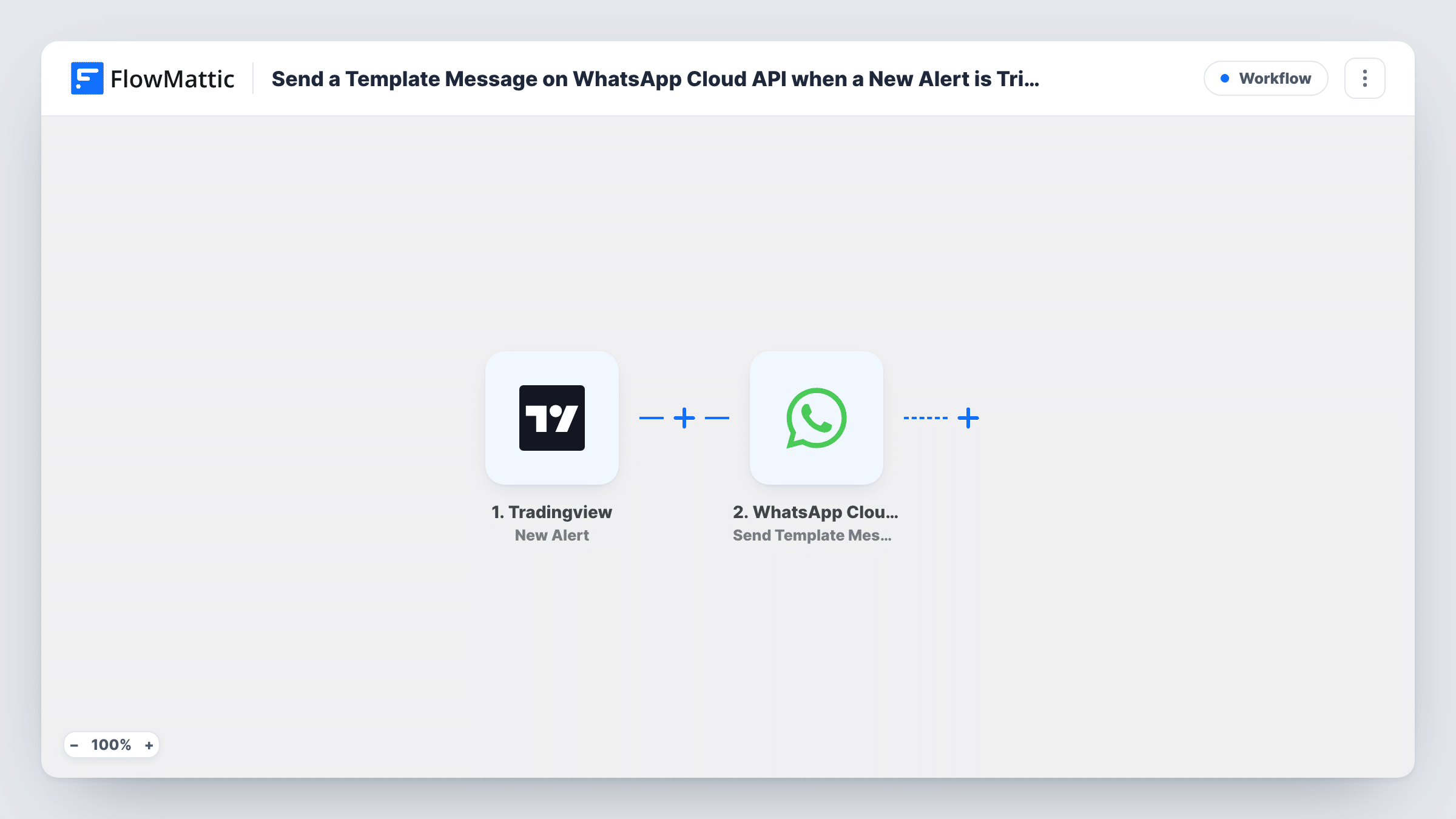
Set the webhook URL from the TradingView trigger on the alerts you want forwarded. When one fires, the alert message reaches FlowMattic. Then Send Template Message in WhatsApp Cloud API sends one of your approved templates to the receiving number. Fire a test alert to see what arrives, including whether the alert text appears in the message.
Why a template? WhatsApp only delivers free-form texts to people who have messaged your business number in the past 24 hours. An approved template doesn't have that limit, which makes it a better fit for alerts that may come at any hour. You create the template and get it approved in your WhatsApp Business account before using it here.
Overnight price alerts
A crypto alert that fires at 3am still reaches your WhatsApp, because a template message doesn't rely on you having chatted with the business number that day.
Alerts for a trading partner
Send the same template to a partner's number so you both hear about a signal at the same time without sharing a TradingView login.
Alerts for clients of an advisory service
Clients who opted in to your service receive an approved WhatsApp template whenever one of your watch-list alerts triggers.
How this workflow runs
What happens at each step once the workflow is on, and what you need before you import it.
 Tradingview New Alert
Fires when a TradingView alert with this trigger's webhook URL goes off. The alert's message text is passed on so you can place it in the WhatsApp template.
- WhatsApp Cloud API Send Template Message
Sends an approved template through WhatsApp Cloud API to the receiving number. Connect your WhatsApp Cloud API account and map in the receiving number and any alert data the step accepts. A test alert shows what reaches the phone.
What you need
- FlowMatticCore
- TradingView AccountAccount
- WhatsApp Cloud API AccountAccount
After importing, map your own data. To keep the template universal, not every step is pre-filled. Open each step in the builder and connect your accounts and fields (channels, lists, sheets, recipients) before you switch the workflow on.
Make it yours
Changes worth making after you import it.
- Write a template that still makes sense without the alert details, such as a prompt to check your chart, in case your test run shows the alert text isn't carried into it.
- Keep each TradingView alert message short and specific, such as the ticker, the price and the condition, so it reads well inside the template.
- Add a Filter after the trigger if only some alerts should reach WhatsApp, for example ones whose message includes a chosen symbol.
Questions about this workflow
Why not use a plain text message?
Plain texts only reach numbers that have messaged your business number in the last 24 hours. Templates are delivered without that condition once Meta approves them.
Do I need my own WhatsApp Cloud API setup?
Yes. You need a WhatsApp Business account with Cloud API access and an approved template, connected to FlowMattic in the action step.
Will the WhatsApp message show the alert details?
Only if the template and the step can carry them. Put the details in your TradingView alert message, then run a test alert to see what appears on WhatsApp.
What if an alert fires many times in a row?
Each firing is a separate run and sends a separate WhatsApp message. Adjust how often the alert can trigger in TradingView if you want fewer.
More Team Notifications workflows
Other ready-to-import templates from the same category.






Import this workflow into your WordPress site
Download the JSON, import it from the Workflows screen and connect your accounts. Every run stays on your server, with no per-task fees.
30-day money-back guarantee Unlimited workflows and runs Self-hosted