

Send WhatsApp Document Message when a New Lead is Captured from Facebook Lead Ads
Send a document, such as a PDF brochure or price list, over WhatsApp each time a new lead submits your Facebook lead ad form, using the WhatsApp Cloud API and a phone number you map in.
 Facebook Lead Ads
 WhatsApp Cloud API
2 steps 7 downloads Setup ~5 min Used on 2.1k sites Free to import
What this workflow does
Many lead ads promise something to read: a price list, a menu, a course outline, a property brochure. People expect it soon after they hand over their details, and WhatsApp is where many of them will look. This workflow sends a document message through WhatsApp for every new lead.
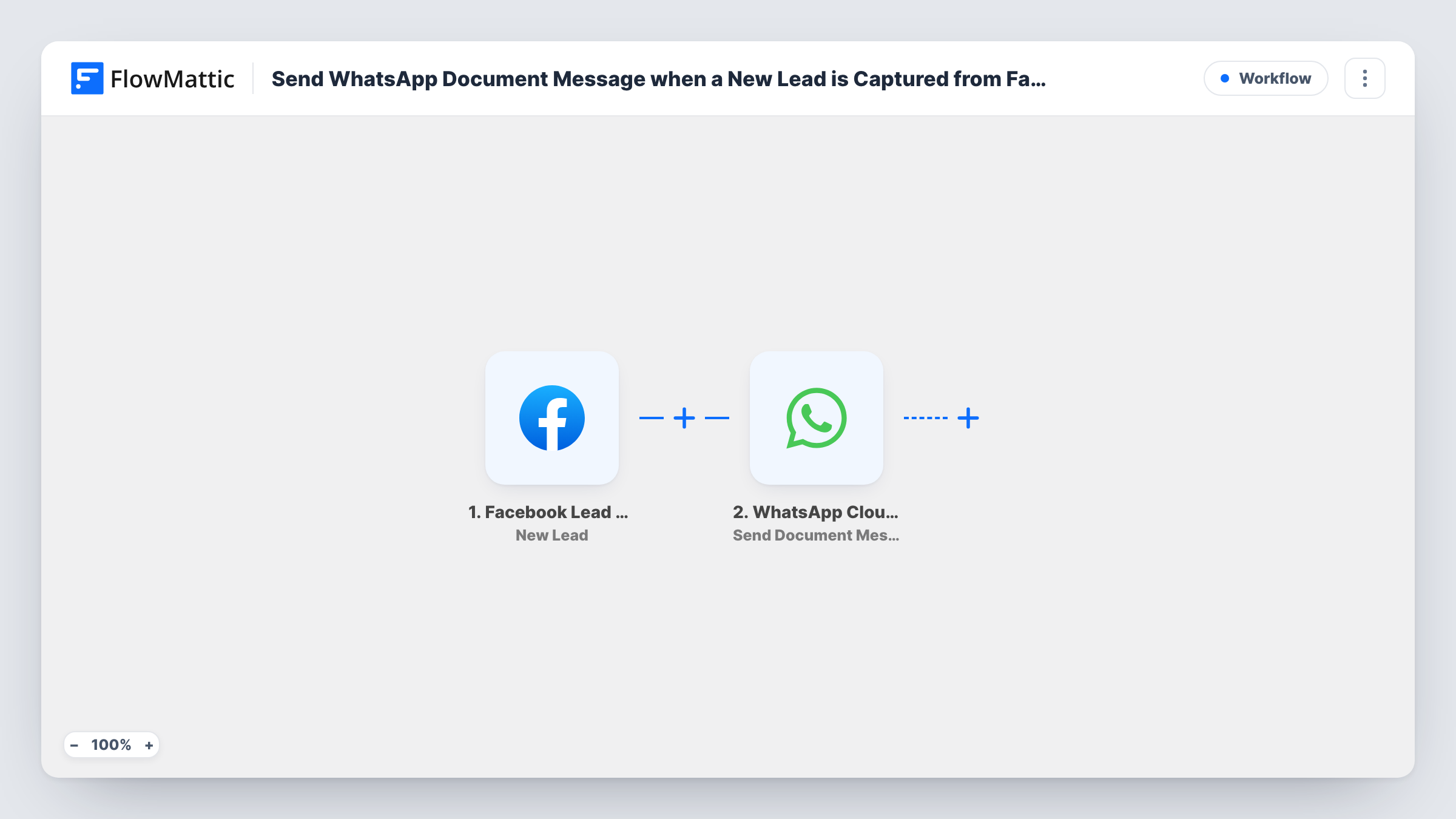
A new submission on one of your forms fires the Facebook Lead Ads trigger, and the lead's answers flow into FlowMattic. The WhatsApp Cloud API step then runs Send Document Message from your business number. You map in the number to send to, which can be the phone answer from the lead form, along with the document.
The same template works as a team alert. Send it to a colleague's number instead and share an internal file, such as a call script, whenever a lead comes in. Before you message leads directly, read WhatsApp's rules on business-initiated messages, since they decide what you may send first. Task History records every run so you can check that a document went out.
Delivering a brochure promised in the ad
A holiday company's lead ad offers a tour brochure. Each new lead gets the PDF on WhatsApp at the phone number they entered on the form.
Sending a menu or price list to enquirers
A caterer collecting event enquiries sends the current menu as a document, so the lead can look it over before the first call.
Handing reps a call script per campaign
When a lead arrives from a specific campaign, the rep on duty receives the matching call script as a WhatsApp document, ready to use on the follow-up call.
How this workflow runs
What happens at each step once the workflow is on, and what you need before you import it.
 Facebook Lead Ads New Lead
Starts when a person submits a Facebook lead ad form for your business. Their answers, such as name and phone number, are handed to the WhatsApp step.
- WhatsApp Cloud API Send Document Message
Sends a document message through the WhatsApp Cloud API from your connected business number. Map in the phone number and the document, and test the step before you go live.
What you need
- FlowMatticCore
- Facebook Lead Ads AccountAccount
- WhatsApp Cloud API AccountAccount
After importing, map your own data. To keep the template universal, not every step is pre-filled. Open each step in the builder and connect your accounts and fields (channels, lists, sheets, recipients) before you switch the workflow on.
Make it yours
Changes worth making after you import it.
- When you publish a new edition of the brochure or price list, update the document in the WhatsApp step too, so new leads never get last season's file.
- Different ads, different files? Add a Router after the trigger and give each route its own Send Document Message step with the matching document.
- Add a Filter after the trigger so only leads who ticked a particular answer, such as wanting the brochure, are sent the document.
Questions about this workflow
What kind of file can I send?
The step sends a document message, which suits files like PDFs. Check WhatsApp's supported document types and size limits for the file you plan to use.
Do I need a WhatsApp Business account?
Yes. Messages go through the WhatsApp Cloud API, so you need a WhatsApp Business account on Meta's platform with a phone number connected to FlowMattic.
Will WhatsApp let me send the file to a brand-new lead?
That depends on WhatsApp's messaging rules. Business-initiated messages to someone who has not written to you first usually need an approved template. Confirm this in Meta's documentation before going live.
What happens if a lead leaves out their phone number?
The WhatsApp step has no number to send to, and Task History shows the failed run. Make the phone question required on your lead form to avoid this.
More Team Notifications workflows
Other ready-to-import templates from the same category.




Import this workflow into your WordPress site
Download the JSON, import it from the Workflows screen and connect your accounts. Every run stays on your server, with no per-task fees.
30-day money-back guarantee Unlimited workflows and runs Self-hosted