

Create a ClickUp task and log time on it for each new Facebook Lead Ads lead
When a new Facebook Lead Ads lead comes in, a ClickUp task is created for it and a time entry is added to that task, so follow-up work on ad leads shows in your ClickUp time reports.
 Facebook Lead Ads
 ClickUp
3 steps 2 downloads Setup ~5 min Used on 1.4k sites Productivity Free to import
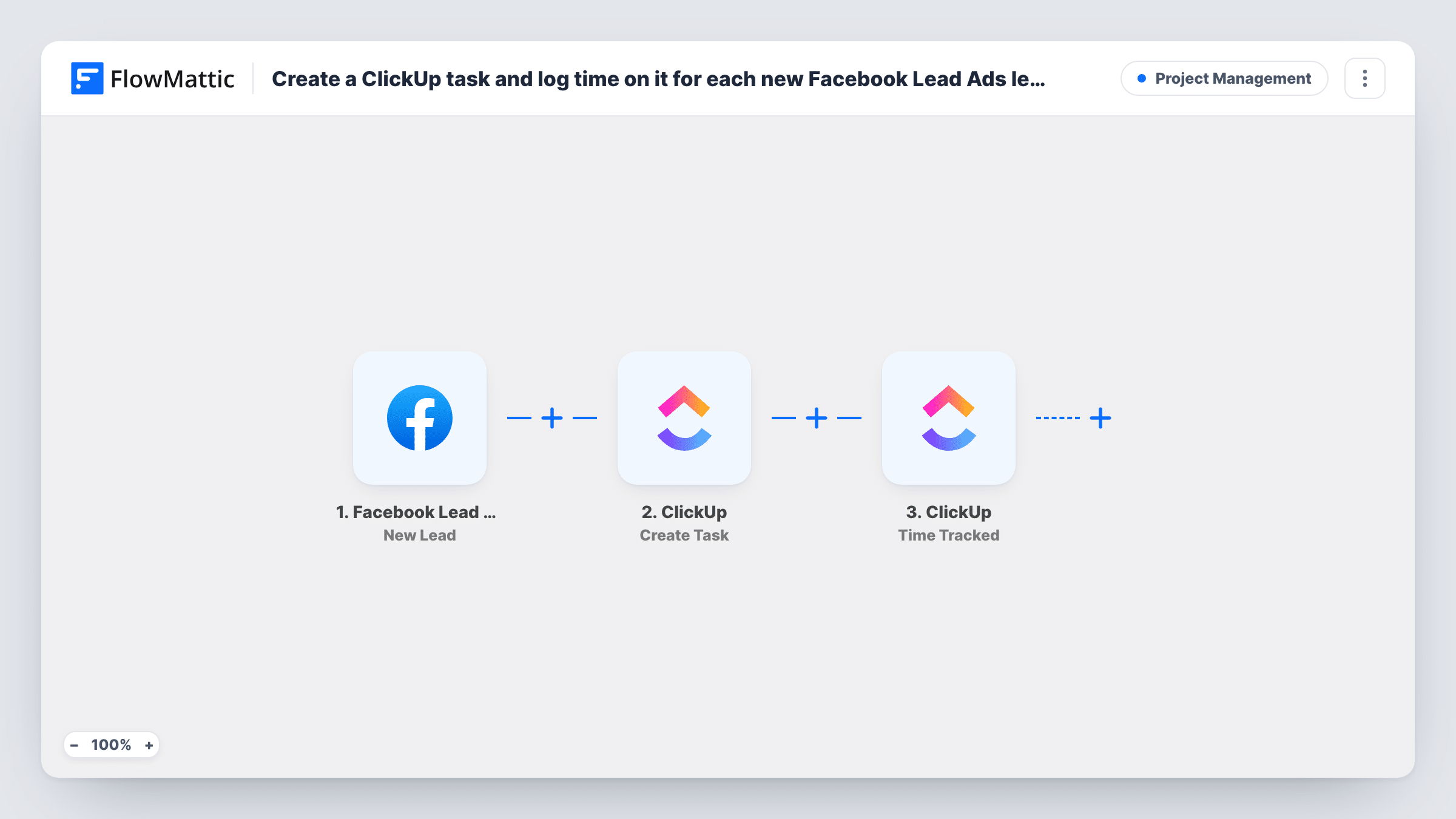
What this workflow does
Teams that bill or report on lead handling need two things in ClickUp: a task for each lead and a record of the time it takes. This workflow sets up both when a lead arrives from a Facebook ad, so nobody has to copy lead details into ClickUp or remember to log the first block of time.
The Facebook Lead Ads trigger starts when a new lead is created on your connected form, carrying the person's answers. The first ClickUp step creates a task, which you can name after the lead and fill with their contact details. The second ClickUp step adds tracked time to a task.
Both ClickUp steps ship unmapped. After import, pick where the task goes and map the lead's name, email and phone into it. In the time step, point it at the task created in step 2 and set the time you want logged for each lead, such as a standard first-contact slot. Run a test lead and check the task in ClickUp to confirm the entry landed where you expect.
Every lead from the form creates one task and one time entry. The time logged is whatever you set in the step, not time anyone actually spent, so adjust the entry in ClickUp when the real follow-up takes longer.
Agency reporting on lead handling
A marketing agency that answers leads for clients gets a ClickUp task per lead with a standard 15-minute entry, so the monthly time report shows how many leads the team handled.
Sales team call queue
A solar installer's sales reps work through ClickUp tasks created from ad leads, each already carrying the person's phone number and the first logged call slot.
Estimating cost per lead
A small consultancy adds up the time logged against lead tasks each month to see how much effort its Facebook campaigns create.
How this workflow runs
What happens at each step once the workflow is on, and what you need before you import it.
 Facebook Lead Ads New Lead
Fires when a new lead arrives on the Facebook Lead Ads form you connect. The lead's answers, such as name, email and phone, are ready to map into ClickUp.
- ClickUp Create Task
Creates a ClickUp task for the lead. The step ships unmapped: choose where the task is created and map the lead's name, email and phone into the task so whoever picks it up can make contact.
- ClickUp Time Tracked
Adds tracked time to a ClickUp task. Ships unmapped: map the task from step 2 and set how much time to log, then check a test run to confirm the entry is on the new task.
What you need
- FlowMatticCore
- Facebook Lead Ads AccountAccount
- ClickUp AccountAccount
After importing, map your own data. To keep the template universal, not every step is pre-filled. Open each step in the builder and connect your accounts and fields (channels, lists, sheets, recipients) before you switch the workflow on.
Make it yours
Changes worth making after you import it.
- Put the lead's name in the task title, so the ClickUp list shows at a glance who each task is for.
- Put a Filter between the Facebook Lead Ads trigger and the Create Task step that continues only when the phone answer is not empty, if your team only calls leads. Leads it stops get neither a task nor a time entry.
- Duplicate the workflow for each Lead Ads form and send each copy's tasks to a different ClickUp list, one per campaign or client.
Questions about this workflow
Does the ClickUp time entry measure real work on the lead?
No. The Time Tracked step logs the amount you set in it for every lead. It is a fixed starting entry; edit it in ClickUp or add more time when the follow-up is done.
Which ClickUp list do the lead tasks go into?
The one you choose in the Create Task step after import. The template leaves it unset, along with the task name and description.
Is a ClickUp task created for every Facebook lead?
Yes. Each new lead on the connected form starts a run, which creates one task and adds one time entry to it. Leads submitted before you turn the workflow on are not picked up.
How does the time step know which task to log against?
You map it. Point the Time Tracked step at the task returned by the Create Task step, then run a test lead to make sure the entry lands on that task.
More Project Management workflows
Other ready-to-import templates from the same category.





Import this workflow into your WordPress site
Download the JSON, import it from the Workflows screen and connect your accounts. Every run stays on your server, with no per-task fees.
30-day money-back guarantee Unlimited workflows and runs Self-hosted