

You duplicated a workflow just to start it a second way. Add a trigger instead.
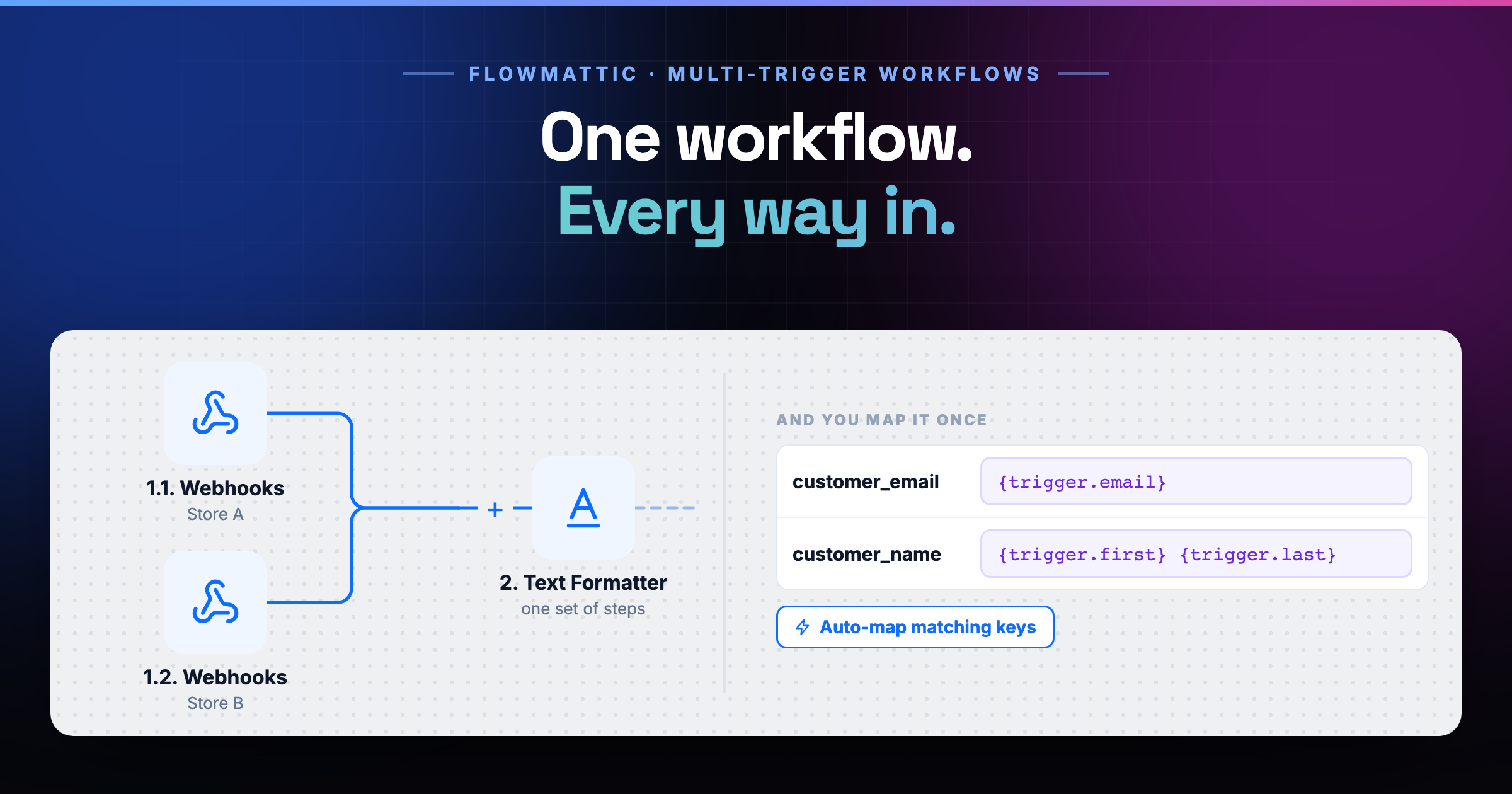
A second store starts sending you orders. Same payload, same six steps, same everything — except it posts to a different place.
So you duplicate the workflow. And now there are two of everything: two copies of the filter, two copies of the email, two places to remember when a step changes.
A workflow can now start from more than one trigger. All of them run the same action steps.
Add the trigger
Open the workflow and look just below the trigger. There’s a dashed box: Add New Trigger. Click it, and the app picker opens — the same one you use for any step. Pick anything that can start a workflow.
Your original trigger becomes 1.1. The new one is 1.2. Both connect into the same first action step, and its settings open so you can choose a Trigger Event, exactly like any other trigger.
You can keep going: 1.3, 1.4, and so on. Deleting one removes only that trigger — the rest of the workflow is untouched.
The one rule
There’s a notice in the trigger’s settings, and it explains the thing everything else follows from:
This workflow starts from more than one trigger. Action steps read the FIRST trigger’s data tags — like
{webhook1.first_name}— so this trigger’s response needs a one-time mapping to those keys.
Your action steps don’t change. Step 3 still reads {webhook1.customer_email}, and it always will. What changes is that each additional trigger’s response gets converted into those keys before any step sees it.
That’s the whole design. Nothing downstream needs to know which trigger fired.
Map it once
Open the new trigger’s Capture tab and capture a response the way you always do. Underneath it, the Multi-trigger workflow section lists every key from your first trigger.
On the left, the first trigger’s key. On the right, which key of this trigger fills it — written as {trigger.order_id}, {trigger.customer_email}, and so on.
If both triggers already use the same names, click Auto-map matching keys and it fills every empty row in one go. It only fills the empty ones — anything you typed yourself is left alone.
It’s a text field, not a dropdown
The right-hand side of each row is a text input. The placeholder says so: e.g. {trigger.key} or static text.
Which means it does more than one-to-one. If your first trigger expects a single customer_name and this one sends a first name and a last name separately, put both tokens in the same field:
{trigger.first_name} {trigger.last_name}Static text works too — Order from {trigger.store} resolves to Order from northwind. A row that is exactly one token passes the raw value straight through, so numbers stay numbers and arrays stay arrays; mix a token with text and you get a string.
One thing to remember
Only the keys you map arrive. The map is the payload. If the firing trigger sends shipping_note and utm_source and you haven’t mapped them, your steps never see them — they aren’t passed through unmapped.
So if a step downstream suddenly has nothing to work with, check the mapping rows before you check the step.
Each webhook trigger gets its own URL
If the trigger you added is a webhook, it has its own address on its Configure tab — a separate URL from the first trigger’s. Send that store’s data there, not to the original one.
What a run looks like
Save, and every trigger is live at the same time. Whichever one fires starts the run; FlowMattic converts its payload through your mapping, and the action steps execute unchanged.
Task History records which trigger started each run, so entries from different sources are easy to tell apart. Conditional execution set on an additional trigger applies to the runs that trigger starts.
Watch it built
Adding the trigger, the rule, the mapping, and a full run — in under three minutes:
Where this earns its keep
Anywhere you were about to press Duplicate. Two stores posting the same order shape. A webhook for live events plus a schedule that catches anything missed overnight. A form on one site and an API on another, both creating the same customer.
Build the steps once. Add the trigger. Map it once.