

FlowMattic 7.2.2: See Where Every Run Stands
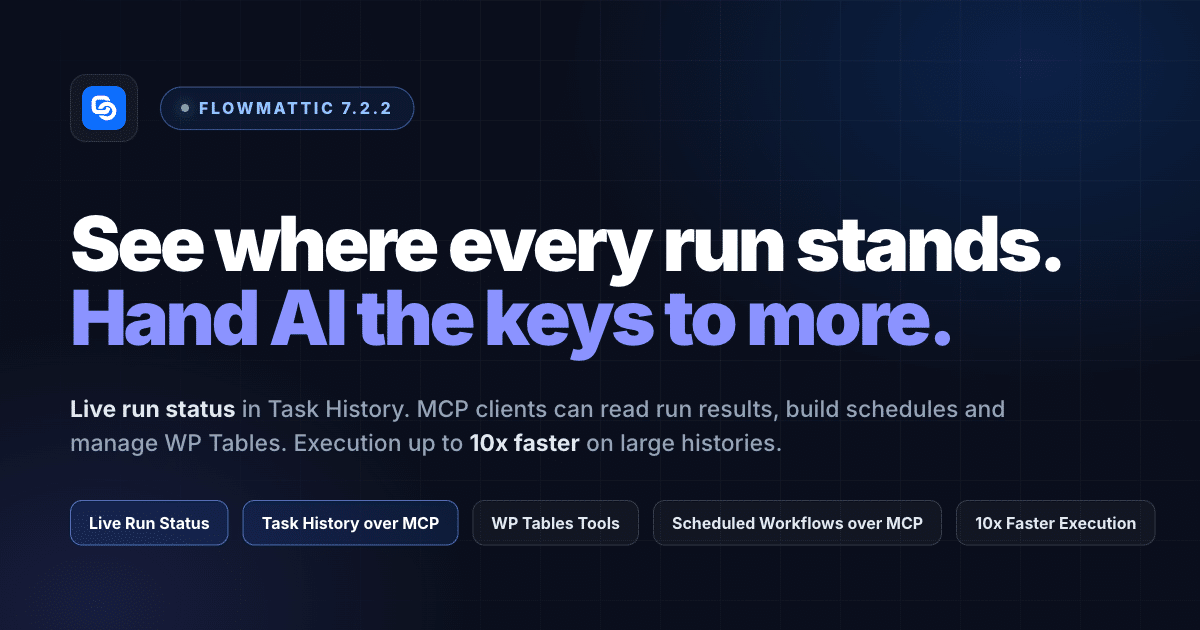
FlowMattic 7.2.2 is about knowing where things stand. Task History now shows a run while it is still going — Ongoing, Waiting on a delay or an approval, or Interrupted — and updates in place, so you no longer wait for a run to finish before you can see it. The MCP Workflow Tools that arrived in 7.2 gain the other half of the loop: a connected client can read what a run did, build scheduled workflows, and, with a separate switch, work with your WP Tables. AI Assistants pick up a Temperature setting and a set of developer hooks that work across every provider they run on.
Know what a run is doing right now
Until now a run only got a status once it had finished, so a workflow sitting on a two-hour delay looked exactly like one that had stopped. In 7.2.2 a run reads Ongoing while it executes and Waiting while it sits on a delay, an approval or a queued batch, then settles to Success, Partial Failed or Failed as before. A run that stopped mid-way — a timeout, a crashed request — is marked Interrupted instead of quietly disappearing into a success it never earned.
The list updates live while runs are open, the status filter covers the new states, and the run details show the same status at the top. Cancel Delay on a waiting run’s details stops it where it is, and a cancelled delay now stays cancelled even if the scheduler tries to resume it.
On sites with a large task history, execution itself is up to 10x faster — the engine no longer pays for every run that came before.
Your MCP client can check its own work
7.2 let Claude Desktop, Cursor or any MCP client build and test-run workflows on your site. 7.2.2 closes the loop: with Workflow Tools on, the client can now list recent runs and read exactly what each step sent and received, so it can look at the result of a workflow it just built instead of asking you to. Scheduled workflows can be built over MCP too — the interval travels with the draft and is checked before saving, so an incomplete schedule is reported back rather than stored.
The tools also got sturdier: a Filter step’s conditions survive a read/update round trip, dynamic tags are renumbered when steps move, a client on a newer protocol revision negotiates down instead of being turned away, and an open connection keeps server CPU flat instead of holding the session open to its timeout.
WP Tables, managed by your AI client
A new WP Tables Tools switch — off by default, separate from Workflow Tools — lets a connected client list your WP Tables, create tables and columns, and add, update and delete rows. Each tool describes itself well enough that the client reads a table’s columns before writing to it, and the delete tool is marked destructive so a good client confirms with you first. Leave the switch off if you only want your AI reading data; nothing else changes.
AI Assistants: Temperature, and hooks for developers
Every assistant now has a Temperature field beside its model. Leave it blank for the provider’s default, or set 0 for an assistant that looks things up or classifies, where the same question should get the same answer every time. A model that takes no temperature is simply asked again without one, so changing models never breaks a chatbot.
For developers, three filters open up the chat pipeline without touching plugin files: flowmattic_chatbot_request_args to change the request before it is sent, flowmattic_chatbot_delta_text to inspect or withhold each chunk of a reply as it streams, and flowmattic_chatbot_error_fallback_message to word the message a visitor sees when a provider fails. They run on OpenAI, Anthropic, Google and every other provider an assistant can use.
Provider errors are handled better too. A request the provider refuses outright — an unknown model, a rejected parameter, an exhausted quota — used to leave the widget waiting; it now ends the turn with a message. Visitors see a generic line, while the provider’s own message goes to the error log and is shown only to a logged-in user who can manage assistants.
Also in this release
- Cloudflare Browser Rendering — renders are paced to the account’s rate limit and retried after a 429, so back-to-back Browser, AI Agent browse, PDF and Image renders on a Workers Free account no longer fail.
- FlowMattic Browser — Archive Page captures the screenshot and the HTML in one render; Search Google Maps with full details runs at the pace the account allows instead of waiting a fixed 10 seconds per listing.
- Outgoing Webhook and API — a parameter key written in bracket notation keeps its closing bracket and builds real nested JSON:
sender[email]nests,items[0][sku]indexes,tags[]appends. Bracket values are sent as typed, so a leading zero, a leading plus and a long ID stay text. - Schedule — a workflow switched on from the workflows list registers its schedule straight away; polling triggers register the same way.
- Workflow engine — a step left without an event selected says so on the run instead of recording a success.
Update today
FlowMattic 7.2.2 is available now from your dashboard — open Plugins → Updates or FlowMattic → Dashboard. The What’s New page walks you through the release once after you update. The full list of changes is on the changelog.