

Create a dynamic WooCommerce coupon based on the order total and email it to the customer
Each new WooCommerce order gets its own single-use coupon: 20% off when the order total is over 100, 10% off otherwise, emailed to the buyer’s billing address straight away.
 WooCommerce
 Branch
 Email
6 steps 48 downloads Setup ~12 min Used on 1.9k sites Store Ops Free to import
What this workflow does
A thank-you coupon is easier to send when the store makes it for you. This workflow creates a fresh WooCommerce coupon for every new order and sizes the discount by what the customer spent, so bigger orders earn a bigger reward without anyone editing coupons by hand.
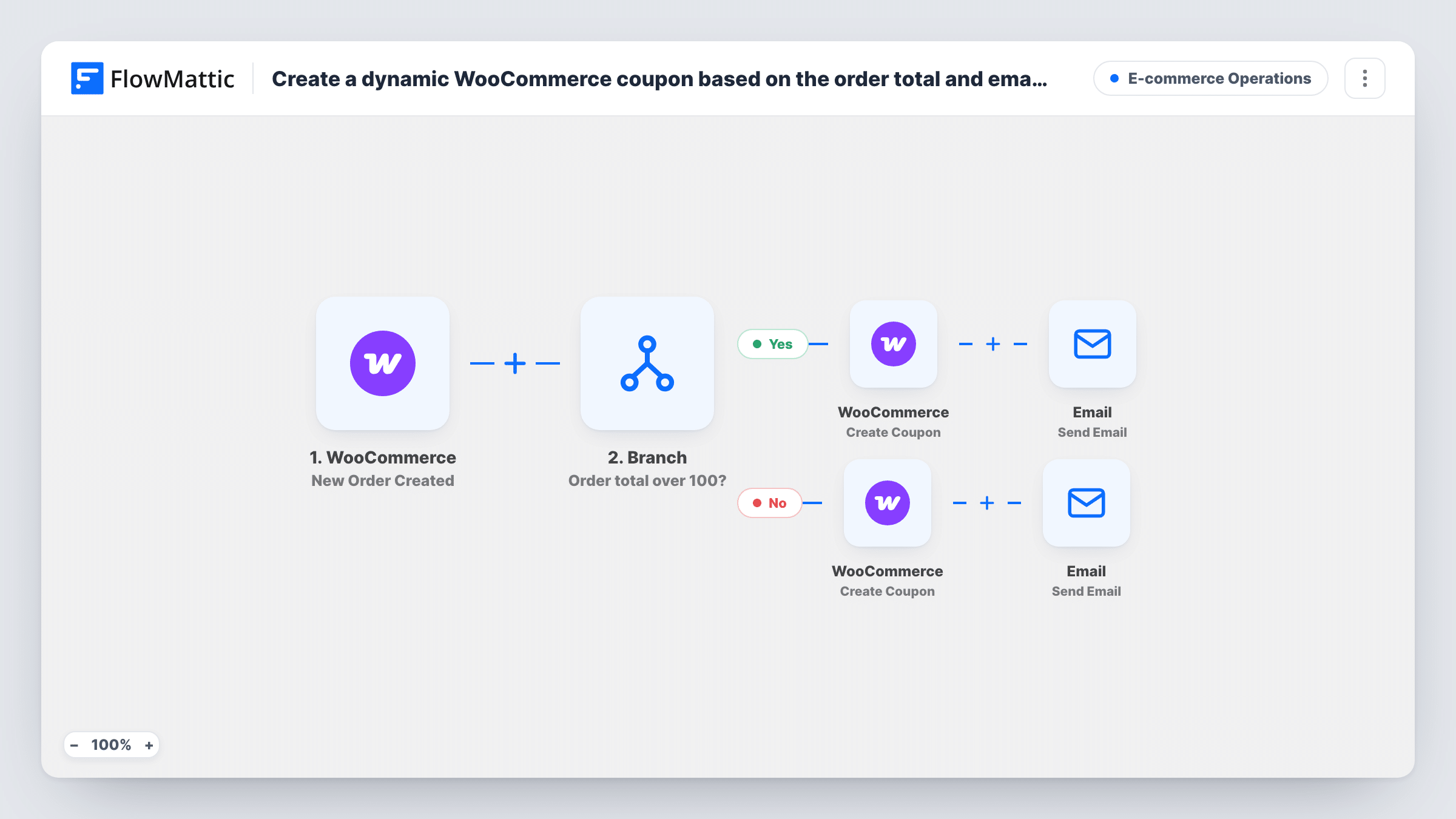
The WooCommerce trigger starts a run when a new order is created. A Branch step then checks whether the order total is greater than 100. On the Yes path, WooCommerce creates a 20% coupon; on the No path, it creates a 10% coupon. Both coupons use the code THANKS- followed by the order ID, are tied to the buyer's billing email and allow one use.
Each path ends with an Email step that sends the code to the billing email with the matching percentage in the message. The Email step uses WordPress mail or the SMTP account you connect, and the subject and body are already written, so you can edit the wording before going live.
The Branch compares whole numbers, so decimals are cut off: an order of 100.75 counts as 100 and takes the 10% path. Depending on how your store takes payment, an order may not be paid yet when the run starts, so think about orders that never get paid.
Bigger reward for bigger baskets
A homeware shop gives 20% off the next purchase to anyone who spends over 100 and 10% to everyone else, with the code arriving by email minutes after checkout.
Coupons that only the buyer can use
A store that worries about codes being shared on deal sites ties each coupon to the customer's billing email and limits it to a single use.
Repeat-purchase nudge for consumables
A coffee bean seller emails a discount code with every order so customers have it ready when their bag runs out.
How this workflow runs
What happens at each step once the workflow is on, and what you need before you import it.
 WooCommerce New Order Created
Starts a run each time a new WooCommerce order is created. The order ID, total and billing email are passed on to the Branch and the coupon and email steps.
- Branch Order total over 100?
Checks whether the order total is greater than 100. Orders above that go down the Yes path; everything else, including an order of exactly 100, goes down the No path. Change the threshold to suit your prices.
- WooCommerce Create Coupon
Yes path. Creates a 20% percentage coupon with the code THANKS- plus the order ID, restricted to the buyer's billing email and limited to one use.
 Email Send Email
Yes path. Emails the 20% code to the billing email through WordPress mail or your SMTP account. The subject and message are written in the template and can be reworded.
- WooCommerce Create Coupon
No path. Creates a 10% percentage coupon with the same THANKS- plus order ID code format, the same billing email restriction and the same single-use limit.
- Email Send Email
No path. Sends the 10% code to the billing email with the same subject line as the Yes path. Edit the body if you want this message to read differently.
What you need
- FlowMatticCore
- WooCommerce PluginPlugin
After importing, map your own data. To keep the template universal, not every step is pre-filled. Open each step in the builder and connect your accounts and fields (channels, lists, sheets, recipients) before you switch the workflow on.
Make it yours
Changes worth making after you import it.
- Put a Filter between the WooCommerce trigger and the Branch that continues only when the order status is processing or completed, so unpaid or failed orders don't get a coupon or an email.
- Change the Branch value from 100 to a threshold that fits your average order, and adjust the coupon amounts on each path to match.
- Enter your SMTP details in the Email steps if WordPress mail on your host often lands in spam.
- Mention in each email what the coupon is worth and that it works once, so the buyer knows what to expect before they reach checkout.
Questions about this workflow
How is the WooCommerce coupon code built?
Both paths use THANKS- followed by the order ID, so order 1542 gets THANKS-1542. Each order has its own ID, so each coupon code is different.
Which coupon does an order of 100.50 get?
The 10% one. The Branch compares whole numbers and drops the decimals, so 100.50 is read as 100, which is not greater than 100. An order of 101 or more takes the 20% path.
Can someone other than the buyer use the coupon?
The coupon is tied to the billing email on the order and allows one use. WooCommerce checks allowed emails when the code is applied, so place a test order and try the code from another email to see how your store responds.
Does the email go out through Gmail or my own mail server?
It goes through FlowMattic's Email module, which uses WordPress mail or an SMTP account you connect. Enter your mail provider's SMTP details in both Email steps to send from that account.
Will a cancelled or unpaid order still get a coupon?
Yes, as imported. The trigger fires when an order is created, and with some payment methods that can be before payment is confirmed. Add a Filter on the order status between the trigger and the Branch to leave those orders out.
More E-commerce & Orders workflows
Other ready-to-import templates from the same category.




Import this workflow into your WordPress site
Download the JSON, import it from the Workflows screen and connect your accounts. Every run stays on your server, with no per-task fees.
30-day money-back guarantee Unlimited workflows and runs Self-hosted