

Nudge owners about every overdue task each morning
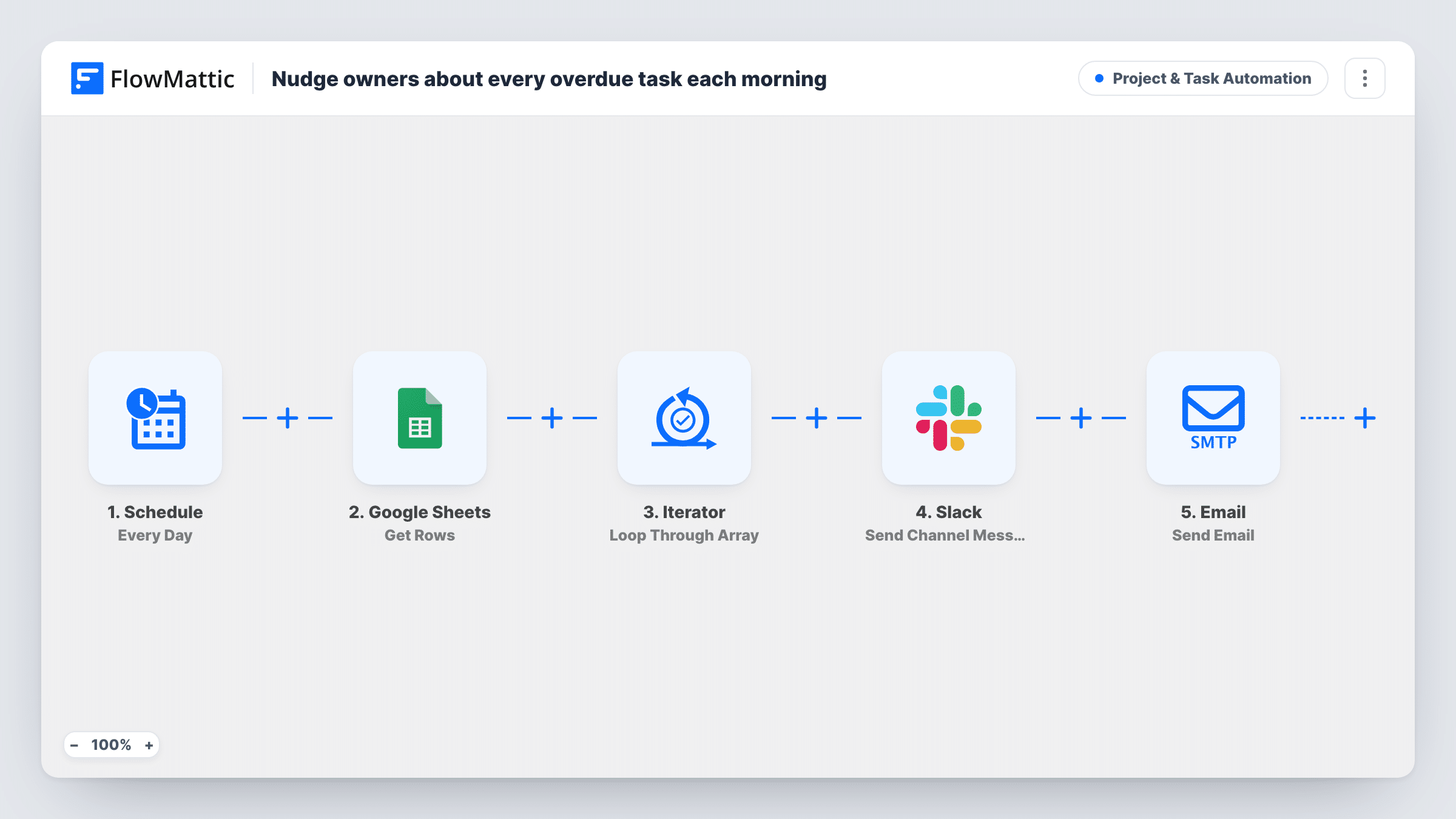
Once a day, this workflow reads your overdue-tasks sheet in Google Sheets and loops over each row, posting the task and its owner to Slack and emailing the owner a reminder to update it.
 Schedule
 Google Sheets
 Iterator
 Slack
Slack
 Email
Email5 steps Setup ~8 min Used on 3.0k sites Productivity Free to import
What this workflow does
Overdue tasks rarely move until someone asks about them, and chasing each owner by hand takes a slice of every morning. If you already keep a sheet of overdue work, this workflow does the chasing for you on a daily schedule.
A Schedule trigger starts the run once a day. The Google Sheets Get Rows step reads the rows from your sheet, and an Iterator loops through them one at a time. For each row, FlowMattic posts a Slack channel message naming the task and its owner, then emails the owner at the address in that row with the task name in the subject.
The workflow does not check due dates. It treats every row it reads as overdue, so the sheet must hold only overdue tasks, or you add a Filter inside the loop. Rows also stay in the loop until you remove them: a task still listed tomorrow gets another Slack post and another email. Every run repeats for every row, so clear finished tasks from the sheet to stop their reminders.
A project manager's overdue report
Your project tool exports overdue tasks to a sheet. Each day every owner on that list gets an email, and the team channel sees the full list of late work.
Content calendar deadlines
An editor keeps late drafts in a sheet with the writer's name and email. Writers get a daily email for each late piece until the editor removes the row.
Client deliverables at a small agency
Account leads list overdue deliverables in a shared sheet. The daily Slack posts keep the whole team aware, and each owner hears about their own items by email.
How this workflow runs
What happens at each step once the workflow is on, and what you need before you import it.
 Schedule Every Day
Kicks off the overdue check on a daily schedule. Every later step runs on each daily run, with no check of what was sent the day before.
- Google Sheets Get Rows
Reads the rows from your Google Sheets spreadsheet. The later steps expect columns named task_name, owner and owner_email, so name your headers that way or remap them.
- Iterator Loop Through Array
Loops through the rows Get Rows returned and runs the Slack and email steps once for each row. Every row in the result is treated as an overdue task.
- Slack Send Channel Message
Posts a Slack channel message for the current row, naming the task and its owner. This is a channel post, not a direct message to the owner.
 Email Send Email
Emails the address in the row's owner_email column, with the task name in the subject and a short note asking them to update its status.
What you need
- FlowMatticCore
- Google Sheets AccountAccount
- Slack AccountAccount
After importing, map your own data. To keep the template universal, not every step is pre-filled. Open each step in the builder and connect your accounts and fields (channels, lists, sheets, recipients) before you switch the workflow on.
Make it yours
Changes worth making after you import it.
- If your sheet lists all tasks, add a Filter after the Iterator that continues only when a status column says overdue, or when a due date column is set. Then only late tasks trigger messages.
- Add a column for the owner's Slack user ID and mention them in the message text, so the channel post notifies the right person.
- Edit the email body to include the due date or a link to the task by mapping more columns from the row.
- Point the workflow at a two-row test sheet for its first run, then check Task History to confirm one Slack post and one email per row.
Questions about this workflow
Does this workflow check due dates in Google Sheets?
No. It sends a reminder for every row Get Rows returns. Keep only overdue tasks in the sheet, or add a Filter after the Iterator that checks a status or date column.
Will an owner get the same overdue reminder every day?
Yes, as long as the task stays in the sheet. Each daily run reads the rows again and sends a Slack post and an email for each one. Remove the row or mark it and filter on that to stop the reminders.
Does the Slack step message the task owner directly?
No. It posts to a Slack channel and names the owner in the text. The owner hears about it personally through the email step.
What email account sends the overdue reminders?
The Email step sends through the SMTP connection you set up in FlowMattic, so reminders come from that account.
More Project & Task Automation workflows
Other ready-to-import templates from the same category.





Import this workflow into your WordPress site
Download the JSON, import it from the Workflows screen and connect your accounts. Every run stays on your server, with no per-task fees.
30-day money-back guarantee Unlimited workflows and runs Self-hosted