

Workflow variables for WordPress automation
Define a value once, give it a name, and use it in any field of any workflow as a {{name}} token. Change it on the Variables screen and every workflow that references it follows on its next run, with no steps to open and nothing to retype.
24 system variables built in{{name}} works in any fieldSet from a workflow stepRunning on 12,908+ sites

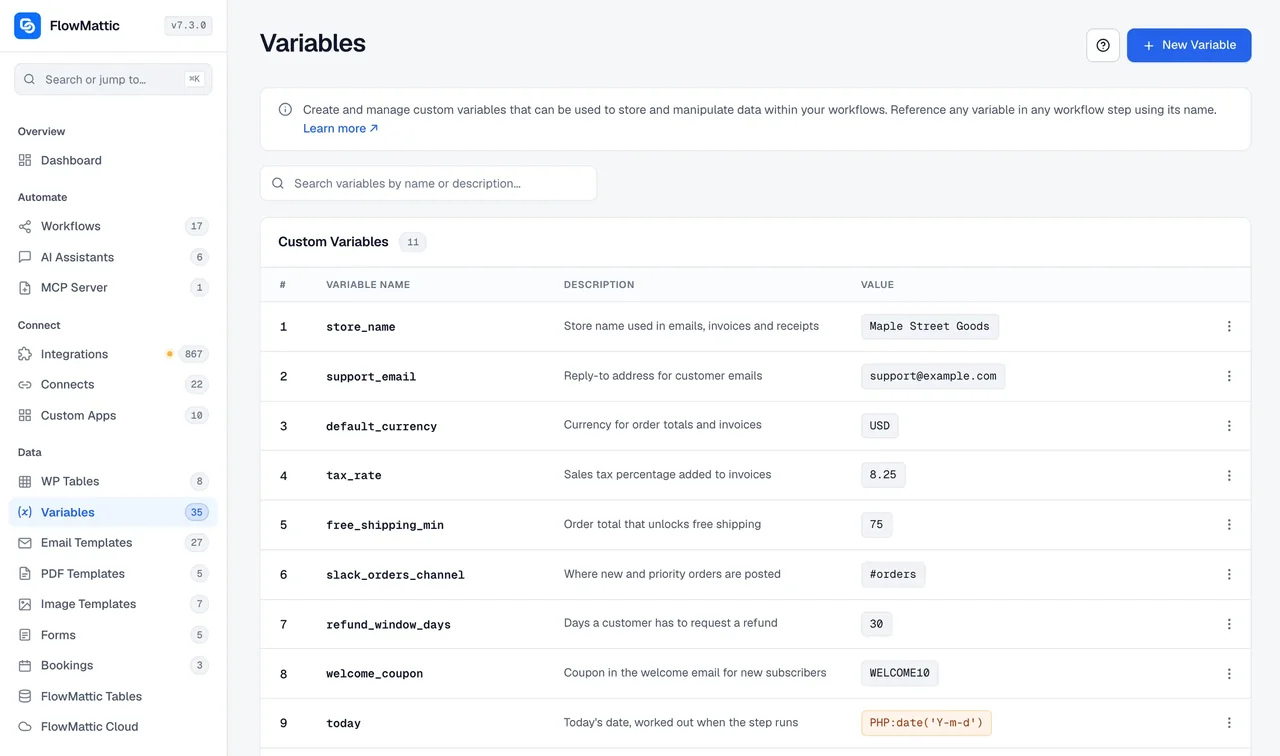
One value, set in one place
Three steps take a value from something you retype in every workflow to something you set once.
-
Create
Name it and describe it
On the Variables screen, give the variable a name, a value and a description of what it is for, so a teammate reading a workflow months later knows why it exists. Search finds it by name or description.
-
Insert
Use the token in any field
Type {{name}} into a trigger or action field, or copy the token from the list. FlowMattic swaps in the stored value when the step runs, in any workflow on the site.
-
Change
Edit once, every workflow follows
Update the value in the list and the next run of every workflow that references it uses the new value. Nothing to hunt for, nothing to miss.
One token in any field
A variable works wherever a step takes text: the endpoint of an API step, an ID field in a CRM action, a line in an email, the prompt of an AI step. It sits beside the dynamic data from earlier steps, so a URL can be {{api_base}}/customers/{{trigger.id}} and resolve correctly at run time.
- Endpoints and base URLs for API steps and Custom Apps
- Account, list and workspace IDs that every workflow passes to the same app
- Copy that must match everywhere: a signature, a sender name, a support address
- A value can call a PHP function: PHP:time() is evaluated when the step runs
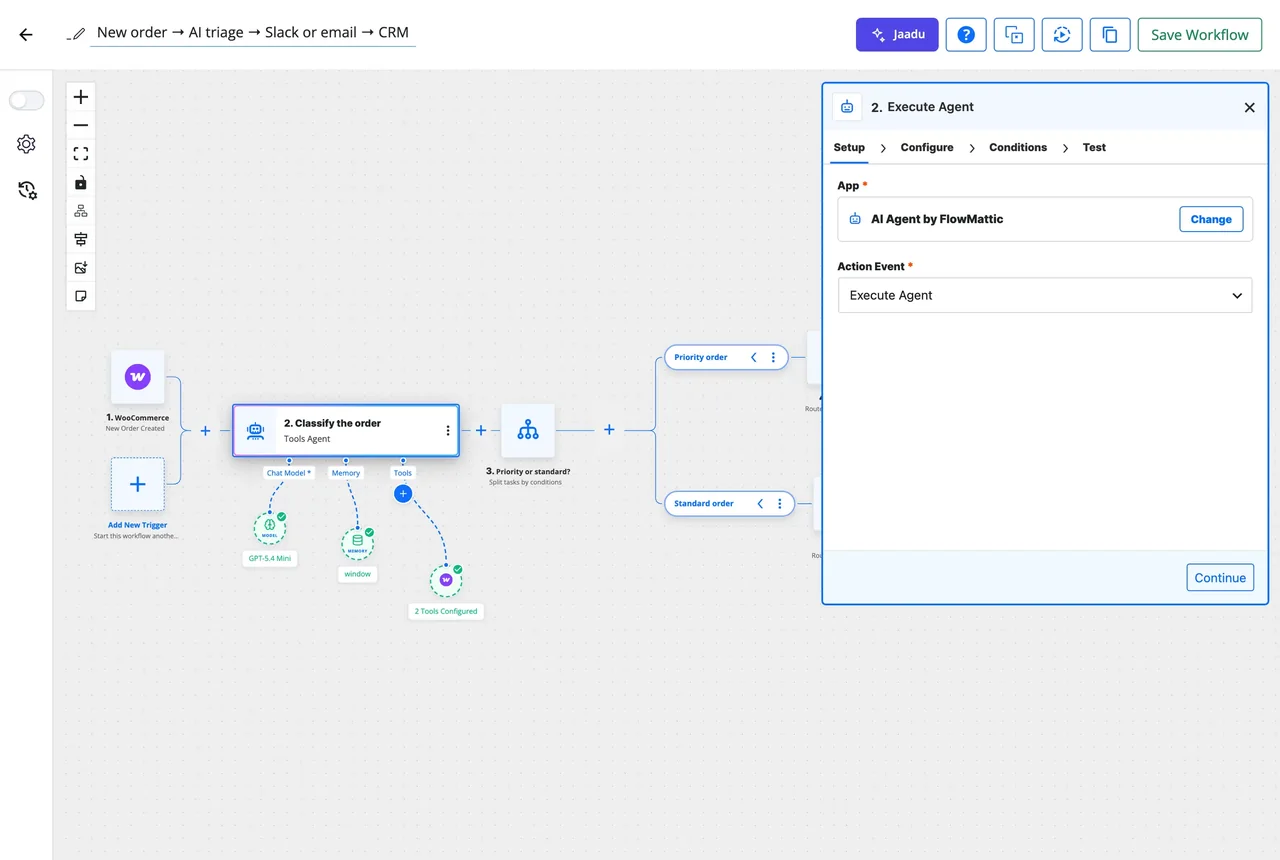
Change it once and every workflow follows
When an API moves from v2 to v3, a sandbox becomes live, or the support address changes, the value changes in one place. Each workflow reads the variable when it runs, so the change applies to the next run without opening a single step.
- Workflows read the current value at run time, not a copy saved in the step
- Duplicate a variable to make a sibling, such as a second account ID
- A workflow can change a value too, with Set the value of a variable in FlowMattic Tools
What a variable can hold
Custom variables you define, system variables that are always there, and values a workflow can change.
Custom variables
A name, a value and a description. Edit, duplicate or delete them from the list, and search by name or description when the list grows.
Dates and times, built in
ISO 8601 stamps, the current date, time and timestamp in UTC and in the site's time zone, in 12 and 24 hour forms, plus the year, month and day.
Formatting and sample values
Blank, a single space and a line break for stitching text together, boolean true and false, and random_number and random_string for test data.
Set from a workflow
FlowMattic Tools has Get the value of a variable and Set the value of a variable, so a run can store a cursor, a last-synced ID or a toggle for the next run.
Local variables for one run
Create, read, update and delete a value that lives only inside the current run, for totals and flags that should not outlive it.
Whole records go in tables
A variable is one value. Lists of customers, orders or bookings with typed columns belong in WP Tables or FlowMattic Tables.
Variables people actually define
{{api_base}} for a Custom App
Every action in a private integration starts with the same host. Swap sandbox for live by editing one variable before the launch.
{{support_email}} in notifications
Order confirmations, booking reminders and failure alerts all show the same reply address, and it changes everywhere when the inbox does.
{{invoice_prefix}} for the PDF builder
Prefix every generated invoice number from one place, and read {{cur_year}} beside it so the prefix rolls over on its own.
{{last_synced_id}} set by the workflow
A scheduled sync reads the ID it stored last time, fetches what is newer, then sets the variable again for the next run.
Questions about variables
What is a variable good for?
Anything you would otherwise type the same way in several workflows: an API base URL, an account or list ID, a support address, a signature line, an invoice prefix. Set it once as a variable and reference it wherever it is needed.
Can I use a variable in any workflow?
Yes. A variable belongs to the site, not to one workflow. Type its {{name}} token into any trigger or action field, or copy the token from the Variables screen, and it resolves when the step runs.
Which variables are built in?
Twenty-four system variables. Dates and times in ISO 8601, UTC and the site time zone, in 12 and 24 hour forms, plus the current year, month and day; formatting helpers for a blank value, a space and a line break; boolean true and false; and random_number and random_string for test data.
What happens when I change a value?
Every workflow that references the variable uses the new value on its next run. Steps store the token, not a copy of the value, so there is nothing to update inside them.
Can a workflow change a variable?
Yes. FlowMattic Tools has Get the value of a variable and Set the value of a variable, so a run can store a cursor or a last-synced ID for the next run. For values that should live only inside one run, the same module offers local variables.
How is a variable different from a table?
A variable is one value with a name and a description. A table holds many records with typed columns and can be queried, filtered and related. Use variables for constants and settings, and WP Tables or FlowMattic Tables for data.
Did not find your answer? You can browse the help center or ask us directly.
Stop retyping the same value in every workflow
Create a variable, drop its token into as many workflows as you need, and change it from one place. Included with every plan, beside 918+ integrations.
30-day money-back guarantee Unlimited workflows and runs Self-hosted