

An MCP client for WordPress workflows
The MCP Client calls a tool on any external MCP server from a FlowMattic workflow step, and an AI Agent can carry a whole server's tools in its toolbelt. Paste the server's endpoint, choose how to authenticate, pick the tools, and map their inputs from earlier steps.
Any Streamable HTTP MCP serverBearer, API key or custom headersDynamic tags in every field5 to 300 s timeout per call

Three steps to the first tool call
The same setup serves a single step and an agent's toolbelt.
-
Endpoint
Paste the server URL and authenticate
Enter the Streamable HTTP endpoint and choose None, Bearer Token, API Key in a custom header, or Custom Headers. Every value accepts a dynamic tag, so a token can come from Variables or an earlier step.
-
Tools
Pick what may be called
FlowMattic lists the server's tools with their descriptions. In a step you choose one tool and fill its parameters; in an AI Agent you allow All Tools, Selected Only or All Except.
-
Call
Run it and use the response
Test the step and the real response appears in the panel, ready to map into the next step. In an agent, the model calls tools as it reasons and reads each result before the next move.
A whole server in an agent's toolbelt
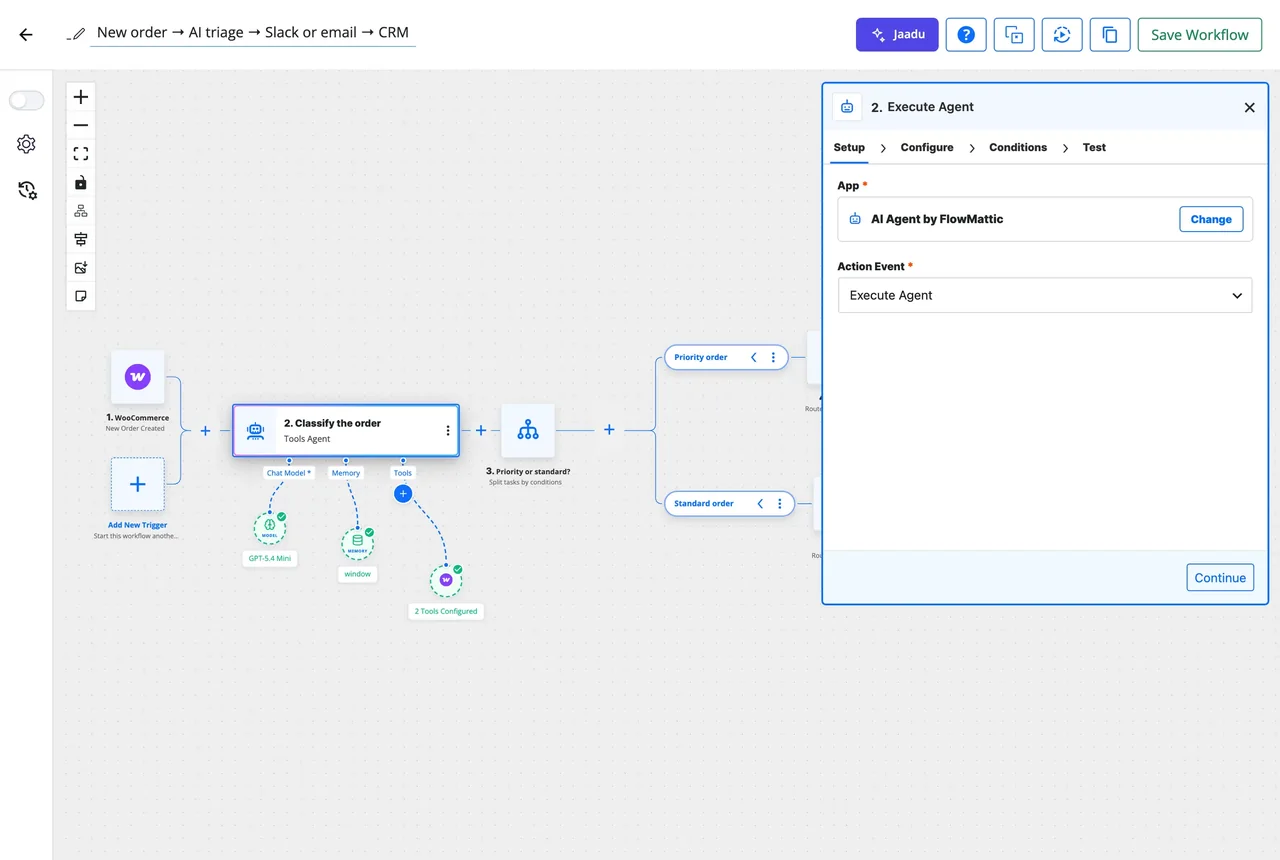
Add the MCP server as a tool on an AI Agent step and the agent sees every tool you allowed, alongside your own workflow modules and integrations. It reads the descriptions, picks what the goal needs and can chain several calls in one run. Tool schemas are trimmed of metadata the model does not need, so each call costs fewer tokens.
- All Tools, Selected Only or All Except, per server
- Mixed with any of the 918+ integrations as tools in the same agent
- Max Iterations and a Tool Output Limit keep the run bounded
One tool as a plain workflow step
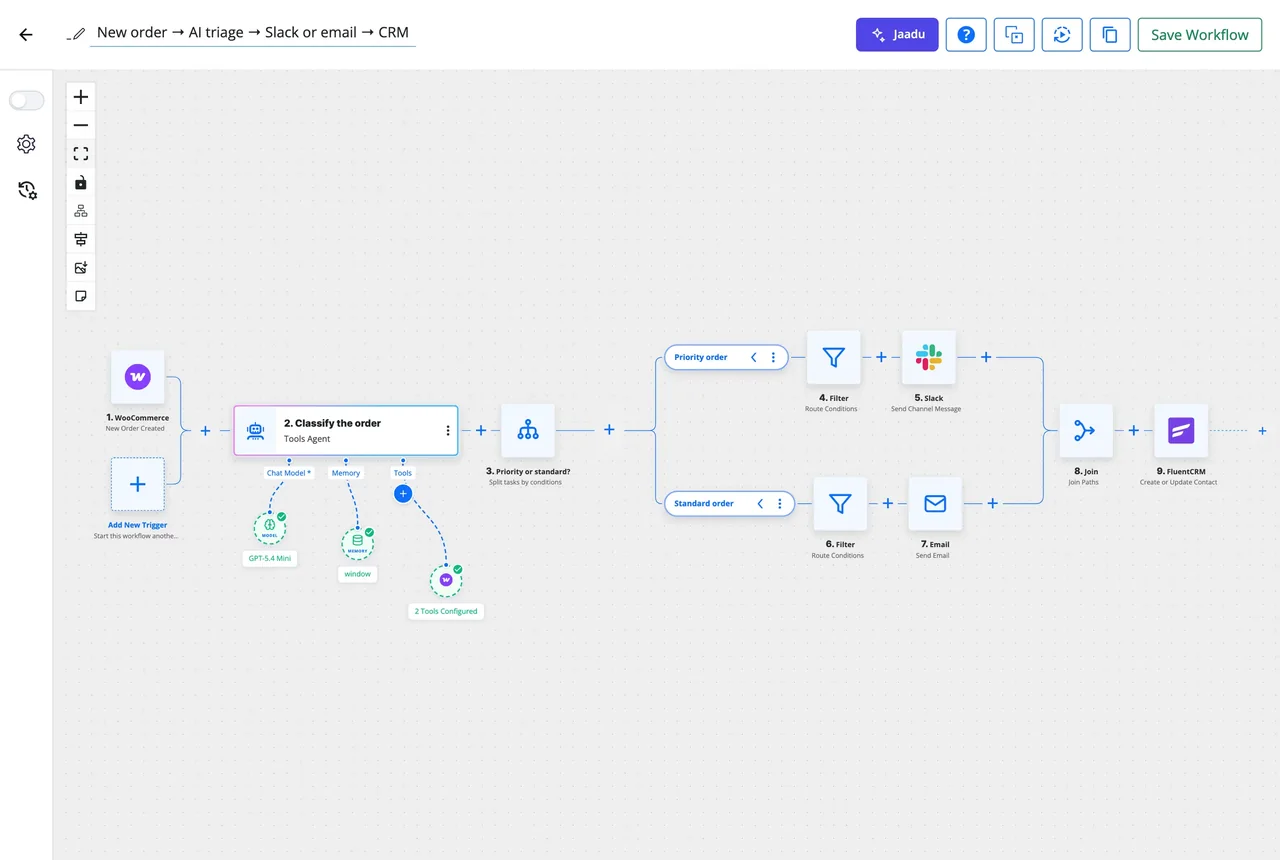
When you know exactly which tool to call, use the MCP Client as a step. Pick the tool, fill its parameters from the trigger or earlier steps, and the response becomes data for whatever comes next: a Router condition, a table row, an email. Each call is recorded in Task History with what was sent and what came back.
- Parameters generated from the tool's own schema
- Per-step Conditions, retries and a timeout of your choosing
- Re-execute a failed call with the original or edited data
Site to site, with the server on the other end
FlowMattic's own MCP Server speaks the same protocol, so one site's MCP Client can call tools on another FlowMattic site: a central site that triggers workflows on client sites, or a staging site that reads production's Task History. The header token the server issues goes straight into the client's Bearer Token field.
What the client handles for you
The protocol details stay inside the step, so a tool call is a form, not a script.
Four ways to authenticate
None for public servers, Bearer Token, API Key in a header you name, or several Custom Headers.
Tool discovery
Every tool the server offers, listed with its description and searchable by name, so you pick from what is really there.
Tool filters for agents
All Tools, Selected Only or All Except decide what an agent may call, per server.
Dynamic tags everywhere
Parameters and authentication fields alike take data from the trigger, earlier steps or Variables.
Timeout per call
60 seconds by default, set anywhere from 5 to 300 for a slow server or a long-running tool.
Schemas trimmed for the model
Non-essential metadata is stripped and long descriptions shortened before tools reach an agent, saving tokens on every call.
Workflows that reach beyond the integrations library
When a service publishes an MCP server, the client is the fastest way to use it from WordPress.
Issue filed from a form
A bug report form submission calls a code host's MCP server to open an issue, and the returned issue number goes back to the reporter by email.
Agent that checks before it acts
An AI Agent with a payment provider's MCP tools looks up a customer's subscription before it drafts the reply a support workflow sends.
Your own internal tools
An MCP server you host in front of an internal system becomes a step, with its token kept in Variables rather than typed into each workflow.
Many sites, one controller
A central FlowMattic site calls wf_test_run_workflow on client sites through their MCP servers to run a check across all of them on a schedule.
Questions about the MCP client
What is the difference between the MCP Client and the MCP Server?
The client calls out: a workflow step or an AI Agent on your site runs a tool on an external MCP server. The server does the opposite and exposes your own workflows and data as tools for Claude, ChatGPT or Cursor. FlowMattic ships both.
Which MCP servers can I connect to?
Any server that speaks the Model Context Protocol over Streamable HTTP, whether it is run by a SaaS product, hosted by you, or another FlowMattic site's MCP Server. Paste its endpoint URL and FlowMattic lists the tools it offers.
How do I authenticate against a secured server?
Choose None, Bearer Token, API Key in a custom header, or Custom Headers with as many key and value pairs as the server needs. Every field accepts dynamic tags, so a token can come from Variables, a Connect or an earlier step rather than being typed into the workflow.
Can an AI Agent use these tools on its own?
Yes. Add the MCP server as a tool inside an AI Agent step and choose All Tools, Selected Only or All Except. The agent reads the tool descriptions, picks what it needs as it reasons, and can chain several calls, mixed with your own workflow modules.
Does the MCP Client cost extra?
No. It is a module included with every FlowMattic licence, like webhooks or the scheduler, with unlimited workflows and unlimited runs.
What if the server is slow?
Each step and each agent tool has its own timeout, 60 seconds by default and adjustable from 5 to 300 seconds. A call that times out is recorded as a failed step in Task History with the response it got, and the run can be re-executed.
Did not find your answer? You can browse the help center or ask us directly.
Call your first MCP tool from a workflow
The MCP Client is a module in every FlowMattic licence. Paste an endpoint, pick a tool and test it against real data; the docs walk through each authentication type.
Included in every licence Unlimited workflows and runs Running on 12,904+ sites