

Task History: logs and replay for every workflow run
See every WordPress workflow run step by step, with the data each step received and the response it returned, then re-execute a run with its original or edited data. Task History is where you go when something did not happen, and the proof when it did.
6 run statusesSecrets masked in every payloadRe-execute with original or edited dataLive date ranges and filters

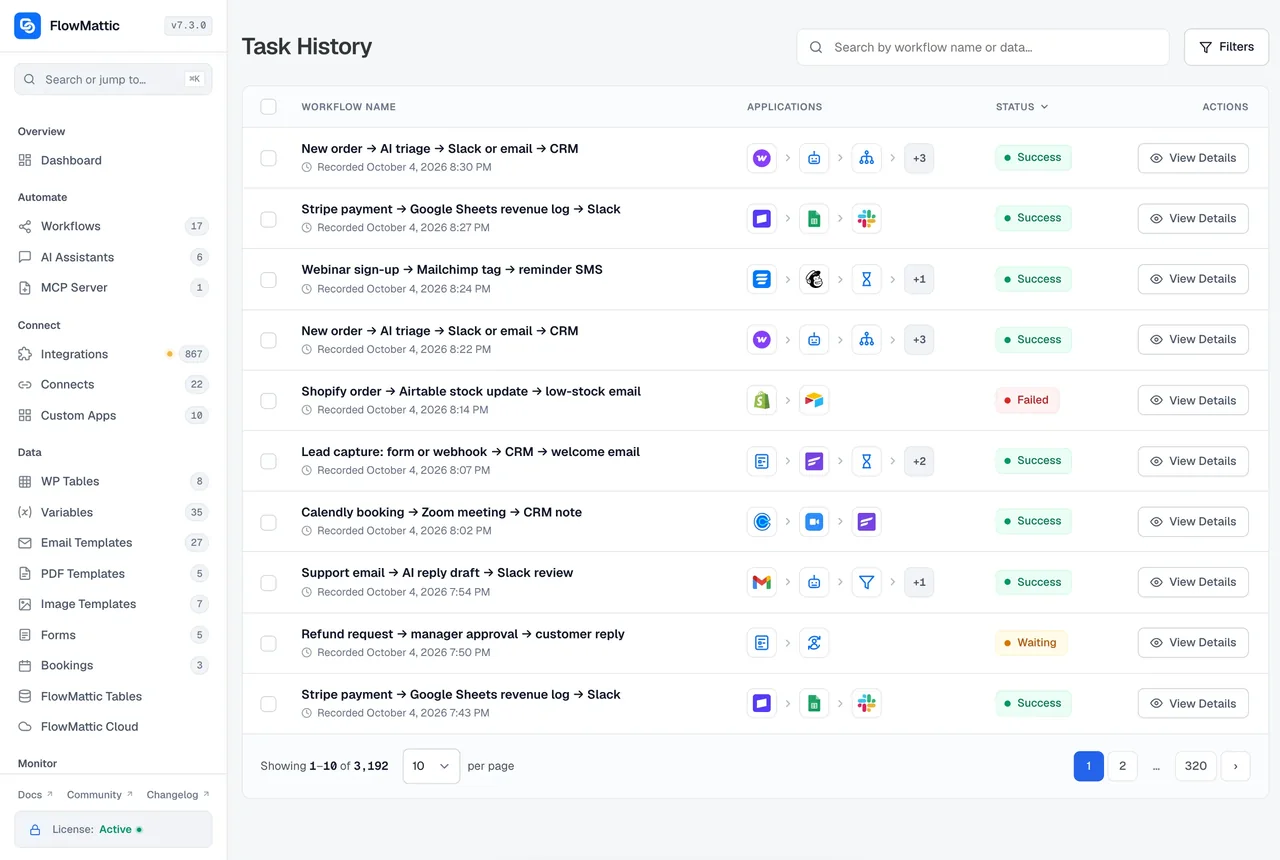
Find it, open it, fix it
The order you work in when a customer says the email never came.
-
Find
Filter the list
Pick the workflow, a live date range such as Today or Last 7 days, and a status. Save the combination as your default view and Task History opens on it, moving with the calendar.
-
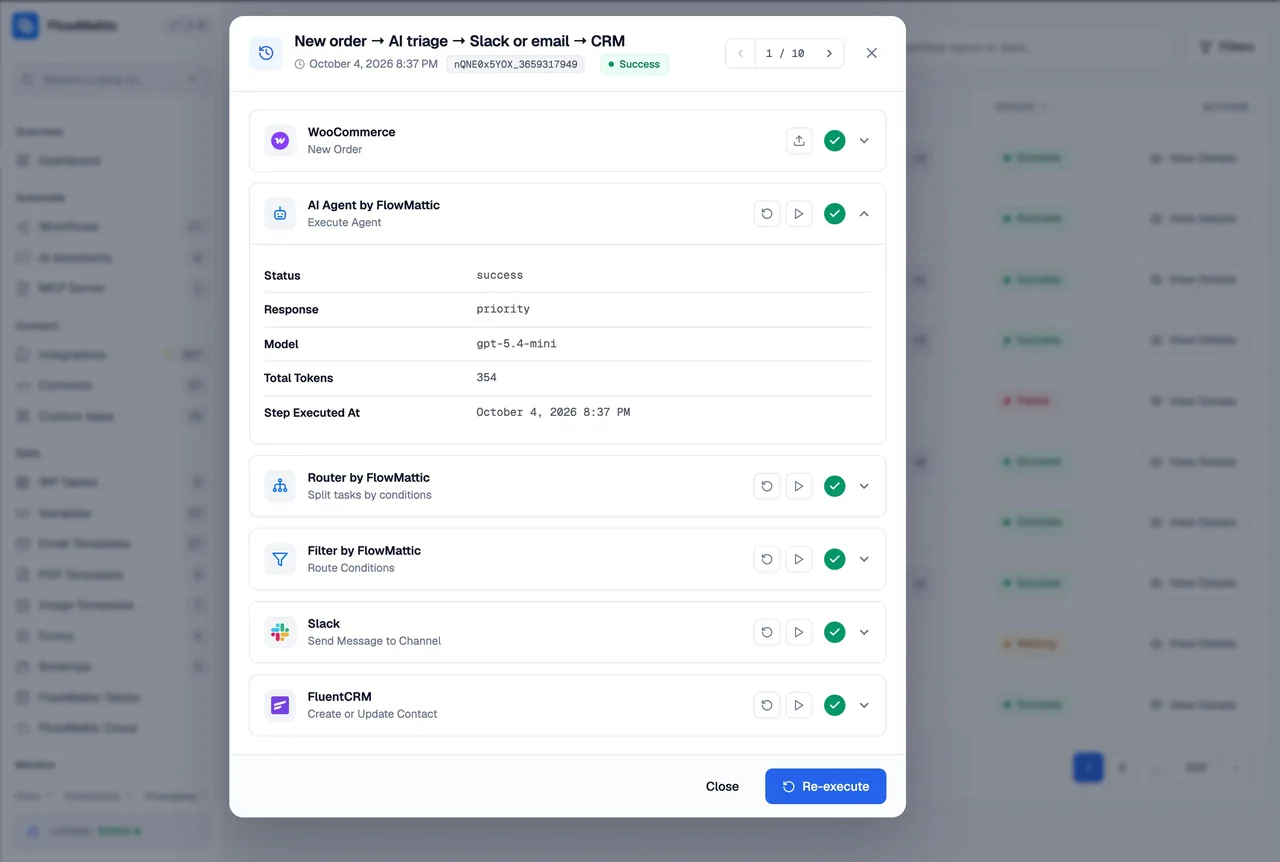
Open
Read the run step by step
Each step shows its status, the inputs it ran with under Request Payload, and the response it got back. A failed API call shows the exact error the service returned.
-
Fix
Re-execute, or load the data into the builder
Fix the cause, then re-execute the run with its original data or edit a field first. When the mapping was wrong, load the run's trigger data into the builder and map against what really arrived.
Every step, with what went in and what came back
Open a run and each step is listed with its status. Request Payload shows the inputs the step ran with, dynamic tags already filled, including for apps that never reported their request, and the response below it. API keys, tokens and passwords are masked, so a run can be shared with a colleague or pasted into a support ticket.
- Statuses: Success, Failed, Ongoing, Waiting, Interrupted and Skipped
- Request Payload and response for every step, including Iterator items
- Secrets masked in both the payload and the response
- Compare a live run's values with a test run of the same step
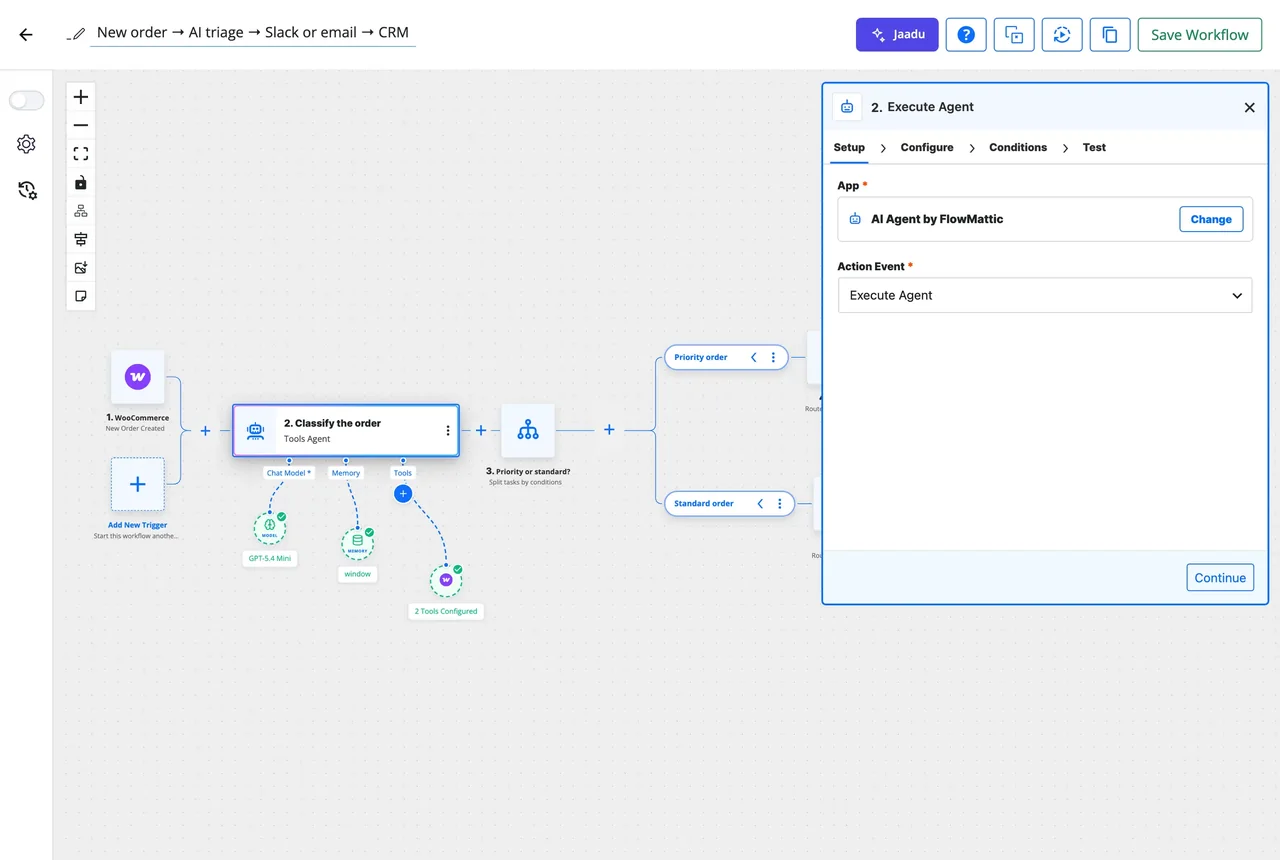
Replay a run, cancel a wait, map against real data
Re-execute runs the workflow again from the trigger with the data that run received. Edit a field first when the payload was the problem, such as a typo in an email address. A run paused on a Delay can be cancelled from the same screen. And when the builder's captured sample does not match what the trigger really sends, load a run's trigger data into the builder as the captured response and map the fields against it.
- Re-execute with original data, or edit the data first
- Cancel a delay and stop the waiting run
- Load a run's trigger data into the builder for mapping
- Re-executed runs are flagged in the list with the time
Everything Task History records and lets you do
Runs stay on your own server, in your WordPress database, for as long as you keep them.
Six statuses
Success, Failed, Ongoing, Waiting, Interrupted and Skipped, so a paused approval and a deduplicated event are never mistaken for failures.
Request Payload
The inputs every step ran with, dynamic tags filled and secrets masked, beside the response it returned.
Re-execute
Run it again with the original data, or edit the data in the Re-execute dialog first.
Cancel a delay
Stop a run that is waiting on a Delay step before it continues.
Load trigger data into the builder
Use a real run's trigger data as the captured response, so mapping matches what the live event sends.
Filters that keep moving
Workflow, status, and live date ranges: Today, Yesterday, Last 7 days, Last 30 days, This month, Last month, or a custom range. Save one as your default view.
Failure email
An email to the address you set whenever a run fails, with the step and the error.
Workflow Failed trigger
A trigger that fires on any failure, so an error-handling workflow can post to Slack, Discord, Teams or PagerDuty.
Failure webhook
A global webhook URL that receives every failure as a JSON POST, a fallback for when email itself is down.
Questions about Task History
What does each run status mean?
Success: every step completed. Failed: a step returned an error, or a Stop and Error step ended the run. Ongoing: the run is still executing. Waiting: it is paused on a Delay or an approval step. Interrupted: the run went quiet without finishing, for example when the server process stopped mid-run. Skipped: the trigger’s Skip Duplicate Events rule recognised a repeat and did not run it.
Can I see exactly what a step sent to an API?
Yes. Open the run and each step shows its inputs under Request Payload, with dynamic tags filled in and secrets masked, and the response the service returned. This covers apps that never reported their request before, so a live run can be compared with a test.
How do I re-run a failed workflow?
Open the run and click Re-execute. It runs the workflow again with the data that run received. If the data itself was the problem, edit the fields in the Re-execute dialog first. Re-executed runs are flagged in the list with the time they were replayed.
Can I stop a run that is waiting on a delay?
Yes. A run paused on a Delay step has a Cancel delay action in Task History. Cancelling stops the run so the steps after the delay do not execute.
How do I get told when a workflow fails?
Three ways, which work together. A failure email goes to the address you set in Settings. A Workflow Failed trigger starts an error-handling workflow that can post to Slack, Discord, Teams, PagerDuty or anywhere else. And a global failure webhook URL receives every failure as a JSON POST, which keeps working when your email does not.
Are API keys and passwords visible in the logs?
No. Secrets are masked in both the Request Payload and the response of every step, so a run can be shared with a teammate or pasted into a support ticket. The logs themselves stay in your WordPress database on your own server.
Can I set Task History to always open on the last seven days?
Yes. Choose Last 7 days in the filter dialog, tick Use as my default view, and Task History opens on that range every time. The range is live, so it always means the last seven days from today, not the dates you picked.
Did not find your answer? You can browse the help center or ask us directly.
Know what every run did
Run a workflow on a live demo site and open it in Task History, or install FlowMattic and keep every log on your own server.
30-day money-back guarantee Unlimited workflows and runs Self-hosted