

A WordPress booking plugin with automation built in
Add appointment booking to WordPress with availability rules, a public booking page, and confirmation, reminder and follow-up emails you can edit. Every booking event is a workflow trigger, so the CRM update, the Slack message and the invoice happen without a second plugin.
Zoom, Meet, phone or in person11 booking triggers18 booking actionsInvitee's time zone detected

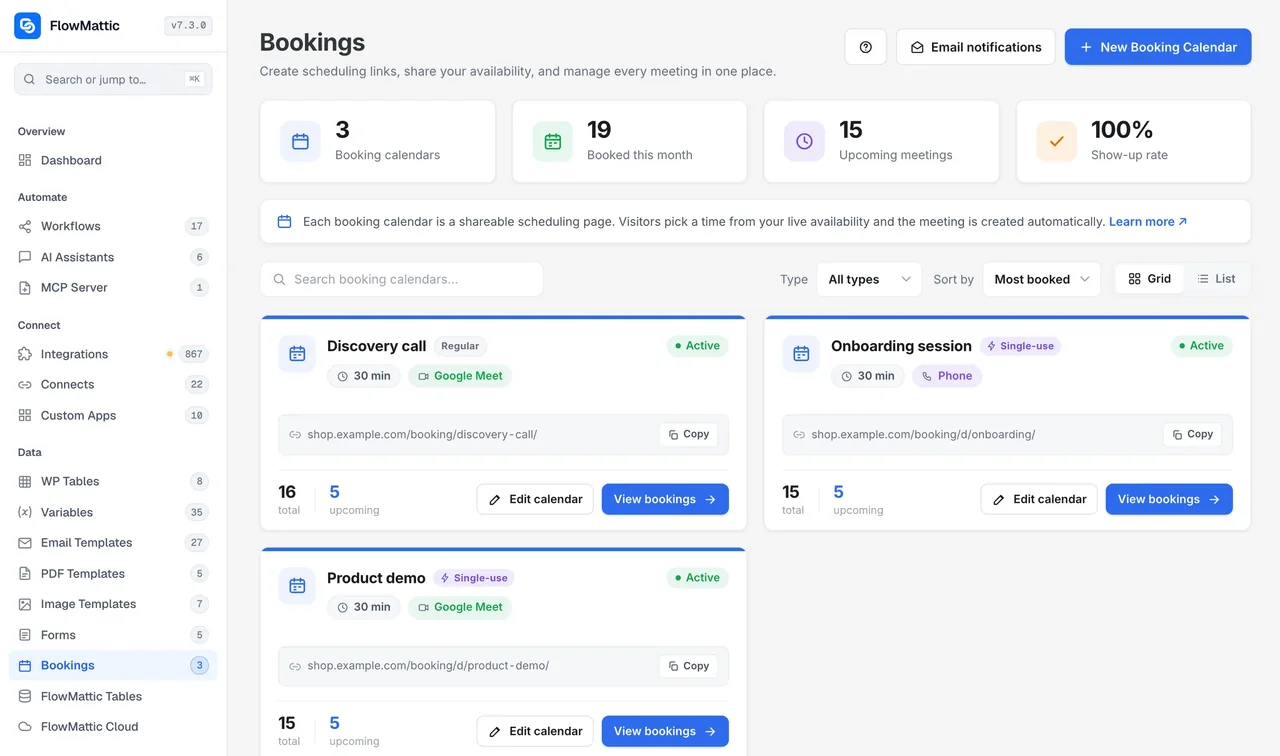
Availability, a link, and the rest runs itself
A booking calendar is set up once. From then on, visitors book and workflows do the follow-through.
-
Availability
Describe when you are free
Create a booking calendar with a duration and a location, then set recurring weekly hours or a date range, buffers before and after, minimum notice, how far ahead people can book and a daily cap.
-
Share
Put the page where people are
Add the calendar to a page with the shortcode or block, or share its own page under /flowmattic-booking/. For a one-off slot, create a single-use link that locks after the first booking.
-
Automate
Let bookings start workflows
Confirmation and reminders go out on their own. For everything else, pick FlowMattic Bookings as the trigger: New Booking, Rescheduled, Cancelled, Completed or Marked No-Show, each with the full booking in its data.
Every booking event starts a workflow
Most booking tools let you react to a new appointment. FlowMattic Bookings turns the whole lifecycle into triggers: created, updated, rescheduled, cancelled, completed, no-show and deleted, plus calendar changes and single-use bookings, each filtered to one calendar or all of them. Workflows can drive the calendar back as well, from Add Booking to Send Email to Booking.
- A cancellation can tell the host in Slack and update the CRM in the same run
- A no-show can tag the contact for a follow-up sequence
- A completed meeting can generate a PDF summary or an invoice
- A form, a chat or an AI Agent can create or reschedule a booking
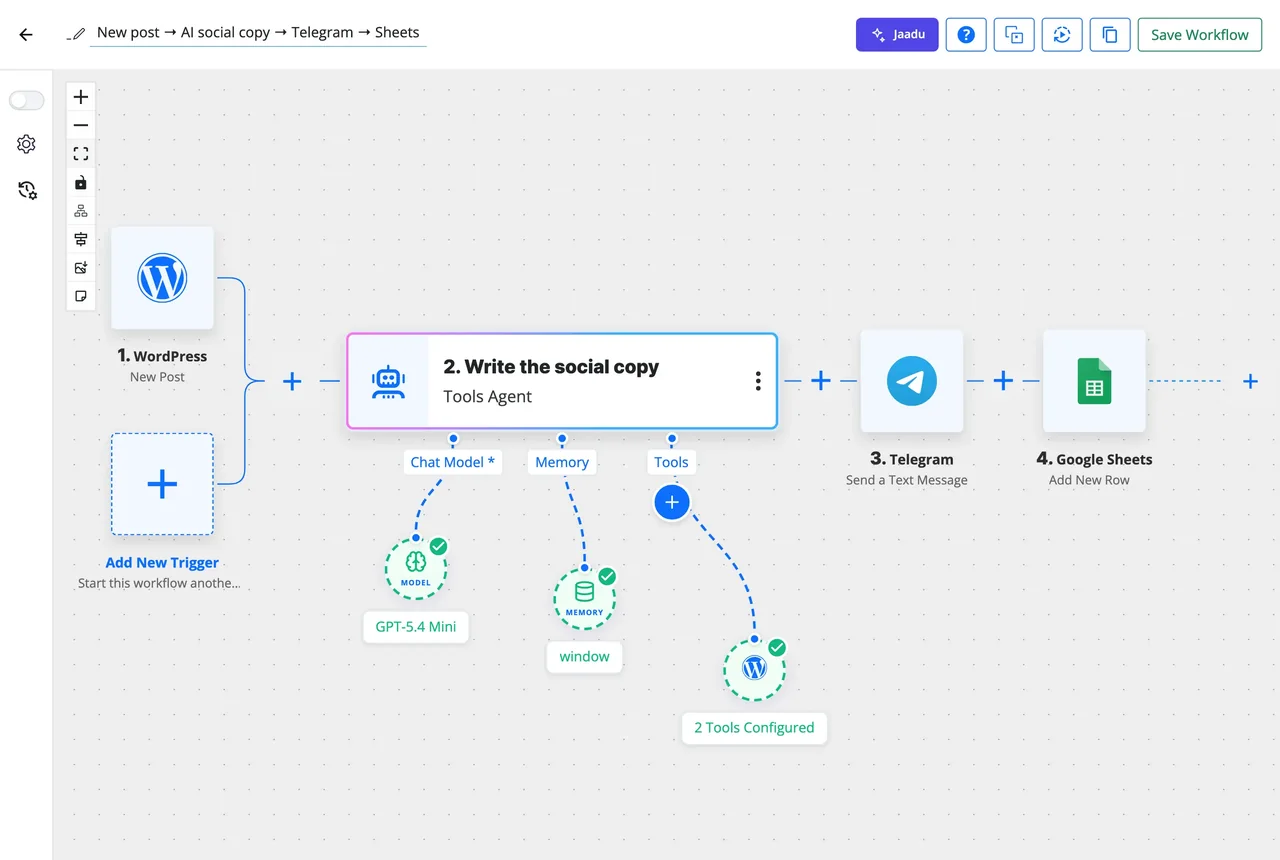
Confirmations and reminders are templates you can edit
Six booking emails are ready on day one: a confirmation with the meeting link and an Add to calendar link, a reminder 24 hours before, reschedule and cancellation notices, a follow-up after the meeting and a new-booking alert for you. Each is a template in the Email Template Builder, with twelve bundled designs to choose from, mapped for all calendars or overridden per calendar.
- Confirmation, reminder, reschedule, cancellation and follow-up to the invitee
- New booking alert to the host
- Reminder 24 hours before, with an optional second reminder
- Any template swapped per calendar, with your logo and accent colour
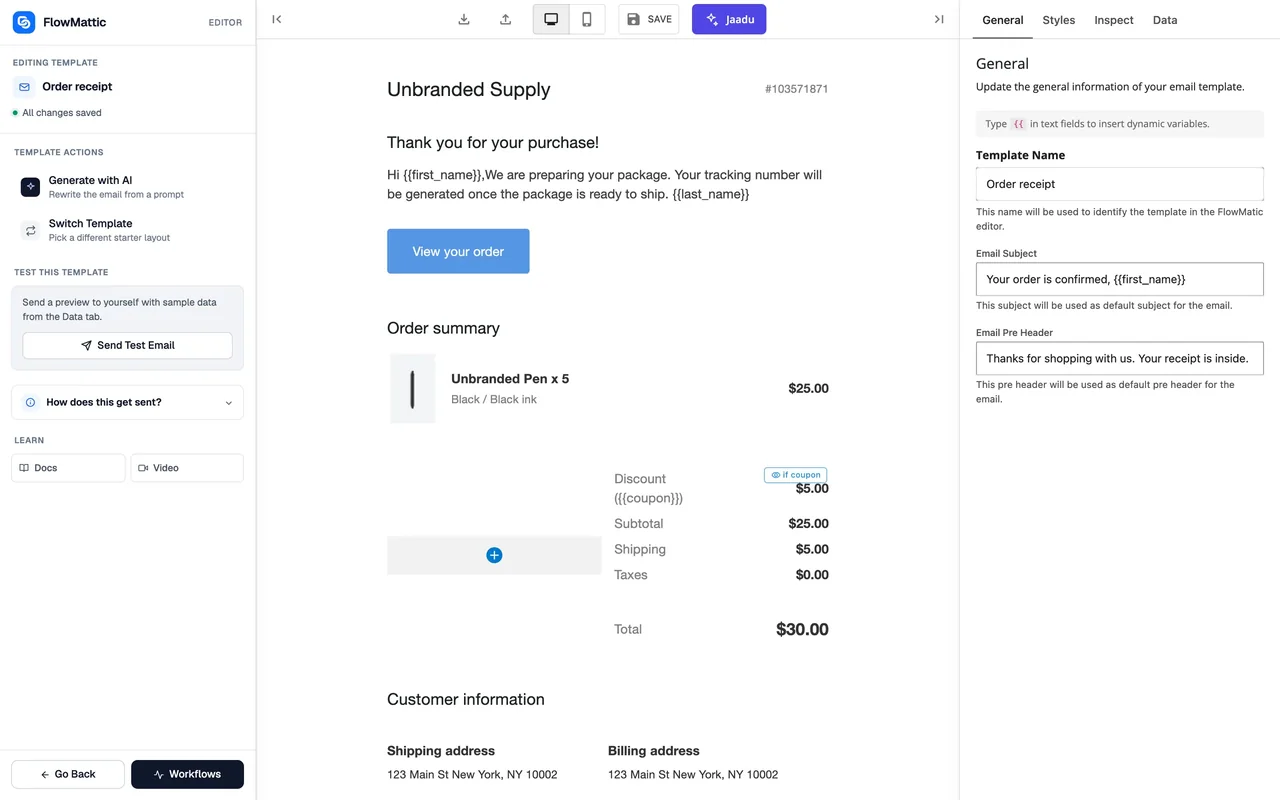
Availability rules that match a real week
Set hours per weekday, or a date range for a one-off event. Buffers keep meetings apart, minimum notice stops same-hour bookings, the booking window limits how far ahead people can book, and a daily cap protects the rest of the day. Slots already taken on the calendar are hidden, buffers included.
- Recurring weekly hours per day, or a specific date range
- Buffers before and after, minimum notice, booking window, max bookings per day
- The calendar's time zone, with the invitee's own zone detected in their browser, or locked for in-person events
- Regular calendars that stay open, or single-use links that lock after one booking
What Bookings includes
The essentials of a WordPress booking plugin, inside the plugin that already runs your workflows.
Four location types
Zoom and Google Meet links generated through your connected accounts when the booking is made, a phone call where you call them or they call you, or an in-person address.
Regular and single-use links
A regular calendar stays open at its page. A single-use calendar is an unguessable link that locks itself after one booking, and a workflow can create or regenerate one.
Time zones handled
Slots are computed in the calendar's time zone and shown in the invitee's, detected from their browser. Lock the display to the calendar's zone for in-person events.
Questions and guests
Ask for a phone number and notes at booking time, and let the invitee add extra guests to the meeting.
Branding and redirect
Your logo and accent colour on the booking page, the Powered by FlowMattic line switched off, and an optional redirect to your own page after booking.
Self-service reschedule and cancel
The confirmation carries a login-free link the invitee uses to move or cancel the meeting. Either can be turned off per calendar, and both fire their own trigger.
A dashboard for the host
Calendar, list and board views of every meeting, with reschedule, cancel, complete and mark no-show, plus the counters shown above.
Shortcode, block and page
Embed with [flowmattic_booking calendar="slug"], the Gutenberg block, or share the page at /flowmattic-booking/your-calendar/.
Host profile per calendar
A name, title and photo shown on the booking page, set per calendar or inherited from the site-wide host.
Triggers and actions in the FlowMattic Bookings app
Pick any of these in the workflow builder, alongside the 918+ other integrations.
11 triggers
- New Booking, and Single-Use Calendar Booking Received
- Booking Updated, Rescheduled, Cancelled
- Booking Completed, Marked No-Show, Deleted
- New Calendar, Calendar Updated, Calendar Deleted
18 actions
- Add, Update, Reschedule, Cancel and Delete Booking
- Mark Booking Completed or No-Show, Update Booking Status, Add Note to Booking
- Get Booking, Find Bookings, Send Email to Booking
- Create, Update, Get and Delete Calendar, Create Single-Use Calendar, Regenerate Single-Use Link
Workflows people build on bookings
Each of these uses the Bookings triggers and modules that ship with FlowMattic.
New booking into the CRM and the team channel
New Booking creates or updates the contact in FluentCRM with a tag for the calendar, and posts the time, the location and the invitee's notes to Slack.
No-show follow-up sequence
Booking Marked No-Show sends a templated email with a fresh booking link, waits two days with a Delay, and adds a note to the booking if nothing is rebooked.
Invoice when the meeting is done
Booking Completed fills a PDF invoice template with the invitee's details and duration, emails it, and logs the row in WP Tables.
Single-use links from a form
A Form Builder submission creates a single-use calendar with Create Single-Use Calendar and emails the private link to that one applicant.
Questions about Bookings
Is FlowMattic Bookings a Calendly alternative for WordPress?
It covers the same job: a shareable page where people pick a time in their own time zone, with confirmations, reminders and self-service rescheduling. The difference is where it runs and what it is connected to. Calendars and bookings live on your WordPress site, there is no per-seat subscription, and every booking event can start a workflow.
Can a cancellation or a no-show trigger a workflow?
Yes. New Booking, Booking Updated, Rescheduled, Cancelled, Completed, Marked No-Show and Deleted are each a trigger in the FlowMattic Bookings app, along with single-use bookings and calendar changes. Each can be filtered to one calendar or left open to all, and the booking's details come through as fields you can map.
How are time zones handled?
Availability is computed in the calendar's time zone, which defaults to your site's. The public booking page detects the invitee's time zone from their browser and shows every slot in their local time. For in-person events you can lock the page to the calendar's zone instead.
Does it sync with Google Calendar or Outlook?
Partly. For a Google Meet calendar, FlowMattic creates the event in your connected Google Calendar to generate the Meet link, and for Zoom it creates the meeting through your Zoom connect. The confirmation email carries an Add to calendar link for the invitee. Availability comes from the hours you set and existing FlowMattic bookings; it does not read an external calendar for conflicts, and there is no Outlook sync.
What emails do invitees get, and can I change them?
A confirmation with the meeting link and an Add to calendar link, a reminder 24 hours before, reschedule and cancellation notices and an optional follow-up after the meeting; the host gets a new-booking alert. Each is a template in the Email Template Builder with twelve bundled designs, mapped for all calendars or overridden per calendar.
Can invitees reschedule or cancel themselves?
Yes. The confirmation includes a login-free link to move or cancel the meeting, and the slot picker for a reschedule shows your live availability. You can disable rescheduling or cancellation per calendar, and both actions fire their own workflow trigger.
Where can I put the booking page?
On any page with the [flowmattic_booking calendar="slug"] shortcode or the Gutenberg block, or at the calendar's own page under /flowmattic-booking/. Each calendar can carry its own logo, accent colour and post-booking redirect, and the Powered by FlowMattic line can be switched off.
Did not find your answer? You can browse the help center or ask us directly.
Take bookings on your own site, then automate what follows
Availability, a booking page and the emails are included. The workflows behind them are the part no other booking plugin has.
30-day money-back guarantee Unlimited calendars and bookings Self-hosted