

Send a Slack alert to the team whenever an AnnounceKit post is published
Each time a post is published in AnnounceKit, this workflow sends a message to the Slack channel you choose, so your team sees product updates without opening the changelog.
 AnnounceKit
 Slack
2 steps Setup ~5 min Used on 638 sites Free to import
What this workflow does
Release notes and product announcements often go out on AnnounceKit while support, sales and engineering find out later, sometimes from a customer. This workflow puts each new announcement in front of your team in Slack as soon as it goes live.
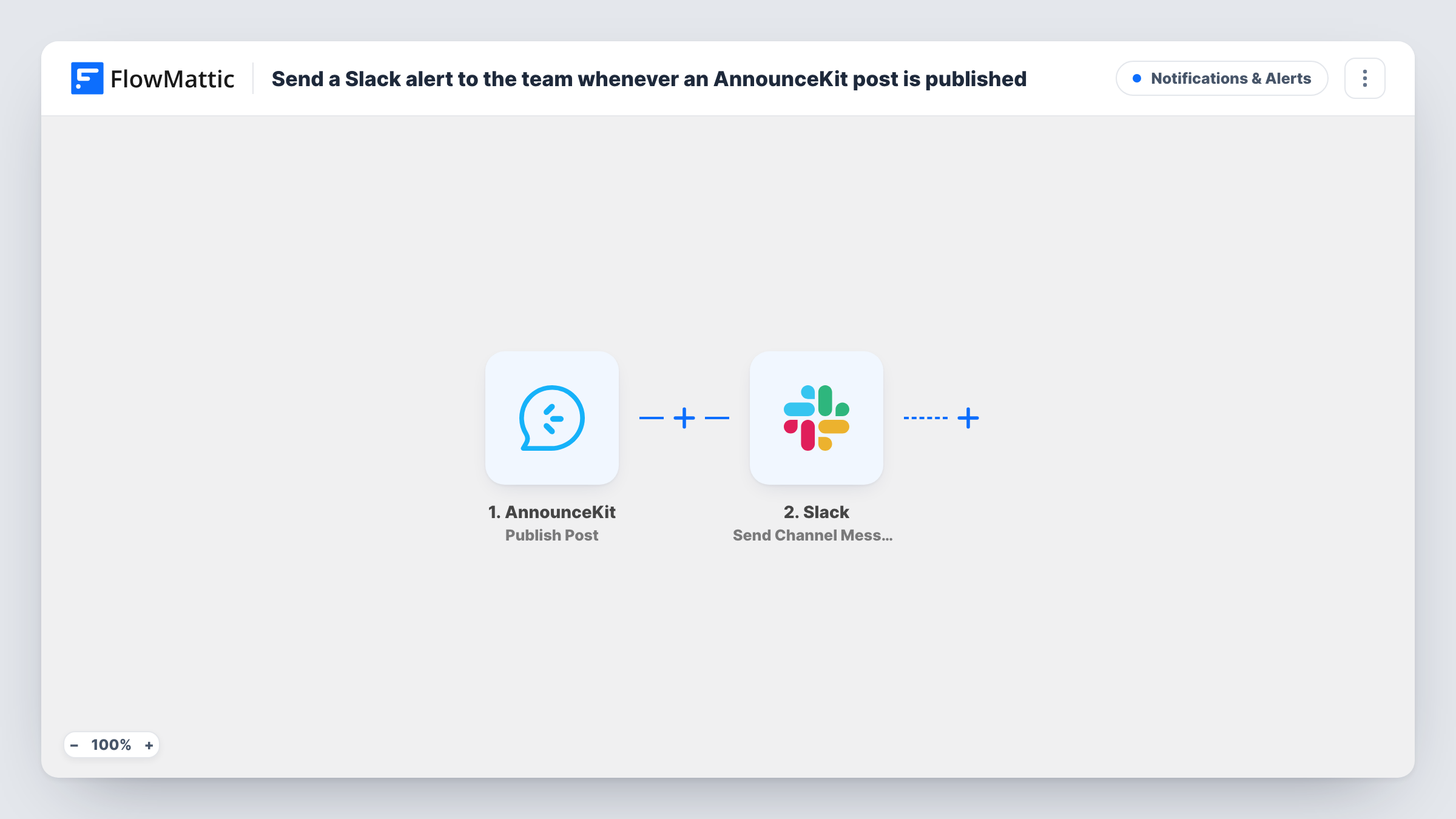
The AnnounceKit trigger fires when a post is published. The post's details arrive in FlowMattic as fields you can map. The Slack step then posts a message to the channel you pick, built from those fields and any text you add.
Every published post produces one message, so the channel becomes a running list of what you have announced. Saving a draft does not fire the trigger. Task History shows each run, which helps if a message doesn't appear where you expected.
Brief the support team on new features
Support agents see each AnnounceKit post in their Slack channel before customers start asking about the change.
Share releases across the company
Post every published announcement to a general updates channel so people outside the product team know what shipped.
Give sales talking points
A sales channel gets each new AnnounceKit post, giving reps a fresh update to mention in calls and follow-up emails.
How this workflow runs
What happens at each step once the workflow is on, and what you need before you import it.
 AnnounceKit Publish Post
Fires when a post is published in AnnounceKit. The post's details are passed on, ready to place in the Slack message.
- Slack Send Channel Message
Sends the announcement to a Slack channel of your choice as a new message. Connect your Slack workspace, pick the channel and write the message using fields from the AnnounceKit post.
What you need
- FlowMatticCore
- AnnounceKit AccountAccount
- Slack AccountAccount
After importing, map your own data. To keep the template universal, not every step is pre-filled. Open each step in the builder and connect your accounts and fields (channels, lists, sheets, recipients) before you switch the workflow on.
Make it yours
Changes worth making after you import it.
- Publish a test post in AnnounceKit after import so FlowMattic captures real post data, then build the Slack message from those fields.
- Want different channels for different kinds of posts? Use a Router with a Slack step on each route, set on a value that tells the posts apart.
- Add a second Slack step to post the same announcement in another channel, such as one for support and one for sales.
Questions about this workflow
Which AnnounceKit event starts the Slack message?
Publishing a post. The trigger fires when a post is published, so saving a draft does not send anything to Slack.
Can I choose the Slack channel and the wording?
Yes. You pick the channel in the Slack step and write the message there, mixing your own text with fields from the AnnounceKit post.
Will posts I published in AnnounceKit before importing reach Slack?
No. Only posts published after the workflow is turned on fire the trigger.
What do I need to connect for this AnnounceKit and Slack workflow?
An AnnounceKit account for the trigger and a Slack workspace where you can post to the channel you want.
More Notifications & Alerts workflows
Other ready-to-import templates from the same category.





Import this workflow into your WordPress site
Download the JSON, import it from the Workflows screen and connect your accounts. Every run stays on your server, with no per-task fees.
30-day money-back guarantee Unlimited workflows and runs Self-hosted