

Post a Slack message to your incident channel for every new Opsgenie alert
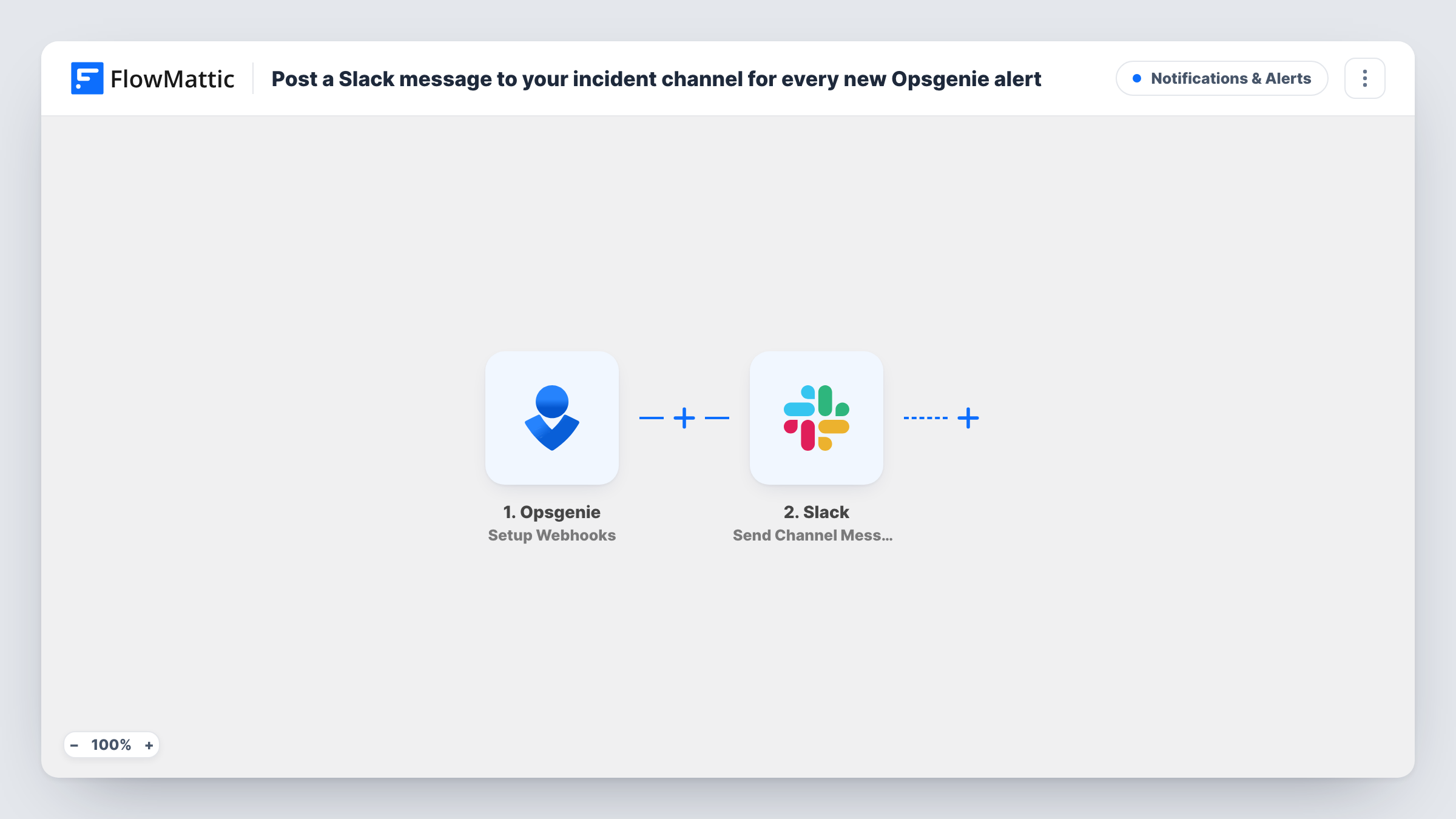
When a new Opsgenie alert reaches FlowMattic, this workflow posts it to your incident channel in Slack, so the on-call team sees what is firing in the place where they already talk.
 Opsgenie
 Slack
2 steps Setup ~5 min Used on 1.1k sites Free to import
What this workflow does
During an incident, the first few minutes go to finding out what broke. If the alert only reaches the on-call person's phone, everyone else learns about it secondhand. Posting each new alert to a shared Slack channel puts the details in front of the whole team at once.
The Opsgenie trigger is webhook based and fires for the Opsgenie events you specify when you set it up. For this flow, specify new alerts only. FlowMattic then posts a message to the Slack channel you pick, with the alert details you place in the text.
The events you specify decide what gets posted, so keep that list tight. If you also include acknowledgements or closures, each of those posts its own message too, which is useful only if your channel wants the full alert history. You can review each alert's run, and any Slack error, in Task History.
Shared #incidents channel
Every new Opsgenie alert appears in #incidents, so engineers who are not on call can see the problem and offer help without being paged.
Support team awareness
Support staff watch the same channel and know a service is having trouble before customers start writing in about it.
Small teams without a status tool
A team that relies on Opsgenie for paging uses the Slack channel as a simple running log of alerts it can scroll back through.
How this workflow runs
What happens at each step once the workflow is on, and what you need before you import it.
 Opsgenie Setup Webhooks
Fires for the Opsgenie events you specify during setup. Choose new alerts only, so each run is one alert being created.
- Slack Send Channel Message
Sends the alert to your incident channel in Slack as a message. Write the text and insert alert details from the Opsgenie event; a test alert shows which details are available.
What you need
- FlowMatticCore
- Opsgenie AccountAccount
- Slack AccountAccount
After importing, map your own data. To keep the template universal, not every step is pre-filled. Open each step in the builder and connect your accounts and fields (channels, lists, sheets, recipients) before you switch the workflow on.
Make it yours
Changes worth making after you import it.
- Create a test alert in Opsgenie once the trigger is set up, so FlowMattic captures the alert data and you can map it into the Slack message.
- Add a Filter after the trigger that continues only for the alert priorities your channel should see, if lower-priority alerts would crowd the channel.
- For an incident channel that is private, swap in Slack's Send Private Channel Message action, since Send Channel Message targets a regular channel.
Questions about this workflow
Which Opsgenie events start the workflow?
The events you specify when setting up the trigger. For this flow, pick only new alerts, or acknowledgements and closures will post messages as well.
Does the Slack post acknowledge the alert in Opsgenie?
No. FlowMattic reads the alert and writes to Slack, nothing more. The alert's status in Opsgenie doesn't change.
Can different Opsgenie alerts go to different Slack channels?
Yes, with a Router after the trigger. Give each route a condition that can't overlap with the others, such as a distinct team or priority value, and its own Slack step.
Will the on-call person still be paged by Opsgenie?
Yes. The workflow adds a Slack post and leaves your Opsgenie alerting and escalation rules as they are.
More Notifications & Alerts workflows
Other ready-to-import templates from the same category.





Import this workflow into your WordPress site
Download the JSON, import it from the Workflows screen and connect your accounts. Every run stays on your server, with no per-task fees.
30-day money-back guarantee Unlimited workflows and runs Self-hosted