

Create Google Sheets rows for new Google Ads leads
When someone fills in a Google Ads lead form, this workflow adds their details to a new row in Google Sheets, so every ad lead is in a spreadsheet your team can open and work from.
 Google Lead Form
 Google Sheets
2 steps Setup ~5 min Used on 726 sites Free to import
What this workflow does
Google Ads lead forms let people send their details without leaving the ad. Those leads then sit inside Google Ads, where they are easy to miss unless someone downloads them regularly. This workflow writes each one to a Google Sheet as it comes in.
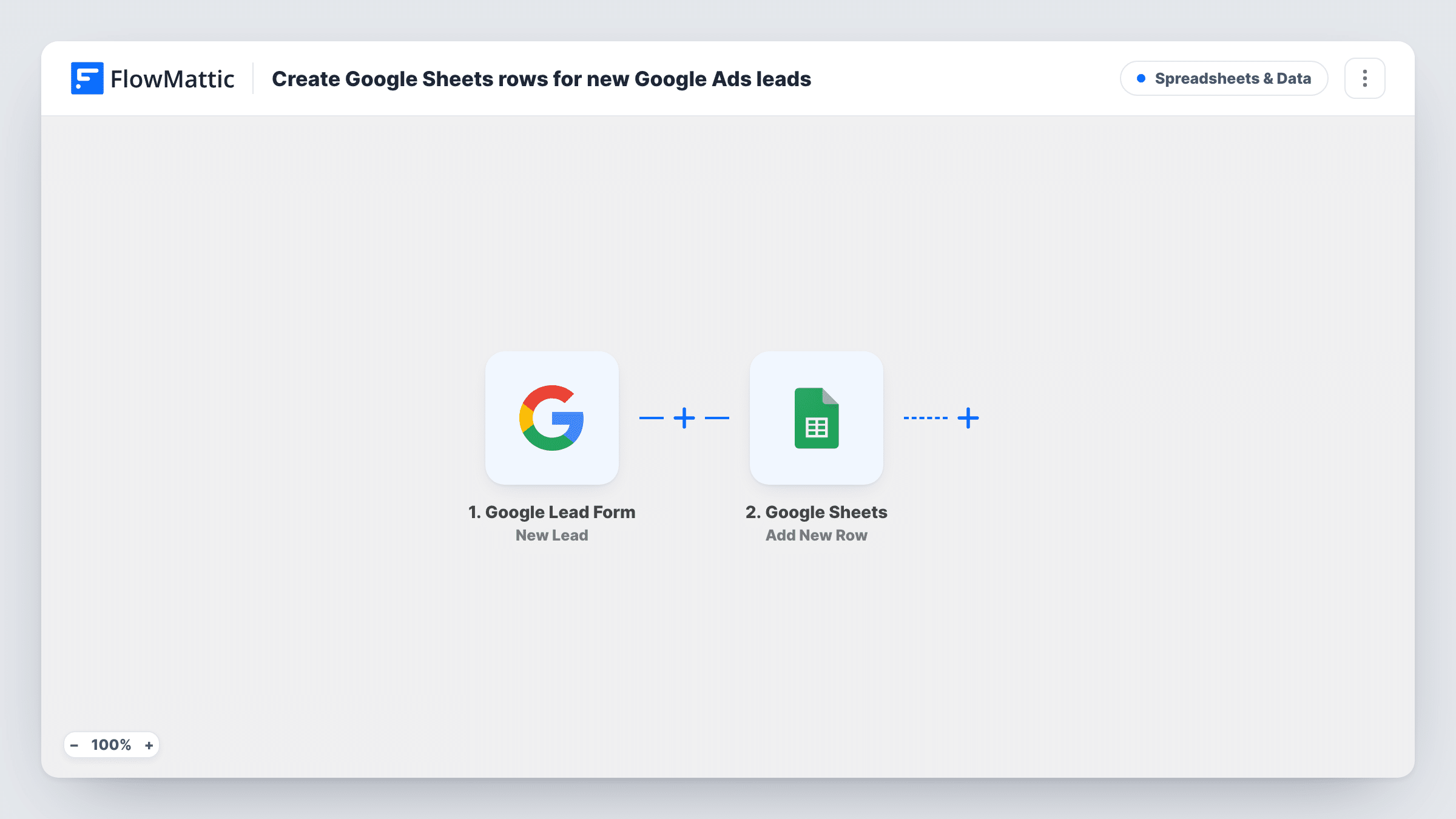
The Google Lead Form trigger, New Lead, fires when a new lead is created. FlowMattic passes the lead's answers to Google Sheets, where Add New Row writes them into the spreadsheet you pick. You map each answer to a column, such as name, email, phone and any custom questions on your form.
Every lead adds one row, with no Filter or duplicate check. If a person submits two of your forms, they appear twice. The sheet becomes the shared list for whoever follows up, and you can add your own columns for notes or status next to the mapped ones.
Call-back list for a local business
A dental clinic runs a lead form ad for new patients. Reception works from the sheet each morning, calling each person and noting the outcome in an extra column.
Splitting leads by campaign
Map the campaign or form name into a column if the lead data includes it, so you can sort the sheet to see which ads bring in enquiries.
Feeding a CRM import
Teams that load leads into another system in batches use the sheet as the staging list, with clean columns ready to import.
How this workflow runs
What happens at each step once the workflow is on, and what you need before you import it.
 Google Lead Form New Lead
Fires when a new lead is created through your Google Ads lead form. The lead's answers are passed to the Google Sheets step for mapping.
- Google Sheets Add New Row
Adds a new row to the Google Sheets spreadsheet you choose, with the lead's answers in the columns you map. Add the column headers first, then connect your Google account.
What you need
- FlowMatticCore
- Google Lead Form AccountAccount
- Google Sheets AccountAccount
After importing, map your own data. To keep the template universal, not every step is pre-filled. Open each step in the builder and connect your accounts and fields (channels, lists, sheets, recipients) before you switch the workflow on.
Make it yours
Changes worth making after you import it.
- Send a test lead from Google Ads after import so FlowMattic captures the form's questions before you map the columns.
- Add a column for the date the lead arrived so your team can sort the newest leads to the top.
- Add a Slack or email step after the sheet if someone should call new Google Ads leads within the hour.
Questions about this workflow
How do Google Ads lead forms reach FlowMattic?
Google Ads can send lead form submissions to a webhook URL entered in the lead form's settings. Follow the connection steps shown in the FlowMattic trigger, then send a test lead from Google Ads to confirm it arrives.
Will Google Ads leads from before I set this up be added?
No. Only leads that arrive after the trigger is connected and the workflow is on reach the sheet.
Can the sheet get custom questions from my Google Ads lead form?
Yes, if they are part of the lead data Google sends. Check a test lead to see each answer, then map it to its own column.
What if two Google Ads lead forms feed the same workflow?
Both send rows into the same sheet. Map the form or campaign name into a column if it's included, so you can tell them apart.
More Spreadsheets & Data workflows
Other ready-to-import templates from the same category.




Import this workflow into your WordPress site
Download the JSON, import it from the Workflows screen and connect your accounts. Every run stays on your server, with no per-task fees.
30-day money-back guarantee Unlimited workflows and runs Self-hosted