

Schedule Ocoya posts from new Smartsheet row
Plan social posts in a Smartsheet sheet, and each new row becomes a scheduled post in Ocoya, using the caption, media and publish time you map from that row’s columns.
 Smartsheet
 Ocoya
Ocoya2 steps Setup ~5 min Used on 3.0k sites Free to import
What this workflow does
Many teams plan their social content in a spreadsheet, then copy each line into a scheduling tool by hand. That second step is where typos, wrong dates and forgotten posts creep in. This workflow turns your Smartsheet plan into scheduled Ocoya posts as you add rows.
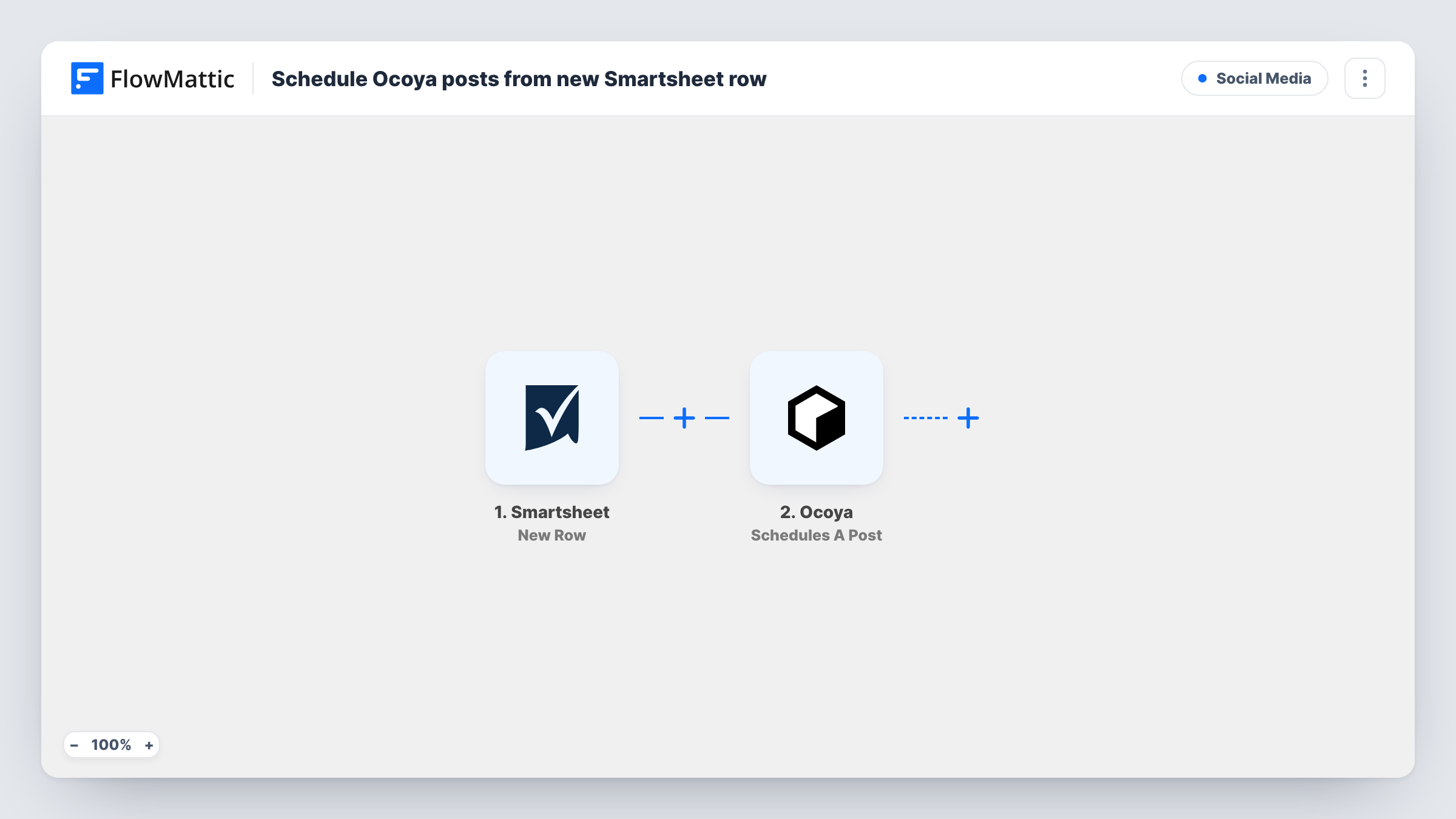
The Smartsheet trigger fires when a new row is added to the sheet you connect. The row's cell values are passed to Ocoya, where the Schedules A Post action creates a post with a caption and media and schedules it for a specific time. You decide which column feeds each part, so a row with a caption, an image link and a date becomes one post in the Ocoya calendar.
The trigger reacts only to rows being added. Editing a row afterwards does not start another run, so changes to a caption or date in Smartsheet are not copied to a post that Ocoya already holds. Fill in each row completely before you add it, or make later changes in Ocoya directly. Task History shows each run and the response Ocoya returned.
Agency content calendar shared with clients
Clients review and add post ideas in a shared Smartsheet. Each new row lands in Ocoya as a scheduled post, ready for the agency to check before it goes out.
Weekly product highlights
A marketing lead adds one row per featured product, with a caption, an image link and a date. Ocoya queues each highlight for its slot.
Event countdown posts
Ahead of a launch, the team plans a series of countdown posts in Smartsheet. Adding the rows fills the Ocoya schedule for the weeks before the event.
How this workflow runs
What happens at each step once the workflow is on, and what you need before you import it.
 Smartsheet New Row
Starts a run each time someone adds a row to your connected Smartsheet content sheet. The values in that row's cells become available to map into the Ocoya post.
- Ocoya Schedules A Post
Creates a post in Ocoya with a caption and media and schedules it for a specific time. Map the Smartsheet columns that hold the caption, media and publish time, then connect your Ocoya account.
What you need
- FlowMatticCore
- Smartsheet AccountAccount
- Ocoya AccountAccount
After importing, map your own data. To keep the template universal, not every step is pre-filled. Open each step in the builder and connect your accounts and fields (channels, lists, sheets, recipients) before you switch the workflow on.
Make it yours
Changes worth making after you import it.
- Keep the publish time in a consistent date format in Smartsheet. If Ocoya needs another format, add a Date/Time Formatter step with Modify Date Format before the Ocoya step.
- Add a Filter after the trigger that continues only when the caption cell is not empty, so placeholder rows you add early do not turn into blank posts.
- Add a test row after import so FlowMattic captures your sheet's columns, then map them into the Ocoya step before you turn the workflow on.
Questions about this workflow
Does editing a Smartsheet row change the scheduled Ocoya post?
No. The trigger is New Row, so only added rows start a run. Changes made later in Smartsheet stay in the sheet and the Ocoya post keeps its original details.
Which social accounts does the Ocoya post go to?
That depends on what you choose in the Ocoya step and the profiles connected in your Ocoya account. Check the options after you connect, and confirm with a test row.
Will rows already in my Smartsheet become posts?
No. Only rows added after you turn the workflow on start a run. Rows already in the sheet never become Ocoya posts.
Can Ocoya write the caption for each Smartsheet row?
Not as imported. Ocoya's app in FlowMattic also has a Create AI Copy action, which you could place before the scheduling step and map its result into the caption.
More Social Media workflows
Other ready-to-import templates from the same category.





Import this workflow into your WordPress site
Download the JSON, import it from the Workflows screen and connect your accounts. Every run stays on your server, with no per-task fees.
30-day money-back guarantee Unlimited workflows and runs Self-hosted