

Log every Leave Dates request in a Google Sheets spreadsheet
Every leave request made in Leave Dates is added as a new row in your Google Sheets spreadsheet, giving HR and managers a running log of who asked for time off and when.
 Leave Dates
 Google Sheets
2 steps Setup ~5 min Used on 2.0k sites Free to import
What this workflow does
Leave Dates tracks time off well, but sometimes you need the requests somewhere else: a spreadsheet the finance team can total, a sheet payroll checks each month, or a log you can chart by team. This workflow writes each new request to Google Sheets as it is made.
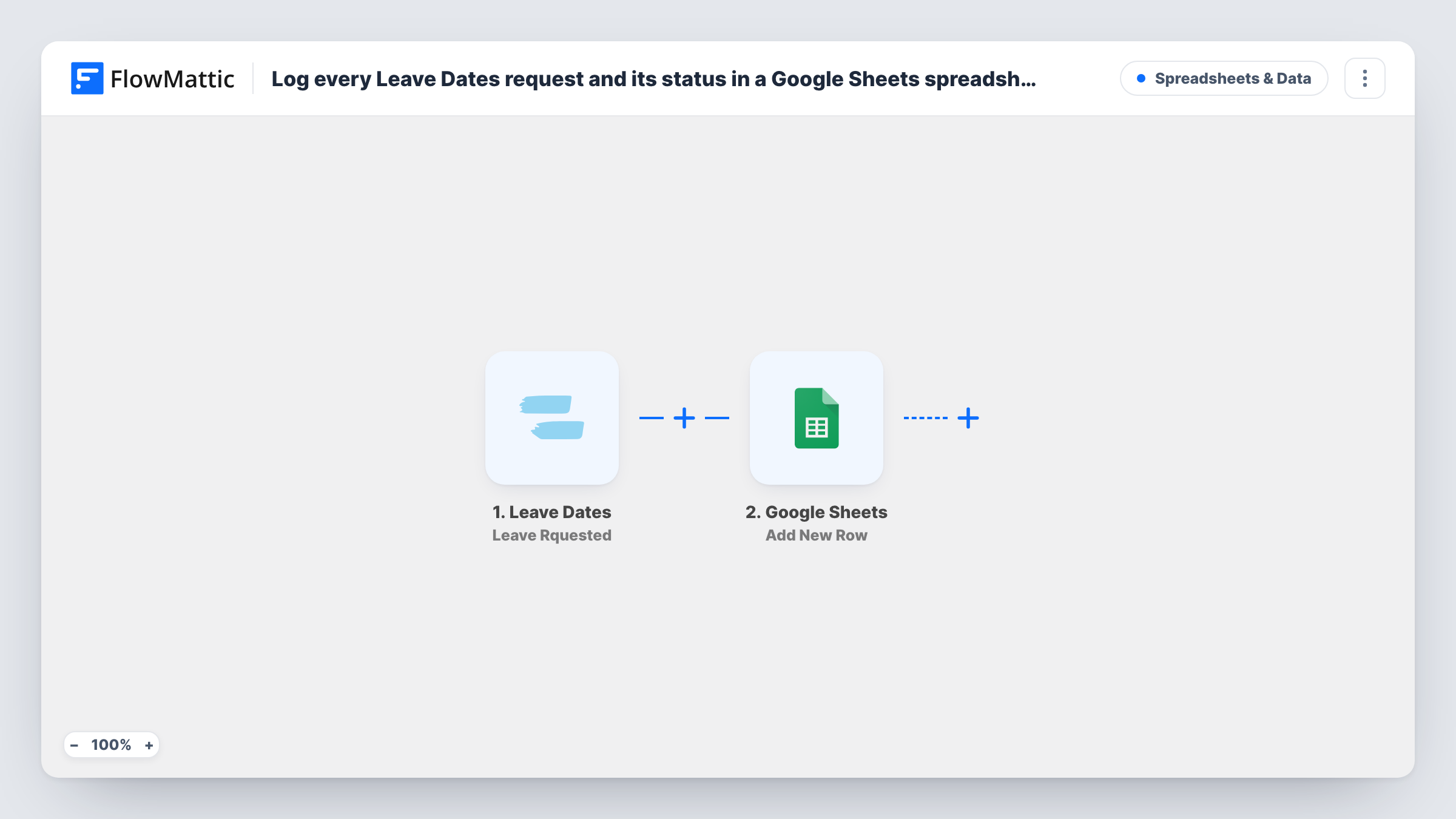
The Leave Dates trigger fires when a leave is requested, and passes the request's details on. In FlowMattic the trigger is labelled "Leave Rquested", which is the same event. The Google Sheets step then adds one new row.
The row step ships unmapped. After import, connect your Google account, pick the spreadsheet and sheet, and match the request's values, such as the employee, leave type, start and end dates, to your column headers. Create the headers first so they're there to map.
This logs requests at the moment they are made. Later changes, approvals or rejections don't update the row, because nothing in the template listens for them. Request a test leave and check Task History, then open the sheet to confirm the columns lined up.
Monthly payroll check
A payroll officer filters the Google Sheet by month to see every leave request before running pay, without needing a Leave Dates login.
Team planning view
An operations manager charts requested days by team in the spreadsheet to spot clashes during busy seasons.
Audit trail for HR
An HR team keeps a permanent record of every request as it was first made, alongside the approval history in Leave Dates.
How this workflow runs
What happens at each step once the workflow is on, and what you need before you import it.
 Leave Dates Leave Rquested
Fires when someone requests leave in Leave Dates. The request's details, such as the employee, leave type and dates, are passed to Google Sheets. FlowMattic labels this trigger "Leave Rquested".
- Google Sheets Add New Row
Adds a new row to your spreadsheet for each request. The step ships unmapped: connect Google, choose the spreadsheet and sheet, and map the Leave Dates fields to your columns.
What you need
- FlowMatticCore
- Leave Dates AccountAccount
- Google Sheets AccountAccount
After importing, map your own data. To keep the template universal, not every step is pre-filled. Open each step in the builder and connect your accounts and fields (channels, lists, sheets, recipients) before you switch the workflow on.
Make it yours
Changes worth making after you import it.
- Share the spreadsheet with managers as view-only, so they can follow incoming requests without editing the log by accident.
- Set up a second workflow on the Leave Approved trigger that adds rows to a separate Approved sheet, so you keep requested and approved leave apart.
- Map the start and end dates into their own columns and add a formula column for the number of days, so totals update as rows arrive.
Questions about this workflow
Does the Google Sheets row change when a Leave Dates request is approved?
No. The workflow only adds a row when the request is made. FlowMattic's Leave Dates integration also has Leave Approved, Leave Rejected, Leave Updated and Leave Canceled triggers for separate workflows.
Can the sheet show who approved each leave request?
Only if the Leave Dates event includes it. Run a test request through approval, check Task History for the fields that arrive, and map an approver column if one is there.
Which leave details can I log in the spreadsheet?
Whatever Leave Dates sends with the request. Make a test request after import and look at the trigger data in Task History before you map the columns.
Do I need a Google account and a Leave Dates account?
Yes. Leave Dates sends the requests and Google Sheets stores them, so you connect both to FlowMattic.
More Spreadsheets & Data workflows
Other ready-to-import templates from the same category.




Import this workflow into your WordPress site
Download the JSON, import it from the Workflows screen and connect your accounts. Every run stays on your server, with no per-task fees.
30-day money-back guarantee Unlimited workflows and runs Self-hosted