

Log every successful Iyzico subscription order in a Google Sheets spreadsheet
Each time Iyzico successfully processes a subscription payment, first or recurring, FlowMattic adds a row to your Google Sheets spreadsheet, building a running log of paid subscription orders.
 Iyzico
 Google Sheets
2 steps Setup ~5 min Used on 2.1k sites Free to import
What this workflow does
Iyzico handles your subscription billing, but checking its dashboard every time you want to reconcile payments or share figures with an accountant is slow. A spreadsheet that fills itself with each paid order gives you a record you can sort, sum and share without logging in to Iyzico.
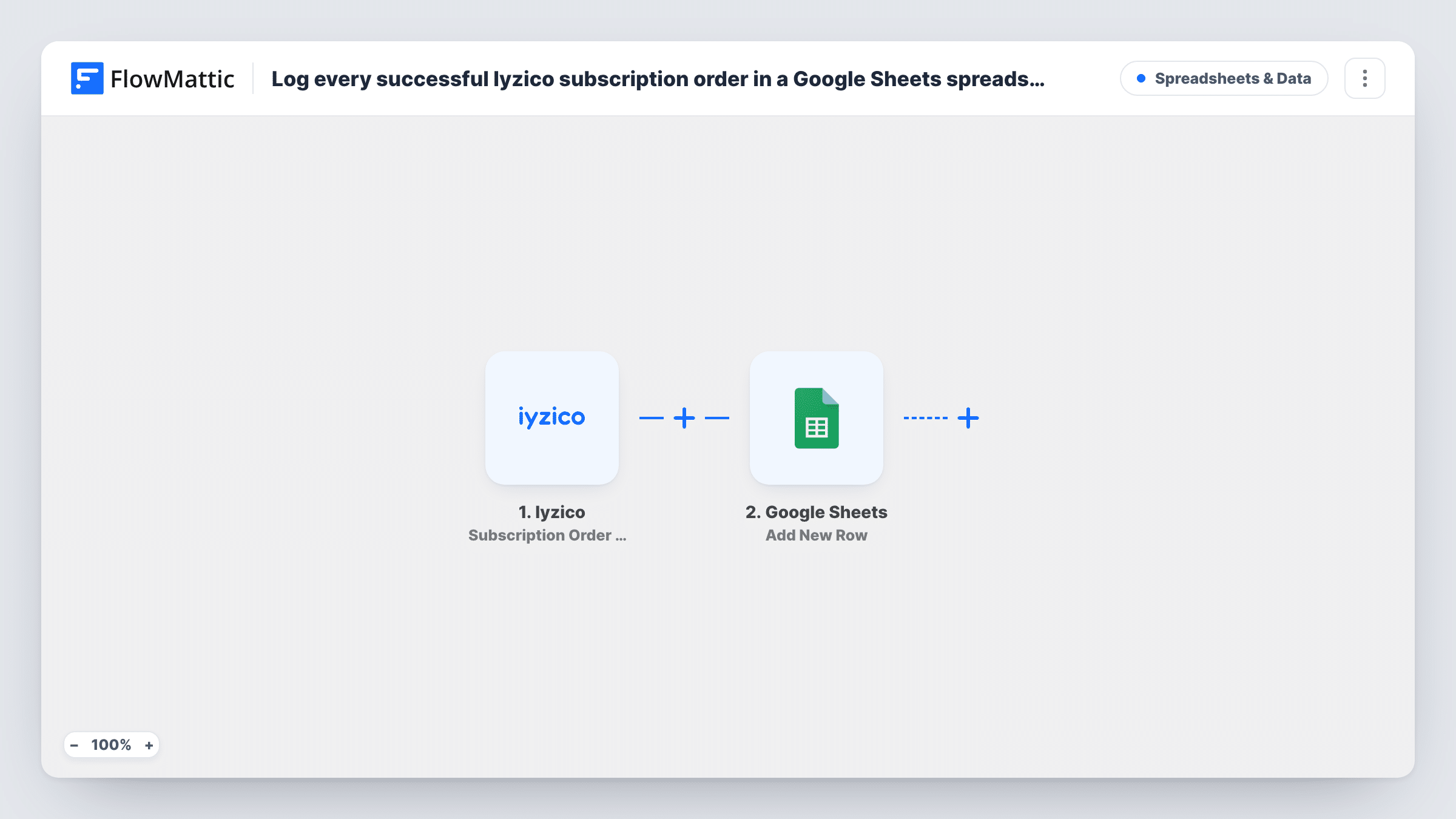
The Iyzico trigger, Subscription Order Success, fires when an initial or recurring subscription payment is processed successfully. FlowMattic receives the order data Iyzico sends, and the Google Sheets step uses Add New Row to write it to the sheet you pick, one row per payment.
Because renewals fire the same trigger, a subscriber who pays every month adds a new row each month. That is what makes the sheet useful as a payment log, but it also means one customer can appear many times. Failed payments don't reach this sheet; Iyzico has a separate failure trigger for those. If a row is missing, look up that payment's run in Task History.
Monthly reconciliation
At month end you total the sheet's amount column and compare it with what Iyzico paid out, without exporting reports from the Iyzico panel.
Sharing revenue with a bookkeeper
Your accountant gets view access to the Google Sheet and sees every successful subscription payment as it arrives, with no Iyzico login needed.
Tracking renewals per plan
Map the plan name into its own column, then use a pivot table in Google Sheets to count how many renewals each plan brought in this quarter.
How this workflow runs
What happens at each step once the workflow is on, and what you need before you import it.
 Iyzico Subscription Order Success
Fires when Iyzico successfully processes a subscription payment, whether it is the customer's first payment or a recurring one. The order details Iyzico sends are passed on for mapping.
- Google Sheets Add New Row
Writes the payment to a new row in the Google Sheets spreadsheet you select. Map each column, such as date, customer, plan and amount, to the matching Iyzico field.
What you need
- FlowMatticCore
- Iyzico AccountAccount
- Google Sheets AccountAccount
After importing, map your own data. To keep the template universal, not every step is pre-filled. Open each step in the builder and connect your accounts and fields (channels, lists, sheets, recipients) before you switch the workflow on.
Make it yours
Changes worth making after you import it.
- Set up the sheet's header row before you map the step, so each Iyzico field has a column waiting for it in Google Sheets.
- Want a log of failed renewals as well? Import a second workflow with Iyzico's Subscription Order Failure trigger and point it at another tab in the same spreadsheet.
- Iyzico only sends data when a payment goes through, so let one subscription payment arrive, then open its run in Task History to see which fields came in before you finish mapping.
Questions about this workflow
Are recurring Iyzico payments logged, or only the first order?
Both. The Subscription Order Success trigger fires for the initial payment and for each successful recurring payment, so every renewal adds its own row.
Will past Iyzico subscription payments be added to the sheet?
No. Only payments processed after the workflow is active trigger it. Export earlier transactions from Iyzico if you want them in the same sheet.
Does a failed Iyzico payment add a row?
No. This template uses the success trigger only. Failed attempts fire a different Iyzico trigger, Subscription Order Failure, which this workflow doesn't listen to.
Which Google Sheets tab do the rows go into?
The spreadsheet and sheet you pick when you set up the Add New Row step. Each run appends one row there.
More Spreadsheets & Data workflows
Other ready-to-import templates from the same category.





Import this workflow into your WordPress site
Download the JSON, import it from the Workflows screen and connect your accounts. Every run stays on your server, with no per-task fees.
30-day money-back guarantee Unlimited workflows and runs Self-hosted