

Keep a Grist customer table in sync with Stripe
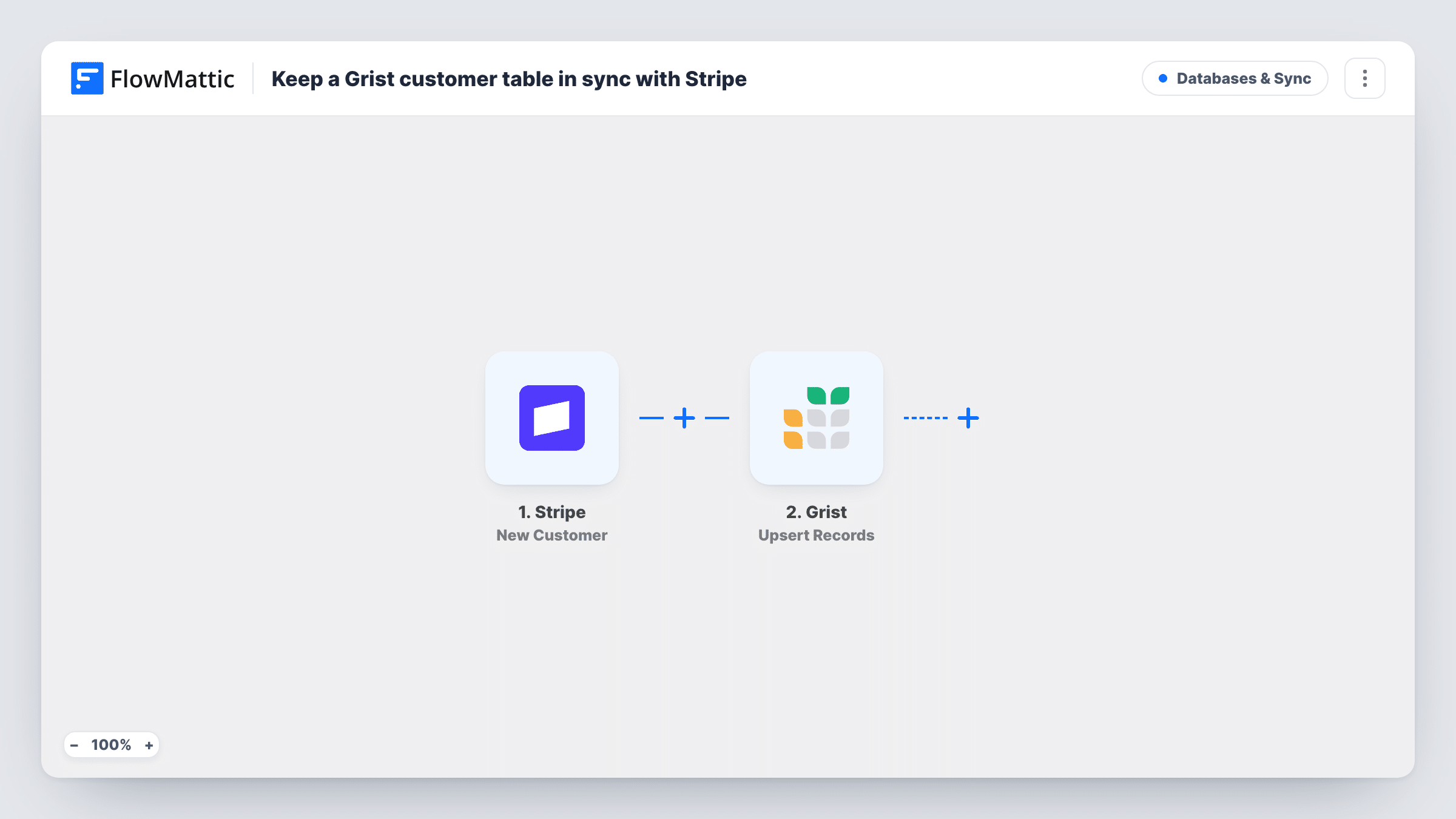
Each customer created in Stripe is upserted into a Grist table by email, with their name and Stripe customer ID, so Grist holds one row per Stripe customer for reporting.
 Stripe
 Grist
Grist2 steps Setup ~5 min Used on 319 sites Databases & Sync Free to import
What this workflow does
Finance and operations teams often want a customer list they can annotate, filter and join with other data, which the Stripe dashboard doesn't offer. A Grist table works well for that, as long as it gets every new customer. This workflow fills it from Stripe.
The Stripe trigger is New Customer, which FlowMattic describes as firing whenever a new customer is created. FlowMattic then runs Upsert Records in Grist, matching on the Email column. If no row has that email, a new one is added with the email, Name and StripeID. If one already does, its Name and StripeID are overwritten with the new customer's values.
Be clear about what "in sync" covers here. Only customer creation starts a run. When you edit an existing customer in Stripe, for example a new email or name, Grist is not told. Your table needs Email, Name and StripeID columns, or you rename them in the step. Task History records each customer the workflow handles.
A finance view of Stripe customers
The finance team adds notes, account owners and payment terms in Grist columns next to the customer details that arrive from Stripe.
Linking Stripe IDs to other records
A SaaS company keeps the StripeID column so it can match Grist customer rows to usage data or support records held elsewhere.
Customers created from several checkouts
Customers come in through more than one Stripe checkout. The email match keeps one Grist row per address even when Stripe creates a second customer for it.
How this workflow runs
What happens at each step once the workflow is on, and what you need before you import it.
 Stripe New Customer
Starts as soon as Stripe records a new customer in your account. The customer's email, name and Stripe ID are passed to the Grist step.
- Grist Upsert Records
Upserts into your Grist table using Email as the match. A new email adds a row with Email, Name and StripeID; an existing email has its Name and StripeID replaced with the new customer's.
What you need
- FlowMatticCore
- Stripe AccountAccount
- Grist AccountAccount
After importing, map your own data. To keep the template universal, not every step is pre-filled. Open each step in the builder and connect your accounts and fields (channels, lists, sheets, recipients) before you switch the workflow on.
Make it yours
Changes worth making after you import it.
- Create a test customer in Stripe after import and check the run in Task History. If the customer had no email, the upsert has nothing to match on, so require an email at checkout.
- Add more Stripe fields to the Grist step, such as phone or creation date, after checking a test run for the exact field names.
- If one email can belong to several Stripe customers, match on StripeID instead of Email in the Grist step, so each Stripe customer keeps its own row.
Questions about this workflow
Do edits to existing Stripe customers update Grist?
No. The trigger fires only when a customer is created. Changing an existing customer's name or email in Stripe does not start this workflow.
What happens when Stripe creates a second customer with an email already in Grist?
The upsert finds the row with that email and replaces its Name and StripeID with the new customer's values. You keep one row, holding the most recent Stripe ID.
Which Grist columns does this Stripe workflow need?
Email, Name and StripeID. Add them to your table before turning it on, or change the column names in the Upsert Records step to match yours.
More Databases & Sync workflows
Other ready-to-import templates from the same category.






Import this workflow into your WordPress site
Download the JSON, import it from the Workflows screen and connect your accounts. Every run stays on your server, with no per-task fees.
30-day money-back guarantee Unlimited workflows and runs Self-hosted