Every Router route ended with the same three steps. Now they don’t have to.
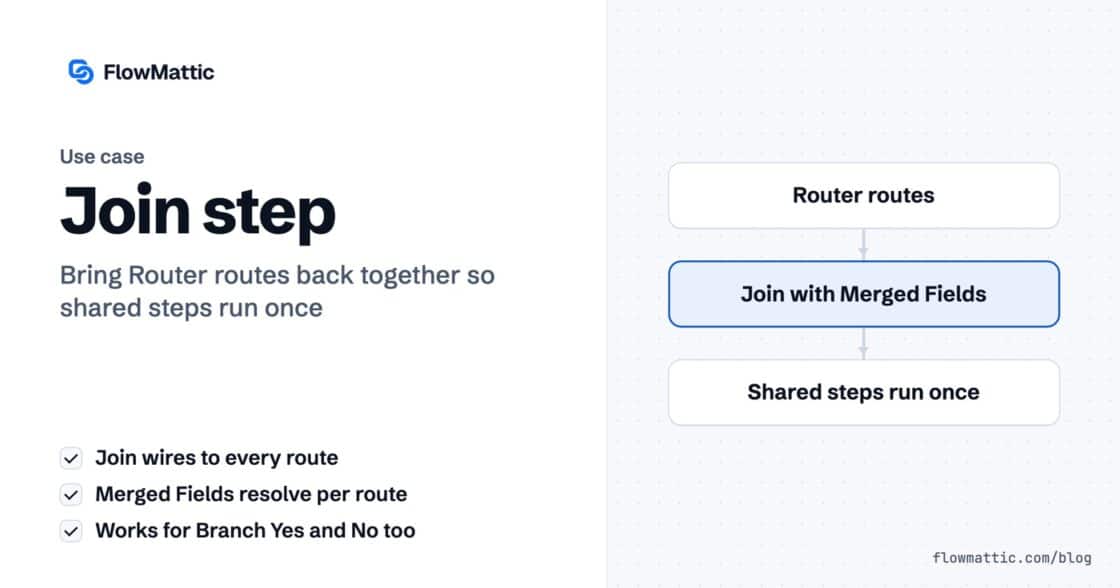
The Join step merges a Router's routes or a Branch's Yes/No back into one chain, so the steps after it run once.…


Three products in the order. One line in the email.
It isn’t a bug. Your template has one row in it, and a row is a row. It will faithfully render that one row for the rest of its life.
The fix is one block. Not one more step.
If you’ve been following the Iterator series, you already know how to loop something: Iterator, Iterator Storage, Iterator End, and a separate run of the workflow for every item in the array.
Don’t add them here.
Nothing in this workflow needs to be pulled apart and run again. You aren’t creating a row per product in a spreadsheet, or calling an API per product. You’re printing a list. The array is already an array — and the template can read it.
Open the email template and go to the Data tab. This is Dynamic Data — a plain JSON object that describes the shape of what you’re going to send in.
{
  "customer_name": "Amelia Okafor",
  "order_number": "1043",
  "order_total": "105.00",
  "line_items": [
    { "name": "Ceramic Mug",
      "quantity": 2, "total": "25.00" },
    { "name": "Cold Brew Kit",
      "quantity": 1, "total": "48.00" },
    { "name": "Linen Tote",
      "quantity": 1, "total": "32.00" }
  ]
}
Two things matter here. These keys become the fields you map later — and one of them is an array.
Heading, Text, Button, Image, Avatar, Divider, Spacer, Html, Columns, Container… and Loop.
Two fields, and that’s the entire feature:
line_items.item.Then you build one row inside it. A Columns block, three cells: {{item.name}}, {{item.quantity}}, {{item.total}}.
That’s the whole design job.
Watch the label on the block: LOOP: line_items as item (3 items). It counts your array as you type.
The first row stays yours to edit. The other two fill themselves in from the data you pasted a minute ago, marked Preview Item 2 (Read-only) and Preview Item 3 (Read-only) — so they can’t drift away from the row you designed.
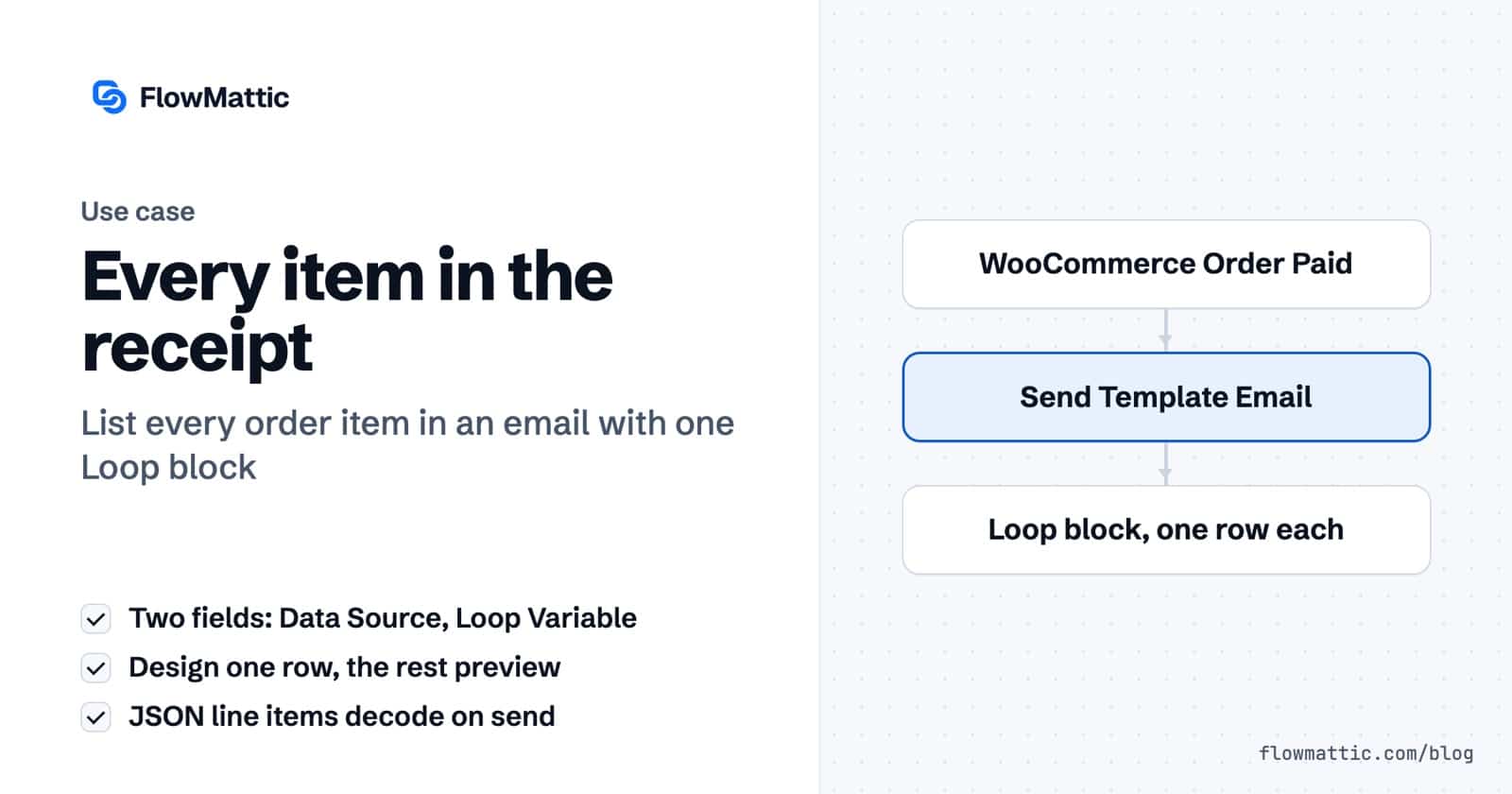
One row in the editor. Three rows in the email. Same block.
The template, the Loop block, the workflow and a full run — in under four minutes:
WooCommerce → Order Paid. Then Email by FlowMattic → Send Template Email. That’s it.
Pick the template, and a Dynamic Data section appears underneath it. Look closely at the names: they’re the exact keys from the Data tab, and you can’t type in them. FlowMattic says so in the help text — “The fields here are defined in ‘Data’ tab in email template editor.”
The template owns the contract. The step just fills it.
customer_name   {woocommerce1.billing_first_name}
order_number    {woocommerce1.number}
order_total     {woocommerce1.total}
line_items {woocommerce1.line_items}WooCommerce hands line items over as JSON. One long escaped string, not an array. Every instinct says you now need a parser step.
Drop it in anyway.
Before the loop runs, FlowMattic passes your variables through a preparation pass that decodes any value that is valid JSON into a real array. By the time {% for item in line_items %} is evaluated, it’s looking at three objects — not at a string.
So there’s no JSON Parser step here. And no Iterator.
Reach for the wrong one and everything still works — it’s just three steps and N workflow runs where one block would have done.
One block. Two fields.
New to FlowMattic? It’s the AI-native automation platform for WordPress — visual workflows, 900+ integrations, AI agents and a full builder suite, self-hosted inside your own dashboard. Get FlowMattic.
The Join step merges a Router's routes or a Branch's Yes/No back into one chain, so the steps after it run once.…
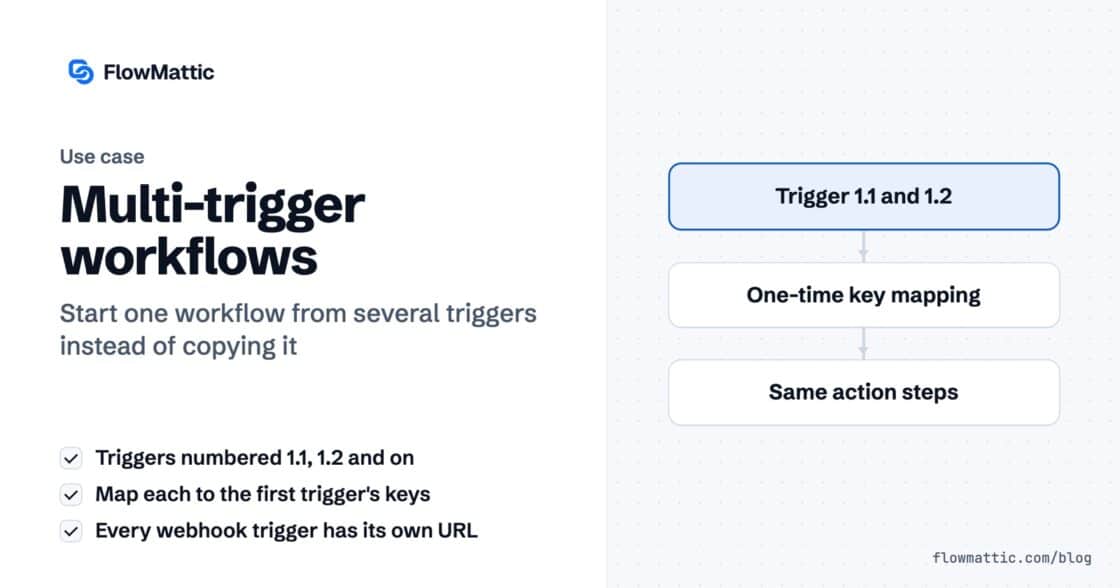
A workflow can now start from several triggers — a second webhook, a schedule, a form — all running the same steps.…
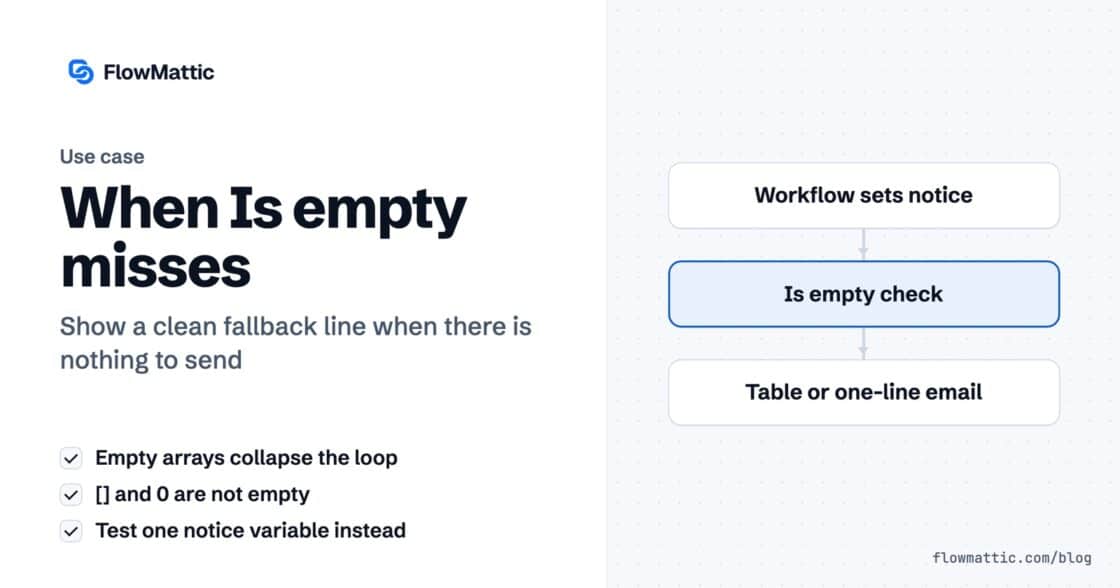
An empty array collapses the loop reliably. Your fallback message does not appear, because an empty array is two characters and zero…