

Workflow logic for WordPress: Router, Filter, Loop and Delay
Branch, filter, loop, join and pace your WordPress automations with FlowMattic's workflow logic modules. They sit on the same canvas as your apps, so a process with decisions, loops and waits reads the way you would explain it to a colleague.
7 logic modules60+ built-in modulesUp to 60 s wait between loop itemsUnlimited workflows and runs

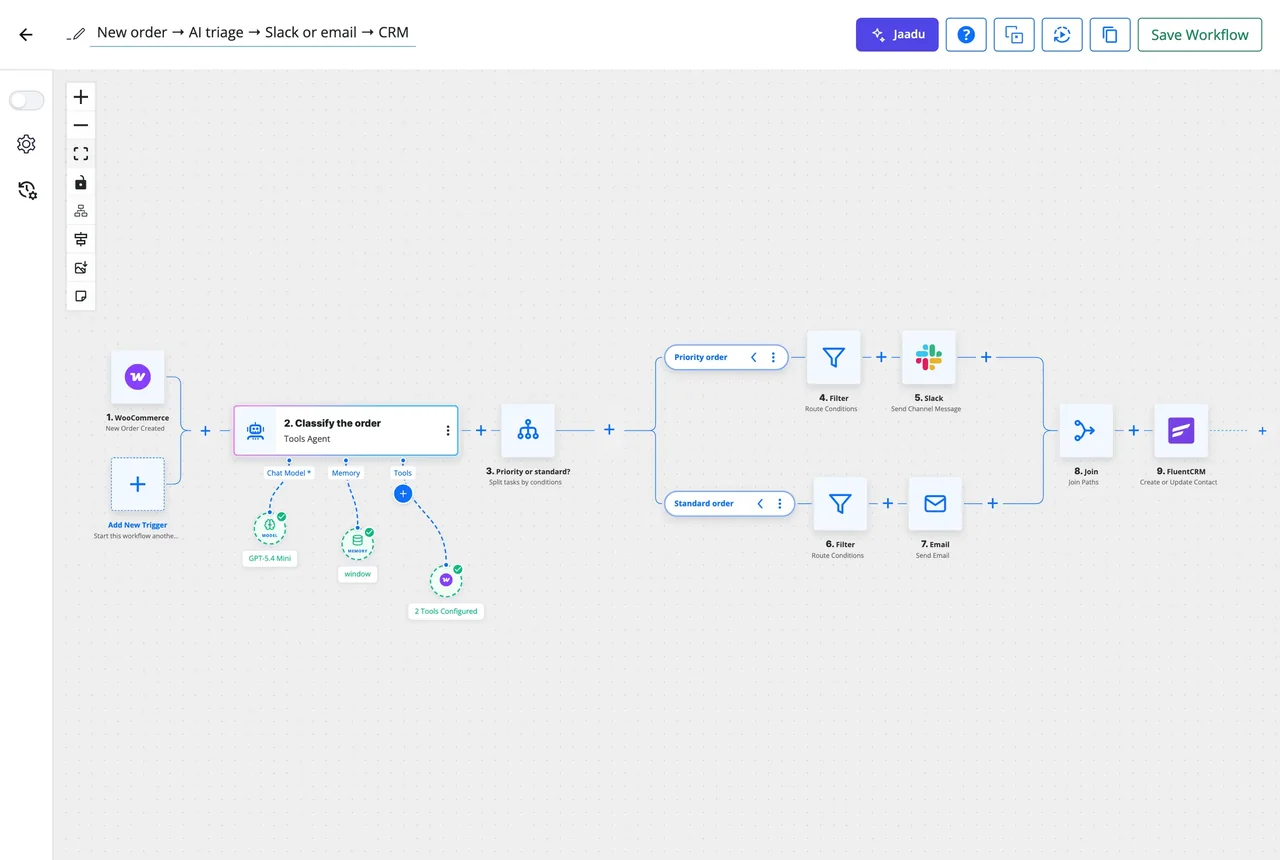
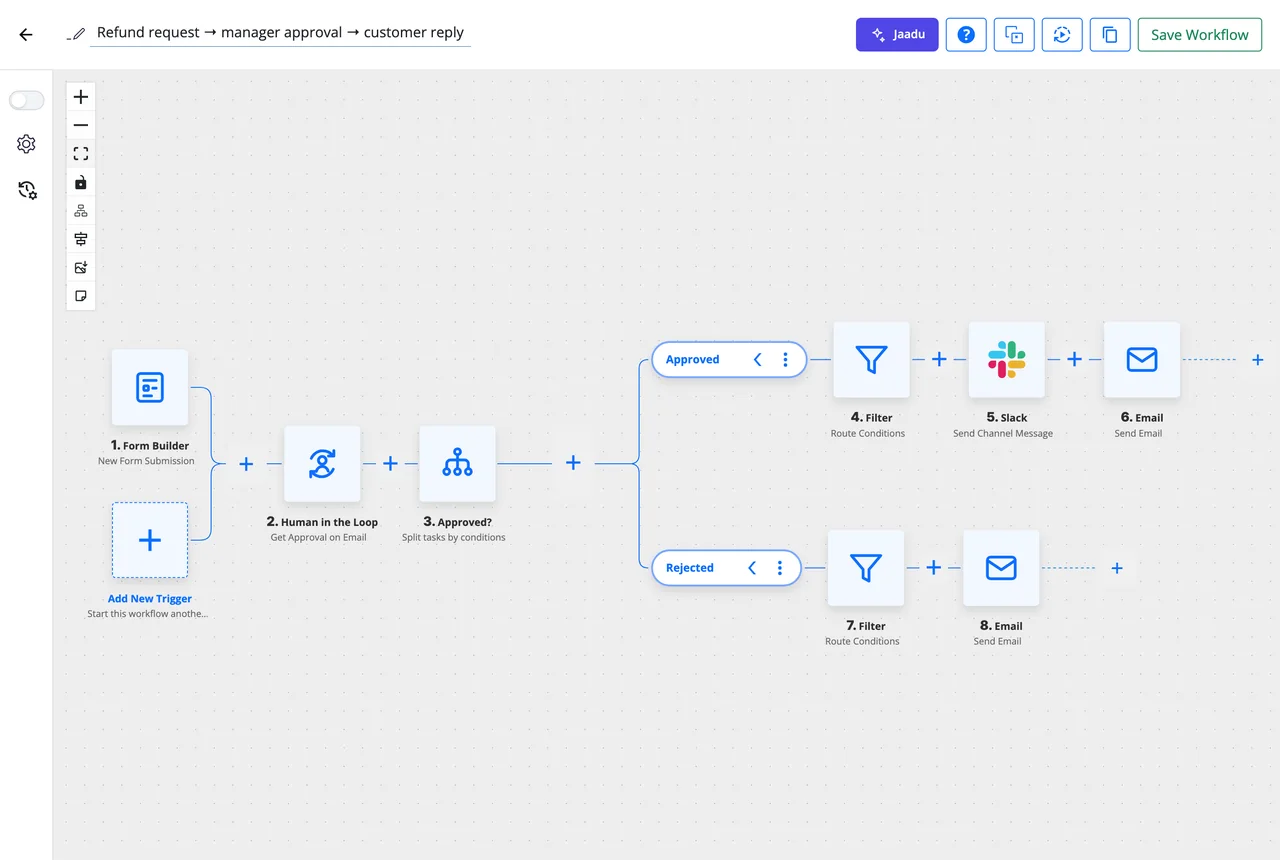
Router: one event, several named paths
A Router splits a run into branches you name yourself. Each branch has its own conditions, with AND and OR groups on any field from the trigger or an earlier step, and its own chain of steps. When only one decision is needed, Branch evaluates a condition and takes the yes or no path, and Filter ends a run early so nothing after it executes.
- Branches gated by their own conditions, with AND and OR groups
- Branch for a plain if or else; Filter to continue or exit on a condition
- Per-step conditions on any step, so one step can skip without a Router
- Skip Duplicate Events on the trigger: a key such as the order ID plus a window
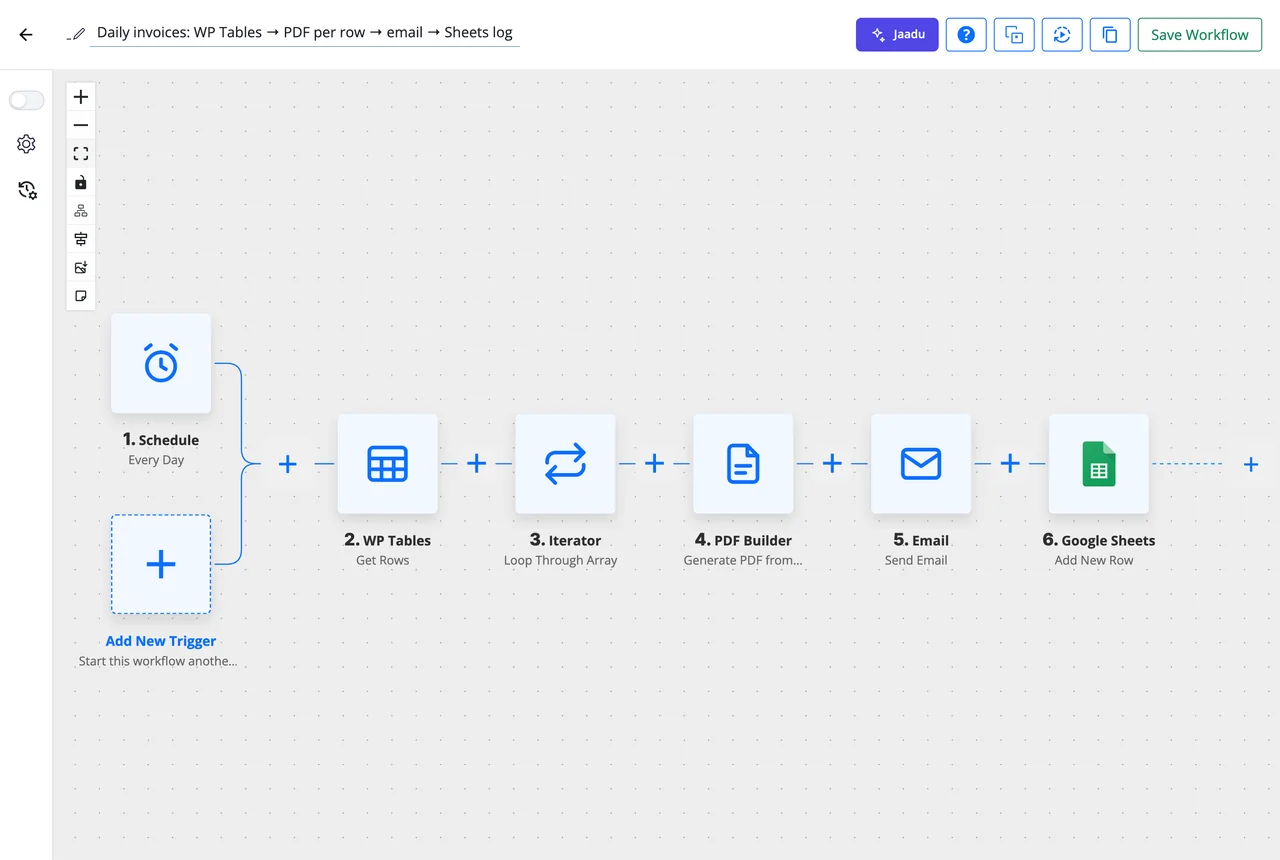
Iterator: one pass per item, with breathing room
Point an Iterator at an array, line items from an order or rows from a table, and the steps inside it run once per item. Run items one after another, or in batches when the list is long. Wait Between Items pauses up to 60 seconds before each item after the first, which keeps a workflow under an API's rate limit without a Delay step inside the loop.
- Loops over arrays, record sets and table rows
- Direct or batch processing for long lists
- Wait Between Items, from 0 to 60 seconds
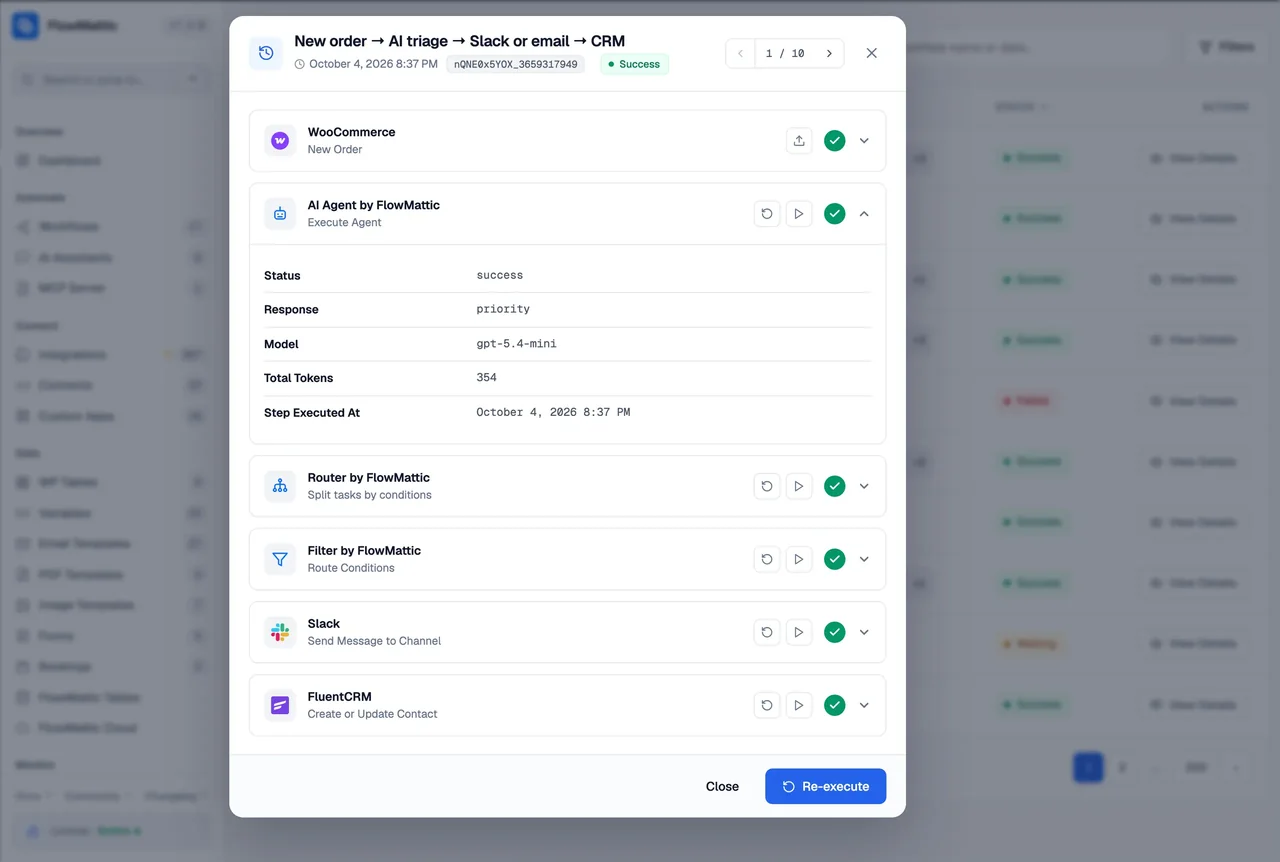
- Each item's steps recorded in Task History
Join: bring the branches back together
After a Router, each branch could end on its own. Add a Join Paths step and the branches rejoin, so the steps that follow run once whichever branch the run took. In the diagram, priority orders go to Slack and standard orders to email, then both reach the same FluentCRM step.
- Steps after the Join run once per run, not once per branch
- Join Paths has no settings of its own: drop it where the paths should meet
- Nest a Router inside a branch when a decision has a second level
Delay and Sub-workflow: pace it, and keep it modular
Delay For pauses a run for seconds, minutes, hours, days or weeks. Delay Until waits for a date and time, read in the site time zone or in any region, UTC or manual offset you choose, so a reminder lands at 9:00 for the customer rather than for the server. While a run waits, Task History shows it as Waiting and lets you cancel the delay.
A Sub-workflow keeps big processes readable: build the shared part once, start it from any workflow with Call Sub-Workflow, and hand its Return Response back to the caller.
- Delay For: a duration in seconds, minutes, hours, days or weeks
- Delay Until: a date and time, with a Time Zone setting
- Call Sub-Workflow and read its returned response in the next step
- Stop and Error ends a run as Failed with your own message
Every workflow logic module in the builder
Each one is a step you drop on the canvas and configure in a form, next to any of the 909+ app integrations.
Router
Split a run into named branches, each with its own conditions and its own steps.
Branch
Evaluate one condition and take the yes path or the no path.
Filter
Continue if a condition is met, or exit if it is, so unwanted events stop early.
Iterator
Loop through an array or record set, directly or in batches, with an optional wait between items.
Delay
Wait for a duration, or until a date and time in the time zone you pick.
Join Paths
Bring Router branches back together so the steps after it run once.
Sub-workflow
Call another workflow, pass it data and read the response it returns.
Stop and Error
End the run as Failed with your own message, reported by Task History, the failure email and the Workflow Failed trigger.
Skip Duplicate Events
Build a key from the trigger data and set a window; a repeat inside it is recorded as Skipped instead of running again.
Which module when
Most workflow logic questions come down to one of these situations.
| Module | Use it when | What happens |
|---|---|---|
| Router | The same event needs different handling: a large order, a VIP customer, a specific product | Named branches |
| Branch | One yes or no decision, with no need for several named paths | Two paths |
| Filter | Some events should not run at all, such as test orders or a form from an existing customer | Run ends early |
| Step conditions | Only one step should be skipped, like a Slack message outside office hours | Step skipped |
| Iterator | A list arrives at once: line items, table rows, search results | Steps run per item |
| Delay | Something should happen later: a follow-up in three days, a reminder at 09:00 | Run waits |
| Join Paths | Branches should finish with the same steps, like a CRM update after any outcome | Branches merge |
| Sub-workflow | Several workflows share the same ten steps | Result returned |
| Skip Duplicate Events | The sender fires the same event twice, as payment providers often do | Repeat skipped |
| Stop and Error | A check fails and the run should be reported as failed with a clear reason | Run fails, you are told |
Questions about workflow logic
What is the difference between a Router, a Branch and a Filter?
A Router splits a run into several named branches, each with its own conditions and its own steps. A Branch evaluates one condition and takes the yes or no path. A Filter does not split anything: it continues or exits the run when its condition is met, so unwanted events stop before any app is called.
Can branches rejoin so the rest of the workflow runs once?
Yes. Add a Join Paths step after the branches and the run continues from there a single time, whichever branch it took. Data from the branch that ran is available to the steps after the Join.
How does the Iterator avoid hitting an API rate limit?
Set Wait Between Items on the Iterator, from 0 to 60 seconds, and the workflow pauses before each item after the first. It works in both the direct and the batch method, so a loop over a few hundred rows can stay under a limit of, say, 60 requests a minute.
Can a Delay wait until a specific date and time?
Yes. Delay Until takes a date and time, which can come from an earlier step, and a Time Zone setting for any region, UTC or a manual offset. Left at its default it reads the date in the site time zone. Delay For waits for a duration in seconds, minutes, hours, days or weeks. A waiting run shows as Waiting in Task History, where you can cancel the delay.
What stops the same event from running the workflow twice?
Skip Duplicate Events on the trigger’s Conditions tab. You build a key from the trigger data, such as {order_id}, and set a window. A repeat of the same key inside the window is recorded in Task History as Skipped instead of running again, even when the two copies arrive at the same moment.
Can a step run only under certain conditions without a Router?
Yes. Every step has a Conditions tab. Set a condition there and the step is skipped when it is not met while the rest of the workflow carries on. Use a Router when several steps should change together, and a step condition when it is just one.
What happens when a step fails inside a loop or a branch?
The run is recorded as Failed with the inputs that step received and the response it got back, and the failure email and the Workflow Failed trigger report it. You can fix the cause and re-execute the run from Task History with its original data or an edited copy. A Stop and Error step lets you fail a run on purpose with your own message.
Did not find your answer? You can browse the help center or ask us directly.
Build the decision, not a workaround
Try the Router, Iterator and Delay on a live demo site, or install FlowMattic and keep every run on your own server.
30-day money-back guarantee Unlimited workflows and runs Self-hosted