

Scheduled workflows for WordPress that fire on time
Run a WordPress workflow every few minutes, hourly, daily, weekly or monthly, without a visitor having to load a page first. Switch the Scheduler to FlowMattic Cloud and every one of your scheduled workflows fires at its exact time, in your site's time zone, whether anyone is on the site or not.
6 frequencies, minutes to monthlyExact-time firing on FlowMattic CloudCorrect across daylight saving changesUnlimited scheduled workflows

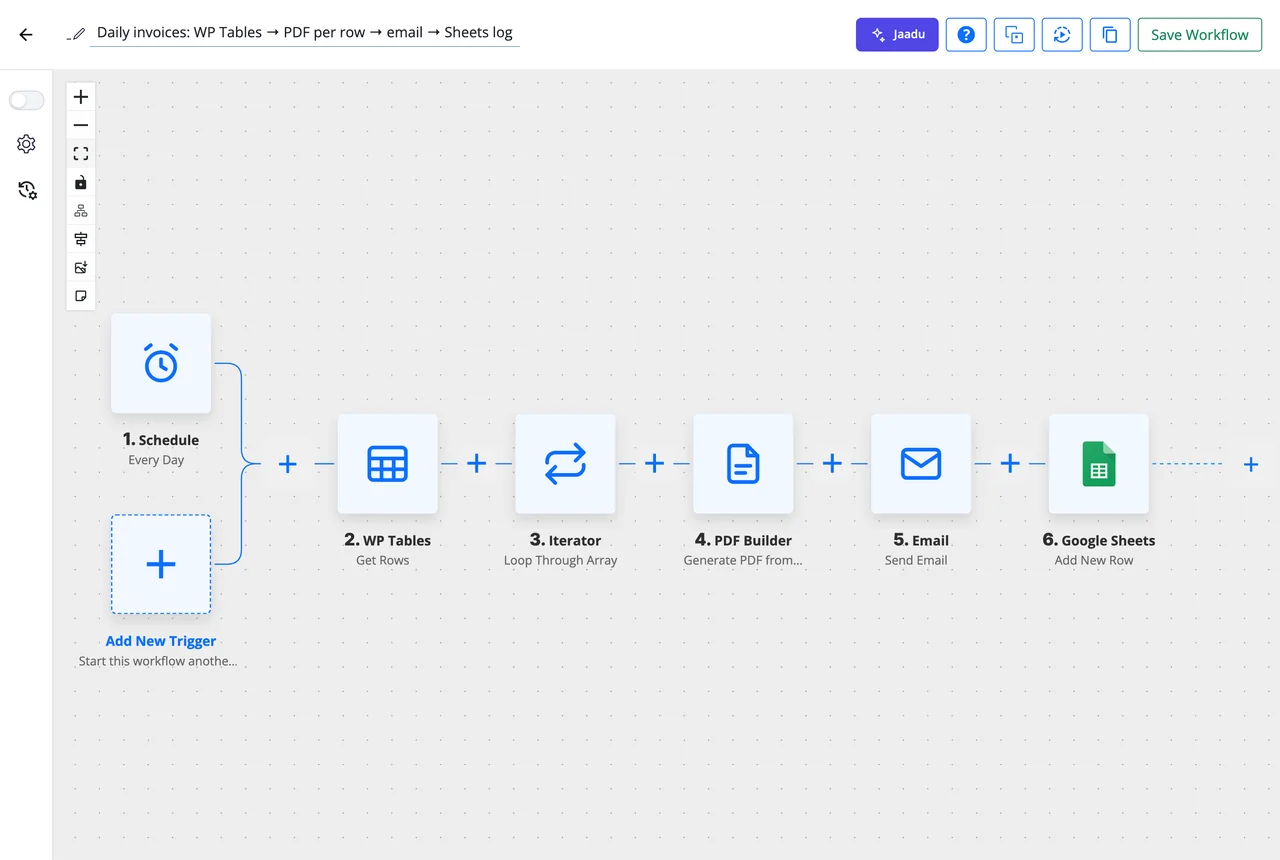
Three steps to a workflow that runs itself
A schedule is a trigger like any other, so everything that follows it is the same builder you already know.
-
Schedule
Pick a frequency and a time
Every X minutes, every hour, every X hours, every day at a time, every week on a day, or every month on a date. Untick Trigger on Weekends and the workflow holds until Monday.
-
Steps
Add what should happen
Read rows from a table, call an API, loop through results with an Iterator, send the emails or files, update a sheet. Any of the 909+ integrations can follow the schedule.
-
Watch
See each fire in Task History
Every run lands in Task History with the time it was scheduled for, the time it fired and the time zone, so you can tell a late fire from a missed one.
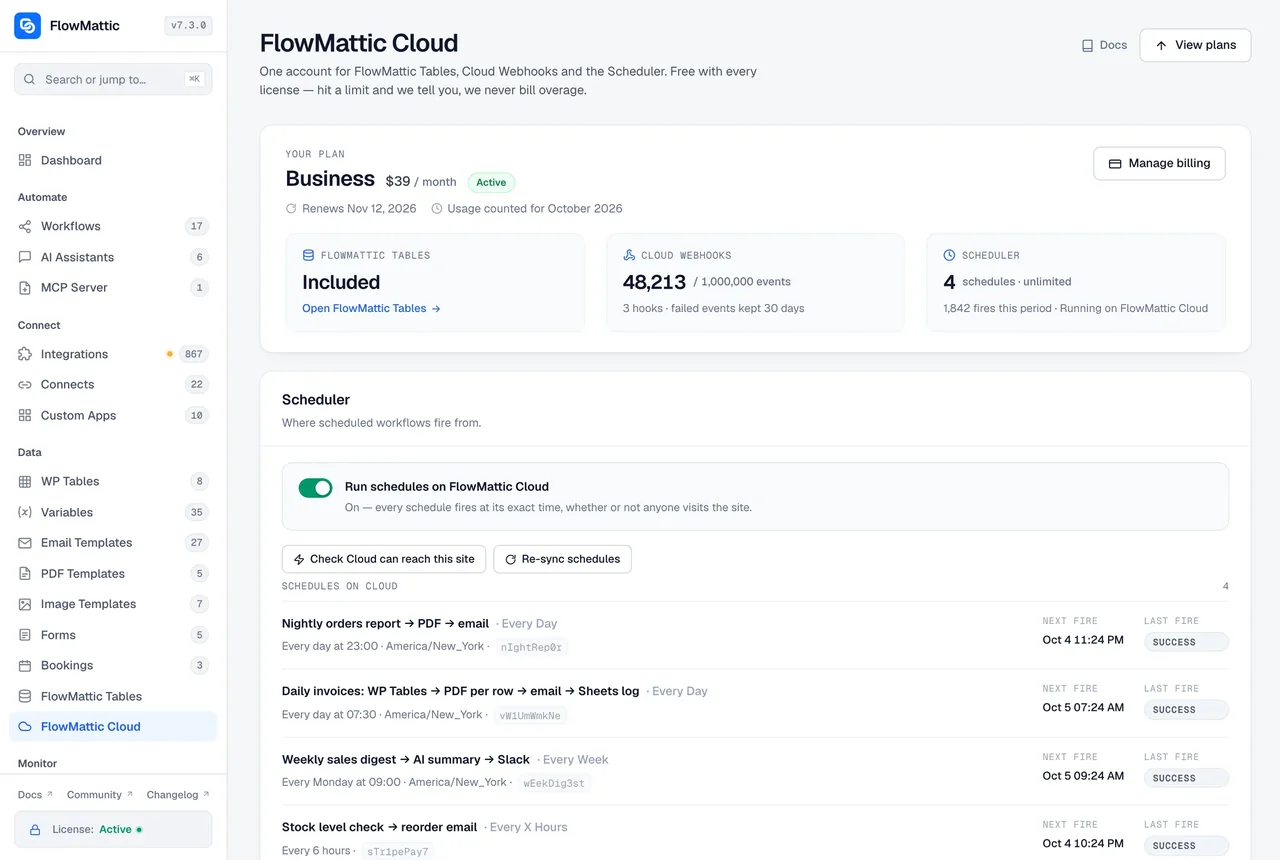
Run schedules on FlowMattic Cloud, and stop depending on visitors
WordPress has no clock of its own. wp-cron only checks for due jobs when someone loads a page, so a 09:00 report on a quiet site fires when the first visitor arrives, which might be 09:40. Turn on Run schedules on FlowMattic Cloud and every existing schedule is registered with Cloud the moment it is saved, then fires at its exact time. Switch it back and wp-cron takes over again the same way.
- One site-wide switch on the FlowMattic Cloud screen; nothing to change per workflow
- Weekly and monthly schedules fire on the chosen day only
- Every X Hours accepts any number of hours
- Times follow the site time zone across daylight saving changes
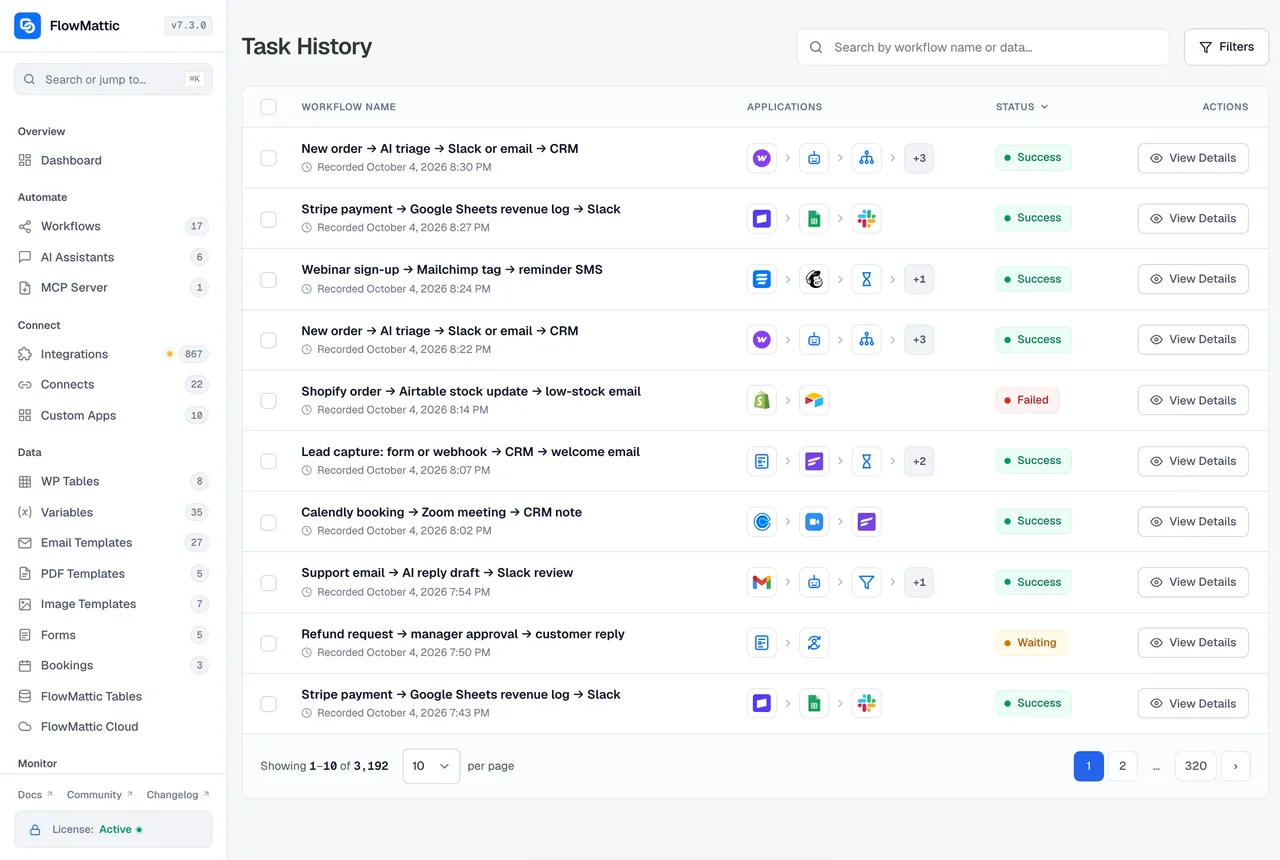
Every fire, recorded with what fired it
A run started by the Cloud Scheduler carries fire_id, scheduled_for, fired_at, timezone and source in its trigger data. Open the run in Task History and you see the exact moment it was due, the moment it ran, and which scheduler fired it. The same data is available as dynamic tags, so a report can say which period it covers.
- scheduled_for and fired_at in the site time zone
- fire_id to match a run with the Cloud fire log
- Filter Task History by workflow, status and a live date range
Six ways to schedule a WordPress workflow
Each one is an event on the Schedule trigger, with a Trigger on Weekends toggle where it applies.
Every X minutes
Poll a source or sweep a queue every few minutes, with or without weekends.
Every hour
Hourly syncs, polls and checks, with or without weekends.
Every X hours
Any number of hours between fires, not just the handful wp-cron offers.
Every day
At a time of day you set, with weekends optional.
Every week
On a chosen day of the week at a chosen time.
Every month
On a chosen day of the month at a chosen time.
Scheduled workflows people run
Each one is a Schedule trigger followed by ordinary steps from the builder.
Daily invoices at 09:00
Every day the workflow reads unpaid rows from WP Tables, loops through them with an Iterator, renders a PDF invoice for each, emails it to the customer and logs the send in Google Sheets.
Weekly report every Monday
Every week on Monday a WooCommerce orders lookup covers the last seven days, an AI Agent writes the summary, and the report goes to Slack and to the founders by email.
Nightly housekeeping
Every day at 02:00 the workflow finds posts still in the trash and expired coupons, deletes them with the WordPress and WooCommerce actions, and writes a line to a log table.
Hourly sheet to table sync
Every hour the workflow reads new rows from a Google Sheet and upserts them into a WP Tables table, so the site always has the latest list without a manual import.
Questions about scheduled workflows
Why did my scheduled workflow run late, or not at all?
WordPress has no clock of its own: wp-cron checks for due jobs only when someone loads a page, so a quiet site fires late and a cached one can miss fires. Turn on Run schedules on FlowMattic Cloud and Cloud fires each schedule at its exact time, whether or not anyone visits the site.
What can I schedule?
Every X minutes, every hour, every X hours, every day at a time, every week on a chosen day, or every month on a chosen date. The minute, hourly and daily events have a Trigger on Weekends toggle; clear it and the workflow holds until Monday.
Do I have to change every workflow to move it to Cloud?
No. Run schedules on FlowMattic Cloud is one site-wide switch on the FlowMattic Cloud screen. Every existing schedule is registered with Cloud the moment it is saved, and switching back restores wp-cron the same way.
Does the Scheduler respect my site’s time zone and daylight saving?
Yes. Times follow the site time zone, and a 09:00 schedule stays at 09:00 across daylight saving changes. On wp-cron alone, schedules used to drift by an hour at the change.
How can I tell what fired a run?
A Cloud-fired run carries fire_id, scheduled_for, fired_at, timezone and source in its trigger data, which Task History shows and which you can use as dynamic tags in the steps. Filter Task History by workflow, status and a live date range to review a period.
Is there a limit on how many scheduled workflows I can have?
Every FlowMattic plan includes unlimited workflows and unlimited runs, scheduled ones included. Every license also includes a Free FlowMattic Cloud account; see the FlowMattic Cloud page and the pricing page for what the Cloud plans add.
Did not find your answer? You can browse the help center or ask us directly.
Set it for 09:00 and trust it
Build a scheduled workflow on a live demo site, or install FlowMattic and run it on your own server with Cloud firing the clock.
30-day money-back guarantee Unlimited workflows and runs Self-hosted