

Multi-trigger workflows in WordPress
Start one WordPress workflow from several events, such as a form submission, a webhook and a WooCommerce order, and keep a single chain of steps. FlowMattic maps every trigger onto the first trigger's field names, so the rest of the workflow never needs to know which event started it.
One workflow, several triggersFirst trigger sets the field namesAuto-map matching keysAny of 909+ integrations as a trigger

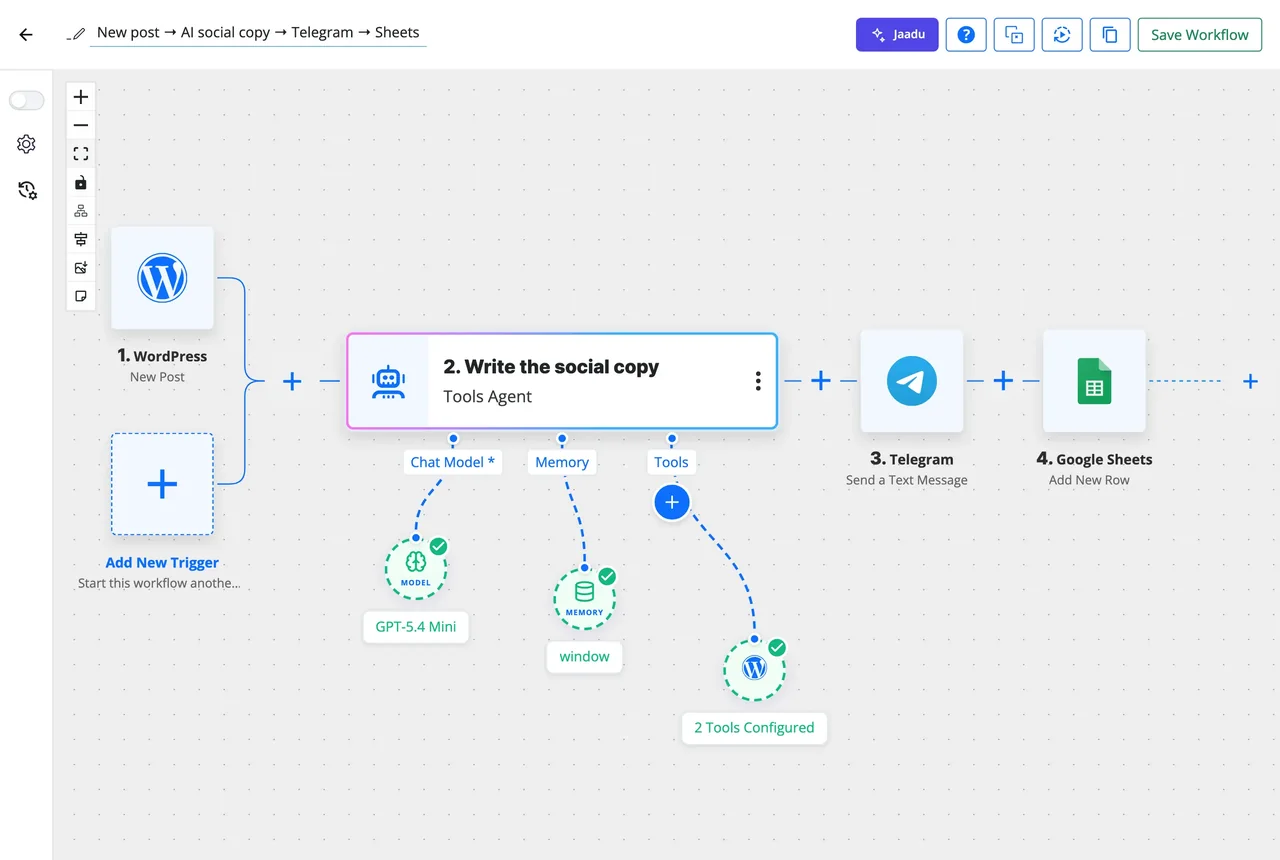
Three steps to a workflow with more than one start
Build it once for the first trigger, then teach each new trigger to speak the same field names.
-
Build
Start with the first trigger
Capture a sample from the first trigger and map its fields into the steps as usual. Those field names, such as email and first_name, become the contract every later trigger follows.
-
Add
Add another trigger
Click Add New Trigger, labelled Start this workflow another way, beside the first trigger. Pick any app event, webhook, form, schedule or WordPress event and capture a sample for it.
-
Map
Map its fields onto the contract
On the new trigger's Capture tab, each of the first trigger's keys is a row; pick the matching key from the new sample, or type a value. Auto-map matching keys fills the rows whose names already agree.
One contract, however many ways in
Action steps read the first trigger's data tags, like {trigger.email}. A second trigger's payload rarely uses the same names, so the trigger map renames its fields once: customer_email becomes email, fname becomes first_name. From then on the workflow behaves the same whichever trigger fires, and editing a step edits it for every trigger at once.
- Mapping lives on the trigger, not in each step
- A map row can hold a static value when a trigger has no equivalent field
- Each trigger has its own captured sample, conditions and Skip Duplicate Events settings
The same logic after every trigger
Everything after the triggers is one workflow: the Router, the AI Agent, the approval step, the Join. A lead from the website form, a lead posted by a partner's webhook and a lead typed into the chatbot all pass through the same scoring and the same CRM update, and you fix a bug in one place. Multi-trigger workflows also keep the workflow list short, with one entry per process instead of one per source.
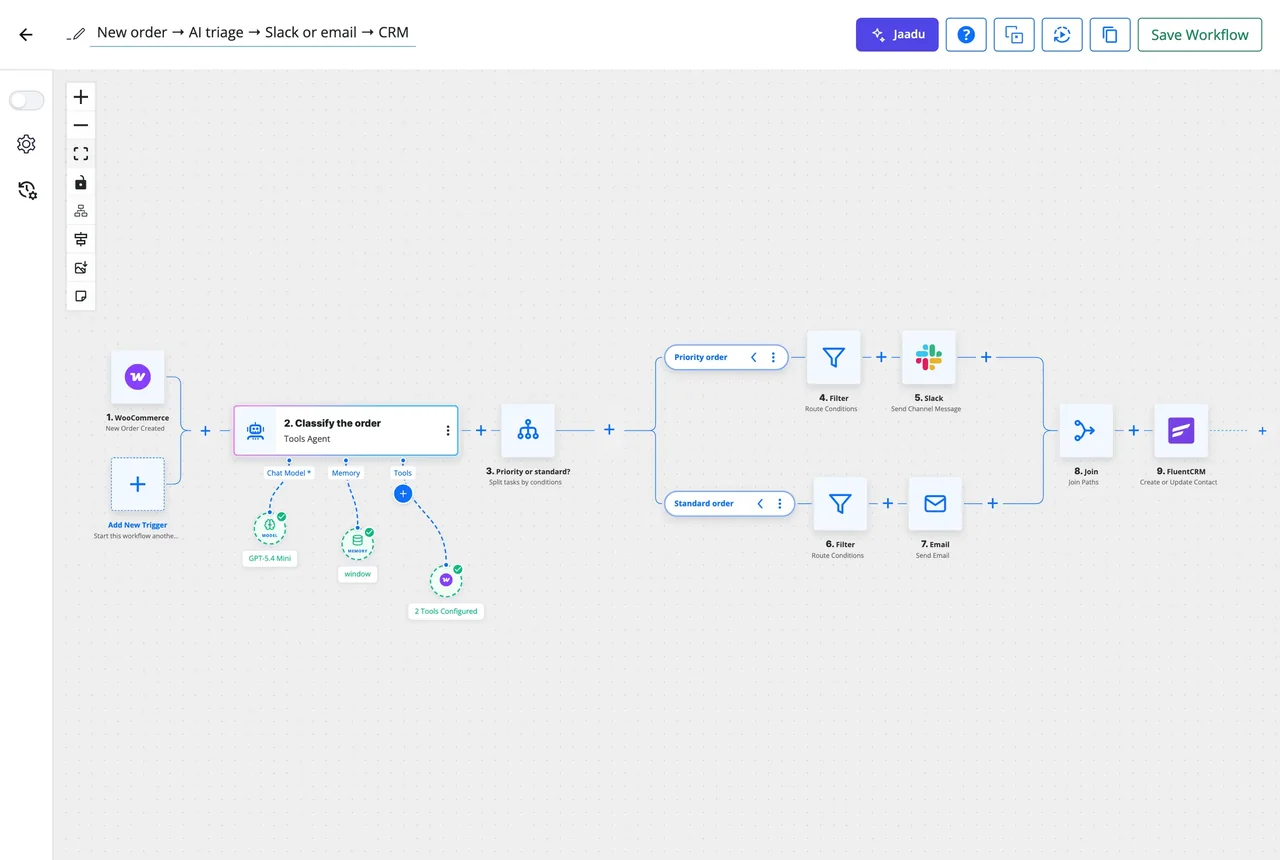
- Add New Trigger appears beside the first trigger on every canvas
- WordPress events, such as Post Updated, work as additional triggers
- A second Schedule trigger can run the same steps on a different rhythm
- Each run in Task History shows the trigger data it started from
What multi-trigger workflows give you
Everything a single-trigger workflow has, plus the mapping that keeps the steps shared.
Any trigger type
App events from the integrations library, webhooks, Form Builder submissions, schedules, chatbot actions and WordPress events can all be additional triggers.
Trigger map
One row per first-trigger key; pick the matching key from the new trigger's sample or type a value.
Auto-map matching keys
Keys with the same name are mapped in one click, so only the differences need your attention.
WordPress events included
New post, post updated, new user, new comment and the other WordPress triggers run the workflow as additional triggers too.
Conditions per trigger
Each trigger keeps its own Conditions tab and Skip Duplicate Events settings, read from the trigger that fired.
One history
Runs from every trigger land in the same Task History entry for the workflow, filterable by status and date.
Processes with more than one way in
Each of these used to be two or three workflows kept in sync by hand.
Leads from the form, a partner webhook and the chatbot
Three triggers, one scoring and routing chain: an AI Agent qualifies the lead, a Router sends hot leads to Slack, and every lead is created in FluentCRM with the same tags.
Orders from WooCommerce and a Stripe webhook
Shop orders and direct Stripe payments both reach the same invoice, fulfilment and thank-you steps, with the Stripe payload mapped onto the WooCommerce field names.
New post, or a post updated
Publishing a post and updating a published post are two WordPress triggers on one workflow that regenerates the social image and announces the change.
A daily schedule and a manual webhook
The report runs every morning on a Schedule trigger, and the same steps run on demand when someone hits the webhook URL from a Slack shortcut.
Questions about multi-trigger workflows
How do I add a second trigger to a workflow?
Open the workflow in the builder and click the dashed Add New Trigger box, labelled Start this workflow another way, beside the first trigger. Pick the app and event, capture a sample, then map its fields on the Capture tab.
Why do the other triggers have to be mapped onto the first one?
Action steps read the first trigger’s data tags, such as {trigger.email}. A second trigger’s payload usually names things differently, so a one-time map renames its fields onto the first trigger’s keys. After that the steps work the same whichever trigger fires, and you edit them in one place.
What if the new trigger has no field that matches one of the first trigger’s keys?
Type a static value in that map row, or leave it empty. Auto-map matching keys fills the rows whose names already agree, so you only deal with the differences.
Can a WordPress event such as Post Updated be an additional trigger?
Yes. WordPress triggers run the workflow whether they are the first trigger or an additional one. The same goes for app events, webhooks, Form Builder submissions, schedules and chatbot actions.
Do triggers share conditions and duplicate detection?
No, each trigger keeps its own. The Conditions tab and the Skip Duplicate Events settings are read from the trigger that fired, so a webhook can be deduplicated by its event ID while the form trigger uses the email address.
Can I tell which trigger started a run?
Yes. Every run in Task History shows the trigger data it started from, and a run’s trigger data can be loaded back into the builder as the trigger’s captured response when you need to adjust the mapping.
Did not find your answer? You can browse the help center or ask us directly.
One workflow for the whole process
Add a second trigger to a workflow on a live demo site, or install FlowMattic and keep every run on your own server.
30-day money-back guarantee Unlimited workflows and runs Self-hosted