

Human in the Loop approvals for WordPress automation
Pause a WordPress workflow until a person approves or rejects it by email, in Slack or with a button in a table, then continue on the answer. Human in the Loop approvals for refunds, content sign-off and discounts run on the same canvas as everything else, without code.
Approve or reject by email or SlackRun shows as Waiting in Task HistoryWait limit with a fallback actionReassign to another approver

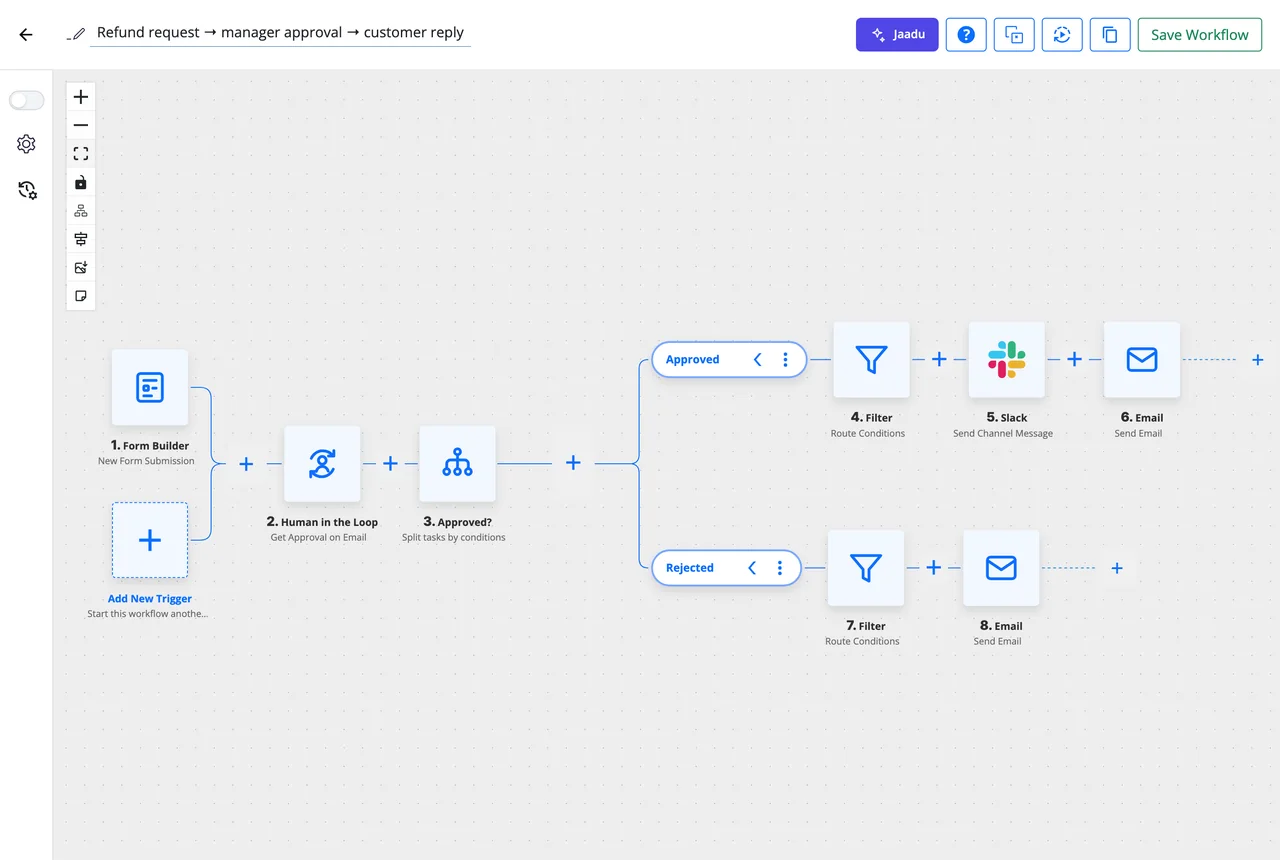
Ask, wait, continue
An approval is one step in the workflow. Everything before it runs as normal; everything after it waits for the answer.
-
Ask
Send the request
Add a Get Approval on Email or Get Approval on Slack step. Write the headline and message with data from earlier steps, name the approver, and set how long to wait.
-
Wait
The run pauses
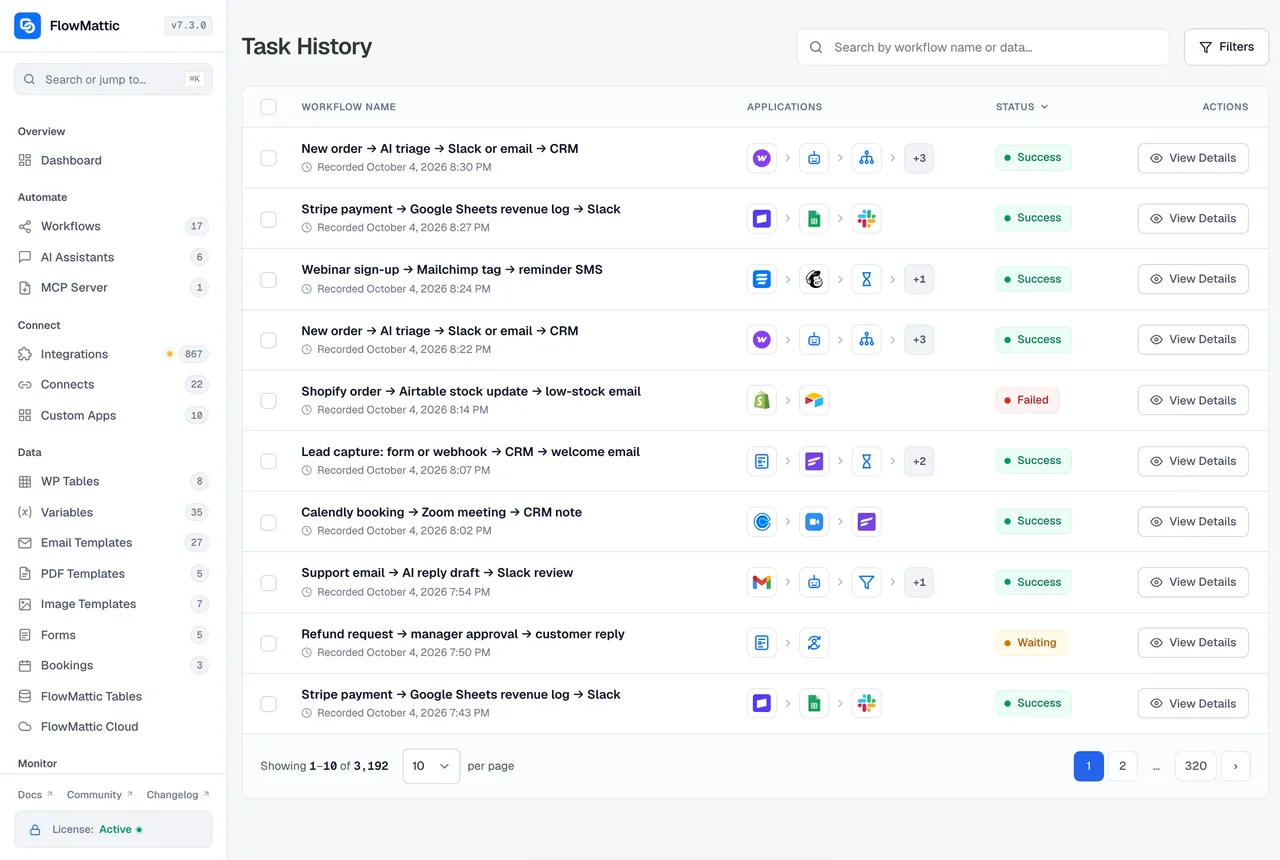
The run shows as Waiting in Task History. The approver gets approve and reject links, or Slack buttons, and can add a message. Nothing after the step runs until they answer or the wait limit passes.
-
Continue
Branch on the answer
The step returns approval_status and the approver's message. A Router with Approved and Rejected branches does the rest: refund and notify, or send the reason back.
An approval email with the facts, and two links
Get Approval on Email sends the approver a message you compose from the run's data: the order, the amount, the customer, the draft. They click Approve or Reject, land on a response page, and can leave a message. If nobody answers inside the wait limit, you choose what happens: continue with a timeout status, end the workflow, or reassign the request to someone else.
- Headline and message filled from any earlier step
- Optional login so only the right person can answer
- Max wait time in minutes, hours or days, with a fallback action
- Reassign to a second approver when the first does not respond
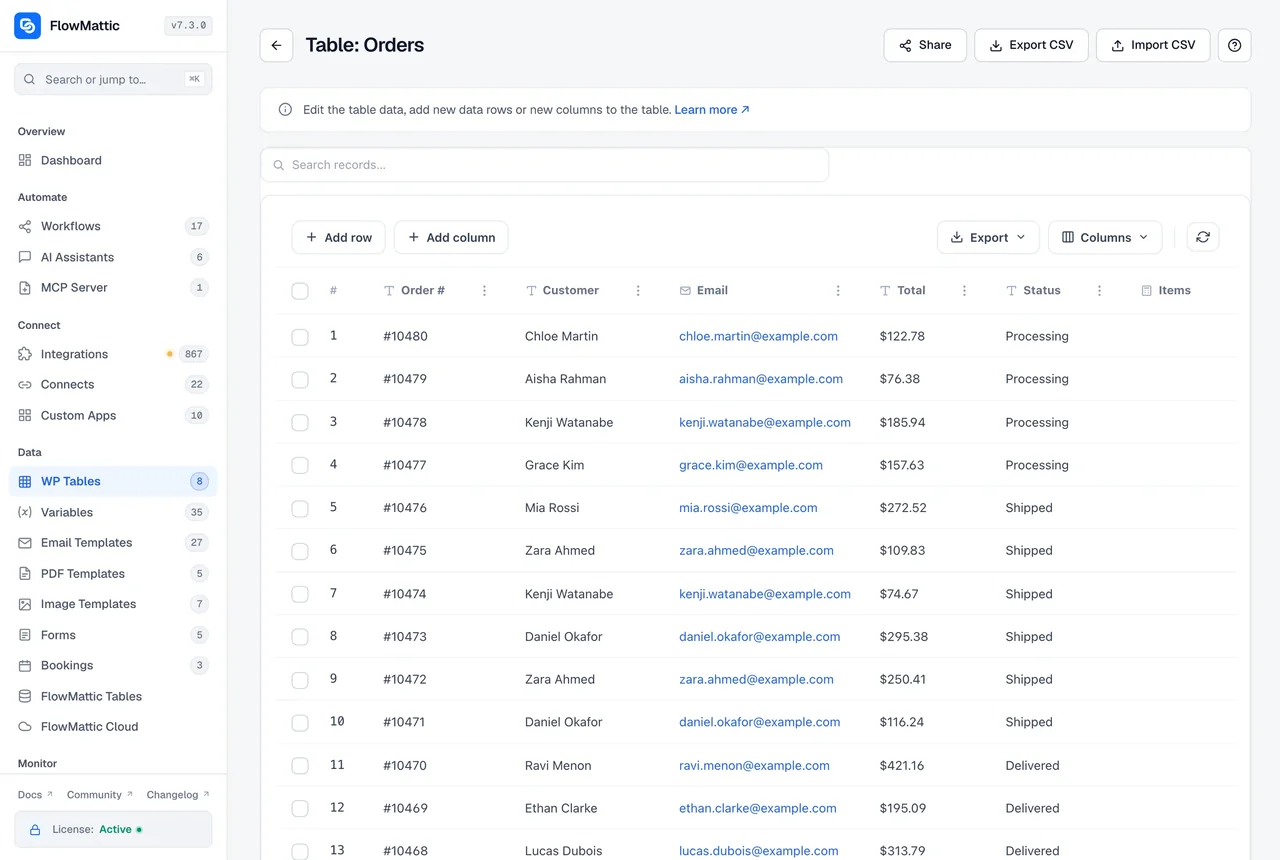
Approve from a table instead of an inbox
When approvals pile up, a table is easier than a thread of emails. WP Tables has a Continue on Approve or Reject Button action: the run writes its row and pauses until someone clicks Approve or Reject on that row. A reviewer works through the whole queue in one screen, and each click continues its own run.
- Approve and Reject buttons on the row, inside your WordPress admin
- Every pending request visible together, with search and filters
- The same action exists for FlowMattic Tables, the managed database
What the approval steps give you
Two channels, one data shape, and the controls a real approval process needs.
Get Approval on Email
An email with approve and reject links and a response page where the approver can leave a message.
Get Approval on Slack
The same request as a Slack message with interactive Approve and Reject buttons.
Approve from a table
Continue on Approve or Reject Button pauses the run on a WP Tables row until a button on it is clicked.
Wait limit
Set the maximum wait and what happens when it passes: continue, end the workflow or reassign.
Reassign
Hand an unanswered request to a second approver, with the count of reassignments kept on the request.
Answer as data
approval_status, the approver's message and who answered are dynamic tags for a Router, an email or a table row.
Where a person belongs in the loop
Automate the gathering and the follow-through; keep the decision with someone accountable.
Refunds over a threshold
A refund request from a form or the chatbot waits on a manager's email approval when the amount is above the limit. Approved requests refund the WooCommerce order and tell the customer; rejected ones send the manager's note.
Content sign-off before publishing
An AI Agent drafts the post, the editor gets the draft by email with approve and reject links, and only an approved draft is published and announced on social channels.
Discount approvals from sales
A sales rep submits a discount request, the request lands in a WP Tables queue, and the sales lead approves or rejects from the table. An approved row creates the coupon and emails the customer.
Onboarding checks for new accounts
A new user registration with an unusual domain pauses for a quick review in Slack. Approve activates the account and starts the welcome sequence; reject deletes the user and logs the reason.
Questions about Human in the Loop
How does a workflow wait for a person?
Add a Get Approval on Email or Get Approval on Slack step. The run pauses at that step and shows as Waiting in Task History. When the approver clicks Approve or Reject, the run continues with approval_status set, plus any message they left.
How do I do different things for approved and rejected?
Put a Router after the approval step with an Approved branch and a Rejected branch, each with its own steps. The condition is just approval_status equals approved or rejected. The approver’s message is available as a dynamic tag for either branch.
What happens if nobody answers?
Each approval step has a maximum wait time in minutes, hours or days, and a fallback action for when it passes: continue the workflow with a timeout status, end the workflow, or reassign the request to another approver. Timeouts are checked every ten minutes.
Can I approve from a table instead of email?
Yes. WP Tables has a Continue on Approve or Reject Button action: the run writes its row and pauses until someone clicks Approve or Reject on that row in the WordPress admin. FlowMattic Tables, the managed database, offers the same action.
Can I require the approver to be logged in?
Yes. Turn on the login requirement on the step and the approve and reject links only work for a logged-in user. The run then also receives who approved or rejected the request.
Does the approval email use my own design?
The approval email carries the headline and message you write on the step, filled with data from earlier steps. For the emails that follow an approval, such as a confirmation to the customer, use the Email Template Builder and send from any step.
Did not find your answer? You can browse the help center or ask us directly.
Put an approval in your next workflow
Try an approval step on a live demo site, or install FlowMattic and keep every request and answer on your own server.
30-day money-back guarantee Unlimited workflows and runs Self-hosted