Custom Webhook Response: Send Your Own Status, Headers and Data
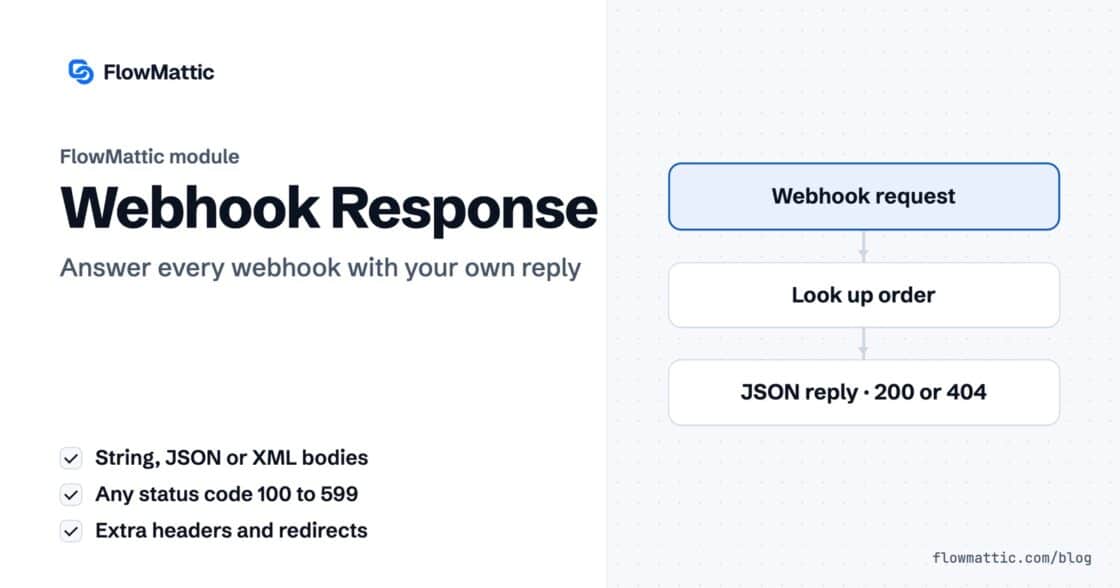
Reply to a webhook with data from the run: String, JSON or XML bodies, any HTTP status from 200 to 599, extra…


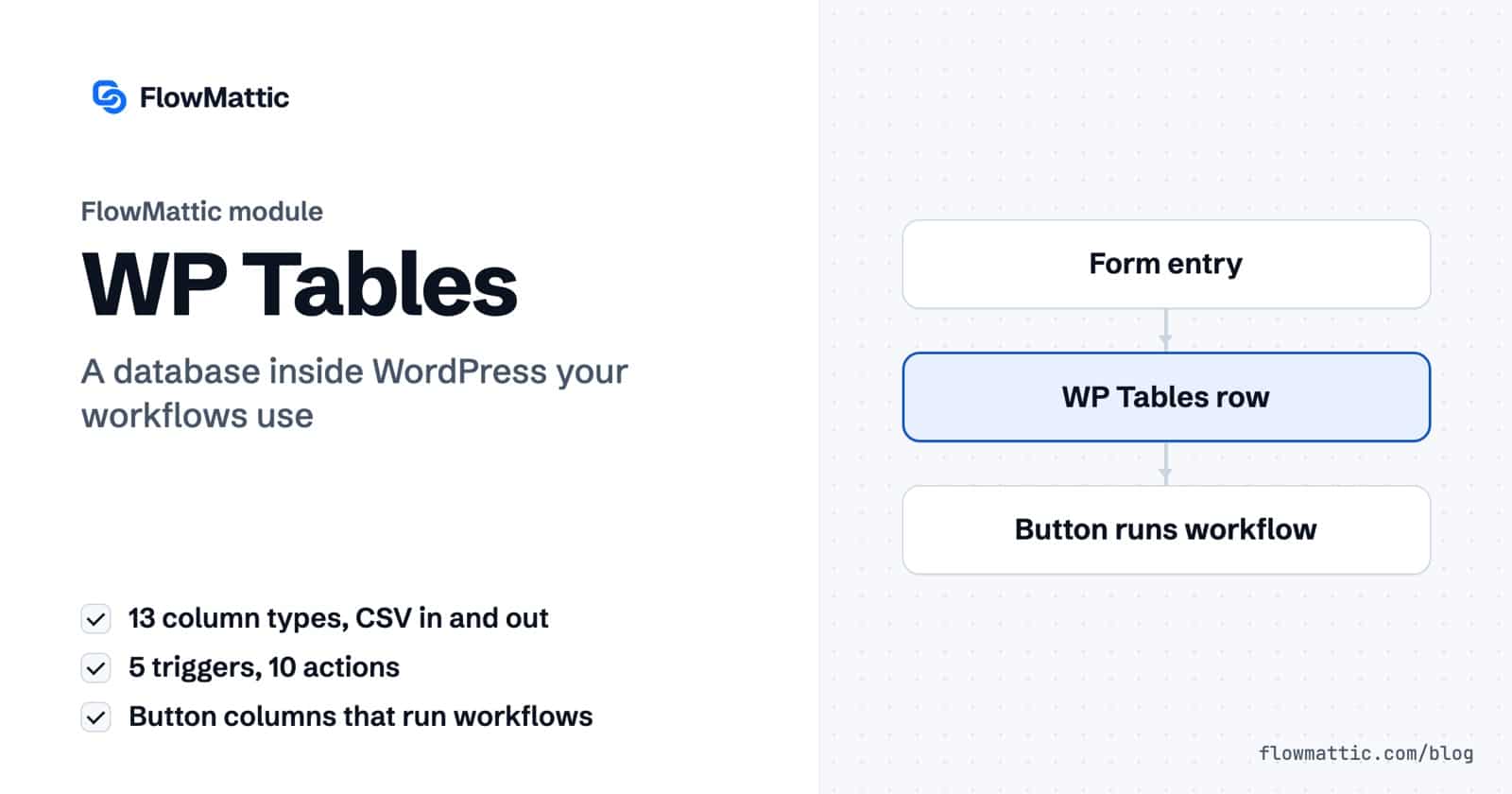
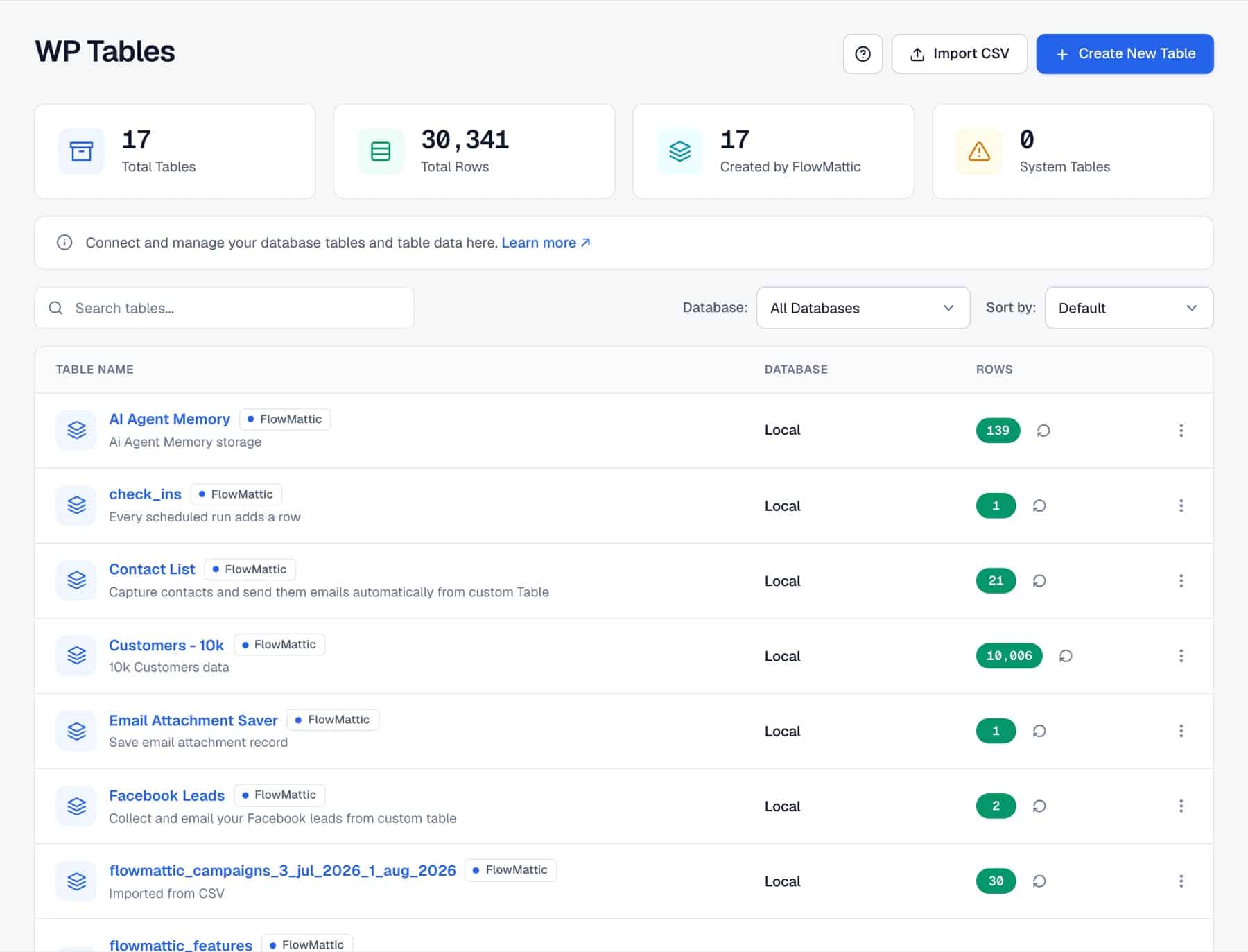
WP Tables is the built-in database inside FlowMattic, so you get a WordPress database plugin and an automation plugin for WordPress in one install. You create tables in your own WordPress database, fill them by hand, from a CSV or from workflows, and any workflow can find, update or count the rows. A Button column can even start a workflow from a single row.
It is for anyone who needs somewhere structured to keep leads, approvals, order logs, lookup lists or app data without paying for another service. This guide explains what WP Tables is, how to build and fill a table, every trigger and action, the settings that matter, and seven workflows to copy.
WP Tables are data tables that live in your own WordPress database, or in an external MySQL database you connect to the site. You manage them under FlowMattic → WP Tables, where each table shows its type, row count and actions. Tables created by WordPress or other plugins also appear as read-only System tables.
WP Tables is not the same as FlowMattic Tables. FlowMattic Tables is a managed database service that FlowMattic hosts for you, with its own screen. WP Tables are included with the plugin and stay in a database you control.
Click Create New Table and give it a unique name (letters, numbers and underscores), an optional description, and the database it should live in (Local by default). Under Fields, add the columns you need, each with a name, a type and a Required flag. Every table gets an id primary key automatically.
Already have the data in a spreadsheet? Click Import CSV instead. FlowMattic reads the header row, proposes a column for each heading with a suggested type you can change, and builds the table with its records in one step. Set a column to Dropdown and its options come from that column’s own values.
WP Tables offers 13 column types: Text, Long Text, Rating, Dropdown, Link, Email, Number, Date, Date & Time, Checkbox, Image, Button and Shortcode. Date columns let you choose a display format such as DD/MM/YYYY or Month DD, YYYY.
A Button column comes in two kinds. Trigger Workflow starts a workflow when someone clicks it. Continue Workflow shows a primary and secondary label, such as Approve and Reject, and resumes a waiting workflow down the matching path.
A Shortcode column, added from the grid, runs a shortcode for every row of the published table. Put it in Default Shortcode, such as , and use {{field_name}} tokens to fill in values from that row. The Each row can set its own shortcode setting is off by default; turn it on only when you alone write to the table, because anything that can write a row could then run any shortcode on your site.
Open a table with View Data to add rows, double-click a cell to edit it, search, filter and sort. The search box has its own full-width row above the table, so it stays usable on narrow screens. You can export all rows or just the selected ones as CSV or XLSX. From the table list, Export as CSV, Duplicate and Clear Data are one click away.
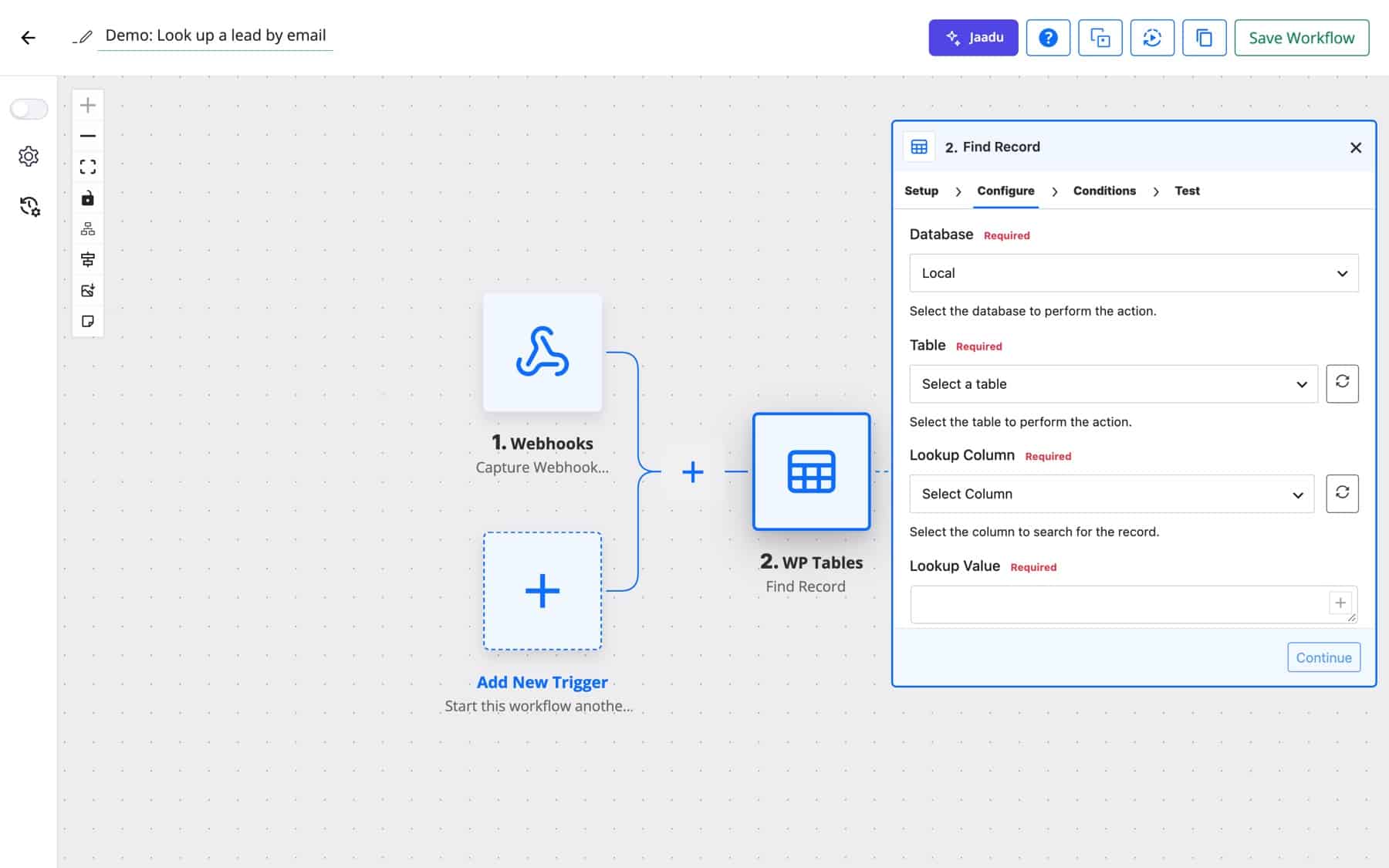
In the workflow builder, WP Tables is an app with triggers and actions like any other. Choose the Database and Table, and the step loads that table’s columns as fields you can map.
| Trigger | Fires when |
|---|---|
| New Record | A row is added to the table. |
| Updated Record | A row is updated. |
| Deleted Record | A row is deleted. |
| Updated Cell | A chosen column changes on any row. |
| Trigger Workflow Button Clicked | Someone clicks a Trigger Workflow button. The row’s data comes with it. |
| Action | What it does |
|---|---|
| New Record | Adds a row. |
| Update Record / Update Cell | Changes a whole row, or one column in a row. |
| Find Record | Finds one row by a column value, with Lookup Method exact or contains, and an optional second column to narrow the match. |
| Find Multiple Records | The same search, returning up to 1,000 rows as an array. |
| Get Row / Get Rows / Get Row Count | Reads one row by ID, several rows with a limit and offset, or the total count. |
| Delete Record | Removes a row. |
| Continue on Approve or Reject Button | Pauses the workflow until someone clicks Approve or Reject on the row. |
Write actions include a Trigger Workflow on Update option. Set it to No when a workflow writes to the same table it listens to, so the change does not set off the Updated Record or Updated Cell trigger again.
Share / Embed builds a shortcode for any page. You choose the Columns to display, viewer controls (Search box, Sortable columns, Column summaries for numeric columns, Pagination and Rows per page), and the width and height. WP Tables embeds are read-only for visitors, who can search and sort only on the columns they are shown.
Inside a post or page, the shortcode renders only when that post’s author can manage workflows, the same permission the WP Tables screen needs. Other authors cannot embed or expose your tables, and anyone who can edit the post sees a notice explaining why the table is hidden. Shortcodes in theme templates and widgets are not affected.
Every form entry becomes a row. Before creating a new one, the workflow looks the email up so returning visitors update their row instead of creating duplicates.
New Form Submission → Find Record (email, exact) → Router → Update Record · New Record
An e-commerce team logs refund requests from a form into a table with an Approve and Reject button. The workflow waits on the row, then sets the WooCommerce order to Refunded and tells the customer, or explains why the request was declined.
New Form Submission → New Record → Continue on Approve or Reject Button → Router → WooCommerce Change Order Status · Send Email
An agency keeps invoices in a table. A daily schedule finds the unpaid rows, an Iterator walks through them, a PDF is rendered and emailed for each, and the row is marked as sent.
Schedule → Find Multiple Records → Iterator → Generate PDF from Template → Send Template Email → Update Cell
A sales team qualifies leads in the grid. When a lead is ready, they click the row’s Send Data button and the contact is created in the CRM with the row’s values.
Trigger Workflow Button Clicked → FluentCRM → Update Cell (status: Sent)
Support keeps a small table that maps each product to an owner and a Slack channel. Every new ticket looks up its product and goes to the right person, and the mapping can change without editing the workflow.
Webhook → Find Record (product) → Slack
A support assistant saves a short summary of each conversation to a table and reads the customer’s past rows before it answers, so it remembers that Amelia Okafor already asked about billing last week.
Webhook → Find Multiple Records → AI Agent → New Record
A SaaS team writes each deploy or incident to a table from their CI webhook and embeds it on a status page with search and pagination, so customers see the latest entries without a separate tool.
Webhook → New Record → on the status page
flowmattic_table_shortcode_author_cap and flowmattic_table_shortcode_author_trusted filters.No. Tables, columns and rows are managed in a grid, and workflows use named actions such as Find Record or Update Cell. Nothing asks you to write a query.
For many jobs, yes. As a WordPress database plugin it gives you a grid of typed columns, buttons that run automations, CSV import and export, and a shortcode to publish a table. The difference is that the rows stay in your own WordPress or MySQL database and every plan includes it.
Yes. Import CSV creates a new table from the file’s header row, with a proposed column for each heading. You can also export any table as CSV from the list, or as CSV or XLSX from the grid.
Open Share / Embed on the table, choose the columns and viewer controls, and copy the shortcode into any page or post. Visitors can search, sort and page through it, but not edit it.
WP Tables stores rows in your WordPress or external MySQL database and is included with the plugin. FlowMattic Tables is a managed per-site database with extra column types, saved views, card layouts, HTML templates and point-in-time restore. Those views, layouts and templates are not available on WP Tables.
Give your workflows a WordPress database plugin to keep their data in. See the WP Tables page, and pick a FlowMattic plan to start building your first table.
Reply to a webhook with data from the run: String, JSON or XML bodies, any HTTP status from 200 to 599, extra…
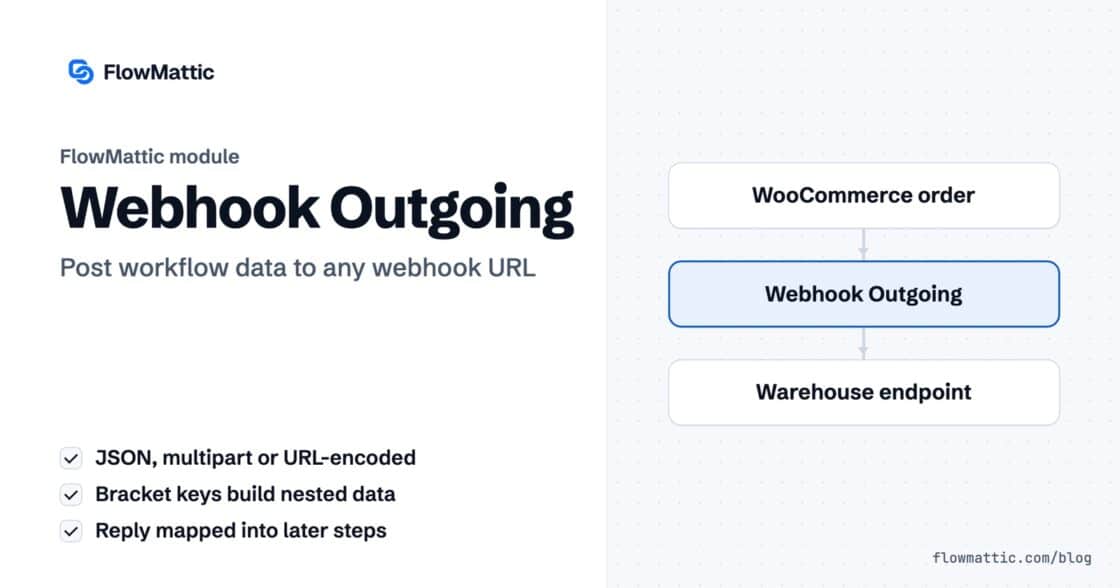
Post workflow data to any webhook URL as JSON, multipart form data or URL-encoded fields, with nested bracket keys and the receiver's…
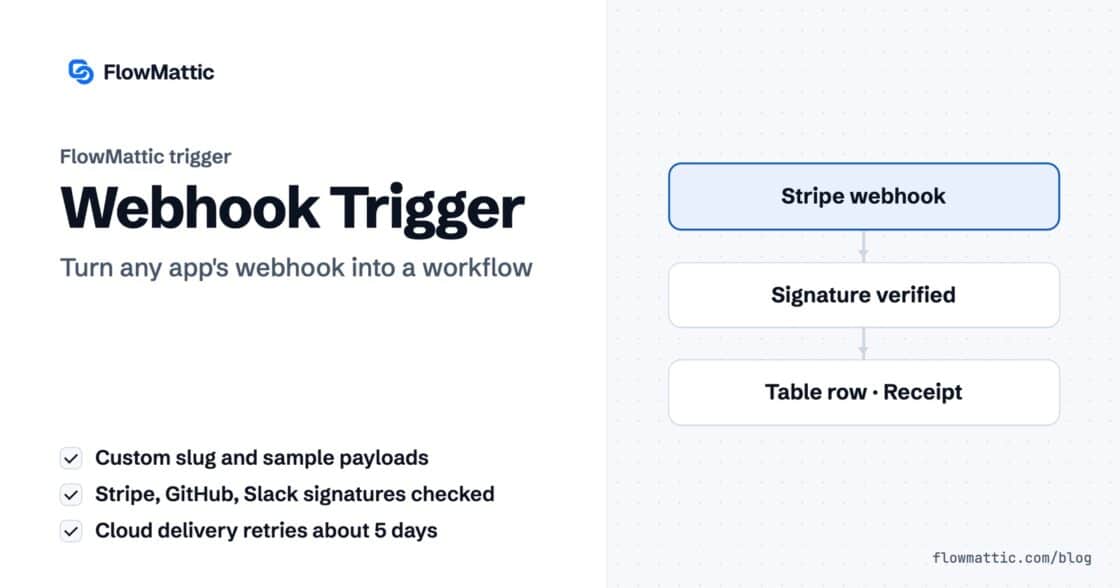
Give any app a URL on your WordPress site and turn each request into a workflow run, with signature checks, sample payloads…