
FTP automation in WordPress: upload, download and watch folders
The FTP app uploads, downloads, moves and deletes files on FTP, FTPS and SFTP servers from any workflow, and starts workflows when…


Workflow error handling decides what happens when a step fails: whether the run stops, who hears about it, and how you put it right. FlowMattic gives you the pieces to handle errors inside your workflows instead of finding out from a customer: a Workflow Failed trigger that starts an alert workflow, a Stop and Error step that fails a run on your own rules, per-step Ignore Errors, failure emails and an error webhook, and Task History to recover.
This guide is for anyone running workflows that matter: store owners whose orders flow through automations, agencies that look after client sites, and teams whose CRM or support desk depends on a sync. You will see how FlowMattic decides that a run failed, how to send that failure to Slack, Discord or anywhere else, and how to re-run the work once the cause is fixed.
It is not one setting but a set of tools that work together. Each one sits where you would expect it:
A step fails when it returns an error status. Common causes are an API that answers with a non-2xx code, an app that rejects the data, a step saved without an event, a PHP error inside the step, and a Stop and Error step.
By default, a failed step does not stop the run. The steps after it still execute, and the run is recorded as Failed, or Partial Failed when other steps succeeded. A run stops at the failed step when the step asks for it: Stop and Error always does, an API by FlowMattic step does when Continue Workflow on Error is set to No – Stop workflow, and so does a step that hits a PHP error.
Two things are not failures. A Filter that stops a run ends it quietly, and a step with Ignore Errors ticked has its error status changed to success (except Stop and Error, which always fails the run).
When a run ends with at least one failed step, FlowMattic does three things: it sends the failure email if notifications are enabled, posts a JSON payload to the global Error Webhook URL if you set one, and fires the Workflow Failed trigger for every active error-handling workflow.
workflow-id value in the builder’s address bar.workflow_name, error_message and workflow_url.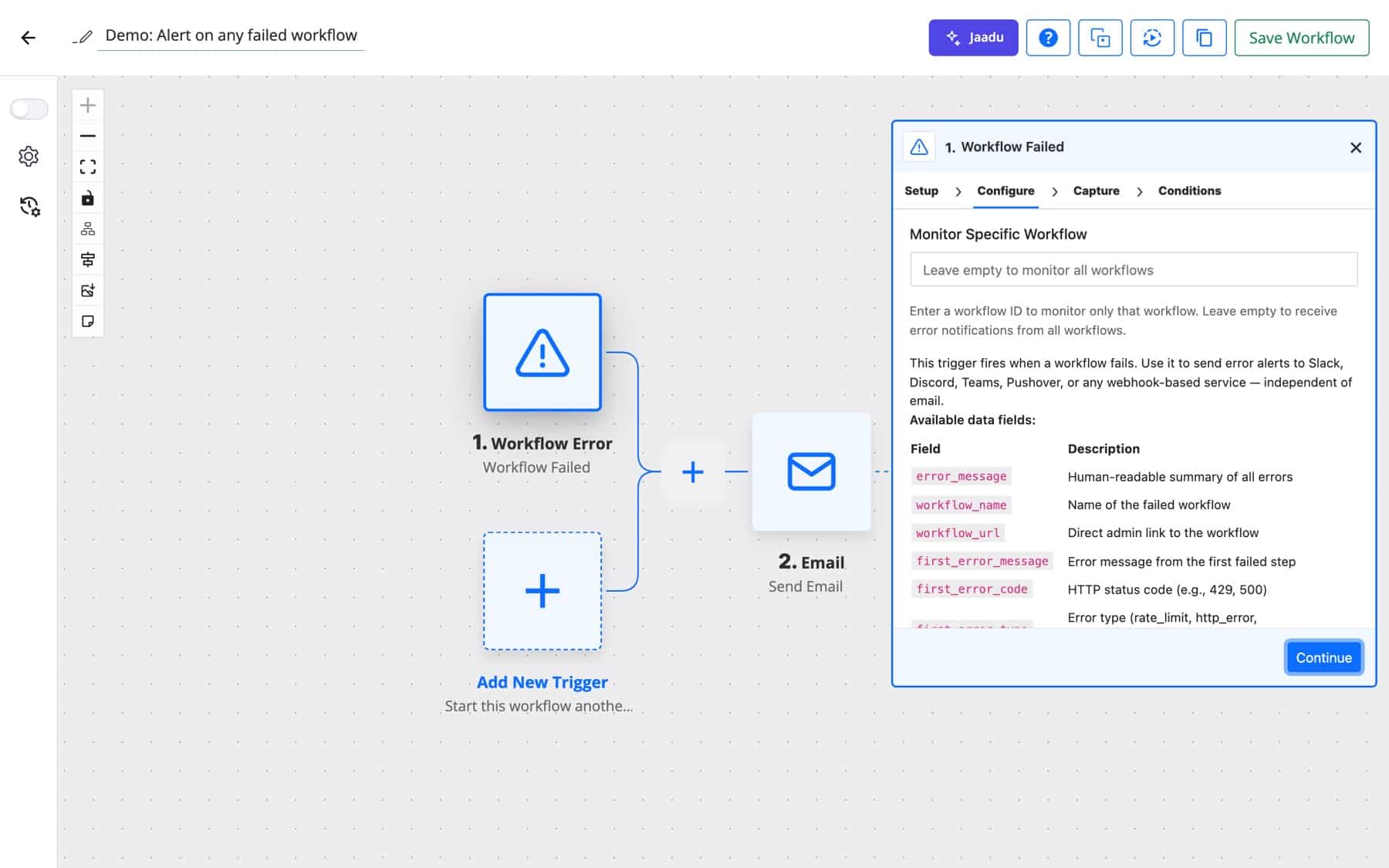
Some problems are not errors to the app. An order with no shipping address is a perfectly valid order. Put a Stop and Error step on the path that catches it, usually after a Router or Branch, and write the reason in Error Message. The field takes dynamic data, for example Order {woocommerce1.id} has no shipping address.
The run stops there and is marked failed with that message, even inside an Iterator, where the steps after Iterator End don’t run either. Task History, the failure email and the Workflow Failed trigger all report it. Leave the message empty and the step reports “The workflow was stopped by a Stop and Error step.”

Open any action step, go to the Conditions tab and tick Ignore Errors for steps that are nice to have, such as a courtesy Slack post. The step’s error is recorded as success, the run is not marked failed because of it, and no failure email is sent for it.
In FlowMattic settings, under Notification Settings and Failed Task Notifications, set Enable Notifications to Enabled and add a Notification Email. If the address is empty, the site’s admin email is used. The Error Webhook URL receives every failure as a JSON POST with an X-FlowMattic-Event: workflow_failed header, so alerts still arrive when the site’s email is not working.
Once the cause is fixed, open the run in Task History. Re-execute runs the workflow again with the original trigger data, or with fields you edit first. On a single step, Re-run this step only repeats just that step, and Run from this step continues the workflow from there as a new Task History entry. Steps inside an Iterator cannot be a starting point.
| Field | What it holds |
|---|---|
error_message | Summary of every failed step, as app: message, separated by ” | “ |
workflow_name, workflow_id, workflow_url | The failed workflow and a direct admin link to it |
first_error_app, first_error_step | The app and step title of the first failed step |
first_error_message | That step’s error message |
first_error_code, first_error_type | HTTP status code and error type when the step reports them, such as 429 and rate_limit |
failed_steps | JSON array with the details of every failed step |
total_steps, failed_step_count | How many steps the workflow has and how many failed |
task_history_id | The run’s Task History ID |
site_url, site_name, timestamp | Where and when it happened |
error_severity | Severity label |
An agency managing Northwind’s site wants to know about any failure before the client does. One error-handling workflow watches all workflows and posts the name, error and link to the team channel.
Flow: Workflow Failed → Slack Send Channel Message
Acme’s order-to-warehouse workflow cannot wait for someone to check email. A second error workflow uses Monitor Specific Workflow with that workflow’s ID and sends a Discord message to the on-call channel.
Flow: Workflow Failed (one workflow ID) → Discord Send Channel Message
An order without a shipping address should not reach the fulfilment API. A Branch checks the address; the empty path ends in Stop and Error with the order number in the message, and the Slack alert workflow above picks it up.
Flow: WooCommerce New Order Created → Branch → Stop and Error
An operations team wants trends, not just alerts. Each failure becomes a row in a WP Table with the workflow, step, code and time, so recurring problems stand out.
Flow: Workflow Failed → WP Tables New Record
A SaaS team treats an API rate limit differently from a broken integration. A Router reads first_error_type: rate limits go to a low-priority channel, everything else emails Yuki Tanaka on call.
Flow: Workflow Failed → Router → Slack Send Channel Message · Send Email
Raw error payloads are hard for a support lead to read. An AI agent turns failed_steps into a short explanation and a suggested fix before the email goes out.
Flow: Workflow Failed → AI Agent Execute Agent → Send Email
A lead workflow creates the CRM contact, then posts to Slack. If Slack is briefly unavailable, the lead is still captured; Ignore Errors on the Slack step keeps the run green.
Flow: Form Builder New Form Submission → HubSpot Create Contact → Slack Send Channel Message (Ignore Errors)
error_severity field currently reads critical for every failure, so route on first_error_type or first_error_code instead.To see how runs are recorded and replayed, visit the Task History overview.
Turn on Enable Notifications in FlowMattic settings for a failure email, add an Error Webhook URL for a JSON alert, or build a workflow with the Workflow Failed trigger to send the alert anywhere. You can use all three together.
Not by default. Later steps still run and the run is marked Failed or Partial Failed. A Stop and Error step, an API step set to stop on error, or a PHP error inside a step ends the run at that point.
Open the run in Task History and choose Re-execute, with the original data or with fields you edit first. You can also re-run a single step, or run the workflow from a chosen step onward.
Yes, if you use the Error Webhook URL or a Workflow Failed workflow that posts to Slack, Discord or an API. Neither depends on the site’s email.
Workflow error handling is built into FlowMattic, alongside nearly 900 integrations and unlimited runs on your own server. Compare FlowMattic plans and put an alert on every workflow that matters.
The FTP app uploads, downloads, moves and deletes files on FTP, FTPS and SFTP servers from any workflow, and starts workflows when…
Share Secrets turns a password or API key into a link that expires after a set time, a set number of views,…
Generate Magic Login Link creates single-use sign-in links from any workflow, valid from 1 minute to 30 days, with a confirmation page…

