
FTP automation in WordPress: upload, download and watch folders
The FTP app uploads, downloads, moves and deletes files on FTP, FTPS and SFTP servers from any workflow, and starts workflows when…


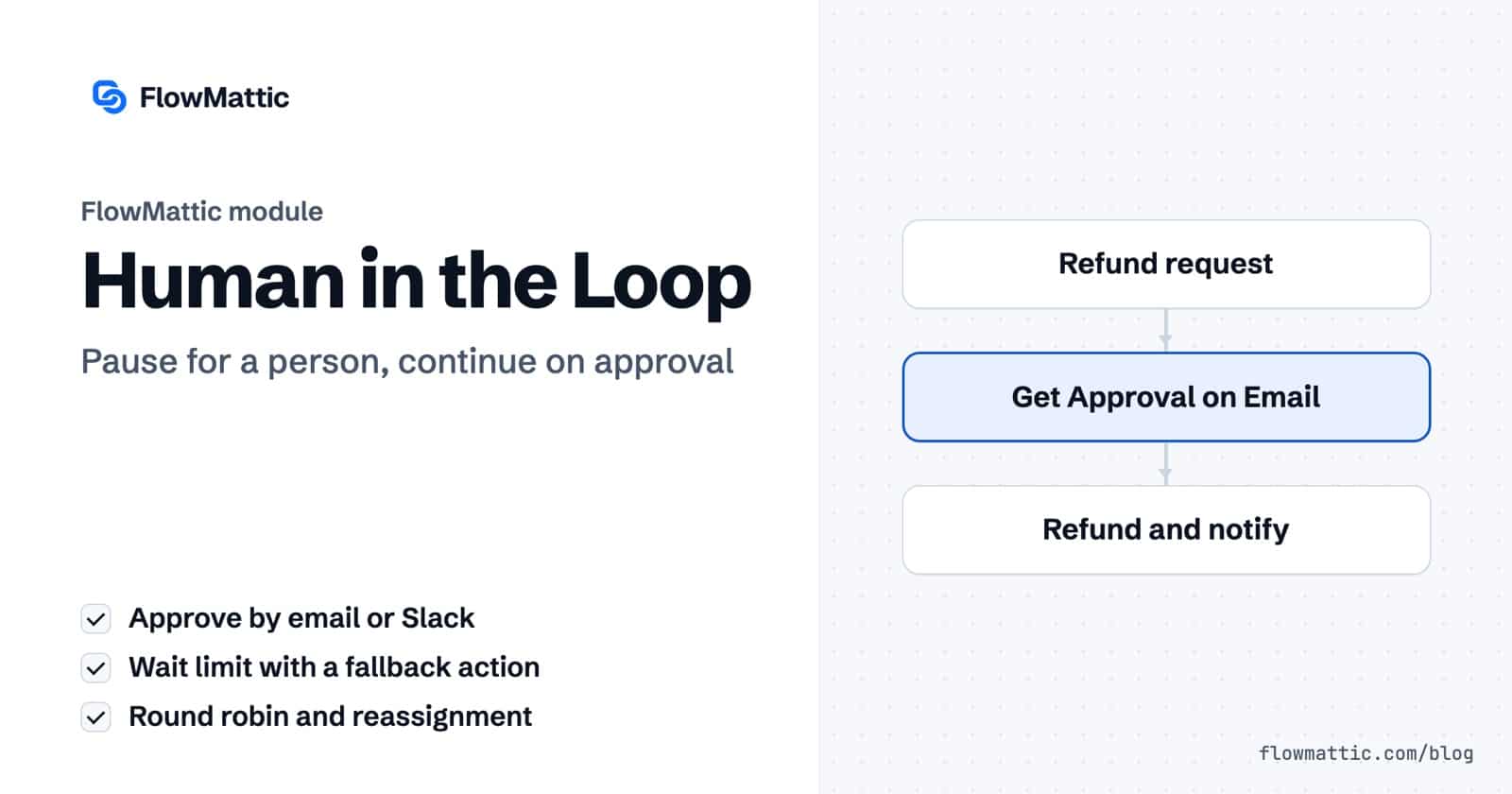
A WordPress approval workflow lets automation do the gathering and the follow-through while a person makes the call. FlowMattic’s Human in the Loop step sends an approval request by email or Slack, pauses the run until someone approves or rejects it, then continues on the answer, with a wait limit and a fallback if nobody responds.
It fits any decision you don’t want a workflow to make on its own: refunds above a threshold, AI-written content before it goes live, discounts a sales rep asks for, new accounts that look unusual. Everything before the approval runs as normal, and nothing after it runs until someone accountable has answered.
Human in the Loop is a built-in app in the builder’s Flow Controls group. It has two action events:
Each request is stored in your own WordPress database with a unique ID, its assignee, its status and a “valid until” time. A third way to approve lives in WP Tables: its Continue on Approve or Reject Button action pauses a run until someone clicks Approve or Reject on a table row. The Human in the Loop overview shows all three side by side.
approval_status set to waiting.approval_status becomes approved. On rejection, the run ends at the approval step; set Action on Reject to start another workflow for the rejection path.
Email links never act on their own. Opening an Approve or Reject link shows a confirmation page, and the decision is recorded only when the approver clicks the button there. That keeps email security scanners, which open links automatically, from approving or rejecting anything. Each request can be answered once: a second click reads “This request has already been processed”, and a link used after the wait limit reads “This approval request has expired”.
| Group | Field | What it does |
|---|---|---|
| Email Settings | Sender Name, Email Subject (optional), Approval Message Headline, Approval Message | What the approver reads. All accept dynamic tags, so the request carries the order, amount or draft from earlier steps. |
| Timeout Options | Max Wait Time, Timeout Unit | How long the request stays open, in Minutes, Hours or Days. |
| Timeout Options | Timeout Action | Skip and Continue to Next Step, End Workflow Execution or Re-assign to Another User. |
| Timeout Options | Reassignment Email | Who gets the request when it is reassigned. |
| Assignee Management | Assignee Type | Custom Assignee (an Assignee Email you type or map) or Round Robin – Based on User Role. |
| Assignee Management | User Role, User Meta Key, User Meta Value | For round robin: the role to pick from, optionally narrowed by a user meta match. |
| Rejection Handling | Action on Reject, Select Workflow | Do Nothing, or Execute Workflow to run a workflow you choose when the request is rejected. |
| Authentication | Check User Logged In | When Yes, the approver must be logged in to WordPress to view, approve or reject, and their email is recorded. |
Round robin picks, from the users with the chosen role, the one whose last assignment is the oldest, so requests spread evenly across the team.
The Slack action uses a Slack connection from Connects. Send To chooses Channel (with a Channel ID) or Direct Message (with a User ID). The message settings and Rejection Handling match the email action. Timeout Action offers Skip and Continue to Next Step or End Workflow Execution; reassignment is email-only.
Button clicks reach your site through FlowMattic’s proxy service, so you don’t configure interactivity in a Slack app yourself. When someone answers, the Slack message updates in place to show the result, and an expired request is marked as expired.
approval_status: approved after an approval, or approved_with_timeout when the wait limit passed and the timeout action was Skip and Continue.user_response: the message the approver saved, if any.approved_by: the approver’s email, when Check User Logged In is Yes.request_id, assignee, valid_until and, after a reassignment, reassigned_to and reassigned_count.Small refunds go through automatically; large ones wait for a manager. A rejection starts a separate workflow that emails the customer the manager’s note.
Form (refund request) → Filter (amount Greater than 100) → Get Approval on Email (manager, Action on Reject: Execute Workflow) → WooCommerce Change Order Status (Refunded) → Send Email to the customer
An AI Agent drafts the post; an editor who must be logged in approves it before it is published.
Schedule (weekly) → AI Agent (draft post) → Get Approval on Email (editor, Check User Logged In: Yes) → WordPress New Post (publish) → Slack Send Channel Message
Sales reps request a discount through a form, the sales lead answers in Slack, and an approved request creates the coupon.
Form (discount request) → Get Approval on Slack (#sales-approvals) → WooCommerce Create Coupon → Send Email to the customer
The client’s contact gets the draft report first. If they don’t answer within two days, it goes out anyway with a note.
Schedule (monthly) → Generate PDF from Template → Get Approval on Email (client contact, 2 Days, Skip and Continue to Next Step) → Send Email to the client's team
A SaaS site holds new accounts from unknown domains for a quick check in a direct message to the admin.
WordPress New User → Filter (email Does not end with a known domain) → Get Approval on Slack (Direct Message) → WordPress Change User Role → FluentCRM welcome sequence
Internal ops route each expense claim to the next finance approver in turn, and reassign it if nobody answers within a day.
Form (expense claim) → Get Approval on Email (Round Robin, role: Editor, 1 Day, Re-assign to Another User) → WP Tables Update Record (approved) → Send Email to the claimant
approval_status set to rejected, the approver’s message, headline, message and assignee.approval_status set to approved_with_timeout. Add a Branch on that value if a timeout should be handled differently from a real approval.Add a Human in the Loop step where the decision belongs and choose Get Approval on Email or Get Approval on Slack. Fill in the message, the approver and the wait limit, then add the steps that should run after approval.
When Max Wait Time passes, the Timeout Action runs: continue to the next step, end the workflow, or (for email) reassign the request to another user. The run stays Waiting until then.
Yes. The request details page has an optional Add a Message box. The saved message is returned as user_response, ready to use in an email or a table row.
Yes, for email approvals. Set Check User Logged In to Yes and only logged-in users can view, approve or reject the request. The approver’s email is then recorded on the step.
Human in the Loop is part of every FlowMattic plan, and every request and answer stays on your own server. Compare plans and put an approval in your next WordPress approval workflow.
The FTP app uploads, downloads, moves and deletes files on FTP, FTPS and SFTP servers from any workflow, and starts workflows when…
Share Secrets turns a password or API key into a link that expires after a set time, a set number of views,…
Generate Magic Login Link creates single-use sign-in links from any workflow, valid from 1 minute to 30 days, with a confirmation page…

