

AI agent that writes a weekly project status update from the board
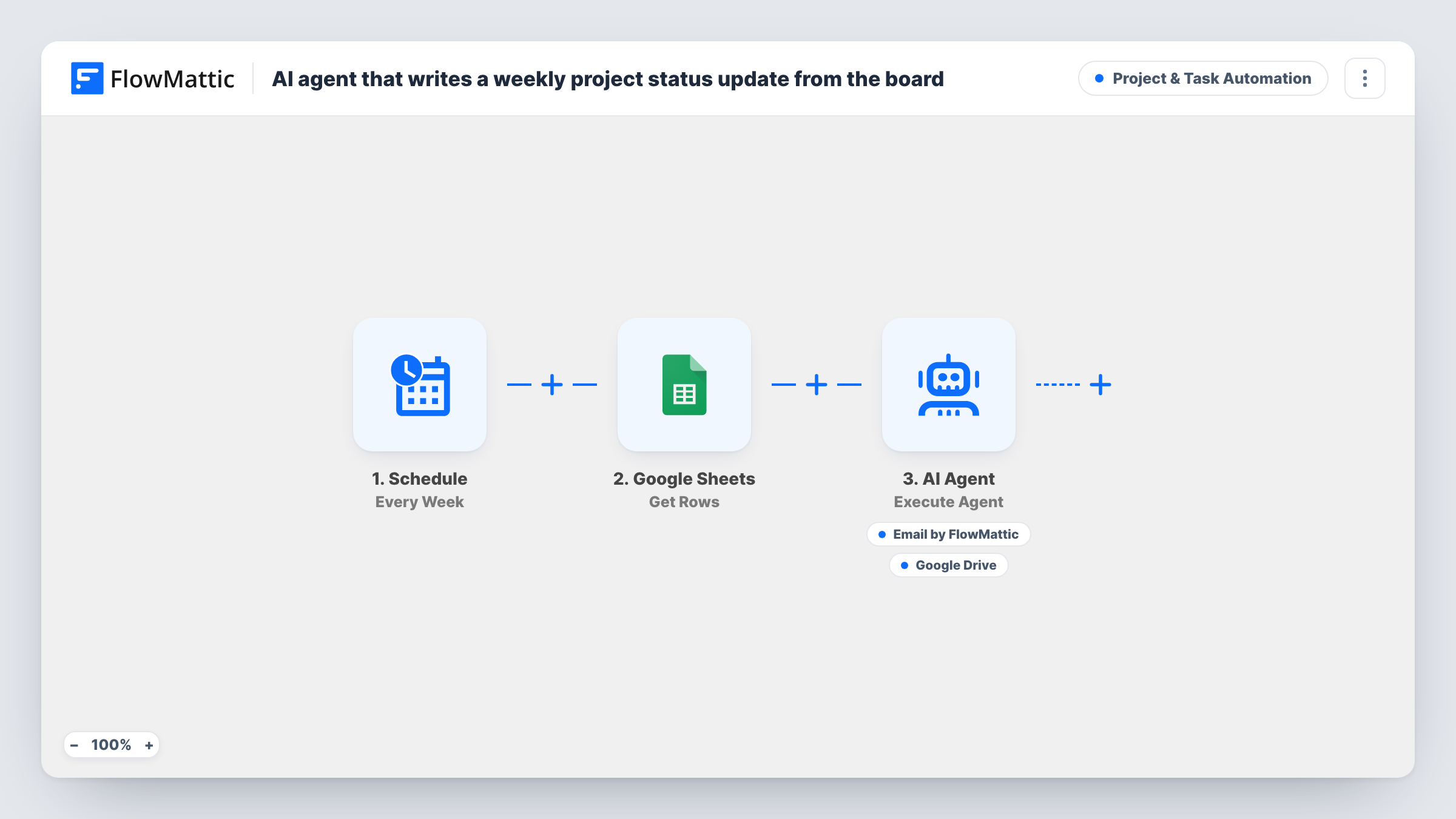
Once a week, an AI Agent reads your task sheet in Google Sheets, writes a short status update with highlights, at-risk items and next steps, emails it to stakeholders and saves a copy to Google Drive.
 Schedule
 Google Sheets
 AI Agent
 Email
Email
 Google Drive
5 steps Setup ~8 min Used on 2.5k sites Productivity Free to import
What this workflow does
The weekly status email is easy to put off. Someone has to scan the task list, decide what went well and what is slipping, and write it up for people who were not in the room. This workflow drafts that update from your task sheet each week and sends it, with a copy kept for later.
A Schedule trigger starts the run every week. A Google Sheets step reads the rows of your task sheet, such as an export from your project board, and passes them to the AI Agent as this week's tasks. The agent is told to write a concise update covering highlights, at-risk items and what comes next.
It is given two tools for this and decides when to call them. Send Email delivers the update, with the subject and body written by the agent and the address set to a placeholder you replace. Create File From Text saves the same update to Google Drive as a text file, also named by the agent. The update can only be as current as the sheet, so keep the export up to date before the run.
Client updates for an agency project
Your team tracks deliverables in a sheet. Each week the client gets a plain summary of what moved, what is at risk and what is planned, and the Drive copy builds a project history.
Status report for a manager
A team lead exports the board to Google Sheets on Friday. The workflow turns it into the update the manager reads, without the lead writing it from scratch.
Volunteer or committee projects
Coordinators keep tasks in a shared sheet. Members who rarely open it get a weekly email that tells them where things stand.
How this workflow runs
What happens at each step once the workflow is on, and what you need before you import it.
 Schedule Every Week
Kicks off a weekly run that produces the status update. After import, check the schedule so the update goes out after your sheet has been refreshed, not before.
- Google Sheets Get Rows
Reads rows from Google Sheets and hands them to the agent as this week's tasks. Connect your Google account, then run a test to confirm the rows you expect come back.
- AI Agent Execute Agent
The AI Agent turns the rows into a concise status update with highlights, at-risk items and next steps, is told to email and file it with its tools. The template uses OpenAI GPT-4o.
 Email Send Email
The agent's email tool. It writes the subject and body. The recipient is set to [email protected], a placeholder, so replace it with the real addresses before turning the workflow on.
- Google Drive Create File From Text
The agent's tool for keeping a copy. It saves the update to Google Drive as a file made from text, with a name and content the agent writes. Run a test to see where the file lands.
What you need
- FlowMatticCore
- Google Sheets AccountAccount
- AI ProviderAccount
- Google Drive AccountAccount
After importing, map your own data. To keep the template universal, not every step is pre-filled. Open each step in the builder and connect your accounts and fields (channels, lists, sheets, recipients) before you switch the workflow on.
Make it yours
Changes worth making after you import it.
- Tell the agent which columns mean what, such as status, owner and due date, in its instructions. The update is clearer when it knows how to spot an at-risk task.
- If the sheet keeps every task ever created, say in the agent's instructions to cover only open tasks and those finished this week, so the update stays short.
- Ask the agent to put the week's date in the file name. The Drive copies then sort in order and are easy to find later.
Questions about this workflow
Does this connect to my project board directly?
No. It reads Google Sheets. Export or sync your board into a sheet, and the workflow reads that sheet each week.
Who receives the email?
As imported, a placeholder address, [email protected]. Replace it with your stakeholders' addresses in the email tool before the first scheduled run.
Can I review the update before it is sent?
Not as imported, because the agent sends the email itself. While you test, set the recipient to your own address, read a few updates, and switch to the real list once you trust them.
What happens if the sheet is empty?
The agent still runs and gets no tasks to work from, so the update may say little. Check the sheet is filled before the scheduled time.
More Project & Task Automation workflows
Other ready-to-import templates from the same category.



Import this workflow into your WordPress site
Download the JSON, import it from the Workflows screen and connect your accounts. Every run stays on your server, with no per-task fees.
30-day money-back guarantee Unlimited workflows and runs Self-hosted