

Add each new Grist record to Google Sheets as a row
Every record added to your Grist table is copied into Google Sheets as a new row, so people who work in Sheets see the same entries without opening Grist.
 Grist
Grist
 Google Sheets
2 steps Setup ~5 min Used on 449 sites Databases & Sync Free to import
What this workflow does
Grist is a good place to enter and structure data, but colleagues, clients or reporting tools often expect a Google Sheet. Copying rows across by hand is slow and easy to forget. This workflow adds each new Grist record to a sheet as soon as it is created.
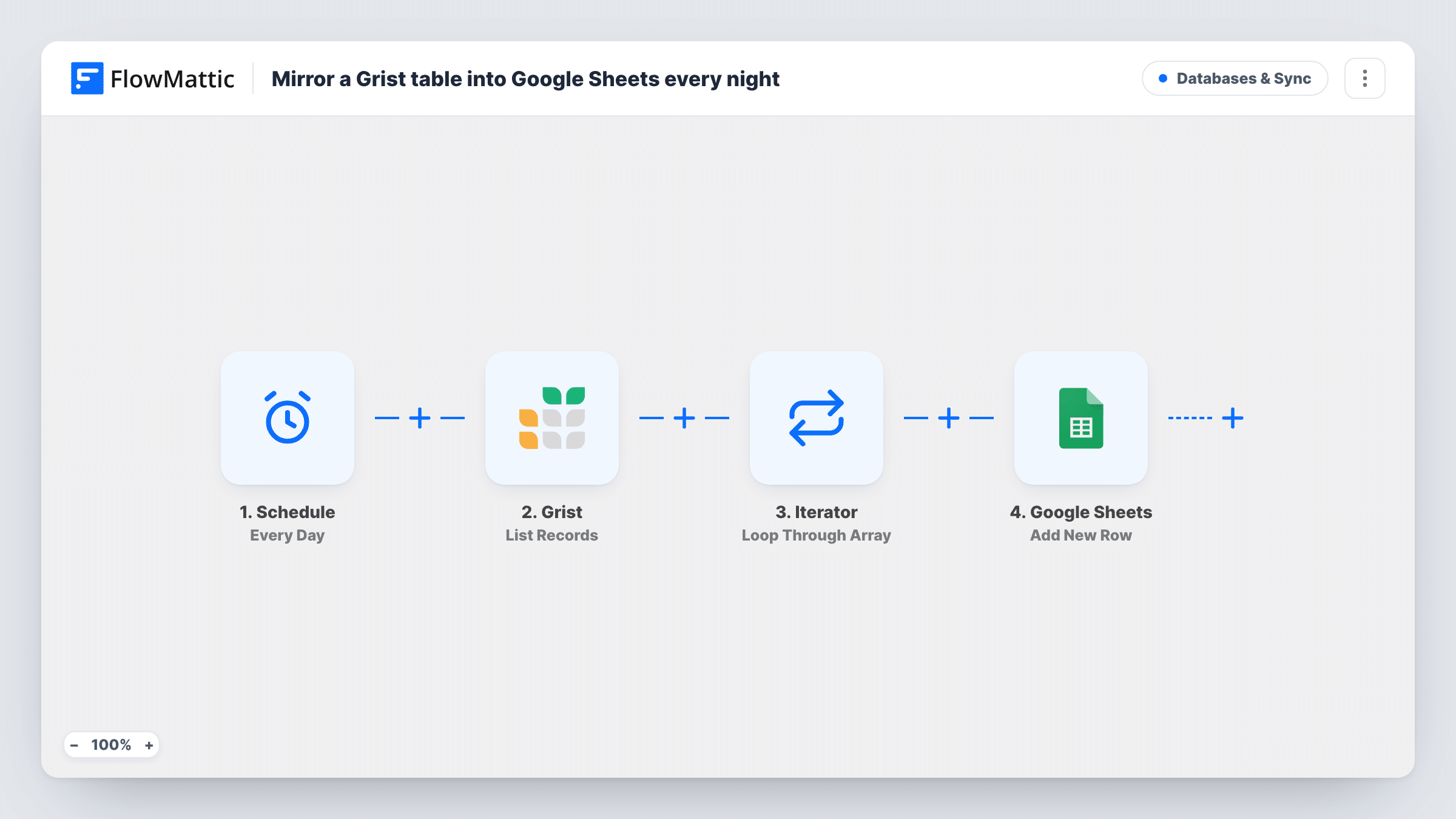
The Grist Record Added trigger starts a run for every new record in the table you connect, and passes that record's fields on. The Google Sheets step then adds one row per record.
Nothing is mapped in the Add New Row step yet. After import, connect your Google account, choose the spreadsheet and sheet, and match each Grist column to a sheet column, for example the record's name, date and amount. Put headers in the first row of the sheet before you start, so the columns are there to map.
Only new records are copied. Later edits to a record in Grist don't change the row already in the sheet, and records that existed before you turned the workflow on are not added. Run a test record and check Task History and the sheet to confirm the values landed in the right columns.
Client view of a project log
An agency logs deliverables in Grist and shares a Google Sheet with the client, which fills with each new deliverable as it is entered.
Feeding a Looker Studio report
A marketing team keeps campaign entries in Grist and points a Looker Studio report at the Google Sheet that receives every new entry.
A familiar format for the accountant
A shop records expenses in Grist, and its bookkeeper works from the Google Sheet copy that gains a row for each new expense.
How this workflow runs
What happens at each step once the workflow is on, and what you need before you import it.
 Grist Record Added
Starts a run each time a record is added to the connected Grist table. The new record's column values are passed on for mapping into the sheet.
- Google Sheets Add New Row
Adds one row to your Google Sheet for each new Grist record. No columns are mapped in the template, so pick the spreadsheet and sheet and map the Grist fields into the columns you want.
What you need
- FlowMatticCore
- Grist AccountAccount
- Google Sheets AccountAccount
After importing, map your own data. To keep the template universal, not every step is pre-filled. Open each step in the builder and connect your accounts and fields (channels, lists, sheets, recipients) before you switch the workflow on.
Make it yours
Changes worth making after you import it.
- Map the Grist record ID into a column of its own, so you can match each sheet row back to its record in Grist later.
- Put a Filter between the Grist trigger and the Google Sheets step if only some records belong in the sheet, for example ones whose Type column is invoice. The column and value are yours to set.
- If edits made in Grist should reach the sheet too, build a second workflow on the Grist Record Updated trigger that uses Lookup Row Data on the record ID column, then Update Row on the row it finds.
Questions about this workflow
Do edits to a Grist record update the Google Sheets row?
No. This workflow only runs on Record Added, so the row keeps the values the record had when it was created. Changes made later in Grist stay in Grist.
Will my existing Grist records be copied to the sheet?
No. Only records added after the workflow is turned on start a run. Export the current table from Grist and paste it into the sheet once if you want the history.
Which Grist columns end up in Google Sheets?
Only the ones you map. The Add New Row step is empty as imported, so you decide which Grist fields fill which sheet columns.
Can the same Grist record appear in the sheet twice?
Each new record starts one run and adds one row. A second row would only appear if the record were added to Grist again as a new record.
More Databases & Sync workflows
Other ready-to-import templates from the same category.





Import this workflow into your WordPress site
Download the JSON, import it from the Workflows screen and connect your accounts. Every run stays on your server, with no per-task fees.
30-day money-back guarantee Unlimited workflows and runs Self-hosted