

Email the team via Gmail when a Retainr order is declined
When an order is declined in Retainr, this workflow sends an email from your Gmail account to the team, with the order details you map, so someone can look into it and contact the client.
 Retainr
 Gmail
2 steps Setup ~5 min Used on 2.5k sites Free to import
What this workflow does
A declined order in Retainr is a client who wanted to buy and didn't get through. If nobody notices, the chance to follow up passes. This workflow turns each decline into an email your team will see.
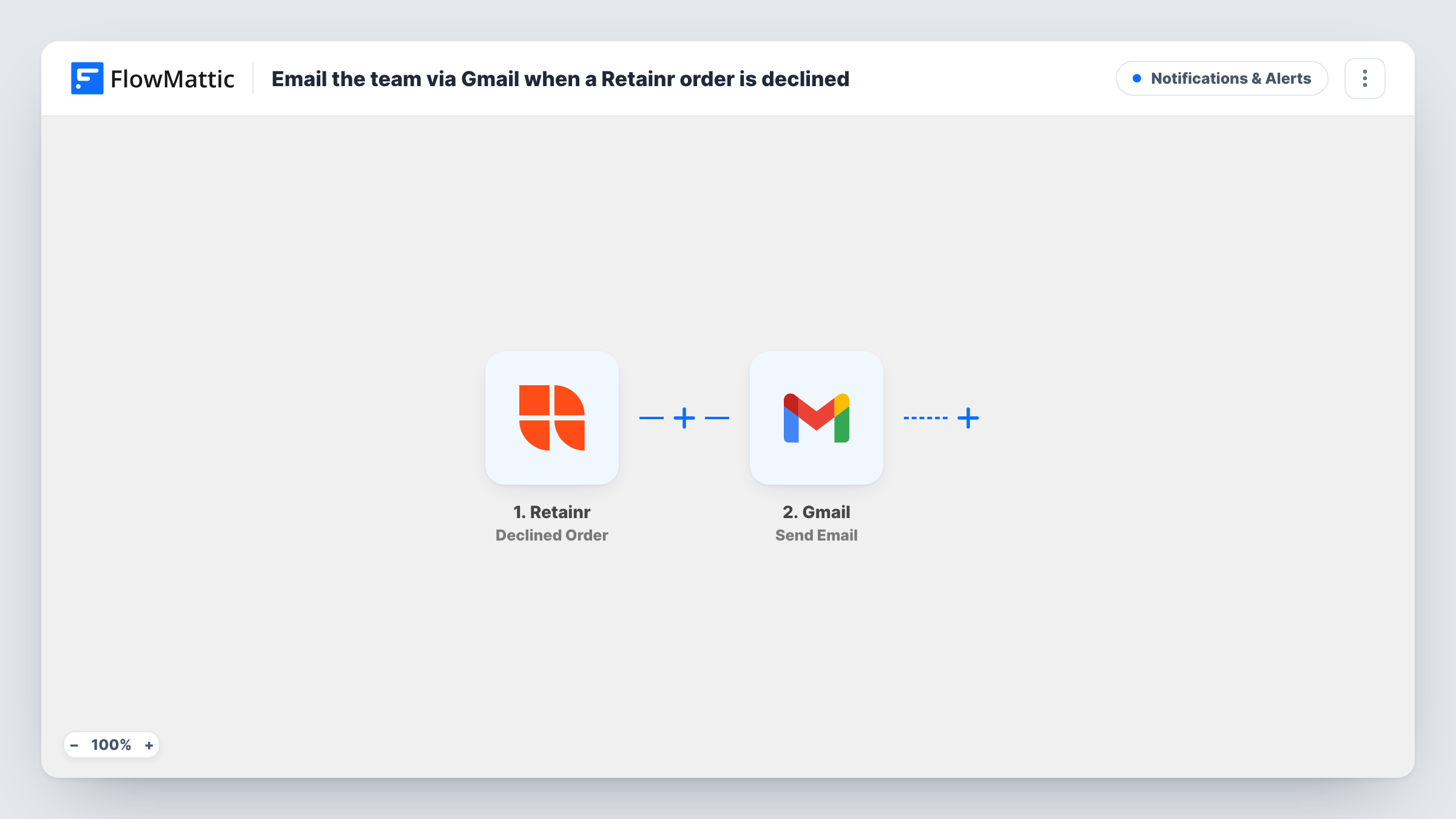
The Retainr trigger fires when an order is declined, and the order's data comes into FlowMattic. The Gmail step then sends an email from your connected Google account. You choose the recipients, such as a shared team inbox, and write the subject and body from the order fields.
Every declined order sends one email, with no conditions added as imported. The workflow only reports the decline; it does not change the order in Retainr or contact the client. Task History keeps a record of each run, which is handy if a team member asks whether an alert went out.
Agency account managers
A design agency sells retainer packages through Retainr. Each decline goes to the account manager's inbox so they can ask the client what happened.
Shared support inbox
A small team routes decline alerts to a shared Gmail address that several people watch, so the first person free picks it up.
Spotting a pattern of declines
Over a month the emails show whether declines cluster around one service, which tells you where to look first.
How this workflow runs
What happens at each step once the workflow is on, and what you need before you import it.
 Retainr Declined Order
Starts a run whenever an order is declined in your Retainr account. The order's data is passed on for the email.
- Gmail Send Email
Sends an email through your Gmail account. Set the team address as the recipient and write the subject and message from the Retainr order data, then connect Google after import.
What you need
- FlowMatticCore
- Retainr AccountAccount
- Gmail AccountAccount
After importing, map your own data. To keep the template universal, not every step is pre-filled. Open each step in the builder and connect your accounts and fields (channels, lists, sheets, recipients) before you switch the workflow on.
Make it yours
Changes worth making after you import it.
- Put the client's name from the Retainr order data in the email subject, so the team can tell which decline it is from the inbox list.
- Add a second workflow from the Retainr Accepted Order trigger if you also want the team told about orders that go through.
- Decline a test order after import, or wait for the next real one, then check Task History to see which Retainr fields arrived and map them.
Questions about this workflow
Does this workflow change anything in Retainr?
No. It only reads the declined order and sends an email. The order and the client stay as Retainr left them.
Can the Gmail alert go to more than one person?
Yes. Send it to a group address or a shared inbox that several people read, so one email reaches the whole team.
Will the client receive this email from Gmail?
Only if you set their email as the recipient. As described here, the alert goes to your team, which is the safer choice for internal notes about the decline.
Which Gmail account sends the declined-order email?
Whichever Google account you link when you set up the Gmail step after import. The email appears in that account's Sent folder.
More Notifications & Alerts workflows
Other ready-to-import templates from the same category.





Import this workflow into your WordPress site
Download the JSON, import it from the Workflows screen and connect your accounts. Every run stays on your server, with no per-task fees.
30-day money-back guarantee Unlimited workflows and runs Self-hosted