

Log every new Uploadcare file upload in a Google Sheets spreadsheet
Each file uploaded to your Uploadcare project is recorded as a new row in Google Sheets, so you have one list of uploads that you can search, sort and share with your team.
 Uploadcare
 Google Sheets
2 steps Setup ~5 min Used on 2.6k sites Free to import
What this workflow does
Uploadcare stores the files people send through your site or app, but a dashboard is not always the easiest place to review them. When a team needs to check what arrived, from whom and when, a spreadsheet is often handier. This workflow writes a row for every new upload.
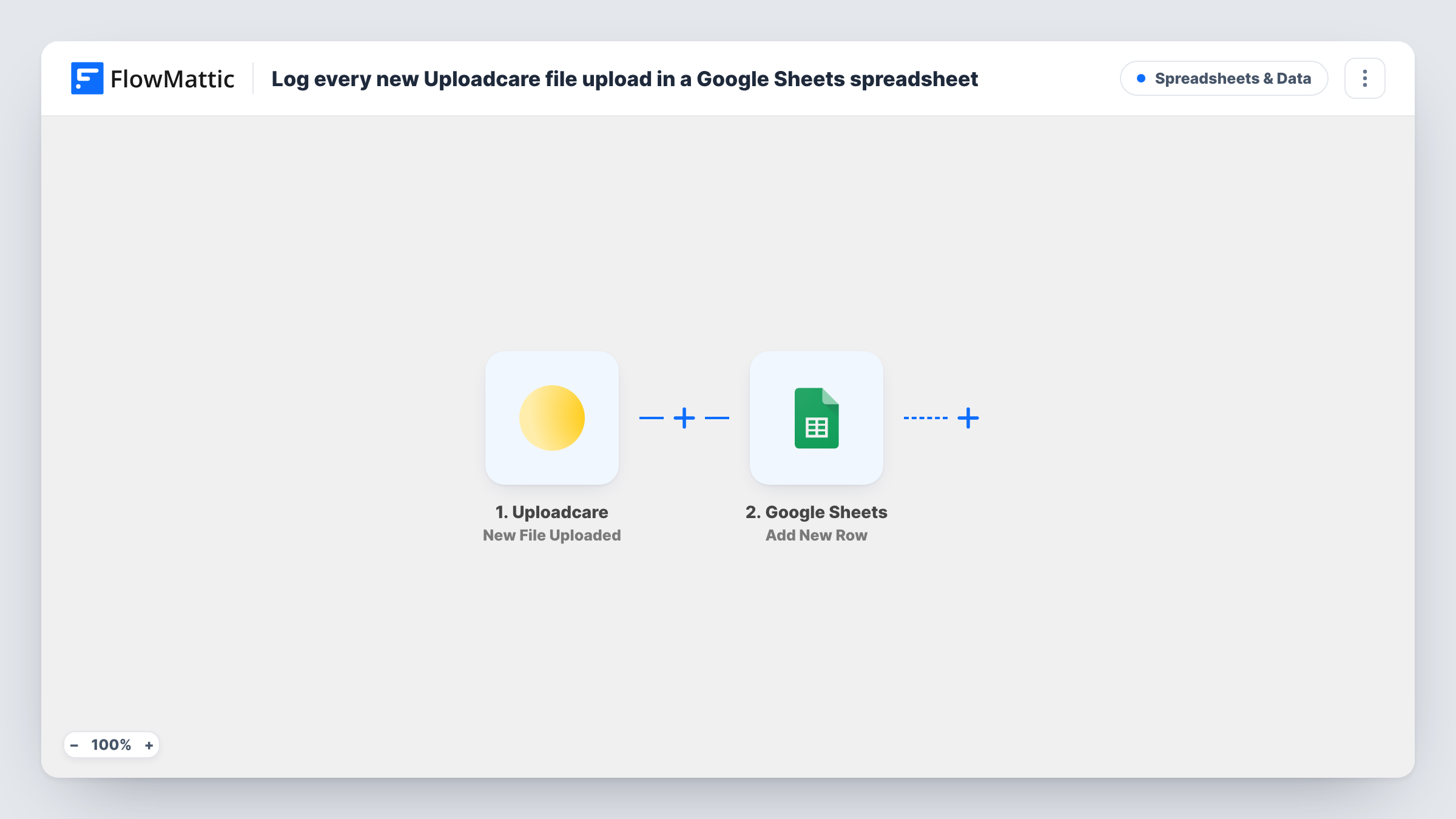
The Uploadcare trigger runs on New File Uploaded. FlowMattic receives the file data from Uploadcare and passes it to the Add New Row action in Google Sheets. You map the file values you want, such as its name and link if Uploadcare sends them, into the columns of your sheet.
The sheet holds information about each file, not the file itself, which stays in Uploadcare. Every upload produces one row, with no conditions in between. If a file is later deleted in Uploadcare, its row stays in the sheet. Task History lists each run in case a row is missing.
Client document intake
Clients upload contracts or briefs through an Uploadcare widget on your site. Your team works through the sheet to see what came in each day.
Content submissions for review
Contributors send photos or videos, and an editor adds an Approved column in the sheet to mark which uploads to publish.
Upload log for support
When a customer says they sent a file, support checks the sheet first to confirm it reached Uploadcare.
How this workflow runs
What happens at each step once the workflow is on, and what you need before you import it.
 Uploadcare New File Uploaded
Starts a run for each file that lands in Uploadcare. The file data Uploadcare sends is passed to the Google Sheets step for mapping.
- Google Sheets Add New Row
Records the Uploadcare file as one new row in the spreadsheet you select. Map the file values to columns and connect your Google account when you import.
What you need
- FlowMatticCore
- Uploadcare AccountAccount
- Google Sheets AccountAccount
After importing, map your own data. To keep the template universal, not every step is pre-filled. Open each step in the builder and connect your accounts and fields (channels, lists, sheets, recipients) before you switch the workflow on.
Make it yours
Changes worth making after you import it.
- Upload a test file after import so FlowMattic captures real Uploadcare data. Then map the values in the Google Sheets step and check the row it adds.
- Add a Filter after the trigger if only some files should be logged, for example continue only when the file name contains .pdf.
- Add a Slack or email step after Google Sheets if someone needs to know about each upload as it arrives, using the same file data.
Questions about this workflow
Does Google Sheets store a copy of the Uploadcare file?
No. The row holds the values you map from the upload, such as a link if Uploadcare provides one. The file itself stays in Uploadcare.
Are files already in Uploadcare added to the sheet?
No. Only uploads made after the workflow is turned on start a run and get a row.
What happens to the row when a file is deleted in Uploadcare?
Nothing. The workflow only adds rows for new uploads, so the row for a deleted file stays until you remove it.
Which Uploadcare file details can I log?
Whatever the New File Uploaded trigger returns. Upload a test file and look at the captured data in the Google Sheets step to see your options.
More Spreadsheets & Data workflows
Other ready-to-import templates from the same category.



Import this workflow into your WordPress site
Download the JSON, import it from the Workflows screen and connect your accounts. Every run stays on your server, with no per-task fees.
30-day money-back guarantee Unlimited workflows and runs Self-hosted