

Mirror new Caspio records into an Airtable base
When a record is added to a Caspio table, FlowMattic creates a matching record in the Airtable base and table you choose, so new entries appear in both places without copying them across.
 Caspio
 Airtable
2 steps Setup ~5 min Used on 2.2k sites Free to import
What this workflow does
Some teams build their data apps in Caspio but plan, report or collaborate in Airtable. Keeping the two in step by hand means retyping every new entry. This workflow copies each new Caspio record into Airtable as soon as it is added.
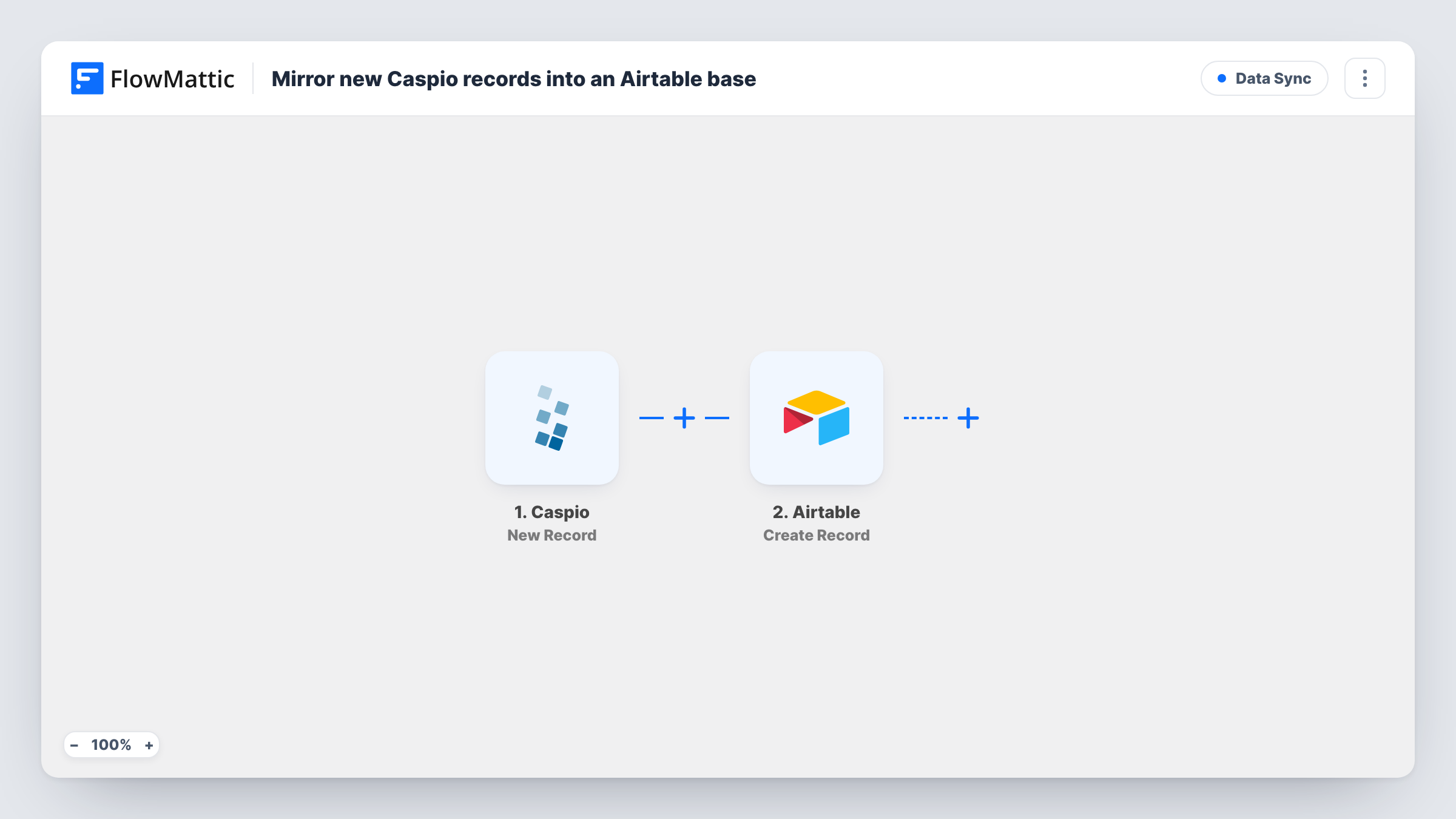
The Caspio trigger, New Record, starts a run for each record saved into the Caspio table you watch. FlowMattic passes the record's fields to Airtable, where Create Record adds a new record to your chosen table, filled with the Caspio values you mapped to each field.
This mirror is one-way and covers new records only. If someone later edits or deletes the Caspio record, the Airtable copy stays as it was, because those are separate Caspio triggers. Changes made in Airtable never go back to Caspio.
Field data into a planning base
Inspectors submit site reports through a Caspio app, and each report also appears in the Airtable base the project managers use to schedule follow-up work.
Registrations for an events team
A Caspio registration form stores sign-ups, and the events team works from an Airtable copy where they add seating and dietary notes.
Moving to Airtable gradually
While a team trials Airtable, every new Caspio record is copied there, so they can test views and automations on live data.
How this workflow runs
What happens at each step once the workflow is on, and what you need before you import it.
 Caspio New Record
Starts a run each time a record is added to the watched Caspio table. The record's fields are passed on for mapping in Airtable.
- Airtable Create Record
Adds a matching record to the Airtable table you select. Map each Caspio field to an Airtable field, and connect your Airtable account on import.
What you need
- FlowMatticCore
- Caspio AccountAccount
- Airtable AccountAccount
After importing, map your own data. To keep the template universal, not every step is pre-filled. Open each step in the builder and connect your accounts and fields (channels, lists, sheets, recipients) before you switch the workflow on.
Make it yours
Changes worth making after you import it.
- If your Caspio table has a unique ID field, map it to its own Airtable field, so you can find the copy later if you add an update workflow.
- Match field types between the two tables, such as dates to date fields and numbers to number fields, so Airtable accepts the values.
- Add a Filter after the trigger if only some Caspio records belong in Airtable, for example ones with a particular status.
Questions about this workflow
Do edits in Caspio update the Airtable copy?
No. The template reacts to new Caspio records only and always creates a fresh Airtable record. Edits to the original are not copied.
Do my Caspio and Airtable tables need the same fields?
No, but every Caspio value you want to keep needs a field in Airtable to map it to. Set those fields up before you map the step.
Will my existing Caspio records be copied?
No. Only records added after you turn the workflow on reach Airtable.
More Data Sync workflows
Other ready-to-import templates from the same category.





Import this workflow into your WordPress site
Download the JSON, import it from the Workflows screen and connect your accounts. Every run stays on your server, with no per-task fees.
30-day money-back guarantee Unlimited workflows and runs Self-hosted