

Notify HR by Gmail when a PeopleForce leave request is approved
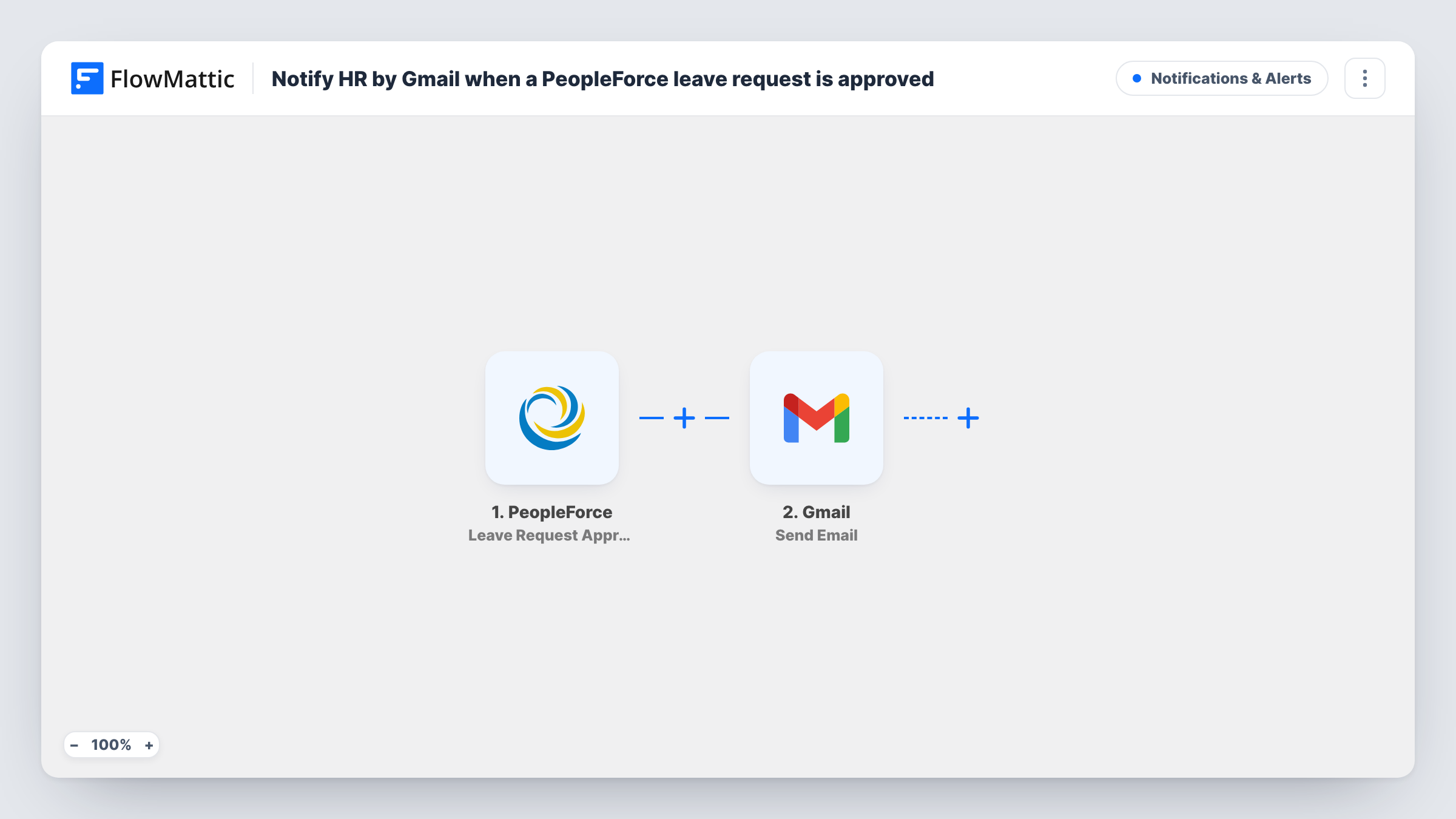
When a manager approves a leave request in PeopleForce, this workflow sends an email from your Gmail account to HR with the employee’s name and leave details, so absences are noted without anyone forwarding updates.
 PeopleForce
 Gmail
2 steps Setup ~5 min Used on 689 sites Free to import
What this workflow does
HR often needs to act on approved leave: update a rota, tell payroll, or arrange cover for a role. PeopleForce records the approval, but the people who plan around it may not watch it all day. An email to the HR inbox puts each approval where it gets read.
The PeopleForce trigger fires when a leave request is approved. FlowMattic takes the request's details and passes them to Gmail. The Send Email step sends a message from the Gmail account you connect to the address you choose, such as your HR team's inbox, with the leave details mapped in.
Rejected and withdrawn requests don't run this workflow. FlowMattic has separate PeopleForce triggers for those if HR should hear about them as well. A request that is approved and later withdrawn produces the approval email first, so a second workflow for withdrawals keeps HR's picture accurate. Every email sent is logged in Task History.
Shift planning in a retail team
The store manager approves a leave request. HR gets an email with the dates and can update next month's rota before it is published.
Payroll checks for unpaid leave
Approved leave lands in the HR inbox, where the payroll person sees each request with its leave type before the monthly run.
Arranging cover in a small clinic
Each approval email tells the practice manager who will be away and when, so they can book a locum in good time.
How this workflow runs
What happens at each step once the workflow is on, and what you need before you import it.
 PeopleForce Leave Request Approved
Fires when a leave request is approved in PeopleForce. The request's details, such as the employee and dates, are passed on for the email.
- Gmail Send Email
Emails HR from the Gmail account linked to this step. Set the HR address as recipient and map the employee name, leave type and dates from PeopleForce into the message.
What you need
- FlowMatticCore
- PeopleForce AccountAccount
- Gmail AccountAccount
After importing, map your own data. To keep the template universal, not every step is pre-filled. Open each step in the builder and connect your accounts and fields (channels, lists, sheets, recipients) before you switch the workflow on.
Make it yours
Changes worth making after you import it.
- Import a second copy on PeopleForce's Leave Request Withdrawn trigger, so HR also hears when approved leave is cancelled.
- Put the employee name and leave dates in the subject line. HR can then scan the inbox without opening each email.
- Approve a test leave request after import so FlowMattic captures PeopleForce's fields, then map them into the Gmail message.
Questions about this workflow
Does HR get an email for rejected PeopleForce leave requests?
No. The trigger fires only on approvals. PeopleForce has a Leave Request Rejected trigger in FlowMattic if you want a separate email for those.
Can the Gmail email go to several HR people?
Send it to a shared HR address or a group inbox, and everyone on it receives the same email.
Does the employee receive this approval email too?
Not as imported. It goes to the recipient you set. Add a second Send Email step with the employee's email mapped in if they should get a copy.
Will past PeopleForce approvals be emailed?
No. Only requests approved after you switch on the workflow send an email.
More Notifications & Alerts workflows
Other ready-to-import templates from the same category.




Import this workflow into your WordPress site
Download the JSON, import it from the Workflows screen and connect your accounts. Every run stays on your server, with no per-task fees.
30-day money-back guarantee Unlimited workflows and runs Self-hosted