

Notify the approver by Gmail when a Juro contract approval is requested
When a Juro contract approval request goes out, this workflow sends an email from your Gmail account, so the approver gets a second, personal note about the contract waiting for them.
 Juro
Juro
 Gmail
Gmail2 steps Setup ~5 min Used on 729 sites Free to import
What this workflow does
Contracts often stall at approval. Juro sends its own request email, but that can get lost among system notifications. This workflow adds a note from a Gmail address you choose, with the contract named in the subject if Juro sends it. This workflow sends one each time an approval is requested.
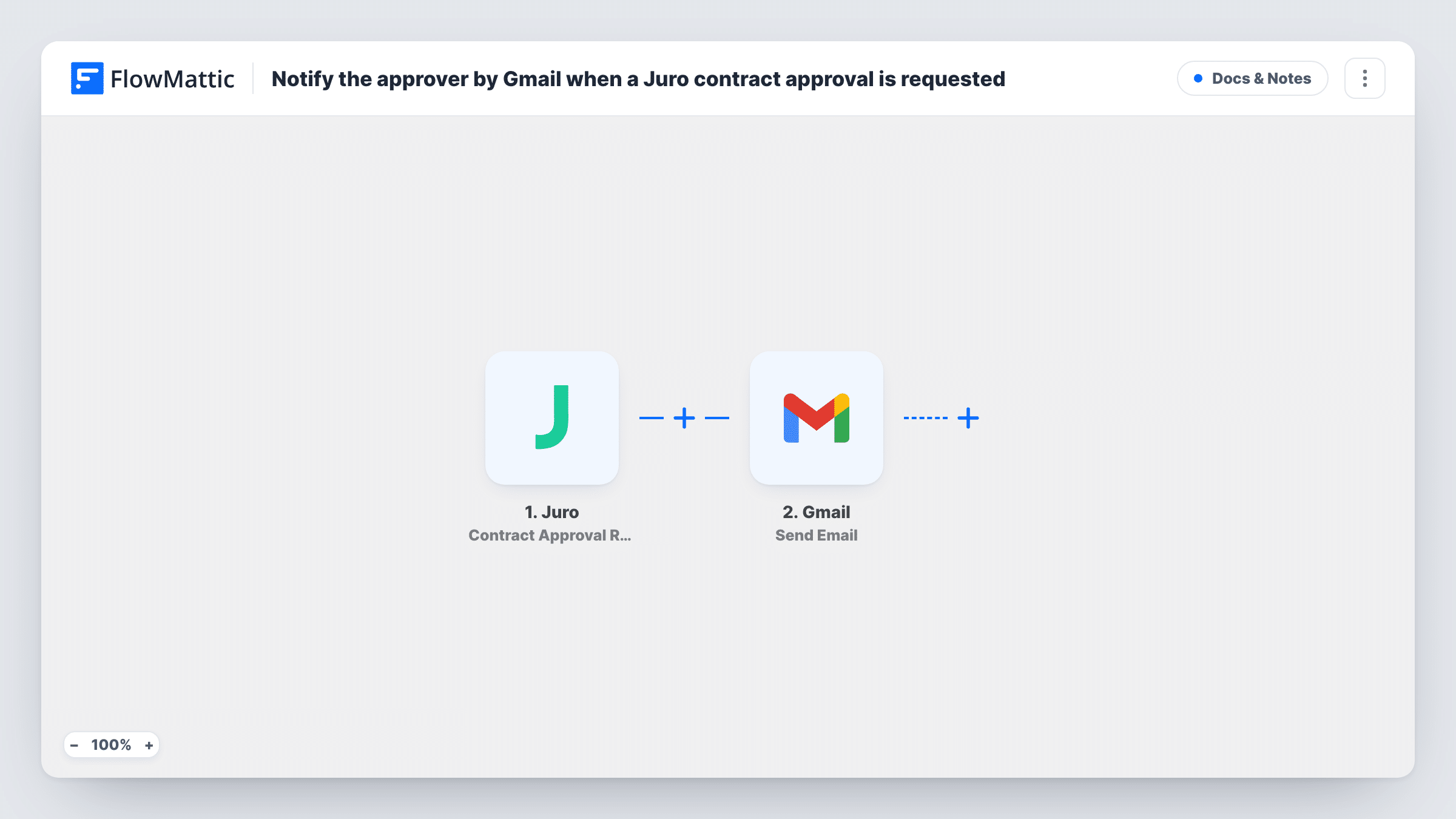
The Juro trigger fires when an approval request for a contract is sent out by email. FlowMattic passes the contract details from Juro to Gmail, where Send Email sends a message to the recipient you set. You write the subject and body and place Juro values in them.
The email can go to the approver only if Juro includes their address in the event. Check a test run first. If it isn't there, send to a fixed address, such as your legal team's inbox. Juro's own request email still goes out as usual.
Sales contracts waiting on finance
A sales rep requests approval in Juro. The finance approver also gets a Gmail message from your connected account naming the deal, alongside Juro's own request.
Legal team inbox for every request
Send each approval email to a shared legal inbox, so the legal team sees every contract waiting for sign-off in one place.
Supplier agreements needing a director's approval
When a supplier contract needs a director's approval, the director gets a short, personal Gmail note alongside Juro's request.
How this workflow runs
What happens at each step once the workflow is on, and what you need before you import it.
 Juro Contract Approval Requested
Fires when Juro sends out an approval request for a contract by email. The contract details in the event are passed to the Gmail step.
- Gmail Send Email
Emails the approval notice through the Gmail account linked to this step. Set the recipient, either the approver's address from Juro if the event carries it or a fixed address, and write the subject and message.
What you need
- FlowMatticCore
- Juro AccountAccount
- Gmail AccountAccount
After importing, map your own data. To keep the template universal, not every step is pre-filled. Open each step in the builder and connect your accounts and fields (channels, lists, sheets, recipients) before you switch the workflow on.
Make it yours
Changes worth making after you import it.
- Request an approval on a test contract in Juro after import. The captured data shows whether the approver's email is included before you map the recipient.
- Put the contract name in the subject line, if the Juro data includes it, so the approver can tell requests apart in their inbox.
- Juro also has a Contract Created trigger in FlowMattic. A separate workflow on it can log new contracts to a sheet for tracking.
Questions about this workflow
Does Juro still send its own approval email?
Yes. The workflow only reacts to the request Juro sends. It doesn't change Juro's emails, so the approver gets both.
Can the Gmail message go to the Juro approver automatically?
Only if Juro includes the approver's email in the event data. Check a test run. If it isn't there, send to a fixed address instead.
Which Gmail account sends the approval reminder?
Whichever Gmail account you link to this workflow's Send Email step. Use a shared or team account if the email shouldn't come from one person.
More Docs & Notes workflows
Other ready-to-import templates from the same category.





Import this workflow into your WordPress site
Download the JSON, import it from the Workflows screen and connect your accounts. Every run stays on your server, with no per-task fees.
30-day money-back guarantee Unlimited workflows and runs Self-hosted