

Save new Sitejet form submissions to a Google Sheets spreadsheet
Every new form submission on your Sitejet website becomes a row in Google Sheets, with the fields you map in their own columns, so enquiries are kept in a sheet your team can sort and share.
 Sitejet
 Google Sheets
2 steps Setup ~5 min Used on 2.6k sites Free to import
What this workflow does
Sitejet sites often belong to clients who want their enquiries somewhere simple. A Google Sheet is easy to open on any device, easy to share with a colleague, and easy to filter by date or service. This workflow adds each new Sitejet form submission to that sheet without anyone copying it across.
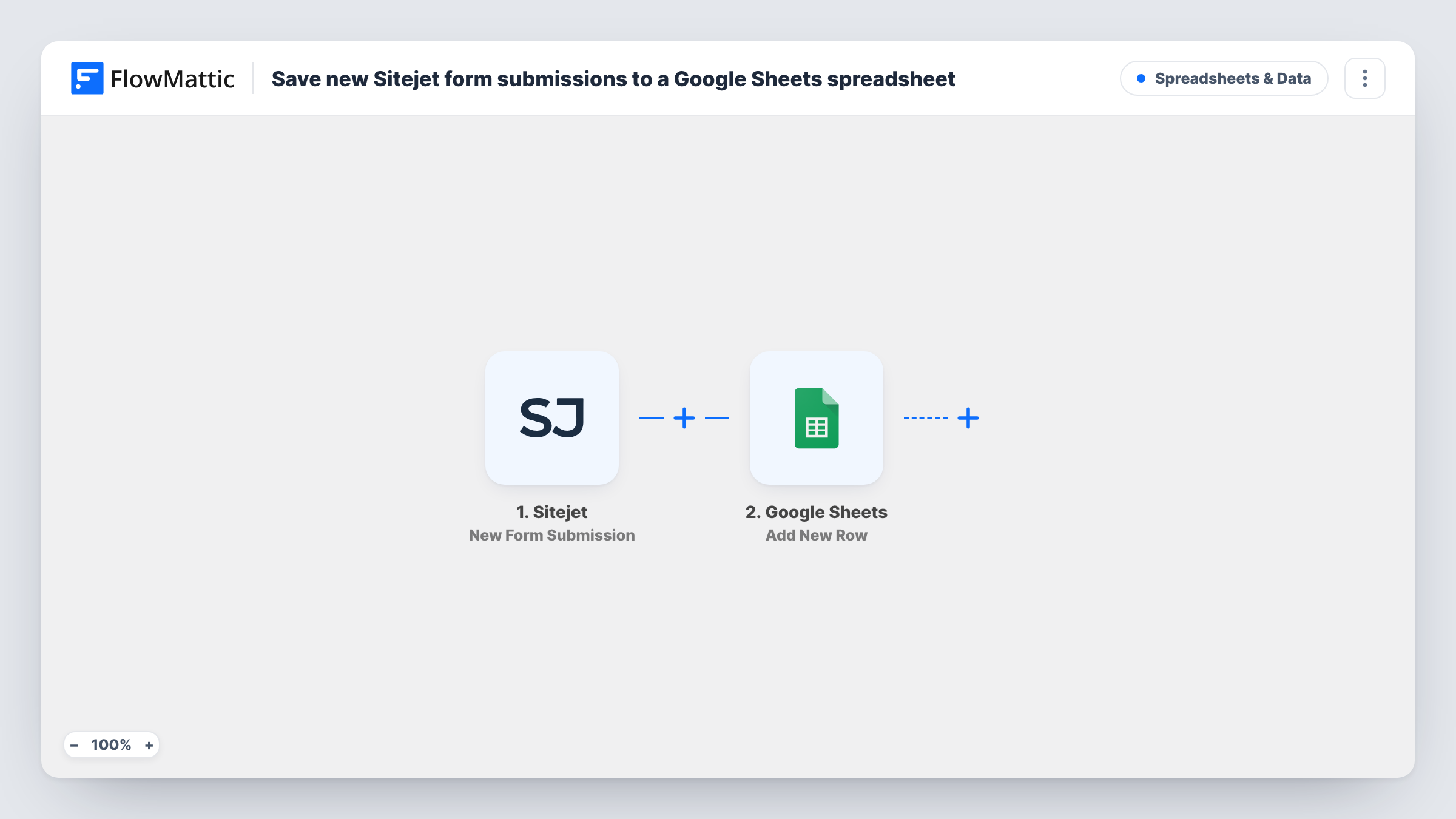
The Sitejet trigger, New Form Submission, fires when a form on your Sitejet site is submitted. Everything the visitor typed is handed to FlowMattic as mappable data. The Google Sheets step, Add New Row, then writes those fields to a new row in the spreadsheet you choose.
Each submission adds exactly one row, including repeat messages from the same visitor. Set up your column headers before mapping, one for each form field you want to keep. Task History lists every run, which helps if you need to confirm a submission was saved.
Agency handing leads to a client
An agency builds a client's site in Sitejet and shares the enquiry sheet with the client, who sees each new contact request as a row without needing a Sitejet login.
Restaurant booking requests
Table requests from a Sitejet contact form fill a sheet the front-of-house team checks each morning to call guests back.
Service quotes for a trades business
Quote requests from a Sitejet form are logged with the job type and postcode, so the owner can sort the sheet and plan visits by area.
How this workflow runs
What happens at each step once the workflow is on, and what you need before you import it.
 Sitejet New Form Submission
Fires when a visitor submits a form on your Sitejet website. Each submitted field becomes available to map into a column of the sheet.
- Google Sheets Add New Row
Writes the submission into a new row of the Google Sheets spreadsheet you pick. Map every form field to its column and connect your Google account on import.
What you need
- FlowMatticCore
- Sitejet AccountAccount
- Google Sheets AccountAccount
After importing, map your own data. To keep the template universal, not every step is pre-filled. Open each step in the builder and connect your accounts and fields (channels, lists, sheets, recipients) before you switch the workflow on.
Make it yours
Changes worth making after you import it.
- Add a column you fill in by hand, such as Contacted, beside the mapped columns, so whoever works the sheet can mark which enquiries have had a reply.
- If the site has more than one form, add a Filter after the trigger on a value that tells the forms apart, so only the form you want writes to this sheet.
- Send a test message through your Sitejet form after import, so FlowMattic captures the field names, then finish the column mapping using that sample.
Questions about this workflow
Does Sitejet still send its usual form email?
The workflow only receives the submission and does not change your Sitejet form settings, so any notification you set up in Sitejet keeps working.
Are older Sitejet submissions copied to the sheet?
No. Only forms submitted after you turn the workflow on are added. Copy earlier entries over once by hand if you need them.
Can I share the Google Sheet with a client?
Yes. It is a normal Google Sheets file, so share it from Google Sheets with view or edit access. The workflow keeps adding rows either way.
What if I add a field to the Sitejet form later?
Add a matching column header in the sheet, send a test entry, and map the new field in the Google Sheets step. Until then that field is not saved.
More Spreadsheets & Data workflows
Other ready-to-import templates from the same category.






Import this workflow into your WordPress site
Download the JSON, import it from the Workflows screen and connect your accounts. Every run stays on your server, with no per-task fees.
30-day money-back guarantee Unlimited workflows and runs Self-hosted