

Send a Slack message to the team when a new PeopleForce applicant is created
When a new applicant is created in PeopleForce, this workflow posts a message to a Slack channel for your hiring team, with the applicant details you choose to include.
 PeopleForce
 Slack
2 steps Setup ~5 min Used on 920 sites Free to import
What this workflow does
New candidates arrive in PeopleForce, but recruiters and hiring managers often coordinate in Slack. If nobody checks the recruiting pipeline for a day, applicants wait. This workflow tells the team in Slack each time a new applicant is created.
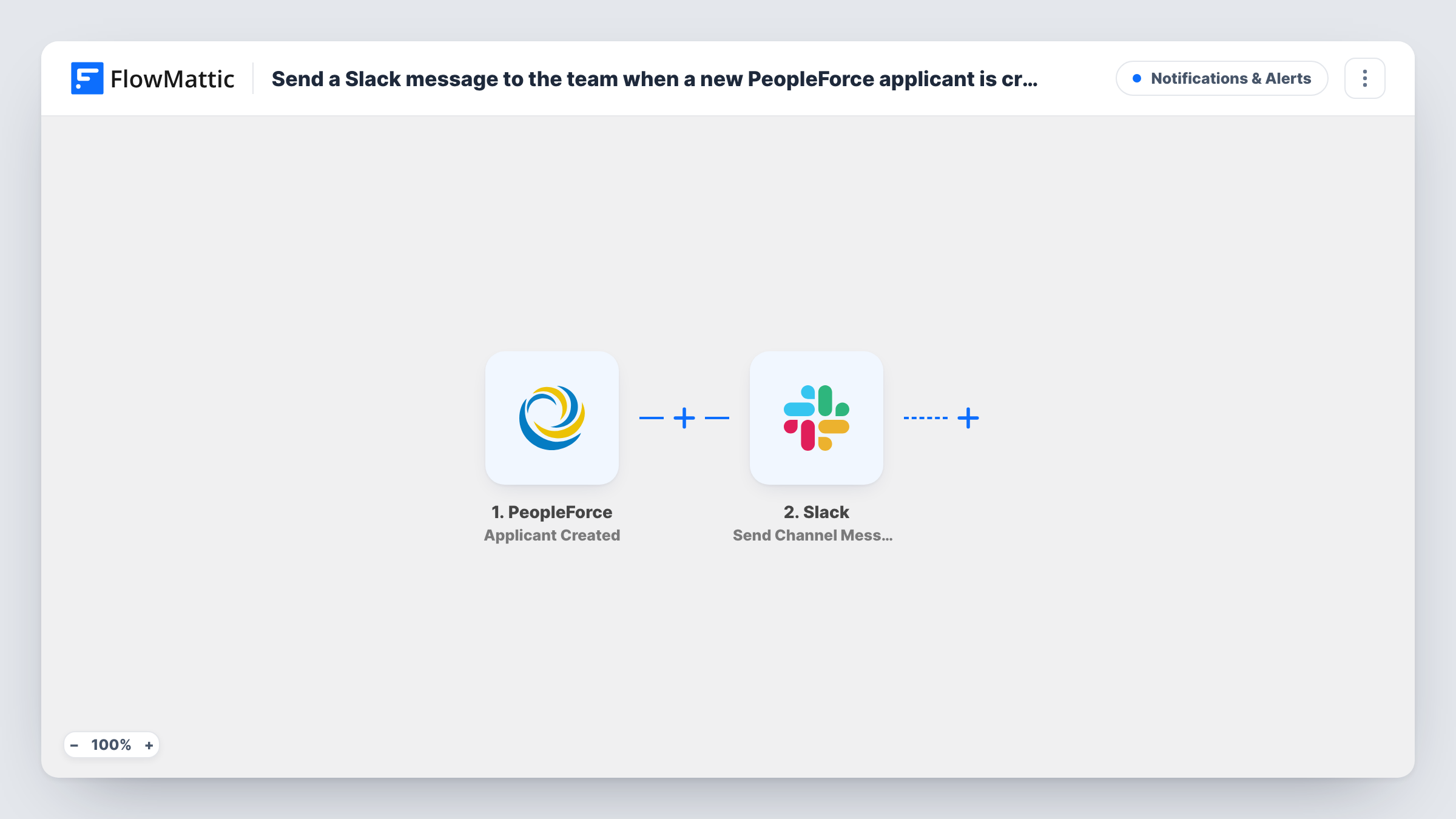
The PeopleForce Applicant Created trigger fires when a new applicant is added. FlowMattic receives the applicant's data and passes it to Slack, where Send Channel Message posts to the channel you choose. You write the message and place applicant values from PeopleForce into it.
The template has no conditions, so every new applicant creates one post, for any vacancy. Later stages, such as an accepted offer, are separate PeopleForce triggers and do not post here. Each run is logged in Task History with what went to Slack.
Hiring channel for a growing startup
Founders and team leads share a hiring channel in Slack. Each new PeopleForce applicant appears there, so the right person can pick up the review.
Recruiter handoff across time zones
Recruiters in different offices see new applicants in Slack as they come in, and whoever is online can start screening.
Hiring manager awareness
A hiring manager who rarely opens PeopleForce still sees each new candidate in the team's Slack channel and can ask for a profile review.
How this workflow runs
What happens at each step once the workflow is on, and what you need before you import it.
 PeopleForce Applicant Created
Fires when a new applicant is created in PeopleForce. The applicant's data is passed on for use in the Slack message.
- Slack Send Channel Message
Posts a message about the applicant to a Slack channel. Connect your Slack workspace, pick the channel, and map PeopleForce applicant values into the message text.
What you need
- FlowMatticCore
- PeopleForce AccountAccount
- Slack AccountAccount
After importing, map your own data. To keep the template universal, not every step is pre-filled. Open each step in the builder and connect your accounts and fields (channels, lists, sheets, recipients) before you switch the workflow on.
Make it yours
Changes worth making after you import it.
- Post to a private channel limited to the hiring team. Applicant details are personal data, so keep them away from company-wide channels.
- Hiring for several roles? If the applicant data names the vacancy, add a Router with one route per vacancy, each with its own Slack step posting to that team's channel.
- Create a test applicant in PeopleForce after import so FlowMattic captures real data, then build the Slack message from those values.
Questions about this workflow
Does every PeopleForce applicant post to Slack?
Yes, as imported. There is no filter, so each new applicant for any vacancy creates one Slack message. A Filter placed before the Slack step can narrow that down to the applicants you care about.
Will Slack get a message when a PeopleForce offer is accepted?
Not from this workflow. PeopleForce has an Applicant Offer Accepted trigger in FlowMattic that you can use in a second workflow for that.
Can the Slack message include a link to the applicant in PeopleForce?
Only if the applicant data from PeopleForce includes one, or values you can build a link from. Check the captured data from a test applicant.
Are applicants added before import posted to Slack?
No. Only applicants created after the workflow is turned on trigger a post. Earlier candidates stay in PeopleForce as they are.
More Notifications & Alerts workflows
Other ready-to-import templates from the same category.



Import this workflow into your WordPress site
Download the JSON, import it from the Workflows screen and connect your accounts. Every run stays on your server, with no per-task fees.
30-day money-back guarantee Unlimited workflows and runs Self-hosted