

Send Albacross Workflow data as direct messages in Slack
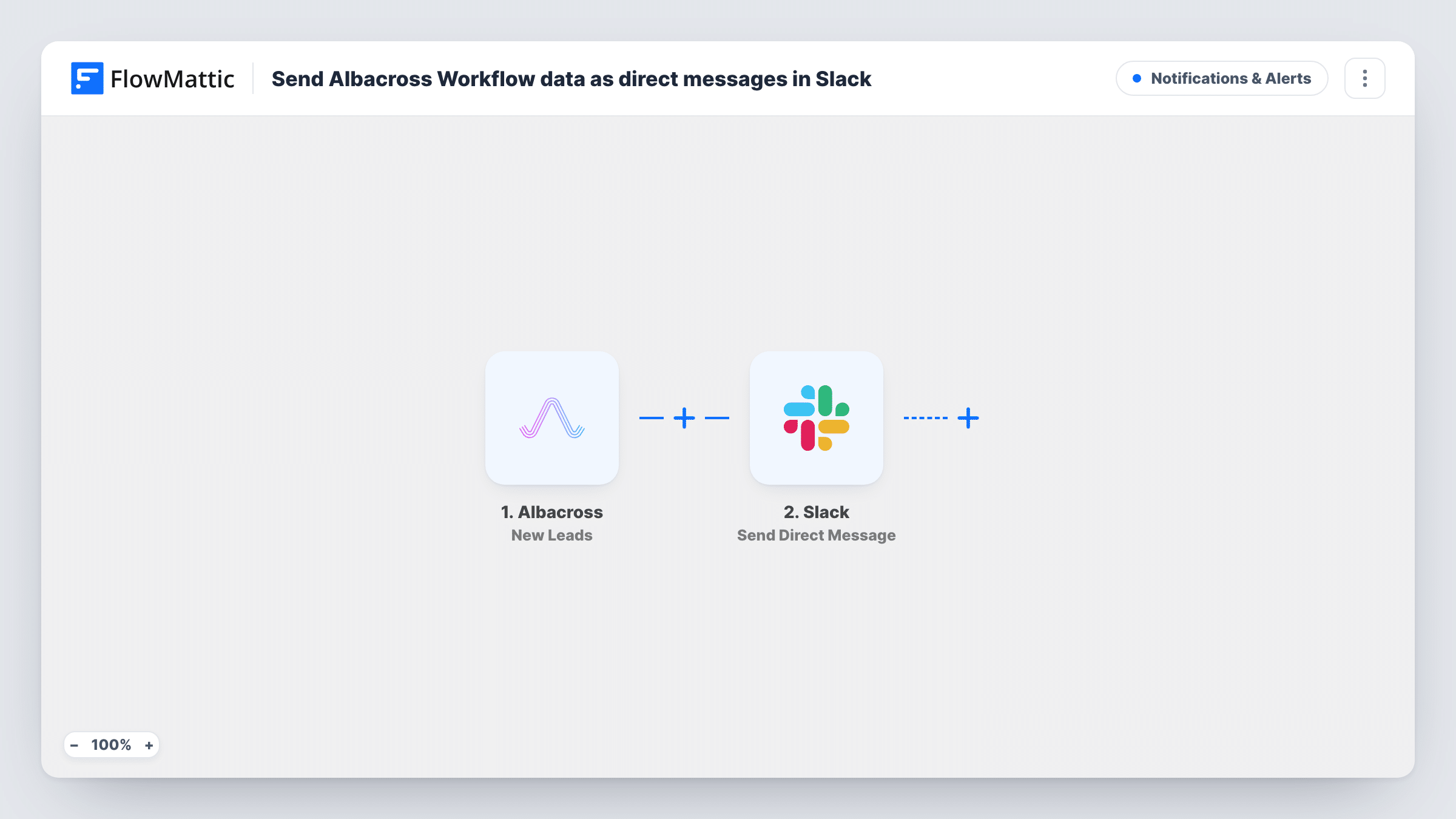
When Albacross sends FlowMattic a new lead, this workflow passes the details to a Slack user as a direct message from the Slackbot, so a sales rep can follow up without opening Albacross.
 Albacross
 Slack
2 steps Setup ~5 min Used on 2.4k sites Free to import
What this workflow does
Albacross identifies companies visiting your website and hands them over as leads. Those leads are only useful if someone looks at them while the visit is recent. A Slack direct message puts each one in front of the person who should act, in the app they already have open.
The Albacross trigger runs when leads are received from Albacross, and the lead details become data you can map. The Slack step then sends a direct message from the Slackbot to a user you choose, or to yourself. You write the message once and fill it with the lead's details.
Every lead the trigger receives produces one message, as there is no Filter between the steps. After import, connect Slack, pick the recipient and write the text. A test lead shows which fields Albacross sends. The Slack step can also schedule each message for a later time if you would rather not send it straight away.
Account owner alerts
A rep who owns a set of target accounts gets a direct message when Albacross reports a new lead, with the company details in the message.
Founder keeping an eye on traffic
A founder sends each new Albacross lead to their own Slack DMs, so they see which companies are visiting without logging in to another tool.
Handing leads to a single SDR
A small team routes every identified company to the one SDR who does outbound, as a private message rather than a channel post.
How this workflow runs
What happens at each step once the workflow is on, and what you need before you import it.
 Albacross New Leads
Runs when Albacross sends new leads to FlowMattic. The lead details are passed on for use in the Slack message.
- Slack Send Direct Message
Sends a direct message from the Slackbot to the user you pick, or to yourself. Write the message and map in the Albacross lead details.
What you need
- FlowMatticCore
- Albacross AccountAccount
- Slack AccountAccount
After importing, map your own data. To keep the template universal, not every step is pre-filled. Open each step in the builder and connect your accounts and fields (channels, lists, sheets, recipients) before you switch the workflow on.
Make it yours
Changes worth making after you import it.
- Add a Filter after the trigger if you only want leads that meet a rule, for example a country or industry value you care about. A test lead shows which fields you can check.
- Use a Router with routes that can't overlap, such as distinct country values, to send each lead to the rep who covers that region.
- Add a Google Sheets step after Slack to keep a running list of every lead the rep was told about.
Questions about this workflow
Who receives the Slack direct message for each Albacross lead?
The Slack user you select in the step after import, or yourself. The message comes from the Slackbot.
What is the difference between New Leads and All Leads in Albacross?
FlowMattic's Albacross app has both triggers. This template uses New Leads, which runs when leads are received. Check the Albacross documentation for how each is defined.
Can the Slack message wait until working hours?
The Send Direct Message action can schedule a message for later. Set that in the step if you don't want messages overnight.
Does every Albacross lead produce a DM?
Yes, each lead the trigger receives sends one message. Put a Filter before the Slack step if a rep should only hear about some of them.
More Notifications & Alerts workflows
Other ready-to-import templates from the same category.



Import this workflow into your WordPress site
Download the JSON, import it from the Workflows screen and connect your accounts. Every run stays on your server, with no per-task fees.
30-day money-back guarantee Unlimited workflows and runs Self-hosted