

Send an email via Gmail confirming a new Sitejet form submission
When a visitor submits a form on your Sitejet website, this workflow sends them a confirmation email from your Gmail account, so they know their message reached you and the reply comes from a real inbox.
 Sitejet
 Gmail
Gmail2 steps Setup ~5 min Used on 3.0k sites Free to import
What this workflow does
Someone who fills in a contact form and hears nothing back often wonders if it worked. A short confirmation from your own Gmail address settles that, and any reply they send lands in the inbox you already read. This workflow sends that email for every Sitejet form entry.
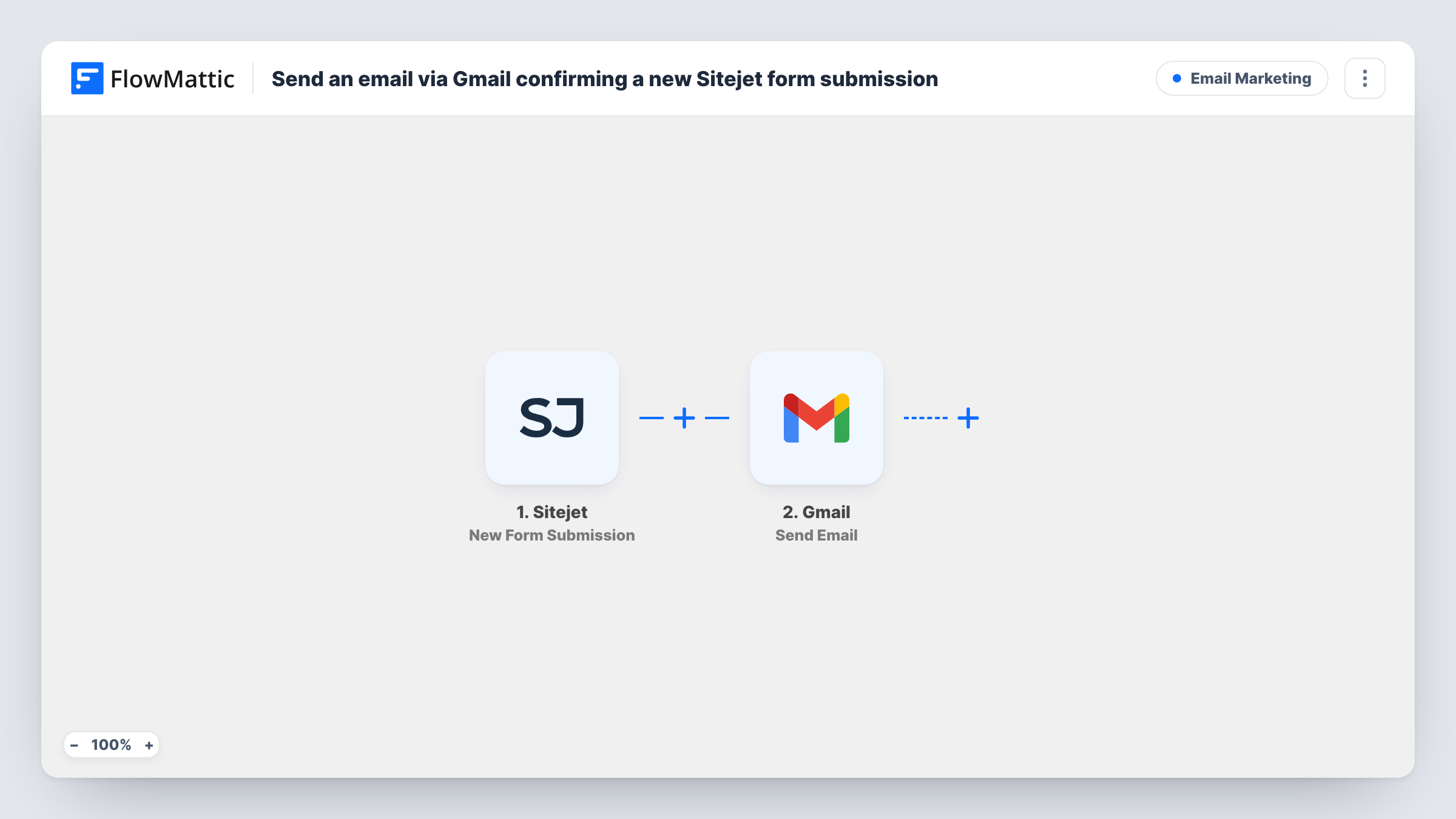
The Sitejet trigger fires when a new form submission occurs on your site. The answers in that entry, including the visitor's email address, are passed to the next step for mapping.
Next, Gmail sends the confirmation through whichever Google account you link to the step. Map the submitted email address as the recipient and write the subject and body yourself, pulling in the visitor's name or their message where it helps. Every submission gets an email, because the template has no Filter. If a form has no email field, or the visitor leaves it blank, the Gmail step has nowhere to send, and Task History shows the error for that run.
Contact form on a service business site
A plumber's Sitejet site confirms each enquiry from the owner's Gmail address, so customers can reply straight to that message with photos or extra details.
Quote requests for a design studio
Visitors asking for a quote get an email repeating what they sent, which lets them spot a wrong phone number or date before the studio calls.
Event interest forms
People who register interest through a Sitejet form get a Gmail confirmation that names the event they picked, taken from the form answer.
How this workflow runs
What happens at each step once the workflow is on, and what you need before you import it.
 Sitejet New Form Submission
Starts a run for each new form submission on your Sitejet website. The visitor's answers, including the email address they typed, become values you can map.
- Gmail Send Email
Emails the visitor through the Google account linked to this Gmail step. Map the submitted email address as the recipient, then write the subject and message using any form answers you want to repeat back.
What you need
- FlowMatticCore
- Sitejet AccountAccount
- Gmail AccountAccount
After importing, map your own data. To keep the template universal, not every step is pre-filled. Open each step in the builder and connect your accounts and fields (channels, lists, sheets, recipients) before you switch the workflow on.
Make it yours
Changes worth making after you import it.
- Set the email field in your Sitejet form as required, so every entry gives the Gmail step an address to write to.
- If one Sitejet site has several forms and only one should send a confirmation, add a Filter after the trigger that checks a value telling the forms apart.
- Submit a test entry after import so FlowMattic captures the form's fields, then map the recipient and message in the Gmail step and check the email you receive.
Questions about this workflow
Which address does the Sitejet confirmation come from?
It comes from the Google account you link to this workflow's Gmail step. Replies from visitors go to that inbox.
What if a visitor leaves the email field empty on the Sitejet form?
The Gmail step has no recipient for that run, so no email goes out and Task History shows the error. Marking that field as required in Sitejet keeps it from happening.
Does this replace Sitejet's own form notification to me?
No. The workflow only reads new submissions and emails the visitor. Whatever notifications you have set up in Sitejet carry on as before.
Can I send the Sitejet confirmation from a different email service?
Yes. Swap the Gmail step for another email action in FlowMattic, such as the built-in Email step with your SMTP details, and map the same fields.
More Email Marketing workflows
Other ready-to-import templates from the same category.





Import this workflow into your WordPress site
Download the JSON, import it from the Workflows screen and connect your accounts. Every run stays on your server, with no per-task fees.
30-day money-back guarantee Unlimited workflows and runs Self-hosted