

Send emails via Gmail when Google Sheets rows are updated
When a row in your Google Sheets spreadsheet is added or changed, FlowMattic sends an email from your Gmail account with values from that row, so the people who need to know hear about it without watching the sheet.
 Google Sheets
 Gmail
2 steps Setup ~5 min Used on 626 sites Free to import
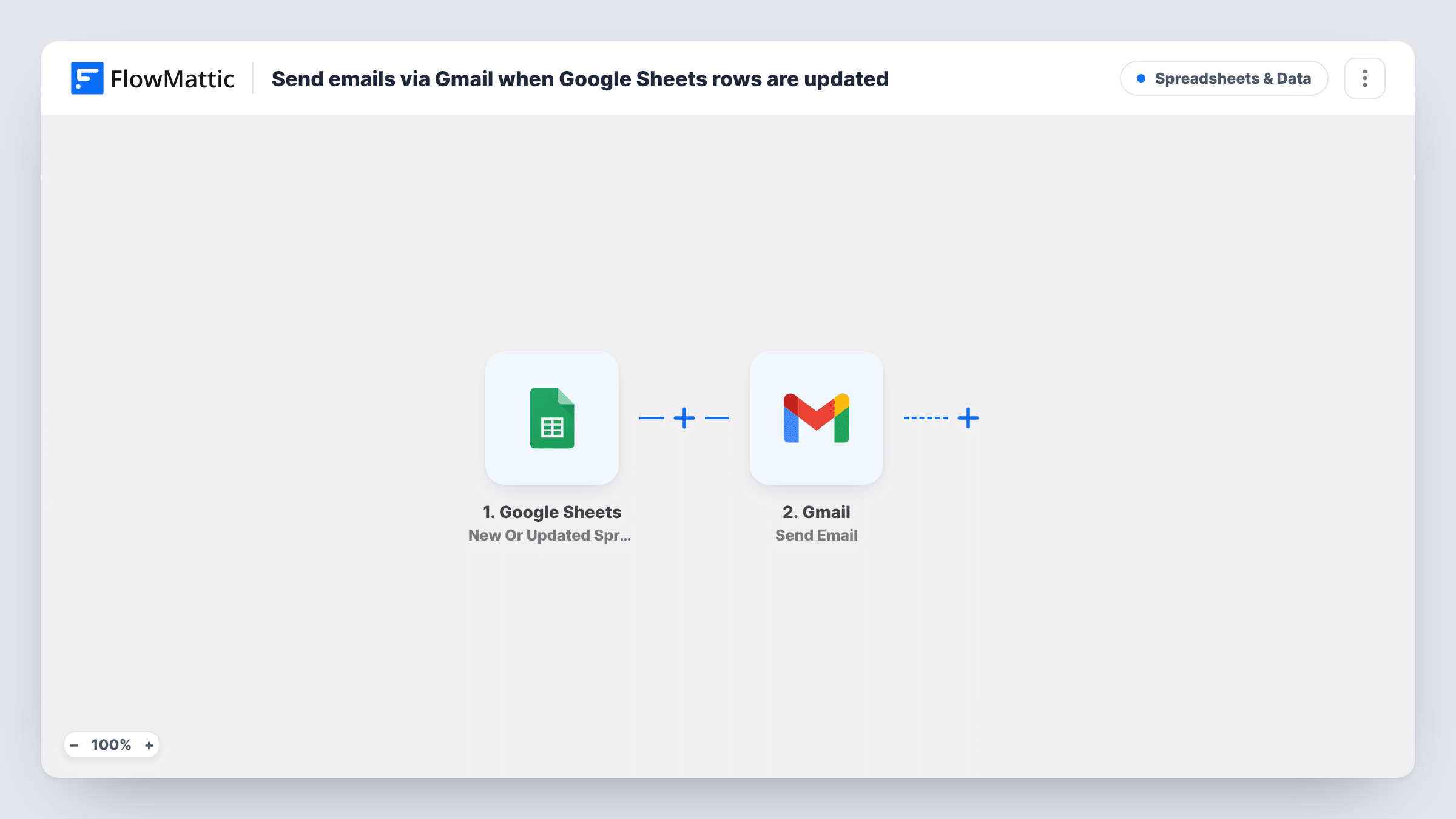
What this workflow does
Shared spreadsheets change all day, and nobody wants to keep refreshing one to spot what moved. This workflow lets the sheet tell people instead. Each time a row is updated in Google Sheets, an email goes out through Gmail.
The trigger is New Or Updated Spreadsheet Row on the spreadsheet you connect. When it fires, the row's cell values become data you can use. The Gmail step then sends an email to the recipient you set. You write the subject and body, and drop in values from the row, such as a name, a status or an amount. The recipient can be a fixed address or an email address stored in the row itself.
Every new or changed row sends a message, so a busy sheet means a busy inbox. If only some changes matter, a Filter between the two steps keeps the rest quiet, as the tips explain. Emails go out from the Gmail account you connect, and Task History lists each run.
Tell a customer their order status changed
Your team tracks orders in a sheet with an email column. When someone edits a row, the customer in that row gets a Gmail message showing the row's current status.
Alert a manager to new rows in a request sheet
Staff add purchase or leave requests to a shared sheet. Each new or edited row emails the manager with the details, so nothing waits unseen.
Notify a client of project updates
A sheet lists deliverables and their state. A change to a row emails the client contact with the deliverable name and the new state.
How this workflow runs
What happens at each step once the workflow is on, and what you need before you import it.
 Google Sheets New Or Updated Spreadsheet Row
Runs when a row in your connected Google Sheets spreadsheet is added or updated. The values in that row are passed on, ready to use in the email.
- Gmail Send Email
Sends an email from your Gmail account to the recipient you set. Write the subject and message, and map values from the spreadsheet row into them, including the recipient address if the row holds one.
What you need
- FlowMatticCore
- Google Sheets AccountAccount
- Gmail AccountAccount
After importing, map your own data. To keep the template universal, not every step is pre-filled. Open each step in the builder and connect your accounts and fields (channels, lists, sheets, recipients) before you switch the workflow on.
Make it yours
Changes worth making after you import it.
- Add a Filter after the trigger so only rows with a certain value send email, for example a Status column equal to Shipped, and every other edit stays silent.
- Add a Ready column and filter on it. Editors fill in the row first, then type Yes in Ready, and only rows marked Yes send the Gmail message.
- Edit a test row after import so FlowMattic captures the column values, then map them into the Gmail subject, body and recipient.
Questions about this workflow
Does every edit in the Google Sheets row send a Gmail message?
Yes, as imported. Each new or updated row starts a run and sends an email. Add a Filter to limit which changes send one.
Can the email go to an address stored in the spreadsheet?
Yes. Map the email column from the row into the recipient of the Gmail step, so each row's message goes to its own address.
Which account do the emails come from?
The Gmail account you connect when you import the workflow. Messages show in its Sent folder like any other email you send.
Does it work with any Google Sheets spreadsheet?
It works with a spreadsheet the Google account you connect can open. Choose that spreadsheet when you set up the trigger after import.
More Spreadsheets & Data workflows
Other ready-to-import templates from the same category.




Import this workflow into your WordPress site
Download the JSON, import it from the Workflows screen and connect your accounts. Every run stays on your server, with no per-task fees.
30-day money-back guarantee Unlimited workflows and runs Self-hosted